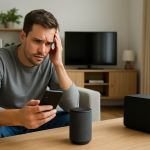
Alexa Microphone Not Working: How to Tell and What to Do
Quick Answer
Most “dead microphone” reports on Echo speakers and displays come down to one of three things: the mic is muted, the mic openings are blocked, or the audio input path is failing (privacy settings, software, or hardware). The fastest wins are checking the mic mute light, clearing anything covering the mic holes, and confirming in the Alexa app that the device is online and listening.
If Alexa won’t respond to the wake word but responds when you tap a button (like an on-screen mic button on an Echo Show) or responds to app controls, that usually points to a microphone input issue rather than a full device failure. Work through the steps below in order to separate “muted/blocked” from “software/account” and from “hardware.”
Why This Happens
Echo devices rely on a microphone array (multiple mics) and a processing path that includes local detection (hearing the wake word), privacy controls (mute), and cloud services (processing your request). When the mic seems dead, it’s often because the device is intentionally not listening (muted), physically can’t hear you well (blocked or poorly placed), or the input path is disrupted (permissions, firmware, or a failing mic array).
Common causes that fit this pattern include:
1) Microphone mute is enabled. This is the dominant cause. On most Echo speakers, a red light ring or red indicator means the microphones are off. On Echo Show devices, a red bar or mic-off icon often indicates mute. When muted, Alexa may still play audio, run timers already set, and show as “online,” which makes it feel like only the mic is broken.
2) The mic openings are blocked or the device placement is working against you. Dust, kitchen grease, pet hair, or a decorative cover can reduce sensitivity. Placement too close to a wall, inside a bookshelf cubby, or next to a loud TV/soundbar can also make it seem like the mic is dead because the wake word never triggers.
3) A privacy setting or permission is preventing voice features. Household profiles, Amazon Kids settings, or communication permissions can change what voice features work. This doesn’t always mute the mic, but it can make voice interactions fail in ways that look like a mic problem.
4) The device is online but the account/session is out of sync. After an account password change, enabling two-step verification, or switching the phone’s Amazon account in the Alexa app, the Echo can end up registered but not fully functional. You may see odd behavior like partial responses, “I’m having trouble,” or no response to the wake word.
5) Firmware or software glitches in the audio pipeline. Updates can occasionally leave the device in a bad state where it plays audio but doesn’t reliably detect the wake word. This is less common than mute/blocked mics, but it’s real.
6) Overlooked technical cause: the microphone array is being overwhelmed by constant noise. A fan, air purifier, dehumidifier, or even a nearby baby white-noise machine can mask the wake word. The device isn’t muted, but it can’t get a clean enough signal to trigger.
Real-world scenario: In an apartment, an Echo sitting next to a TV on a media console may stop responding after you add a soundbar or start using a louder streaming device. The Echo still plays music and alarms, but wake-word detection fails because the mic is constantly hearing the TV and reflections from the wall behind it.
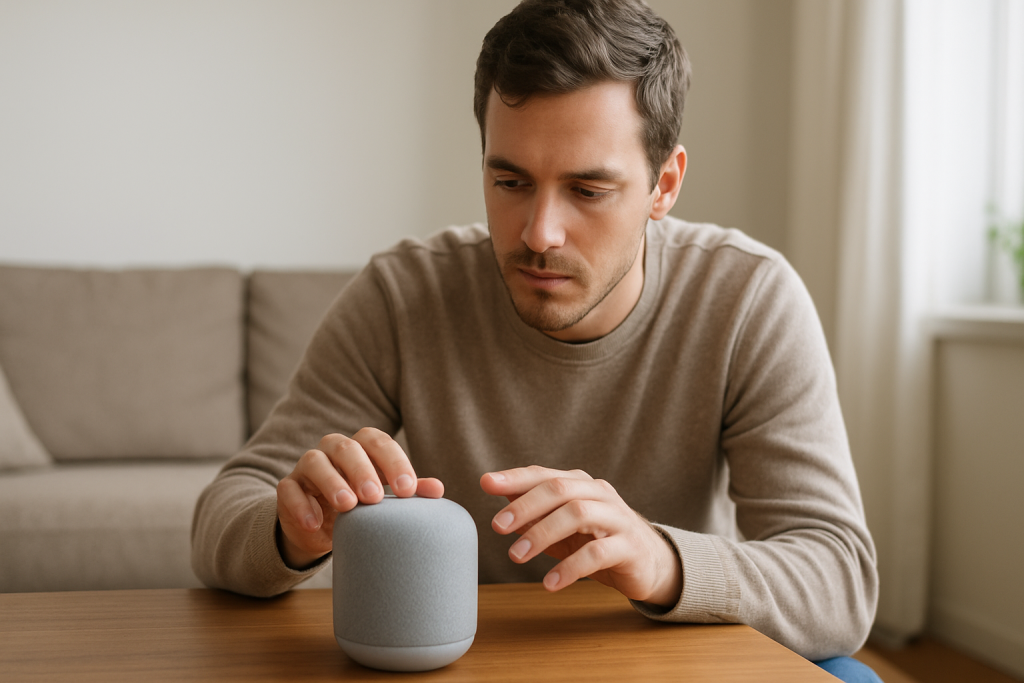
Common user mistake: Assuming “no response” means the device is broken and repeatedly unplugging it without checking the mute indicator. Many people accidentally press the mute button while dusting, moving the device, or adjusting volume.
Step-by-Step Fix
Check for microphone mute and confirm the indicator.
What to do: Look for the mic mute indicator. On many Echo speakers, a red light ring/stripe means the microphones are off. On Echo Show devices, look for a mic-off icon or red indicator. Press the microphone button once to toggle it back on.
What the result means: If the red indicator turns off and Alexa immediately responds to “Alexa,” the issue was simply mute.
If it fails: If the red indicator won’t turn off, or it turns off but Alexa still won’t respond, continue to the next step. That points to blockage, placement, software, or a deeper input-path issue.
Inspect and clear the microphone openings and nearby obstructions.
What to do: Check the top surface and edges for mic holes. Remove any covers, decorative sleeves, stacked papers, or nearby objects that could block sound. Gently wipe dust away with a dry, soft cloth. If the device is in a corner, pull it forward a few inches.
What the result means: If Alexa starts responding again, the mic wasn’t dead; it was simply not hearing you well enough to trigger.
If it fails: Move to step 3 to test whether the device can hear at all and whether the issue is wake-word detection versus general audio input.
Run a close-range wake-word test and a noise test.
What to do: Stand within 2–3 feet of the Echo in a quiet moment (pause the TV/music). Say “Alexa, what time is it?” at a normal speaking volume. Then try again while a fan/TV is running to compare.
What the result means: If it works up close but not from across the room, the microphones are working but sensitivity is being reduced by placement, background noise, or reflections.
If it fails: If it never triggers even up close in a quiet room, continue to step 4 to check whether the device is actually online and properly registered in the Alexa app.
Check the device status in the Alexa app (online, registered, and responding).
What to do: Open the Alexa app on your phone. Go to the device list, select the Echo, and confirm it shows as connected/online. Try a simple control from the app such as changing volume or playing a short piece of audio.
What the result means: If app controls work but the wake word doesn’t, the Echo is powered and online; the problem is likely in the microphone input path (mute/blocked), wake-word detection, or audio processing.
If it fails: If the device is offline or unresponsive in the app, the issue may be power, network connectivity, or registration. Continue to step 5 to isolate network/account factors that can mimic mic failure.
Confirm the Echo is on the correct Wi-Fi and do a quick network isolation test.
What to do: In the Alexa app, check the Wi-Fi network name the Echo is using. If you have multiple networks (main network, guest network, extender), make sure it’s on the one you expect. If possible, temporarily connect the Echo to a phone’s mobile hotspot for a short test (just long enough to try a wake-word request).
What the result means: If the Echo works normally on the hotspot, the microphone is not dead. The problem is more likely a local network issue affecting Alexa’s ability to process requests after wake-word detection, which can look like “it didn’t hear me” when it actually heard you but couldn’t complete the request.
If it fails: If it still won’t respond on a hotspot, the issue is likely on-device: mute/blocked, firmware, configuration, or hardware. Continue to step 6.
Check for Do Not Disturb, communication restrictions, and profile-related limits.
What to do: In the Alexa app, open the device settings and look for Do Not Disturb and communication settings. If the device is part of a household with multiple profiles, confirm you’re signed into the intended Amazon account and that the device is assigned correctly.
What the result means: If changing these settings restores normal voice interactions, the “mic problem” was actually a configuration/permission block.
If it fails: Move to step 7 to address software/firmware state and the audio pipeline without guessing.
Perform a controlled power cycle to clear stuck audio services (not random unplugging).
What to do: Unplug the Echo from power for 30 seconds, then plug it back in. Wait for it to fully boot (lights settle and it stops making startup sounds). Then test the wake word again in a quiet room.
What the result means: If it starts responding, the device likely had a temporary software hang in the audio/wake-word process.
If it fails: If the mic still appears dead after mute/obstruction checks, app verification, and a controlled power cycle, go to Advanced Troubleshooting to check account, firmware, and configuration conflicts.
Advanced Troubleshooting
Account and cloud issues that can look like a microphone failure
If the Echo hears the wake word but fails silently or gives intermittent responses, the microphone may be fine and the cloud session may be the weak link. This is more likely after changing your Amazon password, enabling extra sign-in security, or signing the Alexa app into a different Amazon account than the device was originally set up with.
In the Alexa app, verify the device is registered to the correct account and that your account is not prompting for re-authentication. If you recently changed credentials, sign out of the Alexa app and sign back in, then confirm the device still appears under your devices list. If the device disappears or shows as “unregistered,” you’ve found the real problem.
Network-related issues (only where they affect the voice path)
Even when wake-word detection happens locally, most requests still need a clean path to Amazon’s services. If the Echo is connected but can’t reliably reach the internet, you may interpret the delay or failure as “it didn’t hear me.” The hotspot test in the steps above is the simplest proof.
If you use a mesh system, a common edge case is the Echo roaming between nodes or being steered between bands in a way that causes brief drops. If the Echo works for a moment after moving it and then fails again, try placing it closer to one mesh node and keep it there for a day. The goal is stability, not maximum signal strength.
Firmware/software causes
Echo devices update automatically. Rarely, the audio pipeline can behave oddly after an update: music works, alarms work, but wake-word detection becomes unreliable. A controlled power cycle can clear this. If the issue started immediately after a noticeable change (new features, new light behavior, or a recent outage), give the device a few hours connected to power and Wi-Fi so it can finish background updates, then retest.
Configuration conflicts: routines, profiles, and permissions
Some settings can create confusing “non-responses.” For example, if you have routines that change volume to zero at night, you might think the mic is dead when the device is actually responding quietly or not at all audibly. Also, if the device is set to a very low volume and you’re expecting a spoken confirmation, you may miss it.
Check the device volume in the Alexa app and disable any routine that changes volume, Do Not Disturb, or microphone state at certain times. If the mic appears to “fail” at consistent times of day, a routine or household setting is a prime suspect.
When to Reset or Replace the Device
Try a soft restart first when the Echo is online, the mute indicator is off, and the device sometimes responds but is inconsistent. A controlled power cycle is appropriate when you suspect a stuck software service.
Consider a factory reset when all of the following are true: the mic is not muted, the mic openings are clear, the device is online in the Alexa app, and it still never responds to the wake word even from close range in a quiet room. A factory reset is also reasonable if the device shows up incorrectly in the Alexa app (wrong name/room, duplicated entries) and troubleshooting hasn’t cleared it.
What you lose with a factory reset: The device will be removed from your account and you’ll need to set it up again. You may need to re-add it to speaker groups, reconfigure smart home device associations that depend on that Echo, and re-check routines that reference it. Your Amazon account and purchased content are not erased, but device-specific settings are.
Replace or seek service if you suspect hardware failure: the mic mute indicator behaves incorrectly, the device gets unusually hot, you smell burning plastic, it repeatedly reboots, or it never detects the wake word after a factory reset and a hotspot test. If overheating or a burning smell is present, unplug it and stop using it.
How to Prevent This in the Future
Keep the microphone path clear. Avoid placing Echo speakers under shelves, inside tight cubbies, or behind decor that blocks sound. A few inches of clearance and a direct line toward the room makes wake-word detection more reliable.
Make the mute state obvious in your household. If someone mutes the device for privacy, agree on a habit of unmuting it afterward or leaving it muted only in specific rooms. Many “broken mic” reports are just an unnoticed mute indicator.
Control background noise where possible. If an Echo is near a TV or constant fan noise, move it a few feet away or angle it so it’s not directly facing the speaker. If the Echo works up close but not across the room, placement and noise are the long-term fix.
Keep account changes tidy. After changing your Amazon password or switching the Alexa app to a different Amazon account, verify the Echo devices still appear correctly and respond. Catching account/session issues early prevents days of confusing “it won’t listen” behavior.
Review routines periodically. If you use routines that change volume, Do Not Disturb, or device behavior at certain times, document them or name them clearly. Time-based changes are a common reason a device seems fine one moment and “deaf” the next.
FAQ
How can I tell if Alexa’s microphone is actually muted?
Look for a red light or mic-off indicator on the Echo device. If you see it, the microphones are disabled and the device will not listen for the wake word. Toggle the microphone button once and confirm the red indicator turns off.
My Echo plays music, so doesn’t that prove the microphone is fine?
No. Playing music only proves the speaker and basic system are working. A muted mic, blocked mic openings, or a problem in the wake-word/audio input path can exist while audio playback works normally.
Why does Alexa work when I use the app, but not when I speak?
If app controls work, the Echo is powered and usually online. That points away from a total device failure and toward a voice input issue: mic muted, mic blocked, heavy background noise, or wake-word detection/software problems.
Can background noise really make it seem like the mic is dead?
Yes. A constant TV, fan, or white-noise source can prevent reliable wake-word detection. A quick test is to try the wake word from 2–3 feet away in a quiet moment. If that works, the fix is usually placement and reducing competing noise, not replacing the device.
Is factory reset always the best fix for a “dead mic”?
No. Factory reset is best after you’ve confirmed the mic isn’t muted, the openings are clear, the device is online, and it still won’t respond even up close in a quiet room. Resetting too early can waste time because the most common causes are simple (mute or blockage) and don’t require re-setup.
There’s a strange satisfaction in watching the noise fade and the shape of the answer come into view. The whole thing lands more like closure than conquest.
Now the rest is just living around it—less fuss, fewer detours, and a little more headspace for whatever comes next.