Smart Bulb Turns On at Full Brightness Every Time: How to Fix It
Quick Answer
When a smart bulb always turns on at 100% brightness, the most common real-world cause is that the bulb is not receiving (or not keeping) its last-known brightness state. In most homes this happens because the bulb is being power-cycled at the wall switch, a smart switch, or a flaky connection, so it boots into a “safe default” state (full brightness) before the app, hub, or automation can apply the intended level.
This is especially common with WiFi bulbs that briefly lose cloud/app control after power returns, and with hub-based bulbs (Zigbee/Matter/Thread) when the hub is rebooting or the bulb is temporarily unreachable. Some ecosystems also have a “power-on behavior” setting that is accidentally set to “Full brightness.”
Do these three quick diagnostics right away: (1) Turn the bulb on using the app only (not the wall switch) and see if it still jumps to 100%. (2) Check the bulb’s “Power-on behavior” or “Power restore” setting in the app and set it to “Last state” or a specific level. (3) Review automations/schedules for a “Turn on” action that doesn’t specify brightness (or a scene that defaults to 100%).
Why This Happens
The dominant pattern behind “always full brightness” is a state mismatch: the bulb is turning on before the system that normally controls it can apply the desired brightness. In a stable setup, the bulb either remembers its last brightness locally, or the hub/app immediately pushes the correct level when it comes online. When that chain breaks, many bulbs default to full brightness so the light is usable even if smart control fails.
Here are the most tightly related causes you’ll see across major ecosystems (WiFi bulbs, Zigbee hubs, Matter/Thread controllers, and popular platforms):
1) Power is being cut and restored, so the bulb “boots” bright. If the wall switch is used like a normal light, the bulb experiences a hard power loss. Many bulbs are designed to come on bright after power is restored, either for safety or because they can’t reliably store the last dim level. A brief outage can look the same as a switch flip.
2) Power-on behavior is set to “100%.” Many apps include a setting such as “Power-on state,” “Power restore,” “On behavior,” or “Default on.” If it’s set to full brightness, the bulb will obey that every time it receives power or an “On” command.
3) An automation or scene is turning it on without a brightness value. In several platforms, a “Turn on” command without an explicit brightness can resolve to the bulb’s default (often 100%). This is easy to miss when you set up motion lighting, routines, “Good morning,” or “Arrive home” automations. Some scenes also store brightness at 100% even if you later dim manually.
4) Group and sync behavior is overriding your manual dim. If the bulb is part of a room/group, a controller may re-assert the group’s last scene when any member changes state. That can look like “I dim it, but next time it turns on it’s bright again.” This is common when mixing bulbs from different ecosystems or bridging devices into a single platform.
5) The bulb is briefly offline at turn-on, so it misses the dim command. In WiFi setups, roaming between mesh nodes, band steering, or weak signal can cause a short disconnect right when you turn it on. In hub-based setups, a congested Zigbee network or a rebooting hub can delay commands. The bulb turns on at its default, and the brightness correction arrives late or not at all.
Real-world scenario: a homeowner uses the wall switch out of habit. The bulb powers up at 100% each time, then sometimes dims a second later when the app catches up. That delay is the clue that the bulb is defaulting bright first, then receiving a correction.
Common user mistake: creating an automation that says “Turn on the hallway lights at sunset” but not specifying brightness. The system turns them on at the bulb’s default, which is often full brightness.
Overlooked technical cause: a smart dimmer switch (or a “smart” wall control) feeding the bulb is not providing clean, steady power. Even without touching it, it can cause brief brownouts or micro-cuts that reboot the bulb, making it come back at 100% repeatedly.
Most Likely Causes in Real Homes
1) Wall switch or smart switch power-cycling. The bulb is losing power, so it starts at its default brightness.
2) Power-on behavior set to full brightness. A setting in the bulb’s app or ecosystem forces 100% on power restore.
3) Automation/scene/routine turning it on “bright.” A schedule, motion rule, or scene is applying (or defaulting to) 100%.
4) Group/room sync reapplying a scene. A room or zone is pushing a stored bright scene back onto the bulb.
5) Connectivity delay at turn-on. The bulb misses the dim command due to WiFi/mesh roaming, hub delay, or cloud/account lag.
Step-by-Step Fix
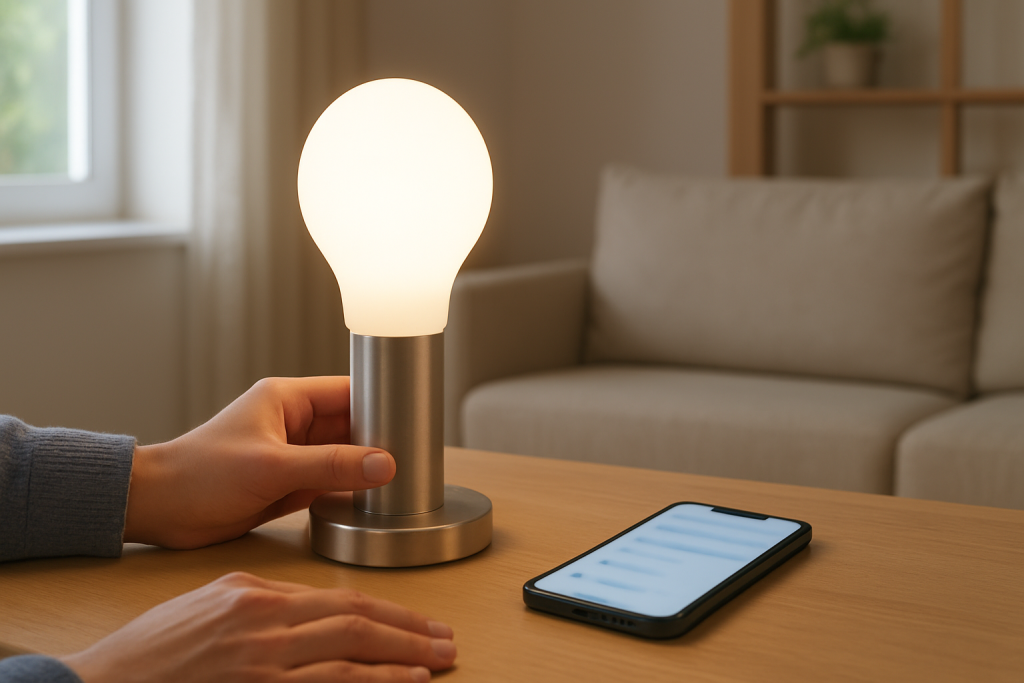
Stop using the wall switch for one day and test app-only control. Leave the wall switch on continuously, then turn the bulb on/off from the app or voice assistant only.
What the result means: If the bulb behaves normally (remembers brightness or turns on at the expected level), the issue is almost certainly power being cut at the switch (or a switch/dimmer causing brief power drops). If it still turns on at 100% even with app-only control, the cause is more likely a setting, automation, or group behavior.
If it fails, try next: Continue to step 2 to check the bulb’s power-on behavior setting and stored defaults.
Find and set “Power-on behavior” (or equivalent) to the correct option. In the bulb’s native app or the main ecosystem app, look for settings like “Power-on state,” “Power restore,” “Default on,” or “On behavior.” Set it to “Last state” if you want it to remember, or set a specific brightness (for example 30–50%) if you want predictable behavior after outages.
What the result means: If the bulb now turns on at the right level after you toggle it off/on from the app, the problem was a configuration default. If it still turns on at 100%, something else is commanding it bright or it is rebooting unexpectedly.
If it fails, try next: Go to step 3 and look for automations, schedules, and scenes that are overriding brightness.
Audit automations, schedules, and motion rules for “On” without brightness. Check both the bulb’s native app and any platform it’s linked to (home app, hub app, voice assistant routines). Look for: schedules, motion sensor actions, “arrive/leave,” time-of-day routines, and “restore last scene” behaviors. Edit any rule that turns the light on and explicitly set brightness and color temperature.
What the result means: If removing or editing one automation stops the 100% behavior, that automation was sending a plain “On” or a bright scene. If nothing changes, the brightness may be coming from group sync or a controller reapplying a scene.
If it fails, try next: Proceed to step 4 to test group and room behavior.
Test group/room sync by temporarily removing the bulb from groups. If the bulb is in a room, zone, group, or “lights” collection, remove it (or create a temporary test room with only that bulb). Then turn it on/off several times and set a dim level, verifying whether it remembers.
What the result means: If the bulb behaves correctly when alone, the group is reapplying a stored scene or a controller is syncing brightness across the group. If it still turns on at 100% when isolated, the issue is likely power restore behavior, firmware, or connectivity timing.
If it fails, try next: Continue to step 5 to check whether the bulb is rebooting or briefly disconnecting at turn-on.
Watch the device status in the app while turning it on. Open the app’s device page and observe whether the bulb shows “offline,” “updating,” or delayed responsiveness right when it turns on. Also note whether the bulb turns on bright and then changes brightness a second or two later.
What the result means: Bright-then-dim usually means the bulb is defaulting to 100% and then receiving a correction. Offline/delayed status suggests a network, hub, or cloud timing issue rather than a simple brightness setting.
If it fails, try next: Move to step 6 to test network behavior (WiFi band/mesh) or hub reachability.
For WiFi bulbs: verify WiFi band and mesh roaming behavior. Confirm the bulb is on the expected WiFi band (most WiFi bulbs are designed for 2.4 GHz). If you have a mesh system, test by temporarily placing the bulb (or the lamp) closer to the main router node for one evening, or by disabling “smart connect/band steering” if your router allows separate 2.4 GHz and 5 GHz names. Then retest turn-on brightness.
What the result means: If the problem improves when the bulb is closer to the router or on a stable 2.4 GHz connection, the bulb was likely dropping connection during turn-on and missing brightness commands. If there’s no change, the issue may be automation, firmware, or power stability.
If it fails, try next: Go to step 7 to isolate the bulb from your normal network and confirm whether the environment is the trigger.
Run a hotspot isolation test (WiFi bulbs) or controller-only test (hub bulbs). For WiFi bulbs, temporarily connect the bulb to a phone hotspot (with a simple name and password) and test on/off behavior for a few cycles. For Zigbee/Matter/Thread bulbs, test with the primary hub/controller only: avoid bridging through multiple platforms during the test and use the native hub app to control the bulb.
What the result means: If the bulb behaves correctly on a hotspot, your home network (mesh roaming, interference, router features) is the likely cause. If it behaves correctly only when controlled directly by the hub app, a cross-platform integration or permissions sync is likely overriding brightness.
If it fails, try next: Proceed to step 8 to check firmware and app updates and then re-check the power-on setting afterward.
Update firmware and the controlling app, then re-check power-on behavior. Update the bulb firmware (and hub firmware if applicable) and update the controlling app(s). After updating, revisit the power-on behavior setting because some updates reset or change defaults.
What the result means: If the behavior changes after updates, you were likely hitting a software bug or a compatibility issue. If it still turns on at 100%, you’re likely dealing with a persistent configuration conflict or unstable power.
If it fails, try next: Continue to Advanced Troubleshooting to look for account sync issues and conflicting controllers.
Advanced Troubleshooting
This section is only needed if basic fixes fail.
Check for account/cloud sync problems (especially with WiFi bulbs)
If the bulb shows the wrong state in the app (for example, the app says it’s dim but it’s visibly bright), the cloud account may be out of sync. Log out of the bulb’s app and log back in, then power the bulb off/on using app control (not the wall switch). If that fixes it, the issue was account state synchronization rather than the bulb hardware.
Look for multiple controllers fighting each other
If the bulb is connected to more than one control layer (native app plus a hub plus a voice assistant platform), two systems can send different “turn on” behaviors. A common pattern is: one platform turns the light on (defaults to 100%), then another platform tries to apply a scene. Temporarily disable one integration (or remove the bulb from one platform) and test. If the problem disappears, re-enable integrations one at a time and ensure only one automation set is responsible for brightness.
Network-specific issues (only when the bulb is missing commands)
If you saw offline/delayed status at turn-on, focus on stability rather than speed. For WiFi bulbs, avoid frequent node hopping in mesh systems by improving signal where the lamp is used, and reduce features that can isolate devices (guest networks, client isolation, aggressive firewall rules). For hub-based bulbs, ensure the hub is centrally located and not frequently rebooting; repeated hub reboots can cause bulbs to default bright until the network settles.
Firmware/software behavior changes after updates
Sometimes a firmware update changes how “last state” is stored or interpreted. If the bulb used to remember brightness and now doesn’t, check release notes if available and re-save your preferred scenes. Also verify that your scenes explicitly store brightness; do not rely on “whatever it was last time” if your system has become inconsistent.
Configuration conflicts: groups, scenes, permissions, and “adaptive” lighting
Some platforms apply time-based brightness or color adjustments (for example, circadian/adaptive lighting). If adaptive features are enabled, they can push higher brightness at certain times. Disable adaptive lighting for the affected bulb or room and test. Also confirm household permissions: in shared homes, another user account may have created a routine that you can’t see in your app view.
When to Reset or Replace the Device
A soft restart is simply removing power briefly (using app control if possible) and restarting the controlling hub/router if the bulb is consistently missing commands. This does not erase settings, but it also won’t fix a wrong power-on configuration or a stuck automation.
A factory reset is appropriate when the bulb’s settings don’t “stick,” the app shows inconsistent state, or the bulb behaves differently than identical bulbs in the same room after you’ve removed automations and confirmed power-on behavior. A factory reset typically removes the bulb from rooms/groups, deletes local pairing keys, and forces you to re-add it to the ecosystem. You will usually lose: room assignment, scenes involving that bulb, automation links, and any custom names in some platforms.
Replace the bulb if it shows signs of physical trouble: frequent spontaneous reboots even on stable power, flickering unrelated to commands, unusual heat, discoloration, or a burning smell. In those cases, stop using it and do not attempt to open or repair it.
How to Prevent This in the Future
Keep power stable to smart bulbs. If you want smart behavior, leave the wall switch on and use app/voice control. If others need a physical control, use an ecosystem-compatible method that keeps constant power to the bulb (without rewiring or opening devices).
Manage automations deliberately. For every routine that turns lights on, set an explicit brightness and (if relevant) color temperature. Avoid relying on “default” behavior, because defaults vary by bulb and can change after updates.
Reduce group conflicts. Use one “source of truth” for scenes (either the native ecosystem or your main home platform) and avoid duplicating similar routines in multiple apps.
Plan for power outages. Set a sensible power-on behavior (last state or a comfortable brightness) so brief outages don’t result in 100% brightness at night.
Maintain firmware and app health. Update bulbs and hubs periodically, then re-check key settings (power-on behavior, scenes, and adaptive lighting) after major updates.
Improve connectivity where the lamp actually sits. WiFi bulbs need stable coverage at the fixture location, not just near the router. Hub-based bulbs need a healthy mesh; avoid frequently unplugging hubs and keep controllers in consistent locations.
FAQ
Why does the bulb turn on at 100% and then dim a second later?
That usually means the bulb is starting at its built-in default (often full brightness) and then receiving a brightness command from the app/hub/automation after it reconnects. The fix is typically to set the bulb’s power-on behavior to “Last state” (or a chosen brightness) and to improve connectivity so the correction command isn’t delayed.
If I dim the light before turning it off, shouldn’t it remember that level?
Not always. Some bulbs only remember the last level when they are turned off via a smart command, not when power is cut at the wall. If the bulb loses power, it may forget the last dim level and revert to its configured power-on behavior.
Can a schedule still affect the bulb even if I don’t see it in the main app?
Yes. Schedules can exist in multiple places: the bulb’s native app, a hub app, a voice assistant routine, or another household member’s account. If the bulb always goes to 100% at a predictable time or after a specific trigger (motion, sunset, arrival), that strongly points to an automation you haven’t found yet.
Is this a WiFi problem?
Sometimes, but not by default. If the bulb always comes on bright even when the app shows it as responsive and online, it’s more likely a power-on behavior setting or an automation/scene issue. Network issues are more likely when you see delays, offline status, or “bright first, then correct later” behavior.
Will factory resetting the bulb permanently fix it?
A factory reset can fix corrupted settings or a confused pairing state, but it won’t prevent the same problem from returning if the root cause is still present (wall switch power-cycling, an automation that turns it on at 100%, or a group/scene conflict). Reset is best used after you’ve confirmed the configuration and automation logic are clean, or when the bulb won’t reliably keep settings.
What’s left now feels less like a debate and more like a sigh of relief. The noise fades, and the story finally lands where it should—plain, workable, and no longer mysterious.
Funny how quickly people stop circling the same points when the answer is already in the room. The rest is just living with it, with that small sense of things being put back in their place.