Smart Plug Automation Not Triggering? Try These Fixes First
Quick Answer
When a smart plug or smart switch automation won’t trigger, the most common cause is that the app (or ecosystem) thinks the device is in a different state than it really is. The automation is evaluated using cloud or local “state” data (online/offline, on/off, room, home, time zone, sensor state), and if that state is stale or mismatched, the trigger conditions never become “true,” even though the device still works manually.
This is especially common in real homes with multiple controllers (device maker app plus Alexa/Google Home/Apple Home/SmartThings), routines created in more than one place, or after router restarts and power outages when devices rejoin late and their state doesn’t fully re-register.
Do these three quick checks first: (1) Open the app that owns the automation and pull-to-refresh the device list, then confirm the plug/switch shows “online” and updates on/off status correctly. (2) Temporarily remove any “only if” conditions (like “only when home,” time windows, or “device already off”) and test a simple trigger. (3) Disable the same automation/routine in other apps (or disable other routines that touch the same plug) to prevent state and action conflicts.
Why This Happens
Automations trigger based on conditions, and those conditions are evaluated from a system’s current state. That state can come from the cloud (the vendor’s servers or an ecosystem cloud like Alexa/Google) or locally (a hub/controller such as Zigbee hubs, Apple Home hubs, SmartThings, or Matter controllers). If the controller’s view of state is wrong, the automation logic doesn’t fire—even if the device is physically reachable.
Tightly related root causes usually fall into a few buckets:
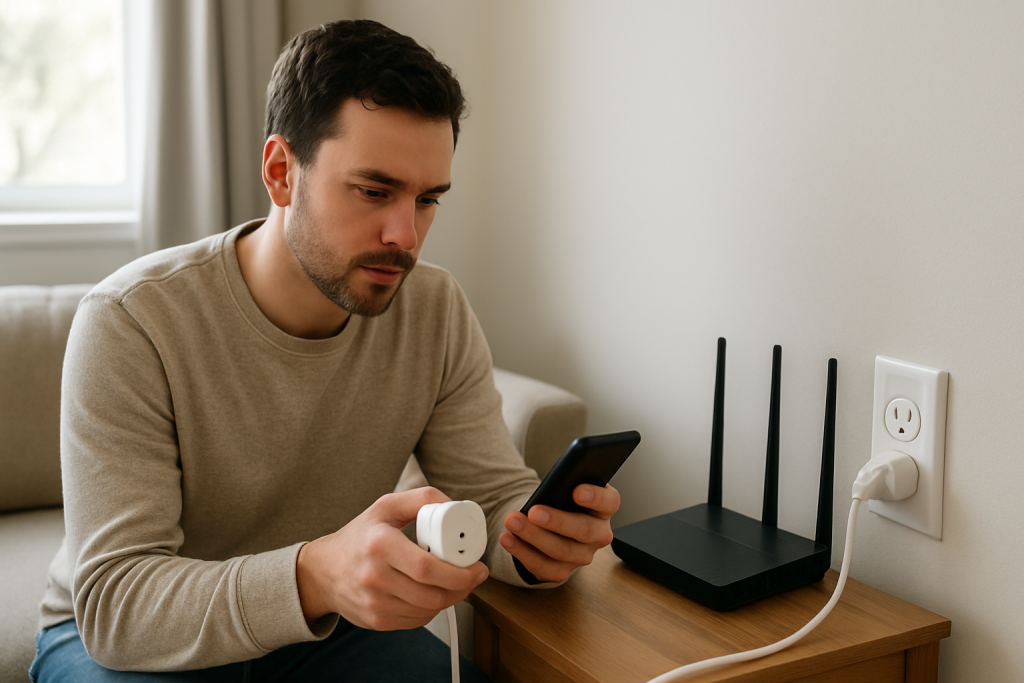
First, the device is reachable but its state is not updating. For example, you can tap the smart plug in its app and it turns on, but the automation engine still shows it as “offline” or “already on,” so the trigger/conditions fail.
Second, cloud versus local paths get mixed. A common real-world scenario is a WiFi plug controlled in the manufacturer app, but the routine is in Alexa or Google Home; after a router restart, the plug reconnects and works in its own app, yet Alexa/Google keeps an old cloud state for minutes or hours and the routine never “sees” the right status.
Third, a common user mistake is stacking extra conditions without realizing it, like “run at sunset” plus “only if I’m home” plus “only if plug is off.” If presence (home/away) is wrong, or the plug state is stuck as “on,” the automation won’t run and it will look like the schedule is broken.
Fourth, an overlooked technical cause is home/room/controller mismatch. In Apple Home, Matter, and some hub-based systems, the automation belongs to a specific “home” and is executed by a home hub/controller. If the device is in a different home/bridge or the active hub changed, the automation can silently stop triggering.
Most Likely Causes in Real Homes
1) Stale device state in the automation app (online/offline or on/off not updating). If the app doesn’t see the state change, the trigger/conditions never evaluate as true.
2) Cloud sync lag or broken account session between platforms (manufacturer app vs Alexa/Google/HomeKit/SmartThings). If the integration link is stale, routines can’t “see” current device state.
3) Conflicting routines across multiple apps. Two automations can fight each other, or one automation keeps the device in a state that prevents the other’s conditions from becoming true.
4) Time zone, location, or “sunrise/sunset” settings wrong in one app. The automation triggers at the wrong time (or not at all) because the controller uses a different time basis.
5) Network behavior that breaks state updates more than control (mesh roaming, band steering, or client isolation). You might still control the plug, but state reporting to the automation engine is delayed or dropped.
Step-by-Step Fix
Open the app where the automation is created (Alexa, Google Home, Apple Home, SmartThings, or the device maker app) and check the automation’s last-run history (if available), then manually toggle the plug/switch and confirm the app’s status changes within a few seconds.
If the on/off status does not update reliably, it usually means the automation engine is working with stale state, so triggers and conditions won’t match reality.
If status updates are slow or wrong, go to step 2; if status is accurate, skip to step 3 to focus on conditions and conflicts.
Simplify the automation into a “known-good” test: remove extra conditions (presence, time windows, “only if device is off,” scenes) and use a basic trigger you can force (for example, “when I turn on this plug, then turn on another device,” or a one-time schedule 2–3 minutes in the future).
If the simplified automation works, the automation engine is fine and the failure is almost always a condition/state problem (presence wrong, wrong device state, wrong time zone, or a condition tied to a sensor that isn’t updating).
If the simplified automation still does not run, move to step 3 to isolate platform sync and controller ownership issues.
Verify the automation and the device live in the same “home” and are controlled by the expected controller: confirm the plug/switch appears under the correct Home structure (especially in Apple Home), correct location, and correct room; for hubs (Zigbee/Matter), confirm the hub/controller is online and set as the active home hub/controller.
If the device is in the wrong home/room/controller, automations can appear valid but never execute because the automation engine can’t act on that device state.
If everything is in the right home and the controller is healthy, continue to step 4.
Check for duplicate devices and conflicts: search each platform app for the same plug name appearing twice (common after re-adding devices or switching integrations), then temporarily disable other routines that mention the same plug/switch (including vendor app schedules and assistant routines).
If disabling other routines makes your automation work, the issue is likely conflicting commands or a routine that keeps the device in a state that prevents your trigger/conditions from becoming true.
If there’s no change, re-enable routines and proceed to step 5.
Refresh the integration and state path: in Alexa/Google Home/SmartThings, unlink and relink the device maker account (or re-authorize), then run a device sync/discovery so the platform rebuilds state mapping; in Apple Home/Matter, ensure the controller and phone are on the same network and restart the home hub/controller (not a factory reset) so it re-asserts accessory state.
If the automation starts working after relinking, it indicates a cloud session or device mapping problem where the platform could not read current device state reliably.
If it still fails, go to step 6 to focus on network conditions that specifically break state reporting.
Test for “control works but state doesn’t” network behavior: temporarily move the plug (or its nearest mesh node) closer to the router, or temporarily power down extra mesh nodes so the plug attaches to a nearer access point; then re-test whether the app’s on/off state updates consistently and whether automations trigger.
If moving it closer fixes it, the likely issue is roaming or weak signal causing missed state reports, not the automation logic itself. Automations fail because the controller never receives the state change that satisfies the trigger/condition.
If distance/mesh changes don’t help, continue to step 7.
After a power outage or router restart, use a clean recovery sequence: wait until internet is stable, then reboot the router, then reboot any hub/controller (Zigbee/Matter/Apple Home hub/SmartThings hub), and only then power-cycle the smart plug/switch (unplug/replug a plug, or switch the switch off/on at the wall if it’s a smart switch controlling a load).
If this restores automations, it suggests the device rejoined before the controller/cloud was ready, leaving state registrations incomplete.
If it still fails, go to step 8.
Check time, location, and permissions: confirm the phone and the automation platform are set to the same time zone and have location access enabled if the automation uses presence; confirm you’re signed into the correct account and, in shared homes, that your user has permission to run automations.
If fixing time zone/location/permissions resolves it, the “trigger failure” was actually a condition never being satisfied (wrong sunset time, stuck away mode, or a non-admin user unable to execute routines).
If all settings are correct and it still won’t trigger, proceed to Advanced Troubleshooting.
Advanced Troubleshooting
This section is only needed if basic fixes fail.
Account/cloud issue: If the device works in its own app but never triggers in Alexa/Google/SmartThings, the integration may be partially connected: commands may pass, but state feedback is broken. Relink the account again, and verify you don’t have the same brand account linked twice under different emails. If there was a recent password change, re-authentication is often required or state updates can silently stop.
Network issue (state path reliability): Some routers/mesh systems handle “client steering” aggressively. A plug may bounce between nodes or bands, causing intermittent state reporting even when basic control works. If possible, keep smart plugs/switches on a stable 2.4 GHz network name (or ensure band steering doesn’t push them around), and avoid placing them at the edge of two mesh nodes where roaming is frequent. If your router has “AP isolation” or “guest network” features, make sure the plug and the controller/phone are not separated, because local state updates and discovery can fail.
Firmware/software cause: After app or firmware updates, automations can fail because the device reports capabilities differently (for example, energy monitoring attributes, power recovery behavior, or switch state reporting changes). Update the device firmware and the controlling app, then fully close and reopen the app so it reloads device definitions. If an update is stuck, automation triggers may fail because the platform treats the device as temporarily unavailable.
Configuration conflicts: Groups, scenes, and “power on behavior” can override what an automation expects. For example, a smart switch set to “restore last state after outage” may come back on unexpectedly, preventing a “turn on if off” routine from ever matching. Also check that the automation isn’t targeting a group that includes the same device twice (via duplicate devices), which can cause unpredictable results and state mismatches.
Ecosystem sync issue (Matter/bridges/controllers): With Matter and bridges (for example, a Zigbee bridge exposed to Apple Home or Google Home), the automation engine depends on the controller’s current view. If you changed your primary controller device, removed a home hub, or switched phones, the “active controller” may have changed and automations may stop until the home hub/controller is stable again. Confirm the controller is online and set as the home’s automation executor.
When to Reset or Replace the Device
A soft restart is simply power-cycling the smart plug (unplug for 10–15 seconds, then plug back in) or rebooting the hub/controller/router in the correct order. This can clear stale state without losing configuration.
A factory reset is appropriate when the device repeatedly shows the wrong state, won’t stay online after clean reboots, or cannot be re-synced across apps even after relinking accounts. Be aware that a factory reset usually removes the device from all apps and ecosystems, deletes schedules/automations tied to it, clears room/home assignment, and may erase energy monitoring history (for smart plugs that track usage).
Replacement becomes reasonable if the device cannot complete firmware updates, goes offline daily despite stable network conditions, or behaves unpredictably (random on/off) after you’ve ruled out automation conflicts and cloud sync issues. Stop using the device and replace it if you notice overheating, a burning smell, discoloration, cracking, or any visible damage.
How to Prevent This in the Future
Keep automation ownership clear: build the routine in one primary place (one app/ecosystem) whenever possible, and avoid duplicating the same schedule in the manufacturer app and an assistant at the same time. Duplicate logic is a top cause of “it didn’t trigger” because one system’s state blocks the other’s conditions.
Maintain consistent naming and room assignments across apps. When a device name changes in one ecosystem but not another, it can look like the automation targets the right plug when it’s actually pointing at an old or duplicate entry.
After outages or router changes, give the home time to stabilize before judging automations: internet first, then router, then hubs/controllers, then devices. This reduces partial registrations that lead to state mismatches.
Reduce state-reporting problems: place plugs/switches where they have stable signal (not halfway between mesh nodes), and keep them on the expected network segment (not guest networks). If your home uses 2.4 GHz and 5 GHz with the same name, watch for devices that roam and then stop reporting state reliably.
Keep apps and firmware updated, but when you update, verify automations the same day. If a platform update changes permissions or location access, presence-based conditions can fail without obvious errors.
In shared homes, review permissions periodically. If the person who originally created the automation removed their account or lost admin rights, some ecosystems stop running those automations or prevent edits that are needed after device changes.
FAQ
My smart plug turns on fine in the app, so why won’t the automation trigger?
Manual control and automation triggers don’t always use the same “state path.” You may be able to send a command to the plug, but the automation engine still relies on a separate state feed (cloud or hub) that’s stale. If the app’s on/off status doesn’t update quickly and consistently, fix state syncing first (relink, resync, and remove conflicting routines).
Does an “offline” status always mean the plug lost WiFi?
No. “Offline” can also mean the platform can’t validate current state through its cloud session or controller, even if the device is reachable in another app. If it shows online in the manufacturer app but offline in Alexa/Google/SmartThings, focus on the integration link and state sync rather than immediately blaming the network.
Why did this start after a power outage or router reboot?
After an outage, devices often reconnect at different times. If the plug reconnects before the hub/controller or cloud link is fully ready, the device may work manually but fail to register state properly for automations. A clean reboot order (router, then hub/controller, then plug/switch) usually restores consistent state and triggers.
Misconception: “If the schedule time is correct, the automation must run.” Is that true?
Not necessarily. A schedule can be correct while conditions prevent execution (wrong home/away status, time window limits, “only if device is off” with stale state, or a conflicting routine that changed the device state). Testing a simplified automation without conditions is the fastest way to prove whether the problem is the schedule engine or the conditions/state feeding it.
Reading this feels like taking a breath you didn’t realize you’d been holding. The noise drops away, and the path ahead stops looking mysterious.
What’s left isn’t a grand revelation, just a steadier sense of how things fit. Small, plain, and somehow satisfying—like finding the missing piece without making a ceremony out of it.