Smart Plug Won’t Reconnect After Router Restart? What to Do
Quick Answer
When a smart plug or smart switch won’t reconnect after a router reboot, the most common cause is not “bad WiFi” in general—it’s a recovery mismatch: the router comes back with a fresh DHCP/lease table or different band/mesh behavior, and the device fails to rejoin or ends up with an unusable IP address.
This usually shows up as “Offline/Unreachable” in the device app even though the plug still has power (and sometimes still works with the physical button). Start by verifying whether the device is actually back on your network and whether your router gave it a valid address.
Do these 3 actions first: (1) wait 5–10 minutes after the router is fully online and then refresh the device in its app, (2) check your router’s client list for the plug/switch and confirm it has an IP address, (3) temporarily move the device closer to the main router (not a mesh node) and power-cycle it once to force a clean WiFi + DHCP renegotiation.
Why This Happens
After a router restart, your network has to “recover” in a specific order: WiFi radios stabilize, the mesh (if you have one) rebuilds, then DHCP starts handing out addresses again. Many smart plugs and switches reconnect slowly, and some are picky about 2.4 GHz timing or DHCP lease renewals. If the plug reconnects to WiFi but doesn’t get a workable IP address, the app and assistants can’t reach it—even though it looks powered on.
Tightly related causes include:
1) DHCP lease changes: the router may assign a new IP after reboot, and the device or app cache may still be looking for the old one.
2) Delayed WiFi recovery: the router may bring up 5 GHz first, then 2.4 GHz later; many plugs are 2.4-only and sit waiting.
3) Mesh steering/roaming confusion: after reboot, a device may attach to a weak node or get “stuck” trying to roam, never completing the reconnect + DHCP process.
4) Real-world scenario: a neighborhood power blip restarts the modem/router, your mesh, and several plugs at once; everything competes to reconnect and request DHCP, and a few devices time out and stay offline until nudged.
5) Common user mistake: changing the WiFi name/password “while the router is rebooting” or after an ISP reset, assuming devices will follow automatically. Most won’t.
6) Overlooked technical cause: router features like “Private WiFi address,” client isolation/guest networks, or a new security mode after reboot can allow WiFi connection but block local control or discovery, making devices appear offline.
Most Likely Causes in Real Homes
1) DHCP didn’t complete cleanly: the device connected to WiFi but didn’t receive (or kept) a valid IP, so the app can’t reach it.
2) 2.4 GHz availability changed after reboot: band steering or “smart connect” delays 2.4 GHz, and the device never successfully rejoins.
3) Mesh node confusion: the plug reattaches to a farther node with weak signal and fails during the reconnect handshake.
4) Cloud/app session mismatch: the device is back online locally, but the vendor cloud or your logged-in app session still shows stale offline status.
5) Ecosystem sync issue (Alexa/Google Home/Apple Home/SmartThings/Matter): the plug is online in its own app, but the platform still points to the old network route or duplicate device record.
Step-by-Step Fix
Wait for a clean network recovery, then refresh once. What to do: confirm the router is fully online (internet working on a phone), then wait 5–10 minutes and pull-to-refresh the smart plug/switch in its main app. What it means: if it comes back on its own, the issue was simply delayed WiFi/DHCP recovery after reboot. If it still shows offline, go to the next step to verify whether it is actually connected and has an IP.
Check the router’s client list for the device and its IP address. What to do: open your router/mesh app and look for the plug/switch in the connected devices list (by name, MAC address, or vendor). Confirm it shows “connected” and has an IP address (for example 192.168.x.x or 10.0.x.x). What it means: if the device is missing entirely, it likely never rejoined WiFi; if it’s present but has no IP (or shows “blocked”), it’s a DHCP or access policy problem. If it’s present with a normal IP, move to step 4 to address app/cloud/platform sync.
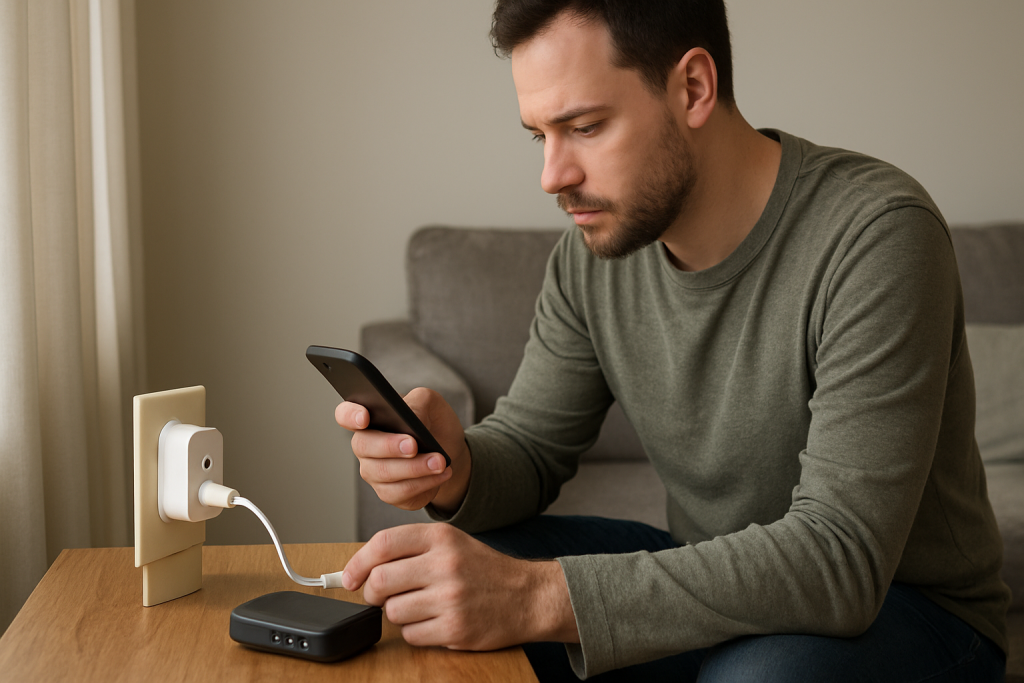
Force a fresh WiFi + DHCP negotiation by power-cycling at the outlet. What to do: unplug the smart plug (or turn off the circuit powering the smart switch at the wall switch if it’s safe and it’s a simple on/off—do not open anything), wait 20 seconds, then power it back on. What it means: if it reconnects quickly afterward, it likely needed to renew its DHCP lease after the router reboot. If it remains offline, continue to step 4 to isolate whether the problem is signal/mesh/band behavior.
Test for mesh roaming issues by moving the device near the main router (not a satellite). What to do: temporarily plug the smart plug into an outlet within a few feet of the main router (or move the controlled load if practical). Then power-cycle it once and watch whether it appears online in the device app. What it means: if it works near the router but not in its usual location, the router reboot likely changed which mesh node it tries to join, and the handshake/DHCP fails on a weak connection. Next: leave it online near the router for a minute, then move it back; if it fails again, consider step 5 and step 6 to stabilize 2.4 GHz and DHCP behavior.
Confirm the device is on 2.4 GHz and not fighting band steering. What to do: in your router/mesh settings, verify the 2.4 GHz network is enabled. If you use a combined SSID (same name for 2.4 and 5 GHz), temporarily pause 5 GHz (or use an “IoT/2.4-only” option if your system has it) just long enough to let the plug reconnect. What it means: if the plug reconnects only when 5 GHz is paused, the router’s band steering after reboot is interfering with the initial join process. Next: re-enable 5 GHz after the device is online, and consider giving IoT devices a stable 2.4-only path (without changing your main network name if you can avoid it).
Fix DHCP/IP instability: reserve an address for the plug/switch. What to do: in your router settings, create a DHCP reservation for the device’s MAC address so it always receives the same IP. Then power-cycle the plug once. What it means: if the device becomes reliably reachable after reboots, the root cause was IP churn after DHCP restart. If it still won’t reconnect, proceed to step 7 to check app/cloud state and duplicated records.
Verify whether the device is online locally but the app/platform is stale. What to do: if your router shows the device connected with a normal IP, close the device app fully and reopen it; if needed, sign out/in once. Also check whether the device works in its manufacturer app but not in Alexa/Google Home/Apple Home/SmartThings. What it means: if it works in the manufacturer app but not in a voice assistant, the network connection is fine and the issue is ecosystem sync. Next: run “device discovery” (Alexa/Google), or in Apple Home confirm the correct Home Hub/controller is online; for Matter devices, ensure your Matter controller (HomePod/Apple TV, Google hub, or SmartThings hub) is powered and on the same network.
Isolate automation/schedule confusion that looks like “offline.” What to do: check schedules/timers in the device app and in any linked platform (Alexa routines, Google automations, Apple Home automations, SmartThings automations). Temporarily disable duplicates for 10 minutes and test manual on/off from the app. What it means: if the device responds but behaves oddly (turning off/on unexpectedly), the reconnect may have succeeded and the real problem is conflicting automations triggered after the reboot. Next: keep only one “source of truth” for schedules (either the device app or one platform) and delete duplicates.
Advanced Troubleshooting
This section is only needed if basic fixes fail.
Account/cloud issue: if the device shows connected on your router but stays offline in the vendor app across multiple phones, the cloud account may be stuck. Try logging out/in, verify the correct region/account, and check if the app is allowed local network access on your phone (especially after OS updates). If multiple users share control, confirm you’re logged into the primary household account or the shared-home invitation is still valid.
Network issue (DHCP and segmentation): confirm the device is not on a guest network, IoT VLAN, or “isolated” SSID that blocks local discovery. After router reboots, some systems reapply default isolation rules. A smart plug may connect but become unreachable from your phone if your phone is on a different segment. If your router offers it, disable “AP isolation/client isolation” for the network the plug uses.
Firmware/software cause: after an app update or firmware rollout, some devices reconnect more slowly or require a fresh session token. If the device briefly comes online and then drops after every router reboot, check for a pending firmware update in the device app and apply it when the device is stable (near the router). If an update repeatedly fails, leave the device plugged in close to the router for 30 minutes and try again.
Configuration conflict: duplicate devices (common with integrations like Philips Hue plugs/smart switch controls, or when a device is exposed through both a manufacturer skill and Matter) can look like “offline” because you are controlling the wrong instance. If you see two similar devices in Alexa/Google/HomeKit, temporarily hide/disable one and retest.
Ecosystem sync issue (Matter/bridges/hubs): Zigbee plugs and Zigbee smart switches depend on their hub, not your WiFi. After a router reboot, the hub might be up but your phone/controller might have changed networks, or the hub’s cloud connection is delayed. Confirm the hub is online first. If you use Matter, ensure the controller and the hub/bridge are on the same LAN and that your phone is on the same WiFi (not cellular) during recovery.
When to Reset or Replace the Device
A soft restart is simply removing power briefly and letting the device reboot; it keeps your WiFi credentials and device pairing. A factory reset wipes the device’s stored network and pairing information and forces you to set it up again in its app (and re-link to Alexa/Google/Apple Home/SmartThings/Matter if used).
Reset is reasonable when: the router shows the device never reconnects to WiFi after a reboot, the device repeatedly appears with no IP address, or you recently changed the WiFi name/password and the device can’t recover. Before resetting, note what you may lose: room assignments, names, schedules/timers, automations, energy monitoring history (smart plugs), and any platform links (skills, Matter pairing, HomeKit assignments). Plan to rebuild those after the reset.
Replacement is reasonable when: the device cannot stay connected even near the router, it fails firmware updates repeatedly on a stable network, it drops offline after every router restart despite DHCP reservation, or the relay behavior becomes unstable (random clicking or switching not tied to automations). Stop using the device and replace it immediately if you notice overheating, a burning smell, discoloration, melting, or visible damage.
How to Prevent This in the Future
Keep DHCP stable: if your router supports it, reserve IP addresses for smart plugs/switches that are critical (heaters, pumps, holiday lights) so a router reboot doesn’t “move” them.
Make 2.4 GHz predictable: ensure 2.4 GHz stays enabled, and avoid frequent SSID/password changes. If your router offers an IoT-only 2.4 option, use it consistently so plugs don’t get tripped up by band steering during recovery.
Reduce mesh confusion: place plugs where they have solid signal to the same mesh node day-to-day. After rearranging nodes or rebooting the mesh, give devices time to settle before assuming they’re broken.
Avoid duplicate automations: pick one place to manage schedules (device app or one platform). Duplicate routines across apps often “wake up” after outages and look like reconnect issues.
Keep names and rooms consistent: use clear names (“Coffee Plug,” “Porch Switch”) and keep them matched across the manufacturer app and your voice assistant. This prevents controlling a duplicate or stale device record after reboots.
Use a clean outage recovery habit: after a power outage or router restart, let the router/mesh come up first, then hubs/bridges, then smart devices. If everything lost power at once, simply waiting an extra few minutes before troubleshooting often prevents unnecessary resets.
Maintain app/firmware hygiene: update the device app and firmware when the device is stable and online. If you have multiple household users, keep sharing permissions current so a reboot doesn’t coincide with an expired invitation or logged-out app session.
FAQ
My smart plug is powered on, so why does the app still say “Offline”?
Power only means the plug has electricity. After a router reboot, it may fail to rejoin WiFi or fail to get a valid DHCP address. If your router’s client list doesn’t show the device with a normal IP, it’s a reconnect/DHCP problem—not a power problem.
Do I need to factory reset every time I restart my router?
No. That’s a common misconception. Most reconnect issues after a reboot are solved by waiting for network recovery, confirming the device has an IP, and doing one clean power-cycle. Factory reset should be a last step because it erases pairing, schedules, and platform links.
The plug works in the manufacturer app but not with Alexa/Google Home/Apple Home. What does that mean?
It usually means the plug is back on WiFi and DHCP is fine, but the ecosystem integration is out of sync (stale device record, duplicated device, or controller/hub not fully online). Run device discovery/resync, confirm the correct home/room, and check for duplicates (especially if the device is also exposed via Matter or a bridge).
How long should I wait after a router reboot before troubleshooting?
Give it 5–10 minutes after the router and mesh show “online.” DHCP tables and mesh steering can take a few minutes to stabilize, and many plugs reconnect slowly. If it’s still offline after that and the router doesn’t show it connected with an IP, start the step-by-step checks.
After all the noise, it’s oddly calming to see the problem treated like it’s real—not a maze to brag about escaping. The lines have finally stopped tangling, and the answer feels less like a “gotcha” and more like a breath you didn’t realize you were holding.
Now the work is mostly invisible, the kind that happens in the background while everyone gets on with their day. That’s the best part: things don’t just look different, they behave differently.