Smart Plug Went Offline After Power Outage? How to Fix It
Quick Answer
After a power outage, smart plugs and smart switches often come back “offline” because they reboot faster than your router, mesh WiFi, or internet connection. When the plug starts up before WiFi is ready (or before it can reach its cloud service), it may fail its first reconnect attempt and then sit in an offline state until it’s prompted to try again.
This is especially common in homes with mesh systems, band steering (combined 2.4 GHz/5 GHz names), ISP modems that take a few minutes to fully recover, or devices that rely on cloud re-registration after a sudden power loss.
Do these three actions first: (1) confirm your WiFi and internet are fully back by loading a webpage on your phone while connected to the same WiFi, (2) power-cycle the smart plug/switch once after the router is stable, and (3) force a cloud/app refresh by fully closing the device app (and assistant app, if used) then reopening it to pull current status.
Why This Happens
Most smart plugs and smart switches follow a simple startup sequence after power returns: boot up, reconnect to the last known network (WiFi, Zigbee hub, or Matter controller), then sync status with an app and often a cloud service. A power outage disrupts that order. If your network isn’t ready when the device tries to reconnect, it may not retry correctly, or it may reconnect locally but fail the cloud “check-in,” leaving the app showing Offline even though the device has power.
Tightly related causes include:
1) Reboot order mismatch: plugs/switches restart immediately, while routers, mesh nodes, and ISP modems can take 2–10 minutes to fully restore WiFi and internet.
2) IP address reshuffle after outage: when the router restarts, the device may receive a new IP address; some apps or controllers show it as unreachable until they refresh their device list.
3) Cloud re-registration delay: some ecosystems mark a device offline until it successfully authenticates to the cloud again, which can fail briefly right after an outage.
4) Mesh reconnection quirks: the device may attach to a far mesh node with weak 2.4 GHz signal after the outage, then appear “offline” because it’s connected but unstable.
Real-world scenario: power returns at night, your modem is still negotiating service, your mesh is rebooting node-by-node, and your smart plug boots instantly and “gives up” after not finding a working path to the cloud.
Common user mistake: resetting the plug immediately because the app says Offline, when the real problem is the router/internet still recovering or the app not refreshing its cloud/device list.
Overlooked technical cause: time and authentication drift—right after an outage, a router can take a moment to get correct time via the internet; some services rely on correct time for secure connections, so a device’s cloud handshake can fail until the network time is accurate.
Most Likely Causes in Real Homes
1) Router/mesh/internet wasn’t fully restored when the plug/switch rebooted. The device started first and missed its clean reconnect window.
2) The device reconnected locally but the app is showing stale cloud status. Many apps update status only after a successful cloud check-in or an app refresh.
3) Mesh WiFi moved the device to a weaker node or band. After an outage, clients sometimes reattach poorly and become “connected but unusable.”
4) Account/session desync after outage or app update. Your app or voice assistant may need to re-authenticate or re-sync devices.
5) Hub/controller lag (Zigbee, Matter, Hue bridge, SmartThings hub). Hubs can come online before their internet connection or before their radios settle, leaving end devices temporarily offline.
Step-by-Step Fix
Confirm the network is truly “ready,” not just powered on: connect your phone to the same home WiFi and load a normal webpage or run any speed test.
If this works reliably, your internet path is back and you can focus on device/app sync. If it fails or is intermittent, the plug/switch may be fine but cannot complete cloud sync yet.
If it fails, wait a few minutes for the modem/router to stabilize, then retest before touching the smart device.
Check the device’s local behavior: press the physical button on the smart plug (or toggle the smart switch normally) to see if it responds as expected.
If manual control works, power is present and the device likely booted; the problem is often WiFi/hub reconnection or cloud/app status sync. If manual control doesn’t work or feels abnormal, treat it as a power/reboot issue and proceed carefully to the next step.
If manual control works but the app shows Offline, go next to an app refresh and sync step rather than resetting.
Force a clean app status refresh: fully close the smart device app (and any platform app like Alexa, Google Home, Apple Home, SmartThings), then reopen and pull-to-refresh the device list if available.
If the device suddenly shows online, the outage likely caused a stale cloud/device list and you’re done.
If it stays offline, continue—this suggests the device isn’t completing reconnection or the platform link is stuck.
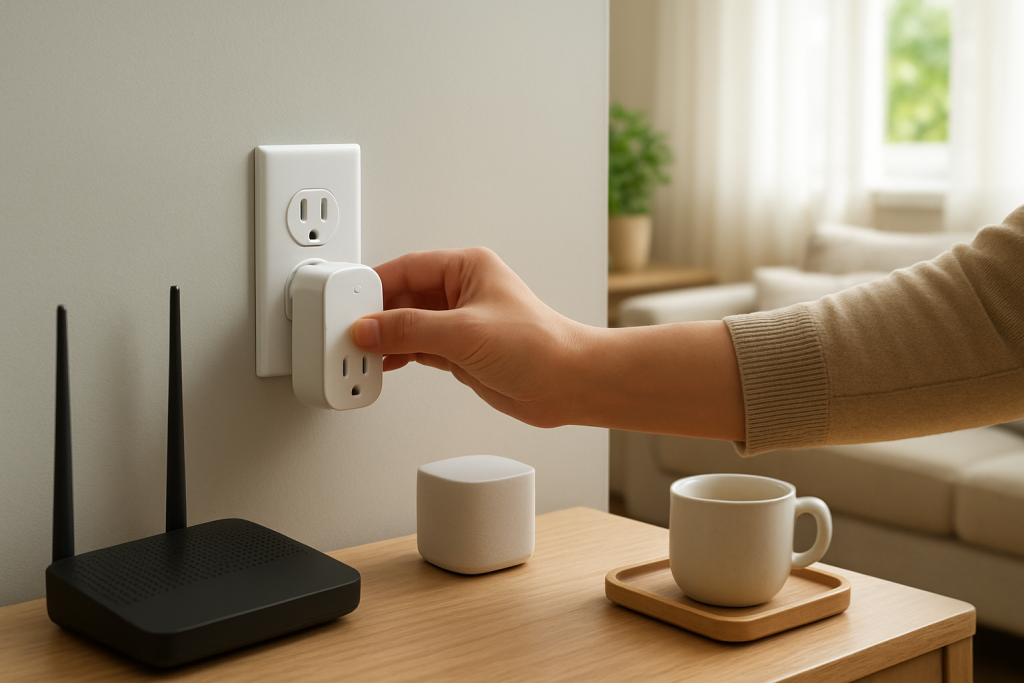
Reboot in the correct order (the most important fix after outages): power off your modem and router/mesh (unplug), wait about 60 seconds, power on the modem first, wait until it’s fully online, then power on the router/mesh. Only after WiFi is stable, power-cycle the smart plug by unplugging it for 10 seconds and plugging it back in (or switch the circuit off/on only if you already safely know how, without opening anything).
If the plug comes online after this ordered reboot, the cause was reboot timing and failed first reconnect/cloud sync.
If it still shows offline, proceed to isolate WiFi/mesh conditions or hub/controller recovery.
Validate 2.4 GHz WiFi attachment (WiFi plugs/switches): if your router combines 2.4 GHz and 5 GHz under one name, temporarily move your phone closer to the router and try controlling the device again, then move closer to the device and retry. Also check if your router has an “IoT network” or a 2.4 GHz-only option.
If it works near the router but fails near the device, it usually means the device latched onto a weak mesh node or has marginal 2.4 GHz coverage post-outage.
If it fails everywhere, continue to an isolation test to separate device vs network vs cloud.
Run a “hotspot isolation” test (WiFi devices only): create a temporary phone hotspot with a simple name and password, then put the smart plug/switch into pairing mode and attempt setup to that hotspot using the manufacturer app.
If it pairs and stays online on the hotspot, the device radio is probably fine and the problem is your home WiFi/mesh (band steering, client isolation, WPA mode, or roaming behavior after outage).
If it cannot pair even to a hotspot, jump to the reset section—this points to corrupted WiFi credentials or a firmware/software issue caused by the outage.
For Zigbee/Matter/bridge setups: confirm the hub/controller is online first (SmartThings hub, Hue bridge, Matter controller like an Apple TV/HomePod/Google Nest hub, or an Alexa device acting as a controller). Then restart only the hub/controller from its power (unplug 10 seconds) after your router is stable.
If end devices come back after the hub reboot, the outage likely left the hub’s radio or cloud session in a bad state even though it looked “on.”
If the hub is online but only one plug/switch stays offline, you’re likely dealing with a single-device reconnect failure—continue to firmware and platform sync checks.
Re-sync the ecosystem link: in Alexa/Google Home/SmartThings/Apple Home, trigger a device discovery/sync (or disable/enable the device skill/integration if you use a brand account link). In the manufacturer app, confirm you’re signed in and the device is still assigned to the correct Home/Location.
If the device reappears or updates status, the outage likely caused cloud/account desync rather than a hardware problem.
If it still shows offline in both the manufacturer app and the platform app, proceed to firmware/app version checks and, only then, reset options.
Advanced Troubleshooting
This section is only needed if basic fixes fail.
Account/cloud issue: If the device works manually but is offline in multiple apps, sign out/in of the manufacturer app once. Also check if you have multiple “Homes” or “Locations” in the app—after outages and app updates, users sometimes end up looking at the wrong home profile, making devices appear missing or offline.
Network issue (post-outage settings changes): Some routers revert settings after a hard outage. Look for changes like a new WiFi password, a renamed SSID, a switch to WPA3-only, or an enabled “AP isolation/guest mode.” If your smart plug/switch is on a guest network, it may appear offline to your phone or hub due to isolation rules.
Firmware/software cause: A power cut during an automatic update can leave a device in a partial state. Check the manufacturer app for a firmware update prompt and apply it only after the device is stable on the network. If the app itself updated recently, clear its cache (where available) or reinstall—stale sessions can keep showing Offline even when the cloud is fine.
Configuration conflicts: After power returns, multiple platforms may issue commands at once (manufacturer schedules, Alexa routines, Google Home automations, SmartThings scenes). This can create “random” on/off or status mismatch that looks like offline behavior. Temporarily disable schedules/automations in all apps except one, then observe whether control stabilizes.
Ecosystem sync issue (Alexa/Google Home/Apple Home/Matter): If the manufacturer app shows the device online but Alexa/Google/Apple shows it offline, the device is fine and the problem is the bridge/link. Re-sync devices, confirm the device is in the correct room/home, and remove duplicates (two entries for the same plug often cause voice control to target the wrong one).
When to Reset or Replace the Device
A “soft restart” is simply power-cycling the smart plug (unplug for 10 seconds) or restarting the hub/router in the correct order. Do this before a factory reset because it preserves your pairing and automations.
A factory reset is appropriate when the device cannot reconnect after the network is confirmed stable, cannot be discovered during pairing, or remains stuck offline even on a hotspot test. Be aware you may lose the device’s pairing, name, room assignment, schedules/timers stored in the device/app, links to Alexa/Google/Apple/HomeKit/Matter, and any energy monitoring history (for plugs that track usage).
Replacement is reasonable if the device repeatedly goes offline after every minor outage, fails firmware updates more than once, or shows unstable behavior such as frequent clicking, dropping offline daily, or inconsistent relay control even when the network is stable. Stop using the device and replace it immediately if you notice overheating, a burning smell, discoloration, cracking, or any visible damage.
How to Prevent This in the Future
Use “recovery order” as a habit: after any outage, let the modem and router/mesh fully return before power-cycling smart plugs/switches. If your home has many smart devices, consider bringing the network up first, then devices second; this prevents the common cloud re-registration pile-up.
Improve post-outage reconnect reliability by keeping 2.4 GHz coverage strong where plugs/switches live. In mesh homes, avoid placing nodes where they cause clients to cling to a weak signal (garages, exterior walls). If your system offers an IoT network or a way to reduce band steering confusion, use it consistently for WiFi smart plugs/switches.
Avoid duplicate automations across apps. Choose one “source of truth” for schedules (manufacturer app or Alexa/Google/SmartThings/Home), and disable duplicates elsewhere so an outage doesn’t cause conflicting catch-up commands.
Keep names and room assignments consistent across platforms. A plug named differently in the manufacturer app vs Alexa/Google/Apple can lead to duplicates after re-discovery, which looks like an offline device when you’re actually controlling the wrong entry.
Maintain firmware and apps when things are stable, not right after an outage. Periodically check for updates, and keep sharing/permissions tidy in shared homes so the right account remains the owner/controller after re-authentication prompts.
FAQ
My smart plug has power and can turn on manually, so why does the app still say “Offline”?
Manual control only proves the device has power and its local relay/button works. After an outage, the device may not have reconnected to WiFi/hub yet, or it reconnected but hasn’t completed cloud sync. If the manufacturer app shows offline too, focus on reboot order and reconnection; if only Alexa/Google/Apple shows offline, focus on platform re-sync and duplicate devices.
Do I need to factory reset after every power outage?
No. That’s a common misconception. Most post-outage offline issues are caused by WiFi/router recovery timing or a stale cloud/device list. Correct reboot order (network first, devices second) and an app refresh solve the majority of cases without losing your setup.
Why did only one plug go offline while others recovered?
That usually points to a local reconnection problem: the plug may be at the edge of 2.4 GHz coverage, it may have attached to a weaker mesh node after the outage, or it may have failed a single cloud re-registration while others succeeded. Testing it on a hotspot helps separate “device problem” from “home network behavior.”
My schedules/automations ran at the wrong time after the outage. Is that related?
Often, yes. Right after an outage, devices and hubs can temporarily have incorrect time until they sync again, and multiple apps may “catch up” on missed routines. Once the network is stable, verify your home time zone/location in the manufacturer app and your assistant platform, and remove duplicate schedules across apps to prevent conflicting commands.
What’s left is mostly the feeling of finishing a long errand without realizing you were carrying it in your chest. The parts that used to tug at your attention can finally unclench.
Not dramatic, not cinematic—just a cleaner line of days ahead. It’s one of those changes you notice more when you stop thinking about it.