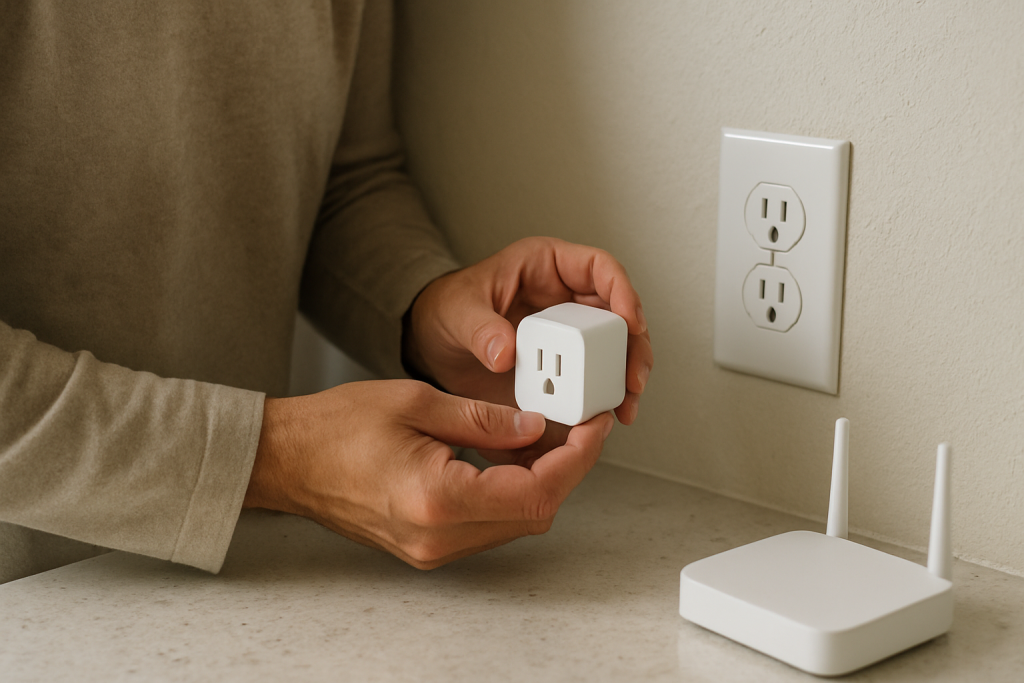
A smart plug or smart switch firmware update usually gets “stuck” because the device loses a stable connection during the handoff between downloading firmware and applying it. In real homes this is commonly caused by mesh WiFi roaming, band steering (2.4 GHz vs 5 GHz), or the app/cloud session timing out while the device is rebooting.
Your goal is safe recovery: keep power stable, confirm the device is still reachable, and avoid interrupting the update at the wrong moment. Most devices can recover on their own once they reconnect cleanly to the same network and account.
Do these three actions now: (1) wait 10–15 minutes while keeping the plug/switch powered, (2) check whether the device is still controllable locally in the manufacturer app (not just Alexa/Google/Home), and (3) confirm your phone is on the same 2.4 GHz network the device uses (temporarily disable cellular data or switch to the correct SSID if needed).
Why This Happens
Firmware updates for smart plugs and smart switches are a two-stage process: the device downloads the update (network-heavy) and then reboots to apply it (power- and timing-sensitive). A “stuck” screen often means the app lost track of the device during reboot, not that the device is permanently broken.
Common, tightly related causes include:
First, a brief disconnect during the reboot/apply phase. If the plug roams to a different mesh node, the router renews its IP address, or the WiFi signal dips, the app can’t confirm completion and shows “updating” indefinitely.
Second, band steering or mixed SSIDs. Many plugs only join 2.4 GHz, but your phone might be on 5 GHz with the same network name; some routers isolate or route that traffic in ways that confuse discovery during updates.
Third, cloud session or account mismatch. If you switched phones, changed your password, or have multiple household members using different logins, the update can finish but the app can’t refresh status because the session is stale.
Real-world scenario: a router reboots overnight, the plug reconnects slowly, and the app tries to update in the morning while the mesh is still “settling.” The plug restarts mid-update and lands on a different access point, so the app never receives the “done” confirmation.
Common user mistake: repeatedly toggling power or force-closing the app the moment it looks stuck. That increases the chance of interrupting the apply phase and can extend recovery time.
Overlooked technical cause: some ecosystems (Matter controllers, SmartThings hubs, Hue bridges, Alexa/Google/Home integrations) cache device state. The manufacturer app may show progress, while the assistant still shows “offline,” leading you to think the update failed when it’s actually an ecosystem sync delay.
Most Likely Causes in Real Homes
1) Mesh WiFi roaming or weak signal during reboot: the plug/switch disconnects briefly and the app can’t re-find it, so the progress never completes.
2) Phone on the wrong band/network: the device is on 2.4 GHz, while your phone is effectively on a different segment (5 GHz with steering, guest network, or VPN), breaking local discovery.
3) Cloud/app session hiccup: the firmware applies, but the app keeps showing “updating” due to cached status or an expired login token.
4) Update queued through one platform but monitored in another: starting an update in the manufacturer app but checking status in Alexa/Google/Apple Home can look “stuck” because those apps update later.
5) Power instability or overloaded outlet: a loose connection, switched outlet, or power strip being toggled causes repeated reboot attempts during the apply stage.
Step-by-Step Fix
Wait 10–15 minutes with steady power to the smart plug/switch. If the device is warm but not hot and its indicator LED is changing, it may still be applying firmware; many devices reboot more than once. If the update completes, you’ll usually see the LED return to the normal “online” pattern and the app will eventually refresh. If nothing changes after 15 minutes, move to the next step without unplugging repeatedly.
Check control in the manufacturer app (not Alexa/Google/Home) and look for a live status change (toggle on/off once). If the device responds in the manufacturer app, the firmware likely applied and you’re dealing with a display/sync delay; proceed to step 4 to clear cache and resync integrations. If it does not respond or shows “offline,” go to step 3 to confirm the correct network path.
Verify your phone is on the same 2.4 GHz network the device uses and not on a guest network, VPN, or private relay. If switching your phone to the correct WiFi (or temporarily turning off cellular data) makes the device reappear, the issue was local discovery during reboot; retry the update once the device is stable. If it still doesn’t appear, continue to step 4 to address app and cloud state.
Force a clean app refresh: fully close the manufacturer app, reopen it, and sign out/in if prompted; then check the firmware version screen. If the firmware version shows the new build (or “up to date”), the update likely succeeded and only the progress screen was stuck; move to step 5 to resync voice assistants and hubs. If the version did not change and the device remains unreachable, go to step 6 for a controlled power cycle.
Resync the ecosystem you control it from (Alexa, Google Home, Apple Home, SmartThings, Matter controller) by disabling/enabling the skill/integration or running device discovery, then confirm the device appears only once. If the device works in the manufacturer app but not in an assistant, this points to integration sync or duplicate device entries; continue to step 7 to isolate conflicts. If it fails everywhere, proceed to step 6 first.
Do a controlled power cycle (safe recovery attempt): turn the plug/switch off from the app if possible; if not, switch the outlet off (or unplug the smart plug) for 30 seconds, then restore power and wait 2 minutes for it to reconnect. If it comes back online, retry the firmware update once, ideally with your phone close to the device and the network stable. If the device repeatedly comes online then drops during update, move to step 7 to rule out network roaming and automation interference.
Isolate the device from common home conflicts: temporarily pause routines/automations that toggle it, remove it from groups/scenes, and ensure only one household member is trying to control it during the update. If the update completes after removing automation pressure, the “stuck” behavior was caused by competing commands during reboot. If it still fails, go to step 8 for a network isolation test.
Run a hotspot isolation test (best for WiFi plugs): temporarily connect the plug to a simple 2.4 GHz hotspot (or a basic SSID without band steering), then attempt the update again. If the update succeeds on the hotspot, your main network (mesh roaming, steering, firewall rules, or client isolation) is the likely cause; keep the plug on the stable network or adjust network settings later. If it fails even on the hotspot, proceed to step 9 to consider a reset/re-pair.
If the app offers a “repair,” “reconnect,” or “re-pair” flow, use that before a full factory reset. If repair works, you recover without losing schedules and room assignments. If repair fails and the device is still stuck/offline, move to the reset guidance section below and decide whether to reset or replace.
Advanced Troubleshooting
This section is only needed if basic fixes fail.
Account/cloud issue: If the plug shows up for one family member but not another, or appears twice with different names, you likely have a sharing/permission mismatch. Confirm everyone is either using the same primary account or is properly invited with device control permissions, then remove duplicates in assistants before re-adding.
Network issue: If the device fails only on your main WiFi and especially after router reboots, suspect mesh node hopping or band steering during reboot. A stable connection matters most during the apply phase; placing the plug/switch closer to the main router (not just any mesh node) during the update can prevent a mid-update roam. Also check that you are not using a guest network, client isolation, or a “smart” WiFi feature that blocks local device discovery.
Firmware/software cause: If the app itself recently updated, it may show incorrect progress due to cached data. Clearing the app cache (Android) or reinstalling the app (iOS/Android) often fixes a stuck progress indicator without touching the device. If the firmware update is part of a migration (for example enabling Matter, changing device certificates, or adding energy monitoring features), it may take longer and require a clean cloud re-login to finalize.
Configuration conflict: Conflicting schedules are common: one automation turns the plug off right when it needs steady power to reboot. Check for routines in the manufacturer app, Alexa, Google Home, Apple Home, SmartThings, and any hub-based rules (Zigbee hubs, bridges) that reference the device. If manual control works but scheduled behavior is erratic after an update attempt, time zone/location settings in the app or hub can also cause repeated toggles that look like “update instability.”
Ecosystem sync issue (Alexa/Google/Apple Home/Matter): If the device is updated and works in the manufacturer app but appears “unresponsive” in HomeKit or a Matter controller, the controller may need a refresh. Removing and re-adding the device to the assistant is sometimes necessary after firmware changes that affect identity, but do this only after confirming the device is stable and not mid-update.
When to Reset or Replace the Device
A soft restart is simply a controlled power cycle (off for 30 seconds, then back on) and an app refresh. This is the safest first-line recovery because it does not erase pairing.
A factory reset wipes the device’s pairing and configuration so it can be set up again from scratch. After a reset, you may lose room assignment, device name, schedules/timers, scenes/groups, shared-user permissions, and any assistant links. For smart plugs with energy monitoring, you may also lose historical energy data stored on the device or in the app view (depending on how the service tracks history).
Reset is reasonable when: the device stays stuck “offline/updating” across multiple power cycles, it cannot be repaired/reconnected in the app, and it fails even on a simple 2.4 GHz hotspot or close to the router. In those cases, re-pairing often restores a clean firmware state.
Replacement is reasonable when: firmware updates repeatedly fail over weeks, the device frequently drops offline regardless of network stability, or the relay behavior becomes unstable (random clicking/on-off) after you’ve ruled out automation conflicts and network issues. Stop using the device immediately and replace it if you notice overheating, a burning smell, discoloration, cracking, or any visible damage.
How to Prevent This in the Future
Keep firmware updates boring and predictable: run them when the home network is stable and you don’t expect router restarts, power outages, or heavy streaming. Avoid starting updates right after changing WiFi settings, adding a new mesh node, or moving the device to a different room.
Improve update reliability by minimizing roaming during the update window. If your home uses mesh WiFi, update the plug/switch when it has a strong, steady connection (often near the main router). For WiFi smart plugs, keep them on a consistent 2.4 GHz network and avoid guest networks for devices that need local discovery during setup and updates.
Avoid duplicate automations across apps. Pick one “source of truth” for schedules (manufacturer app or your main ecosystem), and remove overlapping timers that can toggle power during a firmware apply reboot.
Use consistent naming and room organization across apps so you can spot duplicates quickly after updates. When a device re-identifies after firmware changes (especially with Matter or bridge integrations), duplicates can cause you to control the wrong entry and think the update failed.
After power outages, give your router/mesh and hubs time to fully stabilize before launching firmware updates. A good habit is: network equipment first, then hubs/bridges, then end devices, then open apps and confirm everything is online before updating.
Maintain app hygiene: keep the manufacturer app updated, but if an update introduces odd behavior (stuck progress, wrong status), signing out/in or reinstalling can fix the display layer without disrupting the device.
FAQ
Is it safe to unplug a smart plug during a firmware update?
If it’s truly in the middle of applying firmware, cutting power can prolong recovery and sometimes force a reset. If the screen has been stuck for 15+ minutes with no LED/activity change, a controlled power cycle (off for 30 seconds, then on) is usually the safest next step, but avoid repeated rapid unplugging.
The app says “updating,” but the plug still turns on and off. Did the update fail?
Not necessarily. If the device responds to control in the manufacturer app, the firmware may already be installed and the app is showing cached progress. Check the firmware version page; if it shows “up to date,” focus on app refresh and ecosystem resync rather than repeating the update.
Why does it update in the manufacturer app but stay “unresponsive” in Alexa/Google Home/Apple Home?
Assistants and hubs often cache device identity and status. After firmware changes, the integration may need a discovery refresh or relink. Confirm the device is stable in the manufacturer app first; then resync the assistant and remove any duplicate device entries that can cause “unresponsive” errors.
Misconception: “If my phone is on WiFi, the plug must be on the same network.” Is that always true?
No. With band steering, guest networks, VPNs, and some mesh setups, your phone can be “on WiFi” but effectively separated from the device. During firmware updates, that separation matters because the app may rely on local discovery right after the device reboots. Ensuring both are on the same main 2.4 GHz network often resolves a “stuck” update.
It’s a rare thing: the problem has been named, and the path out is already sitting there in plain sight. Not glamorous, not dramatic—just the kind of clarity that makes the noise in your head ease off.
After all, you don’t need another grand speech to move forward. The groundwork is laid, and the rest is simply letting it be true in real life.