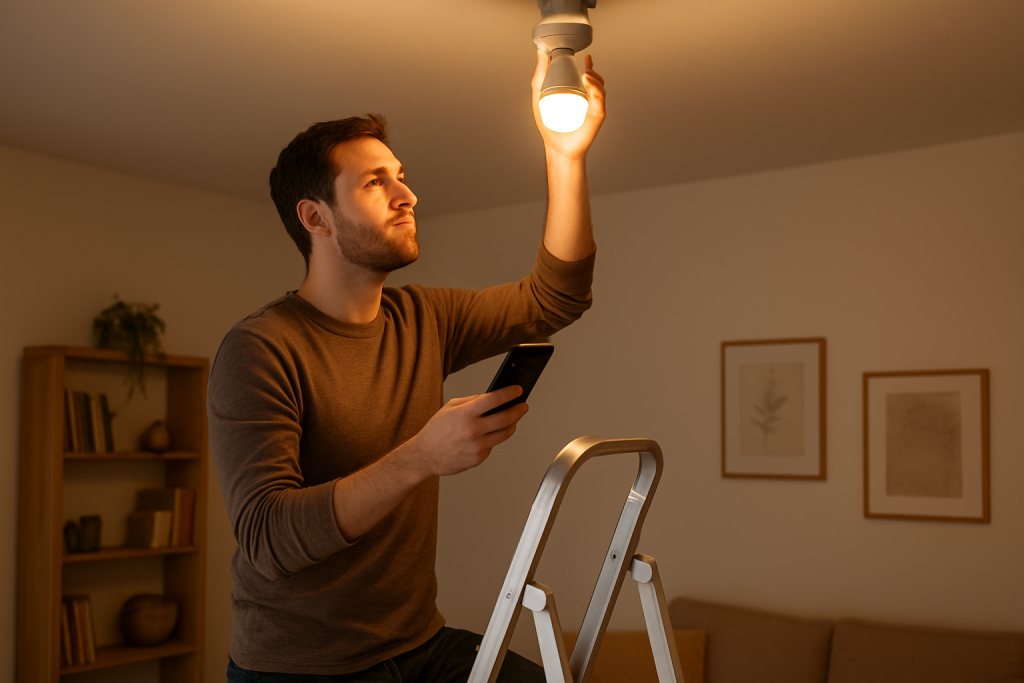
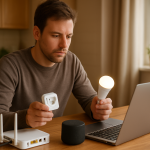
The most common real-world reason a smart bulb firmware update fails is that the bulb loses a reliable connection to the device that delivers the update during the process. That “device” might be your phone (for Bluetooth-assisted setup), a Wi‑Fi router, or a hub/bridge (Zigbee, Thread/Matter, Philips Hue Bridge). Firmware updates are more sensitive than normal on/off control: brief dropouts, roaming between mesh nodes, or hub congestion can cause the transfer to stall or the bulb to reject the update.
Start by assuming this is a connectivity-and-coordination problem, not a “bad bulb.” Updates often fail when the bulb is far from the router/bridge, when your phone switches networks mid-update, or when the hub is busy syncing a group/scene across many lights.
Immediate diagnostics to do now: (1) Move the bulb temporarily closer to the router or hub/bridge and retry the update. (2) Keep your phone on the same local network and disable VPN/cellular switching while updating. (3) Update one bulb at a time (remove it from groups/rooms temporarily if needed) and confirm the app shows the bulb as “online/reachable” before you start.
Why This Happens
Firmware updates are essentially a controlled file transfer plus a reboot. In smart lighting ecosystems, that transfer is usually coordinated by an app and delivered over Wi‑Fi, Zigbee via a hub/bridge, or Thread/Matter via a border router. If anything interrupts the transfer or the device state changes mid-process, the update can fail even though the bulb still works for basic commands.
Common tightly related causes include:
1) Unstable update path: The bulb is reachable for quick commands, but not stable enough for a multi-minute firmware push. This is common with Wi‑Fi bulbs on the edge of coverage, Zigbee bulbs at the edge of the mesh, or Thread/Matter devices with weak routing.
2) Hub/bridge bottlenecks: Zigbee hubs and bridges often update devices sequentially and may pause if the mesh is busy. If you try to update many bulbs at once, group traffic and automation traffic can slow or interrupt the update stream.
3) App-to-cloud coordination issues: Some ecosystems stage firmware through a cloud service. If your account token is stale, the service is degraded, or the app is out of date, the update may never start or may fail at a consistent percentage.
4) Power interruptions or rapid toggling: If the bulb loses power during the write-and-reboot phase, it may roll back or get stuck in a “pending update” state. This is common after a brief outage or if a wall switch is flipped during the update.
5) Configuration conflicts: Bulbs in tight groups, scenes, or automations can receive commands during the update (on/off, brightness changes, color changes). If the bulb is being actively controlled while updating, it may drop the update session.
Real-world scenario: A homeowner starts updates for six bulbs at once in a living room. Two are in a ceiling fixture farther from the bridge. The app shows “updating,” but the phone roams to a different mesh node and one bulb is also being toggled by a scheduled “sunset” automation. The update stalls at 33% and then fails.
Common user mistake: Starting the update and then leaving the home or letting the phone switch to cellular/VPN. The app may still show progress, but the update coordinator loses its session and the bulb times out.
Overlooked technical cause: In multi-AP mesh networks, “client steering” and band steering can move your phone or the bulb between access points or bands mid-update. Normal lighting control may tolerate that, but firmware transfer often does not.
Most Likely Causes in Real Homes
1) Bulb is too far from the router/bridge or has weak mesh routing, so the update transfer drops even though basic control works.
2) Phone/network changes during the update (VPN enabled, phone switches to cellular, roaming between mesh nodes, or changing Wi‑Fi networks).
3) Too many bulbs updating at once, overloading the hub/bridge or the Zigbee/Thread mesh.
4) Automations, groups, or wall switch use interrupts the bulb during the update window.
5) App/account sync problems (app outdated, account token expired, cloud service hiccup), causing the update to fail consistently at the same stage.
Step-by-Step Fix
Confirm the bulb is actually reachable in the app (not just “last seen”). What to do: Open the lighting app and check the bulb’s status (online/reachable). Try a simple command like turning it on/off and changing brightness. What the result means: If commands are delayed, fail, or only work intermittently, the update is likely failing due to an unstable connection path. What to try next if it fails: Move to Step 2 and focus on signal/mesh stability before attempting another update.
Stabilize the update path: move the bulb (or the bridge) closer temporarily. What to do: If it’s a lamp bulb, move the lamp closer to the Wi‑Fi router or the hub/bridge. If it’s a fixed fixture, move the hub/bridge closer if possible (without rewiring) or temporarily use a closer socket/lamp for the bulb if it can be moved safely. What the result means: If the update succeeds when closer, the root cause is range/mesh quality, not the bulb firmware itself. What to try next if it fails: Continue to Step 3 to eliminate phone/network switching and background traffic.
Keep your phone “anchored” to the same local network during the update. What to do: Turn off VPN, disable “Wi‑Fi Assist”/cellular fallback if your phone has it, and stay within good Wi‑Fi coverage. Do not leave the app or lock the phone for long periods during the update. What the result means: If the update succeeds after preventing network switching, the failure was caused by session loss between app, cloud, and local network. What to try next if it fails: Go to Step 4 and reduce simultaneous activity in the lighting system.
Update one bulb at a time and pause automations temporarily. What to do: In the app, stop any “update all” process. Disable schedules/automations for 30 minutes (especially sunset/sunrise routines). If the bulb is in a group/room with frequent changes, temporarily remove it from the group or avoid controlling that group during the update. What the result means: If single-device updating works, your hub/mesh was likely congested or the bulb was being controlled mid-update. What to try next if it fails: Proceed to Step 5 to test whether the issue is specific to your home network or the bulb itself.
Run a hotspot isolation test (Wi‑Fi bulbs) or a hub proximity test (Zigbee/Thread/Matter). What to do: For Wi‑Fi bulbs, temporarily connect your phone to a personal hotspot (or a simple alternate Wi‑Fi network) and re-add/update only if your ecosystem supports it without breaking your setup; if not, use the hotspot test only to confirm your phone’s network stability while staying on your normal Wi‑Fi for the bulb. For Zigbee/Thread/Matter, place the bulb close to the hub/bridge/border router and retry. What the result means: If the update works only when the environment is simplified, your main network or mesh behavior is the culprit (roaming, interference, or congestion). What to try next if it fails: Go to Step 6 and focus on app/software state and staged updates.
Update the controlling app and check for ecosystem-wide outages or account sync issues. What to do: Update the smart lighting app and any relevant hub/bridge app. Log out and back in if the app supports it. Confirm the phone’s date/time is correct (incorrect time can break secure sessions). What the result means: If the update starts working after a re-login or app update, the failure was likely cloud token/session related. What to try next if it fails: Continue to Step 7 and reset the update state by power cycling correctly.
Do a proper power cycle sequence to clear “stuck update” state. What to do: Turn the bulb off for 20 seconds using the lamp switch or wall switch (do not rapidly toggle). Turn it on and wait 2 minutes for it to fully rejoin the network. Then retry the firmware update. What the result means: If the bulb was stuck in a pending state, a clean reboot often restores normal update behavior. What to try next if it fails: Move to Step 8 to check for configuration conflicts like duplicate devices, wrong room/location, or permissions.
Verify the bulb is in the correct home/location and not duplicated. What to do: In the app, check whether the bulb appears twice, is assigned to the wrong “Home,” or is controlled by multiple integrations (for example, both a manufacturer app and a platform app). Ensure you’re initiating the update from the primary controller for that ecosystem (the app that owns the bulb). What the result means: If the bulb is duplicated or controlled from multiple places, update commands can be sent to the wrong instance or interrupted by competing control. What to try next if it fails: Go to Step 9 and reduce mesh roaming and interference during the update window.
Reduce mesh roaming during the update (especially in multi-AP homes). What to do: Stay near one access point. If your mesh system allows it, temporarily disable “smart steering” features that aggressively move clients, or pause additional nodes for the duration of the update (only if you can do so without disrupting critical connectivity). What the result means: If updates succeed when roaming is minimized, the issue is not Wi‑Fi “speed,” but stability of the connection path during long transfers. What to try next if it fails: Proceed to Step 10 and attempt the update at a quieter time with fewer devices active.
Retry the update during a quiet window and confirm no scheduled events will run. What to do: Choose a time when no lighting schedules, motion automations, or voice routines will trigger. Avoid streaming-heavy periods if your network is busy. Start the update and leave the bulb powered and untouched until it completes. What the result means: If timing fixes it, background traffic or automation interference was interrupting the update. What to try next if it fails: Move to Advanced Troubleshooting for deeper account, firmware, and configuration checks.
Advanced Troubleshooting
This section is only needed if basic fixes fail.
Account or cloud issue: If the update fails at the exact same percentage every time, it often indicates a staged download/verification problem rather than signal strength. Try signing out/in again, confirming the app has local network permissions on your phone, and checking whether other devices in the same ecosystem can update. If none can update, the issue is likely account-side or service-side; wait a few hours and try again rather than repeatedly restarting the process.
Network issue (relevant when updates start but never finish): For Wi‑Fi bulbs, confirm you are not using a guest network or client isolation setting that blocks local device communication. If the bulb works but updates fail, isolation can still interfere with the update coordinator’s local discovery steps. Also ensure the bulb is on the expected band for your setup (many Wi‑Fi bulbs require 2.4 GHz). If the bulb is “working” through cloud control but cannot maintain local communication, updates may fail.
Firmware/software cause: Sometimes a bulb requires an intermediate firmware before the latest version. If the app offers a “retry” or “resume” option, use it rather than removing the device immediately. If the ecosystem provides hub/bridge firmware updates, apply those first; a bridge update can fix device update reliability for many bulbs at once.
Configuration conflict (groups, scenes, automation, permissions): If the bulb is part of a scene that is frequently recalled (for example, motion lighting), it may be receiving commands every few seconds. Temporarily disable the automation, then update. Also check household permissions: if multiple users control the home, a second phone issuing commands can interrupt the update. During updates, keep control to one device and one app.
When to Reset or Replace the Device
Soft restart vs. factory reset: A soft restart is simply a clean power cycle (off for 20 seconds, then on and wait). It clears temporary states without changing your setup. A factory reset returns the bulb to setup mode and removes it from your home, rooms, and automations.
What you lose after a factory reset: You typically lose the bulb’s name, room assignment, group membership, scenes, schedules tied directly to that bulb, and any platform integrations that referenced the old device ID. Plan to re-add it and rebuild automations if needed.
When reset is justified: Reset if the bulb is stuck in an “updating” or “unreachable” state after multiple clean retries, especially if other bulbs update normally. Reset is also reasonable if the bulb appears duplicated or cannot be controlled reliably even when close to the router/bridge.
When to replace: Replace the bulb if it overheats, smells hot, flickers abnormally after a failed update, shows visible damage, or repeatedly drops off the network even when placed close to the hub/router with automations disabled. Safety note: if the bulb is unusually hot to the touch or the fixture shows signs of heat damage, turn it off and stop troubleshooting with that bulb.
How to Prevent This in the Future
Keep the update path stable: Run firmware updates when you can keep your phone on the same Wi‑Fi network and within strong coverage. Avoid starting updates right before leaving home.
Mind device placement: Bulbs at the edge of coverage are the most likely to fail updates. If you have multiple hubs/bridges or border routers, place them centrally and avoid burying them behind TVs, metal cabinets, or dense wiring bundles.
Manage automations during maintenance: Pause motion lighting and scheduled scenes during updates. After updates, re-enable them and verify groups still behave correctly.
Plan for power outages: After an outage, give the system a few minutes to settle before running updates. Many ecosystems will be busy rejoining devices and syncing state.
Do firmware maintenance in smaller batches: Update a few bulbs at a time, starting with the ones closest to the hub/router. This reduces mesh congestion and makes it easier to spot one problematic device.
FAQ
Why does the bulb still turn on and off if the firmware update fails?
On/off commands are small and can succeed even with a weak or unstable connection. Firmware updates are long transfers with verification steps and a reboot. If the connection drops briefly, the update can fail while basic control still appears normal.
Is it safe to use the bulb after a failed update?
Usually yes, if it behaves normally (no unusual heat, no persistent flicker, no repeated disconnects). If the bulb becomes very hot, smells hot, or flickers abnormally after the failure, turn it off and stop using it.
Do I need faster internet to update smart bulbs?
No. Firmware updates usually depend more on local stability than internet speed. A steady connection between the bulb and the router/bridge (and between your phone and the same network) matters more than having a high-speed plan.
Should I update all bulbs at once?
In many homes, updating all at once increases failures because the hub/bridge or mesh gets busy and devices compete for airtime. If updates fail, switch to one bulb at a time and pause automations until updates finish.
Misconception: “If I factory reset, it will always fix firmware updates.” Is that true?
No. A reset can help if the bulb’s software state is stuck or it’s duplicated in the app, but it will not fix weak signal, mesh congestion, roaming issues, or cloud/account problems. If the update succeeds only when the bulb is close to the router/bridge, focus on placement and network stability rather than repeated resets.
What’s been loud for so long starts to feel oddly ordinary now. Not because the stakes vanished, but because the noise finally matches the reality.
There’s room to breathe in the small gaps—between meetings, scrolls, and the usual arguments. The next days won’t be perfect, yet they won’t feel stuck either.