Smart Plug Energy Monitoring Not Updating? How to Fix It
Quick Answer
When a smart plug’s energy monitoring stops updating, the plug is usually still measuring power locally, but the app isn’t refreshing the latest data because the device hasn’t fully synced its energy reports to the cloud or the app is showing cached results. This is especially common after a firmware update, a router/mesh restart, or a brief power outage where the plug reconnects to WiFi but delays re-registering its telemetry session.
If on/off control still works but watts/kWh stay stuck, that points away from a “dead” plug and toward a reporting pipeline issue: device firmware reporting cadence, cloud processing delay, or the app’s refresh/session state. Energy graphs can also lag by minutes (or longer) even while switching feels instant.
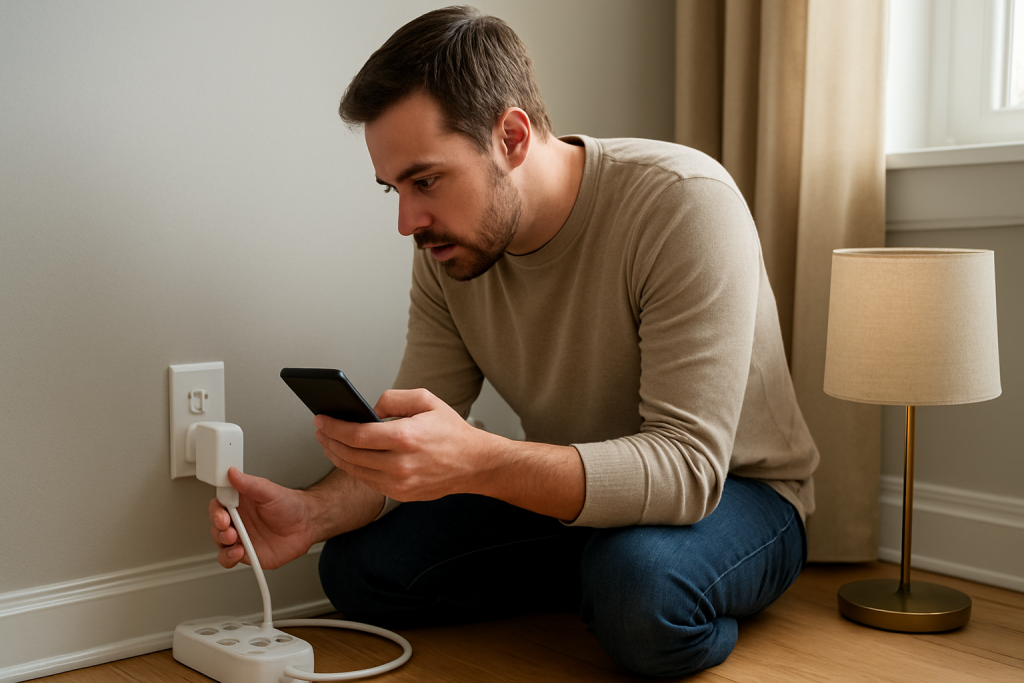
Do these three actions first: (1) pull down to refresh (or fully close and reopen) the manufacturer app, (2) check whether the plug shows “online” and has a current “last updated” timestamp, and (3) power-cycle the plug once (unplug for 15 seconds, then plug back in) and wait 3–5 minutes for energy data to resume syncing.
Why This Happens
Energy monitoring updates rely on a separate reporting path from basic on/off control. Many smart plugs can switch quickly (sometimes locally through your hub or LAN), but energy data is batched and uploaded on a schedule, then processed and displayed by the app. If that sync loop gets interrupted, the app may show old readings even though the plug is working.
Common tightly related causes include:
First, a firmware-to-cloud sync delay: after an update or reconnection, the plug may prioritize control and only later re-establish its telemetry upload session. Second, cloud processing or regional service delays: the app may not receive updated energy history even while the device stays “online.” Third, app cache/session issues: the app can keep showing a stored chart until it refreshes your login session or reloads device metadata.
A real-world scenario: your home mesh WiFi reboots overnight, the plug reconnects to a different node, and the app still shows “online,” but energy graphs freeze until the device completes a background re-sync. A common user mistake is checking energy data in a voice assistant app (Alexa/Google Home/Apple Home/SmartThings) and assuming it’s the “source of truth,” when energy reporting often remains in the manufacturer app only or updates less frequently through integrations. An overlooked technical cause is time/date drift or time zone mismatch after outages or phone changes, which can make “today” energy appear stuck because the app is grouping data into the wrong day boundary.
Most Likely Causes in Real Homes
1) Cloud or service-side delay: the plug is measuring, but the app’s energy dashboard updates late, especially during outages, maintenance windows, or regional congestion.
2) Firmware reporting stuck after reconnect: the device comes back online for control, but its telemetry upload process hasn’t restarted cleanly after a power blip or router change.
3) App cache/login session issue: the app shows an old chart until you fully relaunch it or re-authenticate, particularly after app updates.
4) Network path change (mesh roaming, band steering, DHCP change): the plug reconnects, but its connection is unstable enough to drop energy uploads while still allowing occasional control commands.
5) Integration mismatch: Alexa/Google Home/Apple Home/Matter controller shows stale power data because the integration only refreshes periodically or isn’t authorized for energy telemetry.
Step-by-Step Fix
Check where you’re viewing energy data (manufacturer app vs assistant app).
What it means: If energy updates correctly in the manufacturer app but not in Alexa/Google Home/Apple Home/SmartThings, the issue is integration refresh, not the plug’s measurement.
If it fails: If the manufacturer app also shows frozen watts/kWh, continue to the next step.
Force a true app refresh (not just switching apps): close the app completely, reopen it, and confirm the device shows “online” with a recent “last updated” time (if shown).
What it means: If values immediately update, the problem was cached data or a stale session token after an app update.
If it fails: If the plug is online but energy remains stuck, move on to a device-side sync check.
Power-cycle the smart plug once: unplug it for 15 seconds, plug it back in, then wait 3–5 minutes before judging the energy screen.
What it means: If energy updates return after a few minutes, the plug’s telemetry process likely needed a clean restart to resume cloud sync.
If it fails: If on/off works but energy still doesn’t update after 5 minutes, continue below.
Confirm firmware and app versions, then check for a “device update pending/failed” message.
What it means: A partially applied firmware update can leave energy reporting broken while basic switching still functions.
If it fails: If updates are current or no update is offered, proceed to a network stability test focused on telemetry.
Run a quick “telemetry stability” test: keep the plug in place, toggle it on, apply a steady load (like a lamp), and watch the live watts screen for up to 2 minutes.
What it means: If watts briefly appear then freeze, the plug is measuring but the app/cloud refresh is stalling mid-session. If watts never appear at all, the device may not be reporting telemetry correctly.
If it fails: If the live watts view is unreliable, do the next step to rule out mesh roaming/band steering issues affecting uploads.
Test mesh roaming/band steering impact: temporarily move the plug closer to the main router (or the most stable mesh node), or temporarily unplug nearby mesh nodes so the plug connects to the main router, then re-check energy updates.
What it means: If energy updates resume when the plug is near the main router, the prior location/node handoff was stable enough for control but not stable enough for continuous uploads.
If it fails: If location changes don’t help, isolate the network path next.
Hotspot isolation test (short and safe): connect the plug to a phone hotspot for 10 minutes (if supported by the plug/app), then check whether energy updates normally.
What it means: If energy updates work on the hotspot, your home network is likely delaying or interrupting the plug’s cloud telemetry (common with certain DNS settings, firewalls, or mesh behaviors).
If it fails: If it still doesn’t update on a hotspot, the issue is more likely firmware/app/account-side than your WiFi.
Re-authenticate the account in the manufacturer app: sign out/in, or use the app’s “refresh account/session” flow if available.
What it means: If energy history suddenly populates, the app was stuck on an expired token or an account sync state.
If it fails: If energy remains frozen, check for configuration conflicts and ecosystem sync next.
Check for automation conflicts that may mask “real” usage: review schedules, timers, and routines across the manufacturer app and any linked platforms (Alexa/Google Home/SmartThings/HomeKit/Matter controller).
What it means: If the plug is turning off unexpectedly or cycling, energy may look “stuck” simply because the load isn’t running as you think, or because the app is charting different intervals.
If it fails: If automations are clean and the load is steady but charts still don’t update, proceed to Advanced Troubleshooting.
Advanced Troubleshooting
This section is only needed if basic fixes fail.
Account/cloud issue: If multiple devices from the same account all stopped updating energy around the same time, it often indicates a cloud-side delay or an account sync problem. Try logging into the same account on a second phone/tablet. If the second device shows the same frozen timestamp, it’s likely not your phone—it’s the cloud feed or account state.
Network issue (specific to telemetry): Energy reporting typically uses frequent small uploads. Some networks handle simple control commands fine but interrupt steady outbound telemetry due to DNS filtering, router “security” features, or aggressive client steering on mesh systems. If the hotspot test worked, look for recently changed router settings (DNS, parental controls, IoT isolation, VPN-on-router) and revert or relax only what’s necessary for the plug to reach its cloud service.
Firmware/software cause: If the plug recently updated firmware (or the app updated) and energy broke immediately afterward, suspect a version mismatch or a stuck migration. Leave the plug powered and online for 30–60 minutes to allow background completion, then check again. If your app offers a “reboot device” option, use it after confirming the device is online; it can restart reporting without changing pairing.
Configuration conflict: In shared homes, energy can appear missing if you’re viewing a duplicate device entry, the wrong “Home,” or a copy imported via Matter/bridge. If you see two similar plug names in different apps, open the manufacturer app and confirm you’re viewing the correct device card (serial/device ID if shown) and the correct home/location.
Ecosystem sync issue (Alexa/Google Home/Apple Home/Matter): Many ecosystems refresh sensor-like data on intervals, and some don’t display energy at all unless the manufacturer exposes it through that integration. If control works in Apple Home or Alexa but energy is stale there, re-sync devices (discover devices / refresh accessory list) and confirm permissions for the manufacturer skill/integration. For Matter setups, ensure you’re using the same primary Matter controller/home, because energy telemetry may not propagate consistently across multiple controllers.
When to Reset or Replace the Device
A soft restart is simply power-cycling the plug (unplug/replug) or using an in-app “reboot” option. This is the first choice when energy reporting freezes, because it often restarts the telemetry process without changing your setup.
A factory reset is reasonable when the plug remains online but energy monitoring never updates across multiple networks (including a hotspot), or when a firmware update failed and won’t recover. After a factory reset, you may lose pairing, room assignments, schedules/timers, automations tied to that device, and possibly energy history stored under that device record (daily/monthly charts may reset or split into a new device entry).
Replacement becomes reasonable if the device repeatedly drops offline, cannot complete firmware updates, or behaves unpredictably (random relay clicking/on-off that isn’t explained by automations). Also stop using the plug and replace it if you notice overheating, a burning smell, discoloration, melting, or visible damage—those are safety issues, not app sync problems.
How to Prevent This in the Future
Keep energy reporting stable by treating it like a “cloud sync feature,” not just a switch. After router reboots or power outages, give plugs a few minutes to re-register and upload telemetry before assuming it’s broken.
Use consistent home organization: keep one clear device name, one room, and one “home/location” across apps to avoid viewing a duplicate entry with stale data. In shared households, confirm everyone is added properly to the same home and that permissions allow viewing device data, not just control.
Avoid duplicate automations across platforms. If the manufacturer app has schedules and Alexa/Google Home/SmartThings also have routines, pick one place to manage on/off schedules so energy charts match reality and you don’t misread cycling as “missing data.”
For mesh WiFi homes, place plugs where they can maintain a stable connection to one node. Frequent roaming can be invisible for control but disruptive for continuous energy uploads. If you recently enabled band steering or changed SSIDs, keep IoT devices on a stable 2.4 GHz network name when possible and avoid frequent network changes.
Maintain software gently: update the app and device firmware, but after updating, leave the plug powered and connected long enough to finish background sync. If you manage your smart home across multiple ecosystems (Matter plus a manufacturer app plus a voice assistant), periodically refresh device lists and remove stale duplicates.
FAQ
Why does the plug turn on/off fine but watts and kWh won’t update?
Switching and energy reporting are often handled differently. On/off control may work locally or with minimal cloud contact, while energy data is uploaded on a schedule and processed in the cloud. If the telemetry sync is delayed (after a reboot, firmware update, or cloud hiccup), the app can show old energy readings even though control remains responsive.
Is energy monitoring supposed to update in real time?
Not always. Many smart plugs sample frequently but only upload or display data in bursts (for example, every 30–60 seconds for “live watts,” and every few minutes for history). A short delay is normal; a frozen timestamp for a long period usually indicates a sync/session problem rather than normal sampling behavior.
My voice assistant shows stale power data. Does that mean the plug is broken?
No. This is a common misconception. Alexa, Google Home, Apple Home, SmartThings, and Matter controllers may refresh energy data less often than the manufacturer app, or may not support the full energy history view. Always confirm whether the manufacturer app is updating first; if it is, the issue is the integration refresh or permissions, not the plug’s measurement.
Will resetting the plug fix missing energy history?
A reset can restore reporting if the device’s sync state is corrupted, but it can also fragment or erase energy history tied to that device entry, depending on how the service stores records. Try app refresh, power-cycling, firmware/app checks, and the hotspot test first; use a factory reset only when those fail.
At this point, the noise fades and what’s left feels almost ordinary—in the best way. The fix isn’t mysterious anymore, just something that fits, like a familiar song you didn’t realize you’d missed.
There’s a quiet relief in that. No dramatic turnaround, no fireworks, just a smoother next page and the sense that life can move on without the same old friction.