Smart Plug Won’t Turn On or Off in the App? Try These Fixes
Quick Answer
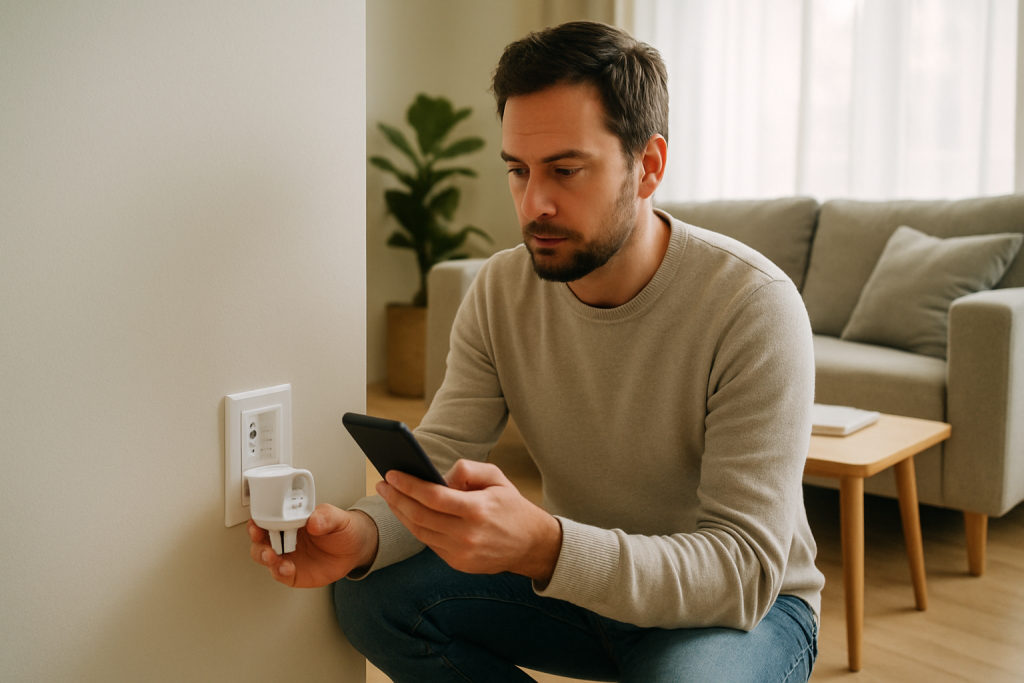
When a smart plug (or smart switch) won’t respond to on/off commands in its app, the most common reason is an app-to-device control path failure: the app is sending the command, but the plug isn’t receiving it (local network reachability problem), or the command is stuck at the cloud/account layer (sync/auth issue), even though the device still has power.
This often shows up after a router restart, an app update, switching phones, or using multiple ecosystems (Alexa, Google Home, Apple Home, SmartThings, Matter) where one app shows “offline” or the state won’t update.
Do these three actions first: (1) check whether the app shows the plug as “Online” and whether the status updates when you pull to refresh, (2) toggle the plug using its physical button once and watch whether the app state changes within 10–20 seconds, and (3) confirm the phone is on the same home network as the device (turn off VPN/cellular temporarily) and try the command again.
Why This Happens
App control fails when the command can’t reliably travel from your phone to the smart plug. Depending on the device type, that path may be direct over your home network (many WiFi plugs), through a hub (Zigbee plugs, some smart switches, many Matter setups), or through a cloud service (common for remote control, routines, and some brand apps). If any link in that chain breaks, the app can “tap” the button but nothing actually happens.
Common, tightly related causes include: (1) the plug is online but on the “wrong” network segment (mesh roaming or band steering changes how it’s reached), (2) the app session is stale after an update or password change so commands don’t authenticate correctly, (3) the plug is connected but the app is reading old state (status mismatch), (4) automations or schedules immediately override your manual command, and (5) an ecosystem bridge/controller (Alexa/Google/HomeKit/Matter/SmartThings) is out of sync with the device’s primary app.
Real-world scenario: after a power outage, your router reboots, then the plug reconnects slowly or grabs a new IP address; the app still “thinks” it’s at the old address and commands fail until the device re-registers. Common user mistake: controlling the device from a different “Home,” “Location,” or account than the one the plug is actually paired to (especially with shared homes). Overlooked technical cause: mesh WiFi nodes can move devices between access points in a way that breaks local discovery, so the app shows “unreachable” even though the internet works.
Most Likely Causes in Real Homes
These are ordered by what most often breaks app on/off control.
1) App shows stale status or is logged into the wrong home/account: the command is sent to the wrong “copy” of the device, or not sent at all due to session/auth issues.
2) Device is “online” but not locally reachable: mesh roaming, guest network isolation, VPN, or phone on cellular can prevent local control or fast state updates.
3) Cloud sync delay or outage: the device and app are fine, but the service layer that relays commands is delayed, causing taps to do nothing or update late.
4) Automations, schedules, scenes, or power-recovery settings override you: the plug turns on, then immediately turns off (or vice versa) because another rule wins.
5) Ecosystem integration mismatch (Alexa/Google/HomeKit/Matter/SmartThings): one controller shows the device but can’t actually command it because linking, permissions, or the bridge/hub is out of sync.
Step-by-Step Fix
Confirm what “failure” you’re seeing in the app: does the device show Offline/Unreachable, or does it show Online but won’t toggle?
If it shows Offline/Unreachable, it usually means the app can’t reach the device over the network or through its hub/cloud path. If it shows Online but won’t toggle, it often means a sync/auth/automation conflict or a status mismatch.
If you’re not sure, move to the next step and use the physical button test to separate “device control” from “app display.”
Press the plug’s physical button once (or use the switch’s local paddle) and watch the app for 10–20 seconds to see if the state updates.
If the device changes locally and the app updates, the network path is mostly fine and the issue is likely automations, permissions, or a specific controller (Alexa/Google/Home/HomeKit) not sending the command correctly. If the device changes locally but the app does not update, you likely have a status sync problem (app cache, cloud lag, wrong home/room, or local discovery failure).
If the device does not change locally, the problem may be power/load-related or the device is not functioning correctly; continue to the next step to confirm connectivity and control path before considering reset/replacement.
Make sure your phone is using the same home network path as the plug: temporarily disable VPN, turn off cellular, and connect to your home WiFi; then try the on/off command again.
If it starts working, it usually means local control requires being on the LAN (common for some WiFi apps and many hubs), or your VPN/guest network is blocking local discovery. This is especially common in shared homes where someone’s phone is on a guest SSID.
If it still fails, proceed to check the device’s connection type (WiFi vs hub/Matter) and isolate where commands are getting stuck.
Check whether the plug is on 2.4 GHz WiFi (for WiFi plugs) and whether band steering is causing “stuck” behavior.
If your router uses one combined network name for 2.4 GHz and 5 GHz, some plugs stay on 2.4 GHz while your phone moves to 5 GHz; that can break discovery or control in certain apps, especially right after a router restart. If separating bands isn’t practical, a quick test is to stand near the router and try again (reduces roaming and band switching).
If control works near the router but not elsewhere, the likely cause is mesh roaming or weak 2.4 GHz coverage at the plug’s outlet. Next, test mesh node proximity.
Test mesh roaming effects: move the plug (or a temporary lamp plugged into it) to an outlet closer to your main router or primary mesh node and retry app control.
If it works reliably in the new location, your original outlet area likely has marginal 2.4 GHz signal, or the plug is roaming between nodes and dropping its control channel. The plug may still appear “online” yet miss commands.
If it still fails in a strong-signal area, the issue is more likely app/cloud/account sync or an integration conflict. Continue to the next step.
Isolate app vs ecosystem control: try controlling the plug from its “primary” app first (brand app for WiFi plugs, hub app for Zigbee, Home app for HomeKit, controller app for Matter), then try Alexa/Google Home/SmartThings.
If the primary app works but Alexa/Google/HomeKit/SmartThings fails, the integration link is the problem (discovery, permissions, duplicate devices, or controller out of sync). If the primary app fails too, focus on account/cloud, local reachability, or firmware issues.
If only one ecosystem fails, go to the next step and refresh/relink that specific integration.
Resync the ecosystem that fails: run “device discovery” (Alexa/Google), refresh Home app status (Apple Home), or refresh devices in SmartThings; then check for duplicates.
If discovery finds a second copy of the plug, commands may be going to the wrong one. This often happens after migrating routers, enabling Matter, or re-adding the device without removing the old entry.
If resync doesn’t help, unlink and relink the integration (for example, remove the skill/service from Alexa or relink Google Home) and try again.
Check for automation conflicts: look for schedules, timers, scenes, “away mode,” and power-recovery behaviors in every place that can control the plug (brand app, Alexa routines, Google automations, Apple Home automations, SmartThings, hub rules).
If the plug turns on then flips back (or won’t stay off), it usually means another automation triggers immediately after your manual command, or two apps are fighting. Also check time zone and location settings; a wrong time zone can make “sunset” or “night” rules fire at the wrong time.
If disabling the automation fixes it, rebuild the rule in only one system and remove duplicates elsewhere.
Verify app and firmware status: update the controlling app, then check the device firmware in its primary app (or hub) and apply any pending updates.
If app control broke right after an update, a stale login token or migration can block commands until you sign out/in. If a firmware update is stuck, the device may appear online but ignore commands.
If updates and re-login don’t help, proceed to a controlled power cycle sequence next.
Do a controlled power cycle: unplug the smart plug for 20 seconds (or turn off the circuit powering the smart switch only if you can do so safely at a breaker without opening anything), then power it back and wait 2–3 minutes before testing app control.
If it starts working, the device likely needed to re-register on WiFi/hub/cloud after a router change or outage. This is common when DHCP addresses change and the app/controller needs fresh discovery.
If it still fails but the device works locally, move to advanced troubleshooting for account/cloud and controller issues.
Advanced Troubleshooting
This section is only needed if basic fixes fail.
Account/cloud issue: if the app shows the device but on/off commands time out, sign out of the app and sign back in, then confirm you’re in the correct “Home/Location.” In shared homes, verify you accepted the share invite and have control permissions, not view-only access.
Network issue: if the plug is on a guest network or your router has “AP/client isolation,” the phone may not be allowed to talk to local devices. A quick diagnostic is a hotspot isolation test: temporarily connect the plug to a phone hotspot and control it from a second device on that hotspot. If it works there, your home network settings (segmentation/isolation/mesh roaming) are the likely cause.
Firmware/software cause: if the device is present but unreliable, check whether it’s stuck mid-update. Some ecosystems also cache device capabilities; after firmware updates, a controller (Alexa/Google/HomeKit/SmartThings/Matter) may need a resync or a power cycle of the hub/bridge to rebuild the device profile.
Configuration conflict: groups and scenes can hide the real target. If you’re tapping a group tile, one member device being unreachable can cause the group command to “fail.” Try controlling the plug from its individual device page. Also check naming: two devices with the same name can lead to the wrong device being toggled in an app or assistant.
Ecosystem sync issue (Alexa/Google Home/Apple Home/Matter/SmartThings): if Matter devices show “No Response” in Apple Home but still work in the manufacturer app, the Matter controller may be out of sync. Restart the controller device (HomePod/Apple TV for Apple Home; hub/controller for other ecosystems) and then retry. If the device was added to multiple controllers, verify you’re controlling the correct home and room assignment.
When to Reset or Replace the Device
A soft restart is simply removing power briefly (unplug and replug) to force a clean reconnect. A factory reset wipes pairing and returns the plug/switch to setup mode. Use a factory reset when the device won’t rejoin the network, is stuck “offline” across multiple apps/controllers, or you can’t fix duplicated/ghost entries after a migration.
Before resetting, know what you may lose: WiFi credentials and pairing, room/home assignment, schedules/timers in the device’s app, automations in ecosystems that reference the device, and for energy-monitoring smart plugs, historical energy data or charts (some systems store it locally or per-device identity).
Replacement becomes reasonable if the device repeatedly drops offline despite strong signal, can’t complete firmware updates, or shows unstable relay behavior (random clicking/on-off not explained by automations). For smart switches, if app control fails along with inconsistent local behavior, treat it as a device reliability issue rather than an app problem.
Safety note: stop using the smart plug or switch and discontinue troubleshooting if you notice overheating, a burning smell, discoloration, crackling, or any visible damage. Those are not app-control issues and should be handled safely without continued operation.
How to Prevent This in the Future
Keep the control path predictable: avoid running the same on/off schedules in multiple places (for example, both the plug’s app and Alexa routines). Choose one “source of truth” for automations so commands don’t conflict.
Stabilize connectivity where it matters: place WiFi plugs where 2.4 GHz coverage is solid, and avoid outlets at the edge of mesh coverage where devices roam. After router changes, give smart devices time to reconnect before assuming they’re broken; many re-register slowly.
Maintain clean organization: use unique device names, keep room/home assignments consistent across apps, and remove old duplicates after migrating to a new router or enabling Matter. This prevents sending commands to ghost entries.
Handle outages and updates intentionally: after a power outage or router restart, wait for internet and WiFi to fully return before power-cycling a bunch of devices. Keep apps and firmware updated, but if control breaks after an app update, re-authenticate (sign out/in) before doing resets.
Practice permission hygiene in shared homes: confirm all users are added to the correct home and have control permissions, and avoid having multiple family members set up the same plug under different accounts.
FAQ
Why does the plug work with the button, but not in the app?
If local button control works, power to the device is fine and the relay is likely functioning. App failure usually points to a communication issue (phone not on the same network path, cloud/account session problem) or an app/ecosystem sync issue where the app can’t reach the plug or is targeting the wrong device entry.
The app shows “Online,” but tapping On/Off does nothing. What does that mean?
“Online” often only means the last known connection was good. If commands don’t execute, it commonly indicates stale status, delayed cloud delivery, or an authentication token problem after an app/password update. It can also happen when an automation immediately reverses your manual command, making it look like nothing happened.
Misconception: “If WiFi is working on my phone, the smart plug must be reachable.” Is that true?
No. Your phone having internet doesn’t guarantee local device reachability. Guest networks, VPNs, client isolation, and mesh roaming can allow web browsing while blocking or disrupting the local discovery/control traffic many smart plugs and hubs rely on.
Why does it fail only in Alexa/Google Home/Apple Home, but the manufacturer app works?
That usually means the integration is out of sync: the assistant may have a duplicate device, lost permissions, or needs a rediscovery/relink. Fixes include running discovery, removing duplicates, and relinking the service so the assistant refreshes the device record and control permissions.
When the noise fades, you can feel how much room was being taken up by uncertainty. The shape of the problem is no longer vague, and the “what now” stops being a constant background buzz.
What’s left is just life moving again—slower in the right places, faster where it counts. After all that buildup, the real change is surprisingly quiet.