Smart Plug Stopped Working After WiFi Password Change? What to Do
Quick Answer
After a WiFi password change, most smart plugs and smart switches don’t “learn” the new password automatically. They keep trying the old credentials, fail WiFi authentication, and go offline in the device app and in platforms like Alexa, Google Home, Apple Home, or SmartThings.
This usually shows up as “Offline/Unreachable,” schedules not running, or voice control failing even though the plug still has power. In many homes, mesh WiFi and band-steering (2.4 GHz vs 5 GHz) make the reconnection step more confusing.
Do these three diagnostics right now: (1) Confirm your phone is on the same 2.4 GHz WiFi network name the device originally used, (2) check the device’s status in its manufacturer app first (not only in Alexa/Google/Home), and (3) power-cycle the plug/switch once (unplug or turn off/on at the outlet) and watch whether it reconnects within 2–3 minutes.
Why This Happens
The core issue is WiFi authentication. Your smart plug/switch stores the WiFi network name (SSID) and password it was set up with. When the password changes, the device can still “see” your WiFi, but it can’t join because the saved credentials are wrong. That prevents it from reaching the internet and often prevents it from being reachable locally, so apps and voice assistants mark it offline.
Tightly related causes you’ll commonly see:
1) The password changed, but the WiFi name stayed the same, so the device keeps trying and failing with the old password (most common).
2) A real-world scenario: a shared home or ISP router replacement changes the password, and only some devices are updated. Phones and laptops reconnect automatically, but smart plugs don’t.
3) A common user mistake: changing the password and also enabling a “new” network mode (like WPA3-only) or a guest network, then wondering why older smart plugs won’t join.
4) An overlooked technical cause: mesh WiFi band steering or “smart connect” moves your phone to 5 GHz during setup, while many plugs/switches only support 2.4 GHz. The device never receives usable 2.4 GHz credentials during onboarding.
5) Another frequent twist: the device is actually connected, but your ecosystem (Alexa/Google/HomeKit/SmartThings) is out of sync because the manufacturer cloud account lost its session after the network change.
Most Likely Causes in Real Homes
1) Device still has the old password saved and can’t authenticate to WiFi, so it never comes online.
2) 2.4 GHz vs 5 GHz mismatch during re-setup (phone on 5 GHz, device needs 2.4 GHz), especially on mesh systems with one combined network name.
3) Router/security setting changes after the password change (WPA3-only, “PMF required,” guest network isolation), blocking older IoT WiFi clients.
4) The plug/switch is online in the manufacturer app, but Alexa/Google/HomeKit/SmartThings still shows it offline due to a stale link, duplicate device, or wrong “Home/Location.”
5) DHCP/IP reassignment and mesh roaming: the device joins briefly, then drops when it roams to a distant mesh node or gets a new IP and the app/cloud hasn’t refreshed.
Step-by-Step Fix
Confirm what actually changed: WiFi name (SSID), password, or router/security mode. Result meaning: If only the password changed, the device almost always needs a “reconnect” or re-provision step in its own app; it will not self-update. Next if it fails: If you also changed the WiFi name, plan to re-add the device to the new SSID (the old network details won’t match at all).
Start in the device manufacturer app (the one used to originally set up the plug/switch) and check device status there. Result meaning: If it’s offline in the manufacturer app, this is a WiFi credential/auth problem (primary). If it’s online there but offline in Alexa/Google/HomeKit/SmartThings, the issue is ecosystem syncing, not the plug’s WiFi connection. Next if it fails: If you can’t access the app or account, sign in again and confirm you’re in the correct home/location profile.
Do a single clean power cycle: unplug the smart plug for 15 seconds (or turn the switch circuit off/on using only normal controls) and wait 2–3 minutes. Result meaning: If it reconnects, the device was stuck in repeated auth attempts and recovered after a fresh join. Next if it fails: Move on to confirming 2.4 GHz and network settings; don’t keep power-cycling repeatedly.
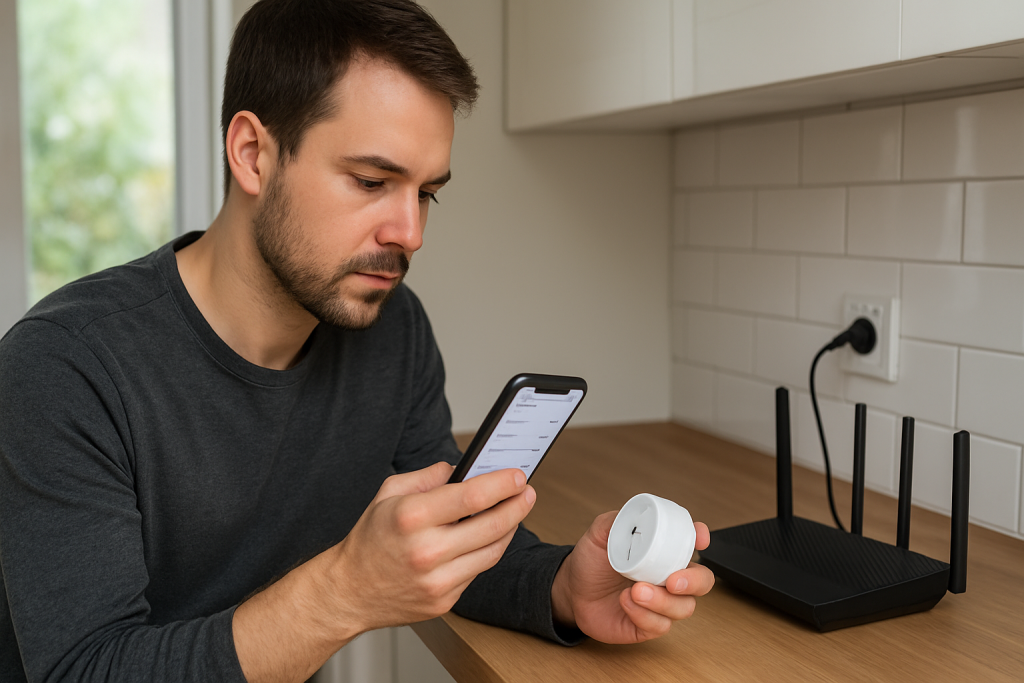
Make sure your phone is on the 2.4 GHz WiFi during setup/reconnect. If you have one combined WiFi name, stand near the router/primary mesh node and temporarily disable mobile data to keep the phone on WiFi. Result meaning: If the app suddenly finds the device or completes setup, the earlier attempts were likely happening on 5 GHz. Next if it fails: Try a “hotspot isolation test” (next step) to separate WiFi issues from device/app issues.
Hotspot isolation test (fast way to prove it’s your home WiFi): create a temporary phone hotspot with a simple name and password, then try adding the plug/switch to that hotspot using the manufacturer app. Result meaning: If it joins the hotspot, the device is fine and your home WiFi settings (password/security/band steering/mesh) are the blocker. Next if it fails: Focus on the device’s pairing mode and account/app session; the device may not be entering onboarding properly.
Check router security settings that often change during password updates: use WPA2 or WPA2/WPA3 mixed mode (not WPA3-only), avoid “guest network” for IoT devices, and ensure “client isolation” is off for the network the plug uses. Result meaning: If changing to a more compatible security mode brings it online, the device was being rejected during authentication even with the correct password. Next if it fails: Try placing the plug closer to the main router/primary mesh node to prevent mesh roaming during setup.
Mesh proximity test: plug the device within a few feet of the primary router or primary mesh node (not a distant satellite) during reconnect, then attempt the app’s reconnect/re-add flow. Result meaning: If it works near the primary node but fails in the original location, you likely have weak 2.4 GHz coverage, mesh roaming drops, or interference where the plug normally lives. Next if it fails: Proceed to ecosystem resync checks; the device may actually be online but not reflected correctly elsewhere.
If the device is online in the manufacturer app but not in Alexa/Google Home/SmartThings/Apple Home: refresh the ecosystem. For Alexa/Google: run device discovery/resync and confirm the skill/service is still linked to the correct account. For SmartThings: refresh the device list and confirm the correct Location is selected. For Apple Home: confirm you’re in the correct Home, and if the device is via a Matter bridge or hub integration, ensure the hub/bridge is online. Result meaning: If the device appears after relinking/discovery, it was a cloud/account sync issue triggered by the network change. Next if it fails: Look for duplicates and mismatched room/home assignments (next step).
Check for duplicates, wrong rooms, or wrong “Home/Location,” especially after app updates or account relogs. Result meaning: If you find two entries (one offline, one online), your voice assistant may be targeting the offline copy. Next if it fails: Disable routines/automations temporarily to rule out conflicts that look like disconnection.
Schedules/automation conflict check: in the manufacturer app and in your platform (Alexa/Google/HomeKit/SmartThings), temporarily disable routines that control that plug/switch. Result meaning: If “random on/off” stops, the device wasn’t disconnected; it was receiving competing commands from multiple apps or duplicated schedules after the password change/relink. Next if it fails: Verify time zone and location settings in the app and on your phone; wrong time zone can make schedules look broken.
Firmware/app version check: update the manufacturer app, then check for a device firmware update once it’s back online. Result meaning: If updates fix recurring drops, the device may have had a known reconnect/auth bug that shows up after router changes. Next if it fails: Consider a factory reset only after you’ve confirmed WiFi security mode and 2.4 GHz conditions are compatible.
Advanced Troubleshooting
This section is only needed if basic fixes fail.
Account/cloud issue: If the device is online locally (you can control it in the manufacturer app on the same WiFi) but remote control/voice assistants fail, sign out/in of the manufacturer app and relink the service in Alexa/Google/Home/SmartThings. A password change often coincides with router reboots, and cloud sessions can become stale.
Network issue: If the hotspot test worked but home WiFi didn’t, look for settings that block IoT clients: WPA3-only, aggressive “IoT protection,” guest isolation, or a separate VLAN that prevents the phone and device from seeing each other during setup. Also check for band steering problems on mesh: some systems temporarily deny 2.4 GHz onboarding when the phone is camped on 5 GHz.
Firmware/software cause: Some plugs/switches get stuck after repeated failed authentication attempts. A clean power cycle plus a fresh provisioning attempt usually clears it, but if the device connects and drops every few minutes, it can indicate a firmware issue or unstable WiFi environment (interference or weak signal).
Configuration conflict: If the device “works in the app but not reliably,” review groups/scenes and power recovery behaviors. After reconnection, automations may re-enable with old assumptions (for example, two apps both scheduling “off at 10 PM”). Remove duplicates rather than stacking controls across platforms.
Ecosystem sync issue (Alexa/Google/Apple Home/Matter): If you use Matter or a bridge integration (for example, a hub exposing devices to Apple Home), confirm the controller/bridge is on the same network and signed in. A WiFi password change can strand the bridge/hub on the old credentials, making every downstream smart plug appear offline even if the plug itself is fine.
When to Reset or Replace the Device
Soft restart vs factory reset: A soft restart is simply power-cycling the plug/switch once and reattempting the app’s reconnect flow. A factory reset wipes stored WiFi credentials and requires you to set it up again from scratch in the manufacturer app (and then re-link to Alexa/Google/HomeKit/SmartThings if used).
What you may lose after a reset: Expect to redo room assignment, device name, schedules/timers, and automations tied to that specific device entry. If it’s an energy-monitoring smart plug, you may also lose historical energy data in the app. Voice assistant routines often break because they reference the old device ID; you may need to reselect the device in each routine.
When reset is justified: Reset if the plug/switch will not enter pairing/reconnect mode, repeatedly fails to join even with confirmed 2.4 GHz and WPA2/WPA2 mixed security, or shows persistent “offline” in the manufacturer app after all network tests (including the hotspot test).
When replacement is reasonable: Replace if the device cannot stay connected across multiple routers/networks, consistently fails firmware updates, or behaves erratically (relay clicking, repeated disconnect/reconnect loops) even after clean setup. Stop using the device immediately if you notice overheating, burning smell, discoloration, cracking, or any visible damage.
How to Prevent This in the Future
Keep the WiFi name (SSID) and password stable when possible. If you must change the password, plan a quick “reconnect day” where you update smart plugs/switches in their manufacturer apps first, then refresh Alexa/Google/HomeKit/SmartThings after everything is online.
Favor a clear 2.4 GHz onboarding path. In mesh homes, do initial setup near the primary node and avoid setup attempts while you’re far from the router (when your phone may hop bands/nodes). If your router supports it, keep settings compatible for IoT devices (avoid WPA3-only unless you know all devices support it).
Avoid duplicate automations across multiple apps. Choose one primary place for schedules (manufacturer app or your main platform) so that after a reconnection you don’t get “random” on/off from overlapping routines.
Use consistent names and rooms across apps (for example, “Coffee Plug” in both the manufacturer app and Alexa/Google/HomeKit). When a device is re-added, delete the old offline entry so voice assistants don’t keep targeting the wrong one.
After power outages or router restarts, give smart plugs/switches a few minutes to rejoin before making changes. Reboot order matters in some homes: router/mesh first, then hubs/bridges, then end devices. Keep apps updated, and occasionally check firmware so reconnect behavior stays reliable.
In shared homes, manage permissions and sharing deliberately. If multiple people control the home, confirm everyone is using the same “Home/Location” and that shared access didn’t reset after an account relink.
FAQ
Do I really have to reset my smart plug after changing my WiFi password?
Often, yes, unless the device/app supports a “Change WiFi” or “Update Network” feature that pushes the new password to the device. Most smart plugs can’t update credentials automatically because they can’t authenticate to the network to receive the change.
My plug works in the manufacturer app, but Alexa/Google Home says it’s offline. What does that mean?
That usually means the plug is connected to WiFi and the problem is account linking or device sync in the ecosystem. Run discovery/resync, confirm the correct account is linked, and remove any duplicate offline device entries so voice commands target the right one.
Misconception: “If my phone is on WiFi, the plug should connect too.” Why isn’t that true?
Your phone can use 5 GHz, newer security modes, and can prompt you to re-enter passwords. Many smart plugs/switches rely on 2.4 GHz and older-but-safe WiFi security compatibility. After a password change, your phone may reconnect smoothly while the plug fails authentication or can’t complete setup if the phone is on the wrong band during onboarding.
Why did my schedules stop working after the password change even after the plug came back online?
After reconnection or re-adding the device, schedules and routines may still point to the old device entry, or you may have duplicate automations in multiple apps. Verify the correct device is selected in each routine, check time zone settings, and keep schedules in one place to avoid conflicts.
The room feels quieter after the shouting ends. Not because the world got easier, but because the fog has finally cleared and the next step stops tugging at your sleeve.
There’s a kind of relief in that—knowing the answer without turning it into a whole production. Sometimes the best part is how ordinary it can feel once everything lines up.