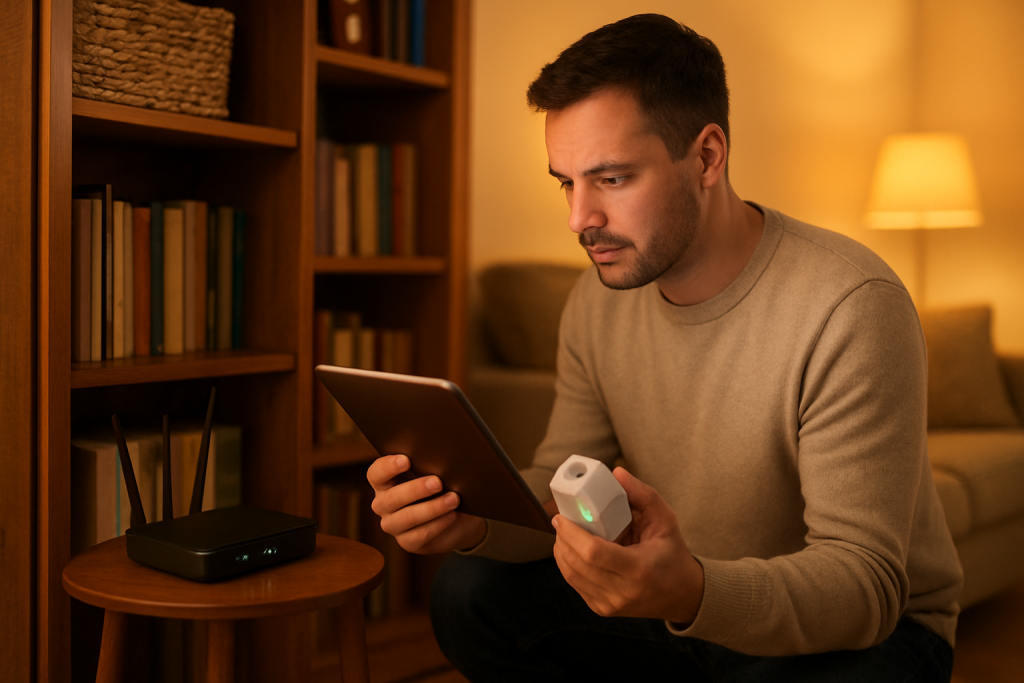
Smart Plug Won’t Pair to 2.4GHz WiFi? Try These Fixes
Quick Answer
Most smart plugs and WiFi smart switches can only join a simple 2.4GHz network during setup. Pairing often fails not because you “don’t have 2.4GHz,” but because the router is steering your phone to 5GHz, the router’s 2.4GHz settings aren’t compatible (WPA3-only, DFS-like steering behaviors, channel width issues), or the plug is being blocked by isolation/security features.
If the app stalls on “connecting,” “device not found,” or “unable to join network,” it usually means the phone and the device are not actually on the same 2.4GHz SSID path the plug expects, or the router rejects the plug’s connection attempt even though other devices work fine.
Do these three checks first: (1) Temporarily force your phone onto 2.4GHz (disable 5GHz on the router or move far from the router until the phone drops to 2.4). (2) Verify router security is WPA2 (or WPA2/WPA3 mixed), not WPA3-only. (3) Try pairing with the plug within a few feet of the main router (not a mesh satellite) to rule out mesh steering problems.
Why This Happens
2.4GHz pairing is picky because many smart plugs use older, low-power WiFi radios and strict setup methods. During onboarding, the app may briefly connect your phone to the plug’s temporary WiFi, then pass your home WiFi credentials to the plug. If the router rejects the plug’s connection or your phone is on a different band or node than the app expects, setup fails even though your internet is fine.
Common causes tightly tied to router compatibility include: band steering combining 2.4GHz and 5GHz under one network name, security modes the plug can’t negotiate, 2.4GHz channel/width choices that some IoT radios struggle with, and router features that isolate new devices or block “peer-to-peer” setup traffic.
Real-world scenario: you have a mesh system and you start pairing near a satellite in the kitchen. Your phone is on the satellite’s 5GHz backhaul path while the plug tries to join 2.4GHz, and the mesh keeps steering or roaming the phone mid-setup. The app times out and the plug never appears.
Common user mistake: selecting the “same” WiFi name that your family uses, not realizing it’s a combined SSID where the phone is actually on 5GHz at that moment.
Overlooked technical cause: WPA3-only security (or “WPA3-Personal only”) on 2.4GHz. Many smart plugs still require WPA2-AES and will silently fail to authenticate.
Most Likely Causes in Real Homes
These are ordered by how often they block pairing with 2.4GHz WiFi smart plugs and smart switches.
1) Band steering/combined SSID: Your router uses one network name for both bands, and your phone keeps landing on 5GHz during setup.
2) Unsupported WiFi security: WPA3-only or enterprise-style security prevents the plug from authenticating, even though phones and laptops connect.
3) Mesh node roaming during setup: The phone roams between mesh points mid-pairing, breaking the “phone-to-device” handoff many setup flows rely on.
4) Isolation or filtering features: Guest networks, client/AP isolation, “IoT protection,” MAC randomization rules, or firewall settings can block the onboarding handshake.
5) 2.4GHz radio settings the device dislikes: Certain channel choices, 40MHz channel width on 2.4GHz, or very congested environments can cause repeated join failures.
Step-by-Step Fix
Confirm you’re pairing a WiFi device (not Zigbee/Matter-over-Thread) and you’re using the correct app or ecosystem path.
If the device packaging or app lists Zigbee, it won’t join 2.4GHz WiFi directly and must be added through a compatible hub/bridge. If the app specifically says “WiFi,” continue.
If this fails (you’re unsure), try adding it from the ecosystem you use (Alexa/Google Home/Apple Home/SmartThings) and look for a prompt that mentions a hub or a Matter controller; if it asks for a hub, stop and use the hub method.
Force your phone onto 2.4GHz during setup.
If pairing succeeds immediately after forcing 2.4GHz, the issue was band steering/5GHz selection, not the plug itself. The most reliable method is temporarily disabling 5GHz in the router settings; if you can’t, move far enough away that the phone drops to 2.4GHz, then start pairing.
If this fails, keep the phone on 2.4GHz and move to the next step: router security compatibility.
Check router security mode for 2.4GHz: use WPA2 (AES) or WPA2/WPA3 mixed, not WPA3-only.
If changing to WPA2 or mixed mode makes pairing work, your plug couldn’t complete WPA3 authentication. After pairing, you can often leave the router on mixed mode without affecting newer devices.
If this fails, keep WPA2 or mixed enabled and continue to mesh and isolation checks.
Pair near the main router (not a mesh satellite) and temporarily pause mesh features that steer devices.
If pairing works near the main router, the problem is likely mesh steering/roaming or weak 2.4GHz signal at the original location. Many onboarding flows time out if your phone roams between nodes or if the plug hears multiple nodes with similar strength.
If this fails, proceed to the hotspot isolation test to separate “router issue” from “device/app issue.”
Run a hotspot isolation test using your phone’s personal hotspot set to 2.4GHz (if available) or a separate simple 2.4GHz network.
If the plug pairs successfully to the hotspot, the plug and app are fine and your main router settings are the blocker (security, isolation, mesh steering, or 2.4GHz radio settings). If it still won’t pair to the hotspot, the issue is more likely the plug’s pairing mode, app permissions, or a firmware/setup state problem.
If this fails, continue to router compatibility settings and app permission checks.
Check router compatibility settings that commonly block IoT onboarding: guest network, client isolation, and “IoT security” filters.
If the plug is being added on a guest SSID or an SSID with client isolation, pairing often fails because the phone cannot complete the local handoff to the plug. If disabling isolation (or switching to your main 2.4GHz SSID) fixes it, you’ve found the cause.
If this fails, move to 2.4GHz radio settings (channel/width) and try again.
Adjust 2.4GHz radio settings: set channel width to 20MHz and choose a stable channel (commonly 1, 6, or 11).
If pairing succeeds after setting 20MHz, the plug likely struggled with 40MHz 2.4GHz operation or interference. A stable channel choice can also reduce repeated authentication drops during setup.
If this fails, continue to app-side checks that block discovery or credential transfer.
Verify app permissions and pairing method: allow local network access and precise location if the app requires it.
If enabling “Local Network” (iOS) or nearby devices/location (Android) makes the plug appear during setup, the issue was the phone blocking local discovery traffic. This is common after OS updates when permissions silently change.
If this fails, try signing out/in of the app and retry pairing once more on the forced-2.4GHz network.
Check for ecosystem conflicts: don’t try to add the same plug in multiple apps at once, and avoid simultaneous Matter/Alexa/Google/HomeKit onboarding attempts.
If pairing works after using only one setup path, your earlier attempts likely left a partial pairing record (cloud or local) that confused discovery. This can happen in shared homes where another user already “claimed” the device.
If this fails, move to advanced troubleshooting focused on account ownership, cloud sync, and firmware/app versions.
Advanced Troubleshooting
This section is only needed if basic fixes fail.
Account/cloud ownership issues: If the app says the device is “already registered” or never completes registration, it usually means the plug is tied to another account (a previous owner, a family member, or a duplicate login). Confirm you’re signed into the intended account, check home/household sharing, and remove the device from any old home or user profile before retrying.
Network-level blocking (DHCP and firewall behavior): If the router shows the plug briefly connecting then disappearing, it often indicates DHCP assignment problems or firewall rules blocking outbound registration. Temporarily simplify the network: disable advanced parental controls for that SSID, reduce custom firewall rules, and ensure the 2.4GHz SSID has normal internet access (not a restricted VLAN or “no-internet” IoT segment) during initial pairing.
Firmware/app version mismatch: If pairing starts but fails at “updating device” or “finalizing,” the app version may not match the device’s onboarding flow. Update the app, update your phone OS, and retry. If the device previously worked and stopped after a router change or app update, log out/in to refresh the app session before assuming the plug is defective.
Configuration conflicts (groups, scenes, automations, permissions): If the plug pairs but immediately shows offline or behaves oddly, check whether it’s in multiple groups or has schedules in more than one place (device app plus Alexa/Google Home/SmartThings). Conflicting schedules can look like “random on/off” and can be misread as connectivity problems.
Ecosystem sync issues (Alexa, Google Home, Apple Home, Matter): If the device is controllable in the maker app but not by voice assistant, the WiFi pairing succeeded and the problem is account linking or discovery. Re-run device discovery, confirm the device is assigned to the correct home/room, and check for duplicates (two entries with the same name) which can cause “device not responding” even when the plug is online.
When to Reset or Replace the Device
A soft restart is simply unplugging the smart plug (or turning the smart switch off at its normal control point, if available) for 15–30 seconds, then powering it back on. This clears a temporary WiFi stall without deleting settings.
A factory reset wipes pairing details and forces a fresh setup. After a factory reset you may lose WiFi credentials, room assignments, schedules/timers, automations, and voice assistant links. For energy-monitoring smart plugs, you may also lose energy history or reporting baselines depending on the platform.
Reset is reasonable when: the plug never enters pairing mode correctly, it repeatedly appears briefly then vanishes during setup across multiple networks (including a hotspot), or the app reports the device as registered but unreachable even after you’ve confirmed router security and band settings.
Replacement is reasonable when: the device cannot stay connected on a known-compatible 2.4GHz WPA2 network, repeatedly fails firmware updates, or shows unstable behavior (relay clicking, frequent reboots, or persistent offline status despite strong signal and correct router settings). Stop using the device and replace it immediately if you notice overheating, a burning smell, discoloration, crackling sounds, or any visible damage.
How to Prevent This in the Future
Keep your 2.4GHz network predictable for smart plugs and smart switches: use WPA2 or WPA2/WPA3 mixed, avoid experimental security modes, and keep the 2.4GHz channel width at 20MHz if you have many IoT devices.
For mesh WiFi homes, do initial pairing near the main router, then move the device to its final location. This reduces roaming-related setup failures and helps the device “learn” a stable connection before it’s placed farther away.
Avoid duplicate automations across apps. If you schedule the same plug in both the device app and a voice assistant routine, you can get apparent “random” switching or status mismatches. Choose one place for schedules and document it.
Use consistent naming and room assignments across your ecosystems (device app, Alexa, Google Home, Apple Home, SmartThings). This prevents duplicate devices and helps voice assistants control the correct plug, especially after router restarts or migrations.
After power outages or router reboots, give the network a few minutes to stabilize before troubleshooting. Many plugs reconnect slowly while DHCP leases refresh and cloud registration catches up. If you changed router settings, confirm 2.4GHz security and band steering behavior before re-pairing devices.
Maintain firmware and apps, but update deliberately: update the phone app first, then device firmware when the device is stable on WiFi. If you share access with family members, keep sharing permissions tidy and remove old users or old homes to avoid “already registered” surprises.
FAQ
My WiFi name is the same for 2.4GHz and 5GHz. Isn’t that fine for smart plugs?
Sometimes it works, but it’s a common cause of pairing failure. During setup, your phone may be on 5GHz while the plug can only join 2.4GHz, and the handoff fails. For pairing, forcing the phone onto 2.4GHz (or temporarily separating the bands) is one of the most reliable fixes.
Does “2.4GHz” automatically mean “better range,” so pairing should work anywhere?
No. 2.4GHz generally penetrates walls better than 5GHz, but pairing is sensitive to interference, router settings, and mesh steering. A plug can fail to pair even with strong signal if the router security is WPA3-only or if isolation settings block onboarding traffic.
The plug paired in the manufacturer app, but Alexa/Google Home/Apple Home says it’s not responding. Is that still a 2.4GHz problem?
Usually the 2.4GHz pairing is fine in that case. If the device works in its own app, focus on ecosystem sync: account linking, device discovery, duplicates, and correct home/room assignment. Re-sync or re-discover devices in the voice assistant and confirm you’re controlling the correct instance.
Will moving the plug after pairing break it on mesh WiFi?
It can. Some plugs “stick” to a weak node or behave poorly when the mesh steers them aggressively. Pair near the main router first, then move the plug and watch whether it stays online. If it goes offline after moving, the likely fix is improving 2.4GHz coverage at that location or reducing steering/roaming issues for IoT devices.
That’s the whole thing: the moment the pieces fit, the noise stops. The problem doesn’t feel quite as loud, and the so-called “hard part” turns out to be more mindset than machinery.
There’s a small, almost ridiculous relief in that. Not fireworks—more like unclenching your jaw and noticing you can breathe again.