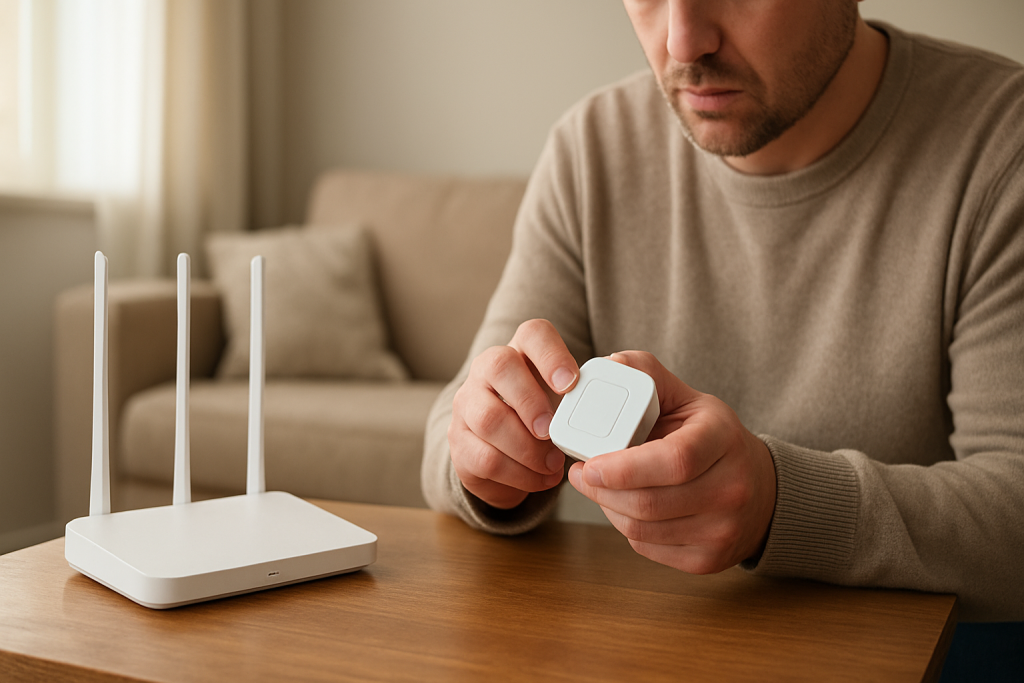
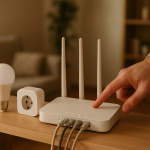
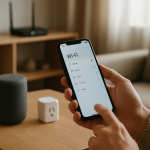
Smart Device Wont Connect to 2.4GHz WiFi Fixes That Usually Work
Quick Answer
Most smart home devices only support 2.4GHz WiFi, and they fail to connect when the router is steering them to 5GHz, the network name (SSID) is shared in a way the device can’t handle, or the router is using a 2.4GHz setting the device doesn’t support (common examples: WPA3-only security, “N-only” mode, or channel 12/13).
Start by temporarily separating your WiFi names (2.4GHz and 5GHz), set 2.4GHz security to WPA2-Personal (AES), set the 2.4GHz channel to 1, 6, or 11 with 20 MHz width, then retry setup with your phone on the 2.4GHz network. If it still won’t join, reboot the router and confirm DHCP is working so the device can get an IP address.
Why This Happens
The dominant cause is 2.4GHz compatibility. Many smart plugs, bulbs, switches, and sensors use inexpensive WiFi chipsets designed for 2.4GHz only. They can connect reliably when the network is “plain vanilla,” but they’re picky about modern router features that work fine for phones and laptops.
Here are the most common 2.4GHz-specific blockers:
Band steering and shared SSIDs: A lot of routers broadcast one network name for both 2.4GHz and 5GHz. Your phone may jump to 5GHz automatically, and some setup apps pass the wrong band details to the device. The device then tries to join a 5GHz network it can’t see, or it fails during the handoff.
Security mismatch: WPA3-only (or WPA2/WPA3 mixed mode on some routers) can break older IoT devices. Many require WPA2-Personal with AES. If your router is set to WPA3-only, the device may reject the network or loop on “connecting.”
2.4GHz channel and width issues: In the U.S., 2.4GHz channels 1–11 are standard. Some routers (or ISP gateways) can end up on channel 12 or 13, especially with “auto” settings or region mismatches. Many smart devices simply won’t connect to 12/13. Also, 40 MHz channel width on 2.4GHz can cause instability and pairing failures; 20 MHz is usually best for IoT.
Router configuration quirks: Features like “AP isolation,” “client isolation,” or “guest network” can prevent your phone from talking to the device during setup even if the device is technically connected. Another common one is a disabled DHCP server or an overly small DHCP pool, which prevents the device from getting an IP address.
Home network instability and interference: 2.4GHz travels farther than 5GHz, but it’s also crowded. In an apartment building, neighbors’ routers, Bluetooth devices, cordless phones, and even a microwave can add noise. A device may connect for a second, then drop during setup.
Firmware/software causes: Outdated router firmware can have bugs with band steering or WPA3 transitions. Likewise, the device’s setup app may need an update, and some phones (especially when using a VPN or “Private Address” features) can complicate onboarding.
Overlooked technical cause: Some routers use “smart connect” plus advanced options like 802.11k/v/r roaming assistance. Those features help phones roam between access points, but certain IoT devices mis-handle the management frames and fail to complete the join process.
Common user mistake: Trying to set up the device while the phone is on 5GHz, then assuming the device is “bad” because it won’t connect. For many products, the phone must be on 2.4GHz during setup so the app can pass correct credentials and discover the device locally.
Step-by-Step Fix
Confirm the device is 2.4GHz-only and note the requirements. Check the product box or manual for WiFi specs. If it says “802.11 b/g/n 2.4GHz,” it won’t join 5GHz. Also look for security requirements (many say WPA2-AES). If your router uses a single SSID for both bands, plan to temporarily split them for setup.
Force your phone onto 2.4GHz before starting setup. If your router has separate SSIDs, connect your phone to the 2.4GHz one. If it’s a single SSID, move farther from the router (5GHz drops off faster), or temporarily disable 5GHz in the router settings. Turn off cellular data during setup if the app struggles to discover the device on the local network.
Set 2.4GHz security to WPA2-Personal (AES) and avoid WPA3-only. In your router’s wireless security settings, choose WPA2-Personal (sometimes called WPA2-PSK) with AES. If you must keep WPA3 for other devices, use WPA2/WPA3 mixed only if your device supports it; many don’t. Avoid WEP and WPA (older) for security reasons and because they can also cause compatibility problems.
Lock the 2.4GHz channel to 1, 6, or 11 and set width to 20 MHz. In the 2.4GHz advanced wireless settings, set channel to 1, 6, or 11 (pick the least congested if you can; otherwise start with 1). Set channel width to 20 MHz. This reduces interference and avoids edge-case compatibility issues. If your router was on channel 12/13, switching to 1/6/11 often fixes “won’t connect” immediately.
Temporarily split SSIDs (2.4GHz and 5GHz) if you use one network name. Rename the 2.4GHz SSID to something like “HomeWiFi-2G” and the 5GHz SSID to “HomeWiFi-5G.” Use the same password for simplicity. Run device setup on the 2.4GHz SSID. After the device is stable, you can keep them split (often best for IoT) or re-enable smart connect if you prefer.
Reboot the router/modem and the smart device, then retry onboarding. Power-cycle the router (and modem if separate): unplug for 30 seconds, plug back in, wait until internet is fully restored. Then power-cycle the smart device and put it back into pairing mode. Many “stuck” states clear after a clean reboot, especially on ISP modem-router combo units.
Check DHCP is enabled and the address pool isn’t full. DHCP is the router service that hands out IP addresses. If it’s off, or the pool is too small (for example, only 10 addresses), new devices can’t join properly. In the LAN/DHCP settings, ensure DHCP server is enabled and the pool has room (typical home networks use something like 192.168.1.100–192.168.1.250). If you’ve assigned many static IPs, make sure they don’t overlap the DHCP range.
Use a practical test: verify the device actually joins the router. After attempting setup, log into your router and look at the connected clients list. If you see the device connected on 2.4GHz with an IP address, the WiFi join succeeded and the issue is likely app discovery or cloud registration. If it never appears, the problem is still 2.4GHz compatibility, password/security, or signal quality.
Move the device closer to the router for setup, then relocate it. Pair the device within 10–15 feet of the router if possible. This matters in real homes with thick plaster walls, brick fireplaces, or metal electrical boxes that weaken 2.4GHz. Once paired and updated, many devices tolerate weaker signal better. If you’re in an apartment with heavy congestion, pairing close to the router can prevent timeouts.
Advanced Troubleshooting
If the usual fixes don’t work, focus on the less obvious 2.4GHz and onboarding blockers that show up with modern routers and crowded neighborhoods.
Disable “smart” WiFi features that confuse IoT devices
Temporarily turn off band steering / smart connect, and if available, disable 802.11r (fast roaming). Some routers also expose 802.11k/v roaming assistance controls. These features are helpful for phones moving around the house, but they can disrupt simple IoT WiFi stacks during association.
Check for client isolation and guest network limitations
If you’re using a guest network, many routers block devices on that network from talking to each other. Setup often requires your phone to discover the device locally. Make sure the device is joining your main 2.4GHz network, not a guest SSID. Also look for “AP isolation,” “wireless isolation,” or “block LAN access” settings and turn them off during setup.
Look for IP conflicts and “half-connected” behavior
An IP conflict happens when two devices try to use the same address. The result can look like a WiFi failure even though the device is connected to the radio. If your router’s client list shows the smart device connecting and disconnecting rapidly, or it shows an IP that duplicates another device, rebooting the router can clear stale leases. If you use static IPs, ensure no two devices share the same address and that static assignments are outside (or reserved within) the DHCP system.
Confirm the router is using a compatible 2.4GHz mode
Set 2.4GHz mode to “b/g/n mixed” or “n only” only if the device supports it. Some older devices require legacy support (b/g). Also avoid “AX on 2.4GHz” (Wi-Fi 6) compatibility issues by setting 2.4GHz to Wi-Fi 4/5 modes if your router allows separate band modes. This is especially relevant with newer mesh systems that default to Wi-Fi 6 everywhere.
Update firmware and app software
Update the router firmware (or ISP gateway firmware, if your provider manages it). Then update the smart device app and your phone OS. Firmware fixes frequently address WPA3 transition bugs, band steering problems, and stability issues on 2.4GHz. After updating, reboot the router again to ensure the new firmware is running cleanly.
Use a controlled hotspot test to isolate the cause
As a diagnostic step, create a 2.4GHz hotspot from a phone (many Android phones allow selecting 2.4GHz; some iPhones do 2.4GHz by default in compatibility mode). Try onboarding the device to that hotspot. If it connects immediately, your device is fine and your router’s 2.4GHz settings are the blocker. If it still fails, the device may be defective or unusually picky about security or channel behavior.
When to Reset or Replace the Device
Reset the device when it previously worked on your network and now won’t reconnect, or when you’ve changed the WiFi name/password. Use the manufacturer’s reset procedure (often holding a button for 5–15 seconds until an LED pattern changes). After reset, redo setup with your phone on 2.4GHz and the router set to WPA2-AES and channel 1/6/11.
Consider replacing the device if it fails to appear in the router’s client list during setup even after you’ve confirmed: (1) 2.4GHz is enabled, (2) WPA2-AES is set, (3) channel is 1/6/11 at 20 MHz, and (4) you tested on a known-good 2.4GHz hotspot. Also replace if the device repeatedly drops off the network while other 2.4GHz devices remain stable in the same location, which can indicate a weak radio or failing power supply.
How to Prevent This in the Future
Keep a dedicated, stable 2.4GHz setup for smart devices. Many homeowners leave 5GHz optimized for speed and reserve 2.4GHz for compatibility. Splitting SSIDs permanently (for example, “Home-2G” and “Home-5G”) eliminates a lot of onboarding frustration and reduces band-steering surprises.
Use conservative 2.4GHz settings: WPA2-Personal (AES), channel 1/6/11, and 20 MHz width. Avoid frequent changes to SSID and password, since many smart devices don’t handle transitions gracefully. If you live in an apartment with heavy interference, consider placing the router more centrally, away from metal panels and large appliances, and keep it elevated. If coverage is weak through thick walls, a mesh system or an access point can help, but make sure it supports separate IoT-friendly 2.4GHz settings or an “IoT network” mode that stays on WPA2.
Finally, keep router firmware current and periodically reboot if your ISP gateway becomes unstable. If you add many devices, ensure your DHCP pool is large enough and avoid overlapping static IP assignments. These small network hygiene steps prevent the “it used to work” situation that’s common with smart home gear.
FAQ
Why does my phone connect fine but the smart device won’t?
Phones support both 2.4GHz and 5GHz, plus newer security modes like WPA3. Many smart devices only support 2.4GHz and WPA2-AES. If your router is steering your phone to 5GHz or using WPA3-only, the phone will work while the smart device fails to join.
Do I need to turn off 5GHz permanently?
No. Turning off 5GHz is mainly a setup trick to force your phone onto 2.4GHz and avoid band steering issues. A more practical long-term approach is to split SSIDs so you can intentionally place smart devices on 2.4GHz while keeping phones and streaming devices on 5GHz.
What’s the easiest way to tell if the device is actually connected to WiFi?
Check your router’s connected client list right after a setup attempt. If the device shows up on the 2.4GHz band with an IP address, the WiFi connection succeeded and the remaining problem is usually app discovery, isolation settings, or cloud registration.
Can interference really stop setup even if 2.4GHz has “better range”?
Yes. 2.4GHz travels farther, but it’s often noisier. In apartments, overlapping networks can cause retries and timeouts during onboarding. Locking the channel to 1, 6, or 11 and using 20 MHz width helps, and pairing the device close to the router reduces the chance of setup failing mid-process.
What does DHCP have to do with a device “not connecting”?
After joining WiFi, the device needs an IP address to communicate. DHCP is the router feature that automatically assigns that address. If DHCP is disabled, the pool is exhausted, or there’s an IP conflict from overlapping static assignments, the device may look like it can’t connect even though it briefly joins the WiFi radio.
The air clears in that specific way it does after a long day—nothing dramatic, just lighter. The arguments feel less slippery, and the page finally stops spinning.
Now the whole thing reads like a door left unlocked: not magic, just an opening that was there the entire time. Quiet confidence replaces the frantic back-and-forth, and the world looks a little more manageable.