Smart Bulb Colors Look Wrong: How to Fix Color Accuracy
Quick Answer
The most common reason smart bulb colors look “off” is not a defective bulb—it’s a color calibration mismatch caused by mixed bulb models, inconsistent color temperature settings, or scenes that were created under different lighting conditions. In real homes, groups often contain bulbs with different LED hardware (even within the same ecosystem), so the same “blue” or “warm white” command can render differently from bulb to bulb.
Another frequent cause is that the bulb is not actually in the color mode you think it is. Many apps blend brightness, white temperature, and color saturation in ways that make colors look washed out, too green, too purple, or inconsistent across a room—especially after a firmware update, a power outage, or when a voice assistant recalls an older scene.
Do these three quick checks first: (1) In the app, confirm each bulb is set to the same mode (Color vs White/Temperature) and the same brightness level. (2) Temporarily remove the bulbs from any group/room and set one bulb at a time to a known preset color (pure red/green/blue) to compare. (3) Check for mixed device types in the same fixture or group (different generations, different bulb shapes, or different connection types like WiFi bulbs mixed with hub-based Zigbee bulbs).
Why This Happens
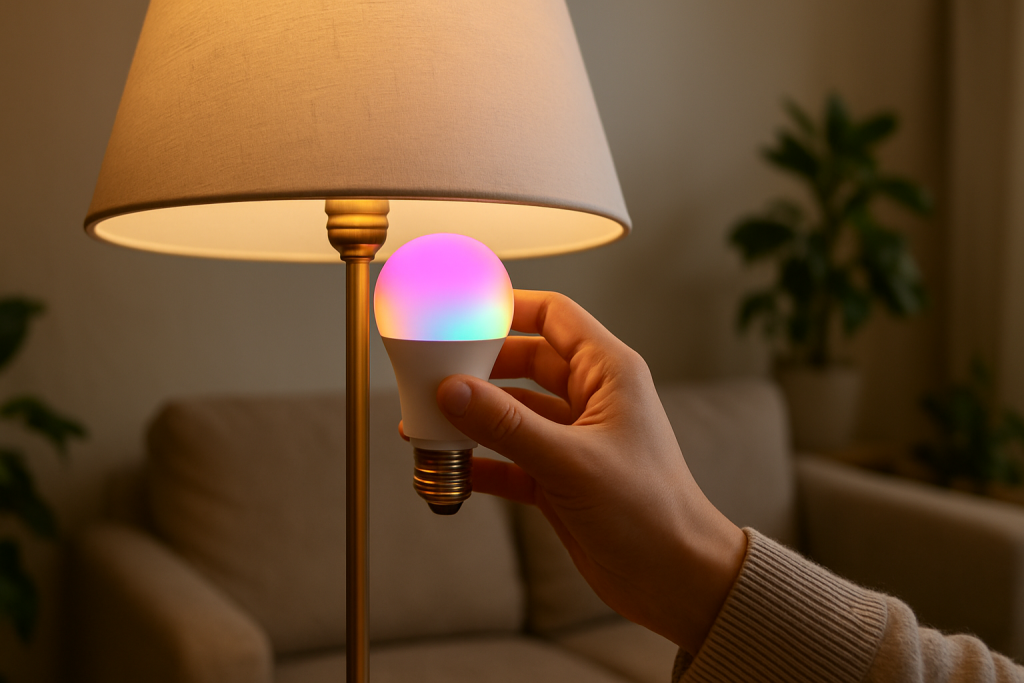
Color accuracy problems in smart lighting usually come down to how the bulb generates color and how the ecosystem translates your request into LED output. A “purple” command is not a single universal value across all bulbs. Each bulb uses a specific mix of LEDs (typically warm white, cool white, and RGB channels), and the app or hub decides how to blend those channels to approximate the requested color. Small differences in LED hardware, firmware, and scene settings can produce noticeable differences in real rooms.
Here are the most common technical causes that directly affect color accuracy:
1) Mixed LED hardware and color gamuts. Different bulb models have different color gamuts (the range of colors they can produce). Even within one ecosystem, an older bulb may not match a newer one. If you group them, the app sends one color command, but each bulb “interprets” it within its own limits.
2) White channel blending and “tunable white” interference. Many bulbs don’t create colors using only RGB. They blend in white LEDs to improve brightness or efficiency. If the app uses an algorithm that adds white to colors at higher brightness, colors can look pastel or “wrong” compared to what you expect.
3) Brightness and saturation are not independent. On many bulbs, maximum brightness reduces color purity. If one bulb is at 100% brightness and another at 40%, the same color can look like two different shades. This is especially obvious with blues and purples.
4) Scenes, groups, and automations overriding your manual setting. If a scene was created when a bulb was in a different mode (white vs color), recalling it can force a different blend. Group-level settings can also override individual bulbs, creating the impression that the bulb “can’t hold” the correct color.
5) Firmware or ecosystem translation differences (WiFi vs hub vs Matter). The same bulb controlled through the manufacturer app may look different when controlled through a platform layer (Matter, a voice assistant, or a hub integration). The platform may use a different color model (HSV vs XY vs color temperature + tint), which can shift colors.
6) An overlooked technical cause: local ambient light and shade materials. Lampshades, frosted globes, painted walls, and nearby daylight can shift perceived color dramatically. A bulb can be “accurate” but still look wrong in a specific fixture or at a specific time of day.
Real-world scenario: A homeowner replaces one dead bulb in a three-bulb ceiling fixture. The new bulb is the same ecosystem and appears identical in the app, but it’s a newer generation with a different color gamut. When the room is set to “teal,” two bulbs look blue-green while the new one looks more green. In a group, it’s obvious; individually, it’s easy to miss.
Common user mistake: Creating or editing scenes while the room is partly lit by daylight, then expecting the same scene to look identical at night. The bulbs didn’t change; the environment did.
Overlooked technical cause: Some ecosystems apply different color handling when controlling bulbs through a bridge/hub versus direct control. After adding Matter or linking to a voice assistant, the same named color can map to a different underlying color value.
Most Likely Causes in Real Homes
1) Mixed bulb models in the same group or fixture. Same “color” command, different LED hardware output.
2) Different brightness levels across bulbs. Higher brightness often looks less saturated and shifts hue.
3) Scenes/automations recalling older settings. A schedule or scene may be forcing a different color mode or temperature.
4) Control path changed (manufacturer app vs voice assistant vs Matter). Different color mapping can shift hue and saturation.
5) Shade/fixture/daylight affecting perception. Diffusers and ambient light can make accurate colors look wrong.
Step-by-Step Fix
Isolate one bulb and test primary colors. In the app, temporarily control a single bulb (not a group) and set it to a pure red, pure green, and pure blue preset (or the closest available). Then repeat for each bulb.
What the result means: If one bulb looks consistently different (for example, “blue” looks purple compared to others), you likely have mixed hardware capabilities or a bulb that is drifting.
If it fails, try next: If all bulbs look different from your expectation (not just different from each other), move to the next step to rule out mode, brightness, and white-channel blending.
Standardize mode and brightness before judging color. Set all bulbs to the same mode (Color mode, not White/Temperature), set brightness to a mid-level (around 40–60%), and set saturation to a high level if the app provides it.
What the result means: If colors suddenly look closer and more consistent, the issue was brightness-driven desaturation or a mode mismatch where white LEDs were blending into the color.
If it fails, try next: If colors still look wrong or inconsistent, proceed to group and scene checks to find what is overriding your settings.
Check group sync and remove/rebuild the group. In the app, turn the group off, then on, then set a single color for the group. If the app shows different states per bulb, remove the bulbs from the group and recreate it.
What the result means: If rebuilding the group fixes it, the group state had drifted (common after adding/removing devices or after firmware updates).
If it fails, try next: If the group still produces mismatched colors, check scenes and automations next—something may be reapplying settings.
Verify schedules, scenes, and “adaptive” lighting features. Look for routines that run at sunset, bedtime, or “circadian/adaptive” lighting. Temporarily disable them for testing, then set your desired color manually and wait 5–10 minutes.
What the result means: If the color changes back on its own, an automation is overriding you. If it only changes at specific times, it’s almost certainly a schedule.
If it fails, try next: If nothing is overriding and colors are still off, test different control paths (manufacturer app vs platform app) to identify a color-translation issue.
Compare control paths: manufacturer app vs platform (Matter/voice assistant/home app). Set the same bulb color using the manufacturer’s app, then set it using your platform app (or voice assistant). Use a specific preset color rather than a spoken name if possible.
What the result means: If the color differs depending on the control method, you’re seeing color-model translation differences. Named colors (like “sky blue”) are especially inconsistent across platforms.
If it fails, try next: If both paths look equally wrong, focus on firmware and device status next.
Check device status and firmware, then power-cycle in a clean sequence. In the app, confirm the bulb is online and update firmware if available. Then power-cycle: turn the light off for 20 seconds, on for 20 seconds, off for 20 seconds, then on and leave it on for 2 minutes.
What the result means: If colors return to normal after a controlled power cycle, the bulb likely had a stuck state after a brief outage or rapid toggling at the wall switch.
If it fails, try next: If it still looks wrong, move to network-related behavior only as it affects command reliability and group consistency.
WiFi bulbs: verify the correct WiFi band and stability for consistent color commands. Confirm the bulb is on the intended band (many bulbs require 2.4 GHz). If your router uses one combined network name for 2.4/5 GHz, check the app’s device info to confirm the bulb did not end up in a weak-coverage spot.
What the result means: If bulbs sometimes miss color changes or apply them late, it can look like “wrong color” when the group is out of sync. This is more about reliability than color quality.
If it fails, try next: If reliability seems fine but colors are still off, run a hotspot isolation test to separate bulb behavior from your home network and integrations.
Hotspot isolation test (temporary) to rule out router, mesh steering, and integrations. If your bulb supports it, connect one bulb to a phone hotspot (2.4 GHz if available) and control it only with the manufacturer app for a few minutes.
What the result means: If color accuracy improves or becomes more consistent, your home network or platform integration is contributing (often mesh node steering, client isolation settings, or delayed multicast discovery affecting group control).
If it fails, try next: If the bulb still renders the same “wrong” colors on a clean connection, the issue is more likely hardware limits, calibration drift, or fixture/environment effects.
Check room/location assignments and permissions. Confirm the bulb is assigned to the correct room and that you are controlling the correct device (duplicate names are common). Also confirm household members have consistent permissions if multiple accounts control lighting.
What the result means: If you were adjusting one bulb while a different bulb (or group) was being controlled by an automation, it can look like the bulb “won’t match” when it’s actually not the same target.
If it fails, try next: If you’ve confirmed correct targeting and no overrides, proceed to advanced troubleshooting for account sync, cloud status, and configuration conflicts.
Advanced Troubleshooting
This section is only needed if basic fixes fail.
Account or cloud issue: If colors or scenes look different on one phone than another, log out of the lighting app on all devices, then log back in on one device first. If the ecosystem uses cloud sync, give it a few minutes to reconcile scenes. If a cloud outage is occurring, local control may work while scene syncing fails, leading to partial or outdated color settings being applied.
Network issue (relevant when bulbs miss or delay group color changes): On mesh WiFi, a bulb can roam to a farther node and become slow to respond. If one bulb consistently lags, move the router/mesh node slightly or relocate the lamp temporarily to test. For hub-based Zigbee systems, interference or weak routing can cause one bulb to miss updates, leaving it at an older color while others change.
Firmware/software cause: If the problem started immediately after an update, check whether the app has a setting for “enhanced color,” “natural light,” or similar. Some updates change how white channels blend into colors. If rollback is not available, recreating scenes from scratch often works better than editing old scenes that were built under a different color algorithm.
Configuration conflict (groups, scenes, automations, permissions): If multiple systems control the same bulbs (for example, the manufacturer app plus a platform app plus a voice assistant), pick one “source of truth” for scenes. Disable duplicated automations. If two systems fight, you may see colors briefly correct and then shift as another controller reasserts its version.
When to Reset or Replace the Device
Soft restart vs factory reset: A soft restart is a controlled power cycle (off/on sequence) or an in-app reboot if available. Use this first when colors are wrong after outages or when the bulb stops applying changes reliably. A factory reset wipes the bulb’s pairing and stored settings so it can be added again as a new device.
What you lose after a factory reset: You typically lose the bulb’s pairing to your app/hub, its room assignment, custom scenes involving that bulb, and automations that reference it. After re-adding, you may need to rebuild groups and reselect the bulb in routines.
When replacement is more likely than troubleshooting: Replace the bulb if one unit consistently renders noticeably different colors than identical model bulbs under the same settings, after resets and firmware updates. Also replace if it flickers, won’t hold a color, or frequently goes offline while others remain stable.
Safety note: If the bulb or fixture is unusually hot, smells like burning plastic, shows visible discoloration, or the globe is cracked, stop using it and leave it powered off. Color problems are not worth continuing to run a potentially damaged device.
How to Prevent This in the Future
Keep groups consistent. When possible, use the same bulb model and generation within the same fixture or room group. Mixed hardware is the most common reason matching colors is difficult.
Use stable, repeatable scene settings. Build scenes at a consistent brightness level (mid-brightness is usually most color-accurate) and avoid relying on named colors across different platforms. Prefer app presets or saved scenes instead of voice color names.
Manage automations carefully. Avoid having two systems schedule the same lights. If you use adaptive/circadian lighting, understand that it will intentionally change color temperature and can make colors look “wrong” if it runs while you expect a static color scene.
Plan for power outages and wall-switch use. If the wall switch gets turned off frequently, bulbs may reboot into a default mode or miss group updates when power returns. If your ecosystem supports power-on behavior (last state vs default), set it intentionally.
Maintain firmware and app updates. Update bulbs, hubs, and apps periodically, but if you depend on specific scenes for color work (holiday lighting, accent walls), recheck those scenes after major updates and rebuild them if they drift.
Place devices for reliable sync. For WiFi bulbs, ensure good 2.4 GHz coverage where the lamps are located. For hub-based bulbs, keep the hub reasonably central and avoid placing bulbs in signal-blocking enclosures that can cause missed updates and mismatched group states.
FAQ
Why does the same color look different in two lamps?
If the bulbs are the same model and settings, the fixture is usually the reason. Lampshades, tinted glass, frosted globes, and even nearby wall colors can shift how you perceive the light. Also check brightness—many bulbs look less saturated at high brightness, which makes colors appear “wrong” in one lamp compared to another.
My bulbs match in the manufacturer app but not through my voice assistant. What does that mean?
It usually means the voice assistant or platform is translating colors differently than the manufacturer app. Named colors are especially inconsistent. Use saved scenes or specific color presets in the platform app, and avoid mixing multiple controllers that each maintain their own version of scenes.
Is this a WiFi problem?
Not usually for pure color accuracy. WiFi issues more often cause missed commands, delays, or one bulb in a group not updating—making it look like the “wrong” color because it is stuck on the previous color. If the bulb reliably changes instantly but the hue is still off, focus on hardware differences, brightness, mode, and scene settings.
Do smart bulbs “wear out” and change color over time?
They can drift, especially if one bulb has been used more heavily or runs hotter due to a tight fixture. If one bulb consistently renders colors differently than identical bulbs under the same settings, and resets/updates don’t help, replacement is reasonable.
Misconception: “All smart bulbs should show the exact same color if the app sends the same command.” Is that true?
No. Different bulbs have different LED channel designs and color gamuts, and ecosystems may use different color models when sending commands. Even within one ecosystem, different generations can produce noticeably different results. Matching is easiest when bulbs are the same model, set to the same mode, and run at similar brightness.
It’s one of those problems that always felt louder than it really was, until the noise finally runs out. With the right framing, the whole thing stops tugging at the edges of your day.
There’s a calmer kind of certainty in the aftermath—less second-guessing, fewer mental tabs left open. You move on without needing to keep re-reading the same lines.