Smart Lights Not Syncing in a Group: How to Fix It
Quick Answer
The most common reason smart lights won’t stay in sync as a group is that the group command is not reaching every light at the same time. In real homes, this usually comes down to one device in the group having a weaker or less reliable connection than the others (Wi-Fi bulbs on a crowded network, Zigbee bulbs on the edge of the mesh, or a Matter device briefly dropping off the fabric). When one light receives the command late—or misses it entirely—you see mismatched colors, brightness, or on/off timing.
Start by identifying whether the problem is one “straggler” light or the whole group. If only one or two lights lag, it points to signal/mesh placement or a device that’s fallen off the network. If every light responds inconsistently, it points to the controller path (app/hub/cloud), group configuration, or a network-wide issue like band steering or router load.
Immediate actions:
1) In the app, open the group and check each bulb’s status (online/offline, reachable/unreachable) and firmware version. 2) Power-cycle in the correct order: router (and modem if separate), then hub/bridge (Hue/Zigbee/Matter controller), then the lights. 3) Run a quick group sync test: set the group to a very obvious state (100% brightness, pure white) and watch which device is late or wrong.
Why This Happens
Group control depends on timing. Whether you’re using Wi-Fi bulbs controlled by a cloud account, a Zigbee hub controlling bulbs locally, or Matter devices coordinated by a controller, a “group” is still a set of individual devices that must each receive and apply a command. If one device is slower to receive the command, is temporarily unreachable, or is interpreting a different scene/schedule at the same moment, the group looks out of sync.
Common technical causes that directly affect group timing and reliability include:
1) Uneven connectivity inside the group. One Wi-Fi bulb may be connected to a different access point than the others, or a Zigbee bulb may be routing through a weak repeater path. The result is delayed or missed commands for that device.
2) Controller path differences. Some ecosystems send group commands through a hub/bridge, others through the cloud, and some through local controllers. If your phone is on a guest network, a VPN, or a different Wi-Fi band, your app may not be talking to the same controller path consistently.
3) Conflicting automation. A scene, schedule, motion routine, or “adaptive lighting” feature can overwrite your manual group command seconds later. This often looks like “the group won’t match” when the real issue is that one light is following a different rule.
4) Out-of-date firmware or mixed firmware. Group behavior is sensitive to firmware mismatches, especially after platform updates. One bulb running older firmware may apply color temperature or dimming curves differently, or may respond slower under load.
5) Overlooked technical cause: multicast/peer discovery issues. Some group mechanisms rely on local discovery and multicast traffic. Certain router settings (AP isolation, “IoT network” isolation, or aggressive Wi-Fi optimization) can break discovery and cause partial group control even when individual control still works.
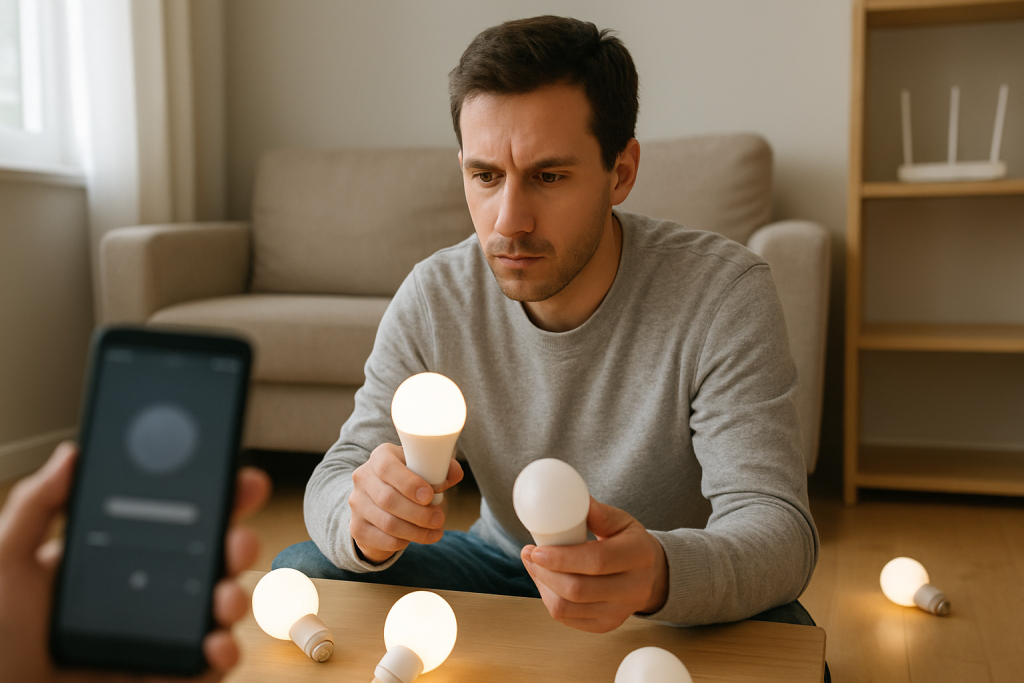
Real-world scenario: You add two new bulbs to a bedroom group. They work individually, but in the group one bulb always lags and sometimes stays a different color. The new bulb is in a lamp behind a TV, further from the router/hub, and it joined a different mesh path. Group commands reach it late, so it updates after the others.
Common user mistake: Creating a group in one app (for example, a voice assistant or a platform app) while also keeping a separate group in the bulb maker’s app, then controlling both. The two group definitions don’t always match, and automations may target one group while you manually change the other.
Most Likely Causes in Real Homes
1) One weak link bulb in the group (poor Wi-Fi signal, Zigbee edge device, or intermittent power at the socket) causing late or missed commands.
2) Conflicting schedules/scenes (circadian/adaptive lighting, motion routines, or time-based scenes) overriding group changes.
3) Router band steering or mesh roaming moving one bulb between access points, creating brief drops during group commands.
4) Hub/bridge/controller overload or stale state (after a power outage or update) causing partial group delivery.
5) Mixed firmware or a recently added device that hasn’t fully updated or synced configuration.
Step-by-Step Fix
Run a “straggler” test to identify whether it’s one device or the whole group.
What to do: In your lighting app, set the group to a simple, obvious state (On, 100% brightness, neutral white). Watch closely for 10 seconds. Repeat with a saturated color (pure red or blue) if supported.
What the result means: If the same bulb is consistently late or wrong, the problem is likely that bulb’s connection, firmware, or configuration. If different bulbs fail each time, suspect network/controller issues. If every bulb changes but the color/brightness doesn’t match, suspect scene/automation conflicts or mixed color temperature settings.
What to try next if it fails: Continue to step 2 to confirm device status and isolate whether the issue is reachability or configuration.
Check device status and firmware inside the app (not just “it turns on”).
What to do: Open the group, then open each light’s device page. Look for “Offline/Unreachable,” “Poor signal,” or a pending firmware update. If you use a hub/bridge (Zigbee or similar), also check the hub’s health status and whether it shows the device as reachable.
What the result means: An “offline/unreachable” light can still sometimes respond to cached commands or local wall power toggles, but it won’t reliably take group updates. A pending firmware update can cause temporary desync or different dimming/color behavior.
What to try next if it fails: If any device is unreachable, move to step 3 (power cycle sequence). If firmware updates are available, apply them after step 3 when the network is stable.
Power-cycle in the correct order to clear stale group state.
What to do: Turn off the lights using the app (not the wall switch). Then reboot your network in this order: modem (if separate) and router, wait for internet/Wi-Fi to fully return, then reboot the hub/bridge/controller (Hue bridge, Zigbee hub, Matter controller), then power-cycle the affected bulbs by turning the lamp/switch off for 10 seconds and back on.
What the result means: If group syncing improves immediately, the issue was likely a stale controller state, a temporary network routing problem, or a hub that needed to rebuild device routes.
What to try next if it fails: Go to step 4 to verify Wi-Fi band and mesh behavior (common with Wi-Fi bulbs and mixed networks).
Confirm Wi-Fi band and mesh behavior for Wi-Fi bulbs (and controllers on Wi-Fi).
What to do: If your bulbs or controller use Wi-Fi, confirm they are on the expected band (many Wi-Fi bulbs require 2.4 GHz). In your router app, check whether the problem bulb is connected to a different access point/node than the others, or whether it’s frequently roaming. If you have a combined SSID for 2.4/5 GHz, temporarily disable band steering or create a dedicated 2.4 GHz IoT SSID if your router supports it.
What the result means: If the straggler bulb is on a different node or keeps roaming, group commands can arrive at different times. If bulbs are accidentally on a guest/isolated network, they may not receive local group traffic reliably.
What to try next if it fails: Proceed to step 5 to test for automation conflicts that can mimic “desync.”
Check for schedule/scene conflicts that overwrite your group changes.
What to do: Temporarily disable routines such as adaptive lighting, circadian schedules, motion-triggered scenes, “power restore behavior,” and voice assistant routines that target individual lights. Then run the group sync test again (On/100%/white, then a color).
What the result means: If the group stays synced with automations disabled, the issue is not connectivity—it’s competing commands. Often one light is targeted by a separate routine (for example, a nightlight automation) while the rest follow the group.
What to try next if it fails: Continue to step 6 to validate that the group definition and room/location assignments are consistent across apps.
Verify group membership and room/location settings across the apps you use.
What to do: If you control lights from multiple places (manufacturer app, hub app, platform app, voice assistant), confirm the same devices are in the same room/group everywhere. Remove duplicates: if a bulb appears twice (common after migrations), delete the stale entry and re-sync.
What the result means: If one app’s group includes a different set of devices, you can get partial control or “wrong” lights responding. If a bulb is assigned to a different home/location, it may not receive group scenes correctly.
What to try next if it fails: Go to step 7 to isolate whether the issue is your home network or the cloud/account path.
Do a hotspot isolation test to separate cloud/account issues from home network issues.
What to do: Use a phone hotspot (2.4 GHz if possible) and connect one problematic Wi-Fi bulb (or the controller, if it’s Wi-Fi-based and supports moving networks) to the hotspot temporarily. Create a small test group with two devices on the same network path and run the group sync test.
What the result means: If syncing is reliable on the hotspot, your home network settings (band steering, isolation, roaming, or congestion) are likely the cause. If the problem persists even on the hotspot, suspect firmware, device health, or account/cloud sync.
What to try next if it fails: Continue to step 8 for hub/mesh-specific checks (especially Zigbee and mixed ecosystems).
For Zigbee hub setups: force a mesh “settle” and improve the route for the straggler.
What to do: Keep the hub/bridge in a central location (not inside a cabinet). If one bulb is far away, temporarily move a plug-in powered Zigbee device (such as a smart plug that acts as a repeater, if you already have one) closer to create a stronger route, or move the bulb closer for a test. After changes, wait 30–60 minutes for the mesh to rebuild routes, then retest the group.
What the result means: If the straggler starts syncing after route improvements, your issue was Zigbee mesh quality, not the group feature itself.
What to try next if it fails: Proceed to step 9 to address firmware/software and controller cache issues.
Update firmware and refresh the controller/app state.
What to do: Update bulbs, hubs/bridges, and controllers to the latest firmware. Update the controlling app and your phone OS. Then sign out and sign back into the lighting account (if used), and reboot the controller device (hub/bridge or smart speaker/controller) once more.
What the result means: If syncing improves after updates and a re-login, the issue was likely a software mismatch, a known bug, or a stale cloud/controller cache.
What to try next if it fails: Move to Advanced Troubleshooting for account, network isolation, and configuration conflicts that require deeper checks.
Advanced Troubleshooting
This section is only needed if basic fixes fail.
Account or cloud sync problems: If your ecosystem uses a cloud account, group definitions and device states may not match across devices. If one phone/tablet shows the group correctly and another doesn’t, it usually means the account data hasn’t synced or one device is logged into a different home/location. Confirm you’re logged into the same account everywhere, then remove and re-add the group (not the bulbs) so the group definition is rebuilt cleanly.
Network issue (relevant when Wi-Fi bulbs or Wi-Fi controllers are involved): If individual control works but group control is inconsistent, check for client isolation features: guest Wi-Fi, “AP isolation,” or an IoT network that blocks device-to-device traffic. Group commands and discovery can fail when devices can’t see each other locally. Also check whether your router is overloaded (many smart devices plus streaming can cause delayed packets). A quick test is to temporarily pause heavy uploads/streams and retest group syncing.
Firmware/software cause: If the problem started right after an update, it often indicates a compatibility issue between a controller and certain bulb firmware. The practical fix is to ensure every device in the chain is updated (bulbs, hub/bridge, controller, app). If one bulb won’t update, it may remain the “odd one out” in group behavior.
Configuration conflict (groups, scenes, automation, permissions): If a single light always “disagrees” with the group at the same time of day, it usually means it’s targeted by a separate automation. Look for: a scene that targets the bulb directly, a motion sensor bound to that bulb, a “power-on behavior” setting that forces a specific brightness, or a permission issue where one controller can’t fully manage the device. Temporarily remove the bulb from the group, confirm the group syncs without it, then add it back and retest. If adding it back reintroduces the problem, the bulb’s configuration is the trigger.
When to Reset or Replace the Device
A soft restart is simply power-cycling the light (off for about 10 seconds, then on) and rebooting the hub/controller. This clears temporary connection issues without changing your setup.
A factory reset is appropriate when one specific bulb repeatedly fails group commands even after network fixes, firmware updates, and removing/re-adding it to the group. Be aware of what you lose after a reset: the bulb will be removed from rooms/groups/scenes, automations that reference it may break, and you may need to re-pair it to the hub or re-add it to your Matter fabric. Plan to rebuild the group and any routines that included that bulb.
If a bulb is overheating, flickering rapidly, has a burning smell, has visible damage, or is too hot to touch comfortably, stop using it and replace it. Don’t try to repair or open devices.
How to Prevent This in the Future
Keep the control path stable. Use one primary app to manage groups and scenes, and avoid maintaining duplicate groups in multiple ecosystems unless you have a clear reason. When you do use multiple apps, make changes in one place and re-sync others afterward.
Maintain reliable placement. Keep hubs/bridges in open areas and avoid placing them behind TVs, inside cabinets, or next to large metal objects. For Wi-Fi bulbs, aim for consistent coverage in the rooms where group syncing matters most. For Zigbee, remember the mesh improves when powered routing devices are placed between the hub and distant bulbs.
Manage automations deliberately. If you use adaptive lighting, motion scenes, or time-based routines, document which rooms and which individual lights they target. If a light must always match a group, avoid separate routines that address it directly.
Plan for power outages. After an outage, give the network time to settle: router first, then hubs/controllers, then lights. If your ecosystem has “power restore” settings, set them consistently across the group so bulbs don’t come back in mismatched states.
Stay current on firmware. Schedule a monthly check for updates to bulbs, hubs/bridges, and controller devices. Mixed firmware is a common reason groups slowly become unreliable over time.
FAQ
Why do my smart lights sync individually but not as a group?
Individual control can succeed even when group control fails because group commands depend on every device receiving the command quickly and consistently. If one bulb has weaker connectivity or is on a different network path, it may lag or miss the group update. The straggler test (set 100% brightness and a strong color) usually reveals the device that isn’t keeping up.
Does this mean my Wi-Fi is “too slow”?
Not usually. Most group sync problems are about reliability and routing, not raw speed. If one bulb is roaming between mesh nodes, stuck on an isolated guest network, or briefly dropping off 2.4 GHz, it can miss group timing even when your internet speed is excellent.
One bulb always ends up a slightly different white color. Is it broken?
Not necessarily. Different bulb models (or firmware versions) can interpret “warm white” or “cool white” differently, and some scenes use color temperature while others use RGB mixing. If the mismatch is consistent, check that all bulbs are set to the same color mode (color temperature vs color) and update firmware. If only one bulb can’t match after updates and re-adding it, it may be a hardware limitation of that bulb model.
Will turning the wall switch off and on fix group syncing?
It can help as a temporary reset, but it can also create new problems if done repeatedly. Cutting power can cause bulbs to boot at different times, rejoin the network unevenly, or trigger power-restore behaviors that conflict with your group state. If you need to power-cycle, do it once and then control the lights from the app while testing.
Misconception: “Groups are stored in the bulbs, so the hub/router doesn’t matter.” Is that true?
No. Even when groups are defined in an app, the commands still travel through a controller path (hub/bridge, local network, or cloud) to reach each bulb. If the hub is overloaded, the network is isolating devices, or one bulb has a weak route, the group can desync because the bulbs aren’t receiving the same command at the same time.
What’s left now is mostly noise—people debating points that don’t change what the day-to-day actually feels like. The solution isn’t hidden anymore; it’s simply there, doing its job in the background.
In the end, the real win is how ordinary everything becomes once the friction is gone. That quiet shift is easy to miss until you notice you’re finally moving without thinking about it.