Smart Light Strip Not Turning On Fully: How to Fix It
Quick Answer
When a smart light strip turns on only partially (for example, the first few inches light up, only one color channel works, or it stops at a certain point), the most common real-world cause is a power delivery problem. Light strips need stable voltage along the entire run. If the power supply is weak, the strip is too long for the controller, there’s a poor connection, or there’s voltage drop along the strip, the LEDs farthest from the controller often won’t light correctly.
This can happen across major ecosystems: WiFi light strips, Zigbee hub-controlled strips, Matter-enabled controllers, and systems that integrate with platforms like Philips Hue or TP-Link. The app may still show the device as “On,” because the controller is powered and connected even when the strip itself isn’t receiving enough usable power.
Do these three quick diagnostics first: (1) Confirm whether the unlit section changes if you lower brightness to 20–30% (a strong clue of voltage drop). (2) Power-cycle the strip correctly (unplug for 30 seconds, then plug back in) and see if it briefly lights fully during startup. (3) Open the app and check whether the device is in a group/scene that might be setting a dim level or color that looks “off” on part of the strip.
Why This Happens
A smart light strip is not one “bulb.” It’s a long chain of LEDs that all depend on the controller and power supply to push enough power down the line. If the strip is longer than the controller is designed to drive, if the power supply is underpowered, or if there’s resistance at a connector, the voltage available at the far end drops. The result is often a strip that looks like it “gives up” partway: the far end is dark, a different color, flickers, or won’t reach full brightness.
Several tightly related causes tend to create this exact symptom:
First, voltage drop along the strip run. The longer the strip and the higher the brightness (especially bright whites), the more current is needed, and the more the voltage can sag at the far end.
Second, a weak or mismatched power adapter. If the adapter can’t supply the required current, the controller may still boot and connect, but the LEDs won’t all power properly.
Third, a poor physical connection at an extension, corner connector, or solderless clip. A slightly loose connector can pass enough power for a few LEDs but not the full load, especially at higher brightness.
Fourth, configuration that makes it look “partially on.” Some strips support zones/segments. If a scene or automation controls only certain segments, you may interpret it as a hardware failure.
Fifth, an overlooked technical cause: mixed strip types or unsupported extensions. In real homes, people sometimes add an extra segment that “fits” physically but isn’t electrically compatible with the controller (different voltage, different LED density, or different data timing). The strip may light partially or show wrong colors.
Real-world scenario: a homeowner adds an extra extension to reach behind a TV and runs the strip at 100% cool white. The first half looks fine, but the last section is dim or off. Lowering brightness suddenly makes the far end come alive. That points strongly to power delivery limits rather than WiFi, hub range, or app issues.
Common user mistake: connecting the strip with the arrow/direction wrong on a data connector, or not fully seating a clip connector. The strip may still light near the controller but fail beyond the connector.
Overlooked technical cause: some ecosystems restore to a default state after a power interruption (or after a firmware update) where a scene, adaptive lighting mode, or segment configuration leaves part of the strip set to 0% brightness or a color that appears off (deep red on a warm surface, for example). The app may not make this obvious if you’re controlling a group rather than the device directly.
Most Likely Causes in Real Homes
1) Voltage drop from running the strip too long or too bright. The far end goes dim/off, especially on white or high brightness.
2) Underpowered or failing power adapter. The controller turns on, but the strip can’t draw enough current for full length.
3) Loose or misaligned connector at an extension/corner. Works until the connector point, then fails beyond it.
4) Segment/zone settings, scenes, or group sync issues. The strip is “on,” but only certain sections are commanded to light.
5) Firmware or configuration mismatch after an update or migration (Matter pairing changes, hub re-join, or cloud sync). The strip responds inconsistently or partially.
Step-by-Step Fix
Check whether the “missing” section changes at low brightness. Set the strip to a solid color and reduce brightness to 20–30% in the app.
What the result means: If more of the strip lights up at lower brightness, the issue is usually power delivery (voltage drop, strip too long, weak adapter, or resistance at a connector).
If it fails, try next: Keep brightness low for now and continue to step 2 to isolate whether the problem is the strip length, a connector, or the power supply.
Power-cycle correctly to clear controller glitches. Turn the strip off in the app, unplug the power adapter from the wall, wait 30 seconds, then plug it back in. Wait 60–90 seconds for the controller to boot.
What the result means: If it briefly lights fully during startup and then becomes partial, that often points to a configuration/scene/segment command being applied after boot, not a pure hardware failure.
If it fails, try next: Go to step 3 and test direct device control (not a room/group) to rule out group sync and automation.
Control the strip directly (not through a group, room, or scene). In your smart home app, open the specific device page for the strip and set a solid color (pure red, then pure green, then pure blue, then white) at 50% brightness.
What the result means: If only one color channel fails (for example, blue doesn’t show past a point), that suggests a connection problem or a damaged section affecting that channel. If group control fails but direct control works, it’s likely a group/scene sync issue.
If it fails, try next: Proceed to step 4 to check for segment/zone settings and schedules that may be targeting only part of the strip.
Verify segment/zone settings, effects, and schedules. If your strip supports segments/zones, make sure all segments are set to the same brightness and color. Then check Automations/Routines/Schedules for the strip and temporarily disable them for testing.
What the result means: If disabling automations makes the strip turn on fully and stay that way, the problem is a rule conflict (two automations fighting, or a schedule setting part of the strip to off).
If it fails, try next: Go to step 5 and inspect physical connections, especially where the strip stops lighting.
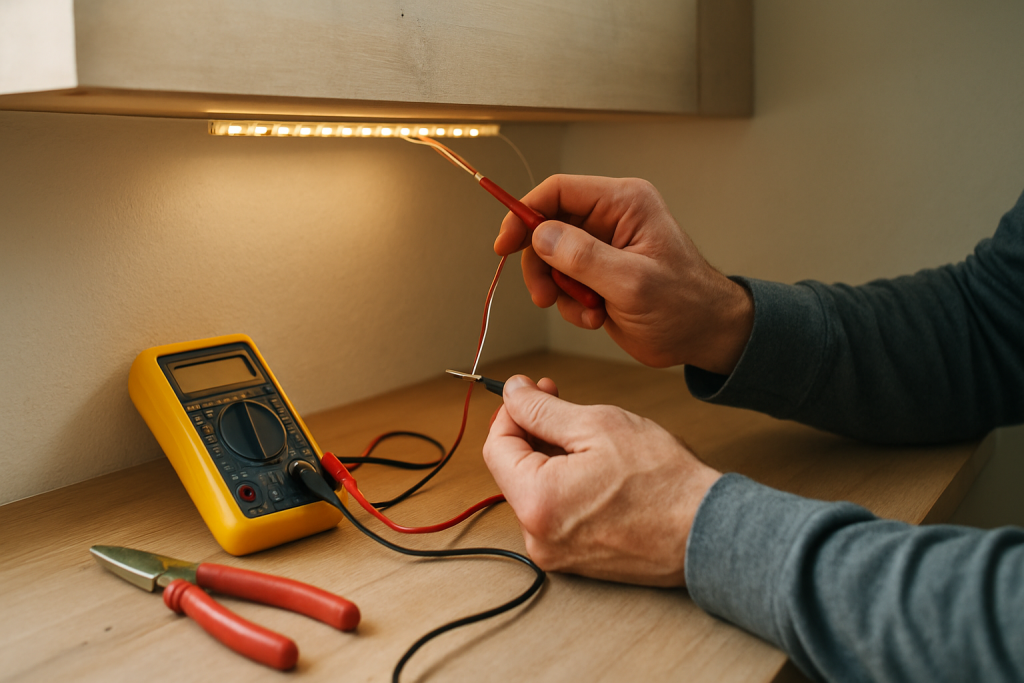
Inspect and reseat connectors without opening devices. Turn the strip off and unplug it. Press each connector firmly into place (especially solderless clips and corner connectors). If there’s an extension, temporarily remove it and connect the strip in the simplest possible configuration.
What the result means: If the strip works fully when simplified, the removed connector/extension is the likely fault (misalignment, resistance, or incompatibility).
If it fails, try next: Continue to step 6 to isolate whether the issue is the strip length/power limit versus a damaged segment.
Do a length isolation test. If your strip has detachable sections or an extension, run only the first portion closest to the controller. Then add sections back one at a time until the problem returns.
What the result means: If the failure starts after adding a specific section, that section or its connector is the likely issue. If it fails only when the total length is long, it’s likely a power limit/voltage drop problem.
If it fails, try next: Go to step 7 and check the power adapter rating and heat symptoms.
Check the power adapter rating and behavior. Look at the adapter label for output voltage and current (for example, 12V/2A or 24V/1A). During operation at higher brightness, note whether the adapter becomes unusually hot or the strip flickers.
What the result means: Excess heat, flicker, or partial lighting that worsens at higher brightness often indicates the adapter is failing or underpowered for the total strip length.
If it fails, try next: Move to step 8 to rule out app/cloud sync issues that can reapply a bad state after you fix the hardware side.
Test for account/cloud sync problems and stale device state. In the app, refresh the device list, then sign out and sign back in. If the strip is exposed through a platform (for example, linked to Apple Home, Google Home, Alexa, or a hub app), test control from the manufacturer’s app first, then from the platform app.
What the result means: If the manufacturer app controls the strip correctly but the platform app does not, the issue is likely a sync/configuration problem (duplicate device, outdated scene, or permission conflict).
If it fails, try next: Proceed to step 9 to rule out network behavior that can interrupt commands mid-update, especially for WiFi and Matter-over-WiFi devices.
Run a hotspot isolation test (WiFi/Matter-over-WiFi strips). Temporarily create a phone hotspot with a simple name/password, then connect the strip to it (only if your device supports changing networks without a reset). Alternatively, move the strip/controller closer to the router for a short test.
What the result means: If the strip behaves normally on a clean network or when close to the router, your home network may be causing intermittent command delivery. This usually shows up as effects/segments not applying consistently, not as a clean “half the strip is dead,” but it can complicate diagnosis.
If it fails, try next: Go to step 10 to check WiFi band and mesh behavior, then return focus to power/strip length if physical symptoms remain unchanged.
Check WiFi band and mesh behavior (WiFi strips) or hub path (Zigbee/Thread). For WiFi strips, confirm the device is on the intended band (many require 2.4 GHz). If you use a mesh system, test by powering the strip near the main router node to avoid roaming issues. For Zigbee/Thread, check that the hub/border router is online and the device shows a stable connection.
What the result means: If connectivity changes fix responsiveness but the strip still doesn’t light fully, your primary issue is still power delivery or a physical segment problem. If connectivity fixes the “partial” behavior entirely (especially with segmented strips), it was likely commands not applying consistently.
If it fails, try next: Continue to step 11 for a firmware/app update check and a clean reboot of the ecosystem controller (hub/border router).
Update firmware and reboot the control point. Check for firmware updates for the strip/controller in its main app. Reboot the hub (Zigbee), border router (Thread/Matter), or the router (WiFi) after updates, then retest direct device control.
What the result means: If the strip starts honoring segment settings correctly after an update/reboot, the issue was likely a software state problem or a bug fixed by firmware.
If it fails, try next: If the strip still won’t light fully after physical isolation tests and stable power checks, move to Advanced Troubleshooting and then consider reset/replace guidance.
Advanced Troubleshooting
This section is only needed if basic fixes fail.
Account or cloud issue: If the strip appears duplicated across apps (for example, one entry works and another doesn’t), remove the duplicate from the platform app and keep one authoritative control path. If your ecosystem uses cloud linking, re-link the account from the platform side (Google Home/Alexa) so scenes and device capabilities refresh. A stale capability map can cause partial segment control or incorrect color behavior.
Network issue (relevant mainly to WiFi and Matter-over-WiFi): If the strip frequently “half applies” effects or stops responding mid-command, check for router features that can disrupt smart devices: band steering that forces roaming, client isolation on the IoT network, or aggressive power-saving settings. If you have multiple access points, temporarily disable one to see if the strip stabilizes. If stability improves, the issue is likely roaming or multicast handling rather than the strip itself.
Firmware/software cause: Some updates change how segments are addressed or how adaptive lighting is applied. If the strip started failing right after an update, temporarily disable dynamic features like adaptive lighting, music sync, or gradient effects and test a simple static color. If static colors work but effects don’t, the controller may be struggling with a specific mode.
Configuration conflict (groups, scenes, automation, permissions): If the strip is in multiple groups (a room group plus an entertainment area, for example), two controllers can fight. Remove the strip from non-essential groups and rebuild one group at a time. Also check household permissions: if another family member’s app has automations, you may not see them in your view depending on the platform. A good test is to temporarily disable all automations for the device across all linked platforms, then re-enable them one by one.
When to Reset or Replace the Device
Soft restart vs factory reset: A soft restart is simply a proper power-cycle (unplug, wait, plug back in) and does not remove the device from your app. A factory reset clears pairing and configuration so you can set it up again from scratch. Use a factory reset only after you’ve confirmed the issue is not a loose connector, length/power limit, or an automation/segment setting.
What you lose after a factory reset: Expect to lose the device name, room assignment, scenes, schedules, segment maps, and platform links (Matter pairing, hub joins, and voice assistant integrations may need to be re-added). If your strip is part of automations, you will likely need to reselect it in those routines.
Safety note: If the power adapter, controller, or any part of the strip is unusually hot, smells like melting plastic, shows discoloration, or the adhesive backing is browning, stop using it and unplug it. Persistent overheating is not a software problem and should not be “tested through.” Replace the affected part rather than continuing to run it.
How to Prevent This in the Future
Keep power demands realistic: Avoid running long strips at maximum brightness white for extended periods if your setup is near its limits. If you notice the far end dimming at high brightness, use a slightly lower brightness cap in scenes.
Use stable placement and strain relief: Most partial-light problems start at connectors. Keep connectors accessible, avoid sharp bends at the clip, and don’t tension the strip where it transitions around corners or behind furniture.
Manage automations carefully: If you use multiple ecosystems (manufacturer app plus a platform app), decide which one “owns” schedules for the strip. Duplicate schedules are a common reason strips appear to turn on partially or revert after you fix them.
Plan for power outage recovery: After outages, some strips restore to a default segment/effect state. Keep a simple “All On” scene (static color, moderate brightness) you can apply quickly to confirm the strip is healthy.
Maintain firmware and app health: Update the strip/controller firmware and the controlling app periodically, especially if you rely on segments, gradients, or Matter integrations. After major updates, verify that segment settings still apply correctly before assuming hardware failure.
FAQ
Why does the strip turn on fully at first, then go partially dark?
If it lights fully during startup and then changes, the controller is likely receiving a command after boot (a scene, schedule, adaptive lighting mode, or segment configuration). Test by disabling automations and controlling the strip directly from its device page with a simple solid color.
If the app says the strip is “On,” doesn’t that prove power is fine?
No. The controller can be powered and connected while the LED strip sections are not receiving enough usable power. This is common when the adapter is weak, the strip is too long, or a connector adds resistance. The app status reflects the controller state, not a guarantee that every LED is correctly powered.
Only the far end is dim or the color looks wrong. Is that a network problem?
Usually not. A far-end dimming or color shift that improves when you lower brightness is a classic voltage drop symptom. Network issues more often cause delayed responses, missed commands, or effects not applying consistently, rather than a consistent “everything past this point is dark.”
Can a scene or group really make it look like only part of the strip works?
Yes, especially with segmented strips. A scene might set one segment to 0% brightness or set a color that blends into the background. Also, group control can apply a different brightness or effect than direct device control. Always test from the strip’s own device page to rule this out.
Misconception: “If one section is out, the whole strip is dead.” Is that true?
No. Many strips can fail at a connector or a single segment while the rest still works. That’s why the simplest isolation test is to remove extensions and add sections back one at a time until the failure returns. This pinpoints whether the issue is a specific section/connector or an overall power limit.
There’s relief in watching the noise thin out and the days line up the way they’re supposed to. The big fuss fades, and what remains feels oddly manageable—like unclenching a fist you forgot you had.
Not everything becomes perfect, of course, but the pressure does. Life keeps moving, and this time it moves a little more cleanly, as if the path finally stopped arguing back.