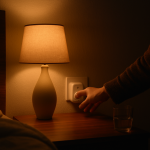
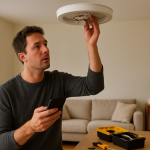
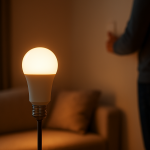
Smart Light Turns On by Itself at Night: How to Stop It
Quick Answer
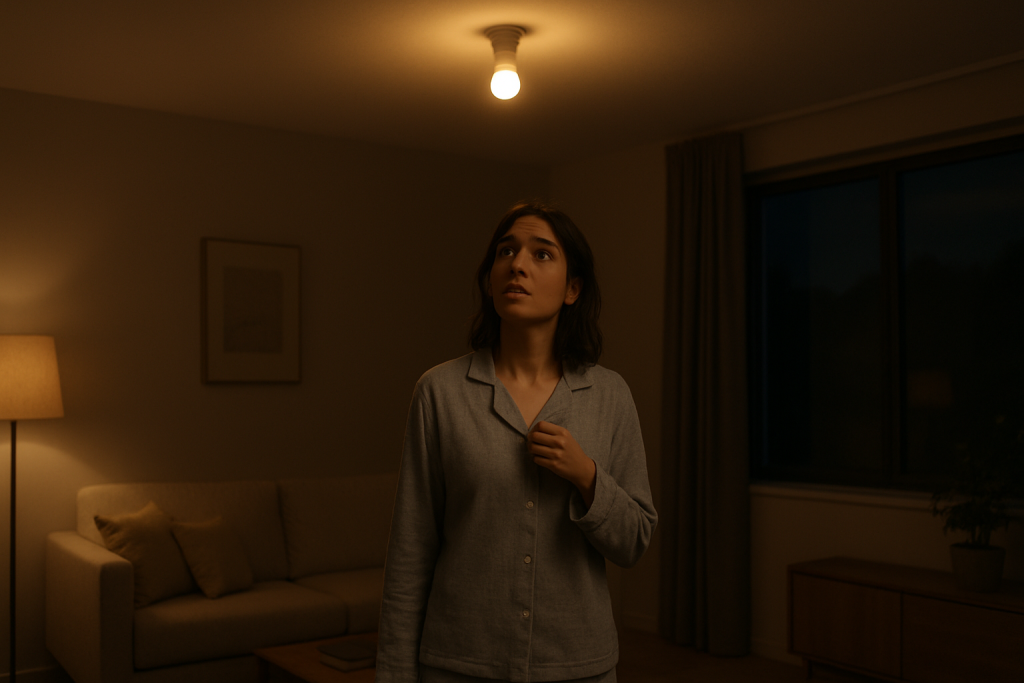
The most common reason a smart light turns on by itself at night is an automation you forgot about (or didn’t realize was enabled). This includes schedules, routines, scenes, “power restore” behavior, motion triggers, or integrations (voice assistants, smart home platforms, or hub rules) that fire after sunset.
In real homes, this often happens after a router change, app update, time zone change, or adding a second controller (for example: a Zigbee hub plus a voice assistant). The light is not “randomly” turning on; it’s usually receiving a valid command from somewhere.
Do these three quick checks first: (1) In the light’s app, check the device history/activity log (if available) and look for “turned on by automation” or a source name. (2) Temporarily disable all schedules/routines for that light (including in any linked platforms) and see if it stops overnight. (3) Check the light’s power-on behavior (sometimes called “Power Restore,” “After Power Loss,” or “Default State”) and set it to “Stay Off” if available. This applies to WiFi bulbs, Zigbee bulbs through hubs, Matter devices, and systems like Philips Hue, TP-Link, and others.
Why This Happens
Smart lighting ecosystems are designed to be controlled from multiple places at once: the manufacturer app, a hub, a voice assistant, a smart home platform, and sometimes third-party automations. When a light turns on “by itself,” the practical troubleshooting goal is to identify which controller sent the command and why it tends to happen at night.
Here are the most tightly related causes that fit real-world night-time behavior:
1) A time-based automation is firing. If the light turns on at the same time each night (or close to sunset), that usually means a schedule, routine, or scene is active. Many systems support “sunset/sunrise” triggers, and those are easy to forget because the time changes daily.
2) A motion/occupancy trigger is being activated. If the light turns on only sometimes at night, it often lines up with motion sensors, cameras with motion lighting, occupancy routines, or even a hallway sensor catching pets. Some automations only run after dark, which makes the issue feel “night-only.”
3) Power events cause a “default on” recovery. Brief power flickers are common overnight (HVAC cycling, neighborhood power fluctuations). Some bulbs default to ON after power is restored, or they restore the “last state,” which might have been ON earlier. This is especially common when the physical switch is left on and the bulb is always powered.
4) Multiple controllers are fighting each other. A common user mistake is setting up the same light in more than one ecosystem without understanding which one is the “source of truth.” For example, you might have a Zigbee bulb paired to a hub, then linked to a voice assistant, and also added to another platform via Matter. If two platforms have separate schedules, you can get unexpected on/off behavior.
5) Overlooked technical cause: time zone, location, or “home/away” state mismatch. Sunset automations depend on location. If the app’s location changed, the hub’s time zone is wrong, or the home/away state is stuck (for example, set to “Home” when you’re away), routines can run at the wrong times. This often appears after changing phones, permissions, or router settings.
Real-world scenario: A homeowner adds a new WiFi router and re-links their smart home platform. The lighting app still has an old schedule, and the voice assistant platform also imports the light and applies a “porch on at sunset” routine. The result is the porch light turning on nightly even though the homeowner “deleted the schedule” in only one place.
Most Likely Causes in Real Homes
1) Forgotten schedule/routine (including sunset/sunrise). If it’s consistent by time, assume automation first.
2) Motion sensor or camera-triggered lighting. If it’s inconsistent and happens when someone (or a pet) moves, suspect motion rules.
3) Power flicker + “power restore = on/last state.” If it happens after storms, HVAC cycles, or late-night utility fluctuations, check power behavior.
4) Duplicate control across platforms (hub + app + voice assistant + Matter). If you use multiple apps, it’s easy to have overlapping rules.
5) Group/scene sync issue. A light in a group may turn on because another light/group scene was triggered, especially in rooms and zones.
Step-by-Step Fix
Check whether the light turns on at a consistent time. What to do: Note the exact time it turns on for 2–3 nights (or check a camera timestamp). Then look for schedules labeled “sunset,” “dusk,” “night,” “evening,” “arrive home,” or “security.” What the result means: If the time is consistent (or tracks sunset), it’s almost certainly a schedule/routine. What to try next if it fails: If the time seems random, move to motion/power checks in the next steps.
In the manufacturer app, review automations, scenes, and device activity. What to do: Open the light’s primary app (the one used to set it up). Check Automations/Routines/Schedules and disable anything that can turn the light on. If the app has a device history/activity log, look for entries that show the source (automation, integration, or user). What the result means: If disabling schedules stops the issue, the cause was inside that app or hub. If the log shows “turned on by integration” or a platform name, the command is coming from outside the app. What to try next if it fails: Continue to step 3 to check other platforms and duplicated controllers.
Check every linked platform for duplicate routines (voice assistant, smart home platform, hub rules, Matter controllers). What to do: Open each platform you use to control the same lights (for example: a voice assistant app, a smart home platform app, a hub app, and any Matter controller you added). Search for routines involving that light, its room, or its group. Also check “Away mode,” “Guard/Security mode,” and “Vacation mode.” What the result means: If you find a routine in a secondary platform, that’s a high-probability cause because it can run even if the manufacturer app has no schedule. What to try next if it fails: If you can’t find any routine, proceed to step 4 and focus on motion triggers and group behavior.
Test for motion/occupancy triggers (including pets and cameras). What to do: Temporarily disable motion-based lighting rules and occupancy automations for that room/area. If you have sensors, set them to “notify only” for one night. If you have cameras with “turn on light on motion,” disable that feature. What the result means: If the problem stops, a sensor is triggering it. If it only happens when you walk by (or a pet moves), that confirms it. What to try next if it fails: If it still turns on with all motion rules disabled, move to step 5 to check for power events and power-on behavior.
Check power-on behavior and test for brief power flickers. What to do: In the app, look for settings like “Power Restore,” “After Power Loss,” “Power-On State,” or “Default State.” Set it to “Stay Off” if available. Then do a controlled test: turn the light off in the app, wait 10 seconds, then toggle the wall switch off for 5 seconds and back on (only if the bulb is in a normal lamp/fixture and you can safely use the switch; do not open anything). Observe whether it comes back on automatically. What the result means: If it comes on after power is restored, a nighttime power flicker could be the trigger. What to try next if it fails: If there is no power-on setting or it doesn’t help, continue to step 6 to test group/scene behavior.
Run a group/scene sync test (room, zone, or “all lights” commands). What to do: Identify which group the light belongs to (room/zone). Temporarily remove the light from groups or disable “sync” features (where one light mirrors another). Then, at night, manually turn on a different light in the same group and see if the problem light follows. What the result means: If the light turns on when another grouped light turns on, the group or scene is driving it, not the individual device. What to try next if it fails: If it still turns on alone, proceed to step 7 to check time zone/location and home/away state.
Verify time zone, location, and “home/away” status across the ecosystem. What to do: In the hub/app settings, confirm the home address (for sunset automations), time zone, and daylight saving settings. In platforms that use presence (home/away), confirm your phone location permissions and that the system isn’t stuck in “Away” or “Home.” What the result means: If the location/time zone was wrong, sunset-based routines can run at unexpected hours and look like random nighttime behavior. What to try next if it fails: If settings are correct, go to step 8 to isolate whether the command is coming from the network/cloud side.
Do a hotspot isolation test to separate local issues from cloud/integration issues (WiFi bulbs and bridges with Ethernet). What to do: If the device is a WiFi bulb, temporarily connect it to a phone hotspot (using the manufacturer’s setup flow) and do not link it to voice assistants for the test night. If the device uses a bridge/hub on Ethernet, keep the hub connected but temporarily disable third-party integrations in the hub/app. What the result means: If the problem disappears on hotspot or with integrations disabled, the cause is likely a cloud routine, an integration, or a network/controller conflict rather than the bulb itself. What to try next if it fails: If it still happens even when isolated, proceed to step 9 for a controlled reboot sequence and firmware check.
Perform a clean power cycle sequence and update firmware/apps. What to do: Reboot in this order: (1) phone/tablet, (2) router/mesh, (3) hub/bridge (if used), (4) the light (power off/on at the switch). Then check for firmware updates for the bulb/bridge and update the controlling apps. What the result means: If the issue was caused by a stuck state, time sync problem, or a firmware bug, this often stops repeated nighttime triggers. What to try next if it fails: If it still turns on, move to Advanced Troubleshooting to look for account sync and configuration conflicts.
Advanced Troubleshooting
This section is only needed if basic fixes fail.
Account/cloud sync issue: If you have more than one phone/tablet controlling the home, confirm everyone is signed into the same household/home and not a separate “home” instance. A common problem is a second account (or an old phone) still running an automation. If the platform supports it, sign out of unused devices and revoke access for old integrations.
Network issue (relevant when commands arrive late or in bursts): If lights turn on in clusters or after a delay, the network may be replaying queued commands after reconnecting. For WiFi bulbs, check whether your router is steering devices between 2.4 GHz and 5 GHz with a single SSID; many smart bulbs prefer 2.4 GHz and can behave unpredictably if they repeatedly reconnect. If you use mesh WiFi, test by temporarily placing the bulb/hub near the main router or unplugging a distant mesh node for one night to see if roaming is causing repeated reconnects.
Firmware/software cause: Some ecosystems have known issues where a scene re-applies after an update or after a hub reboot. If the light turns on shortly after the hub restarts, check hub uptime and any “startup behavior” settings. Also check for duplicated scenes with similar names (for example, “Evening” and “Evening (2)”).
Configuration conflict (groups, scenes, automation priority, permissions): If the light belongs to multiple rooms/zones across platforms, remove and re-add it to only one logical room in the primary ecosystem, then re-link. Conflicts are common when a device is controlled via both a hub integration and Matter at the same time. If X happens (the light turns on only when another room scene runs) it usually means the device is included in a shared scene/group. If this test works (removing it from the group stops the issue) the issue is likely a scene membership problem, not the bulb.
When to Reset or Replace the Device
Soft restart vs. factory reset: A soft restart is simply power-cycling the bulb/bridge and restarting the controlling app and router. Do this first because it doesn’t erase settings. A factory reset removes the device from its ecosystem and clears pairings, routines, and sometimes calibration settings.
What you lose after a reset: Expect to re-add the light to rooms/groups, rebuild automations, and re-link voice assistants or smart home platforms. If the light is part of scenes, those scenes may need to be recreated or edited to include the device again.
When reset is justified: Reset if (1) you’ve confirmed no automations exist anywhere but it still turns on, (2) the device shows incorrect state in the app (says “off” while it’s on), or (3) it behaves differently than identical lights in the same room after all settings match.
Safety note: If the bulb, fixture, or plug-in smart dimmer is unusually hot, smells like burning plastic, flickers rapidly, or shows visible damage, stop using it and keep it powered off. Do not attempt to open or repair it.
How to Prevent This in the Future
Keep control paths simple: Decide which app/platform is the “automation owner” for lighting. It’s fine to control lights from multiple places, but try to keep schedules and scenes in one place to avoid duplicates.
Stabilize the network your lights depend on: For WiFi bulbs, keep them on a stable 2.4 GHz network and avoid frequent SSID/password changes. For hubs/bridges, keep them on a reliable Ethernet connection when possible and avoid moving them frequently.
Manage automations like a checklist: Name routines clearly (for example, “Porch ON at Sunset”) and delete old experiments. After adding a new platform or enabling Matter, re-check that you didn’t import or recreate schedules in two places.
Plan for power outages: Set “power restore” behavior to “Stay Off” (or your preferred safe state) so brief flickers don’t light the house at night. If you rely on the wall switch, consider leaving it on and using app control consistently so the bulb doesn’t repeatedly lose power.
Maintain firmware and app updates: Update bulbs/bridges and apps periodically, but after major updates, quickly re-check time zone, location permissions, and any sunset/sunrise routines.
FAQ
Why does it only happen at night and not during the day?
Night-only behavior usually points to an automation with a time window (after sunset, after a certain hour, or only when it’s dark). Motion lighting is also commonly configured to run only at night, so daytime motion won’t trigger it.
Is my neighbor controlling my smart light?
This is a common misconception. In most cases, the light is turning on because a trusted controller in your own home is sending the command (a routine, a hub rule, a voice assistant integration, or power-restore behavior). The practical way to confirm is to check device activity logs and temporarily disable integrations; if it stops, it was an internal control path.
The app says the light is “off,” but it’s visibly on. What does that mean?
That usually means the controller lost accurate state tracking. It can happen after a brief power interruption, a WiFi reconnect, or when multiple platforms send commands. A reboot sequence (router/mesh, hub/bridge, then the light) often restores correct state. If it keeps happening, remove the light from duplicate controllers and re-add it to a single primary ecosystem.
Could a power flicker really turn it on even if nobody touched anything?
Yes. Many smart bulbs have a “power-on state” that defaults to ON or restores the last state. A short outage overnight can look like a mysterious command. Setting the power-on behavior to “Stay Off” (when available) is the cleanest fix.
If I delete the schedule in one app, why can it still turn on?
Because the schedule may exist in a different place. The manufacturer app, a hub, a voice assistant platform, and a smart home platform can each have their own routines. If X happens (it still turns on after you delete a schedule) it usually means Y (another controller still has an automation). The fix is to audit routines across every linked platform and keep lighting schedules in one system.
There’s a strange relief in watching the mess shrink back into something manageable. The issue stops taking up space in your head, and the solution stops feeling like a distant concept.
What’s left is quieter, more ordinary—like getting through a day without the same snag returning. Not dramatic, but real, and kind of satisfying in its own stubborn way.