Smart Plug Sunrise Sunset Schedule Not Working? How to Fix It
Quick Answer
When a smart plug or smart switch won’t follow a sunrise/sunset schedule, the most common cause is that the automation is calculating sunrise/sunset for the wrong place or the wrong time zone. That usually happens after a phone location setting change, a move, a daylight saving time shift, or when the device/app is using a different “Home” location than your voice assistant or hub.
Another very common pattern is cloud sync delay or mismatch: the schedule looks correct in one app, but the plug is actually following an older version stored in the cloud, on a hub, or in a linked assistant (Alexa/Google Home/Apple Home/SmartThings). In shared homes, a second user can also create a conflicting automation using a different location or time zone.
Do these three quick diagnostics first: (1) Confirm your Home address and time zone in the platform that owns the automation (device app, hub app, or assistant) and make sure location services are allowed. (2) Temporarily create a simple “turn on in 2 minutes” test schedule to prove the device can follow schedules at all. (3) Force a cloud resync by signing out/in (or disabling/re-enabling the skill/integration) so the updated sunrise/sunset calculation is pushed to the device.
Why This Happens
Sunrise/sunset automations don’t use a fixed clock time. They calculate an event time based on your location, your time zone, and the current date. If any of those inputs are wrong—or if the calculation updates in one place but doesn’t sync to the place actually running the automation—the plug/switch will turn on/off at the wrong time or not at all.
Common tightly related causes include:
First, a location mismatch between apps. Many homes use a device manufacturer app (WiFi plug), a hub (Zigbee/Matter bridge), and an assistant (Alexa/Google/HomeKit). If your “Home” is set to different cities (or a slightly wrong address) in two places, sunrise/sunset times will be different.
Second, time zone drift or daylight saving confusion. If the phone or hub time zone is wrong—even by one hour—sunrise/sunset triggers can miss the intended window and appear “broken.”
Third, cloud sync or controller ownership. Some schedules run in the cloud (common for many WiFi plugs), others run on a hub (Zigbee, some Matter controllers), and others run inside the assistant. If you edit the schedule in one app but the execution is happening somewhere else, the “old” schedule can keep running.
Real-world scenario: after a power outage and router restart, a plug reconnects to WiFi but the app shows the correct schedule while the cloud hasn’t fully re-registered the device yet; sunrise passes, and nothing happens. The next day it works again, which points to sync timing rather than a defective plug.
Common user mistake: setting the sunrise/sunset schedule in both the device app and an assistant routine “just to be safe.” Duplicate automations often cancel each other out or cause confusing behavior, especially when each one is using a different location source.
Overlooked technical cause: a hub/phone has location permission set to “Never” or “While Using,” so the platform silently falls back to a default region or the last known location. The automation still saves, but it’s calculating sunrise/sunset for the wrong place.
Most Likely Causes in Real Homes
1) Wrong Home location or time zone in the app that owns the automation. Even a nearby city or incorrect time zone setting can shift sunrise/sunset enough to look like a failure.
2) Cloud sync mismatch between the device app and an integration (Alexa/Google Home/Apple Home/SmartThings/Matter controller). The schedule you edited isn’t the schedule that’s running.
3) Conflicting automations across multiple apps or shared users. One routine turns the plug on while another turns it off, or each uses a different sunrise/sunset source.
4) Post-outage or router change causing delayed re-registration. The plug is online for manual control, but scheduled events (which rely on cloud/hub timers) don’t fire until sync completes.
5) Firmware/app update or migration changed how time zone is handled. After an update, schedules may need to be re-saved to refresh the sunrise/sunset calculation.
Step-by-Step Fix
Identify where the sunrise/sunset automation is actually created and executed (device app, hub app, or assistant).
If the routine lives in Alexa/Google Home/Apple Home/SmartThings, that platform’s Home location/time zone is the “source of truth.” If it lives in the plug’s own app (common with WiFi plugs like Kasa/Tapo/Meross and similar), that app/account is the owner.
If you find the same sunrise/sunset rule in more than one place, that usually means conflict; pick one platform to own it, then proceed to step 6 to remove duplicates.
Verify Home location and time zone settings in the owning platform, then re-save the automation.
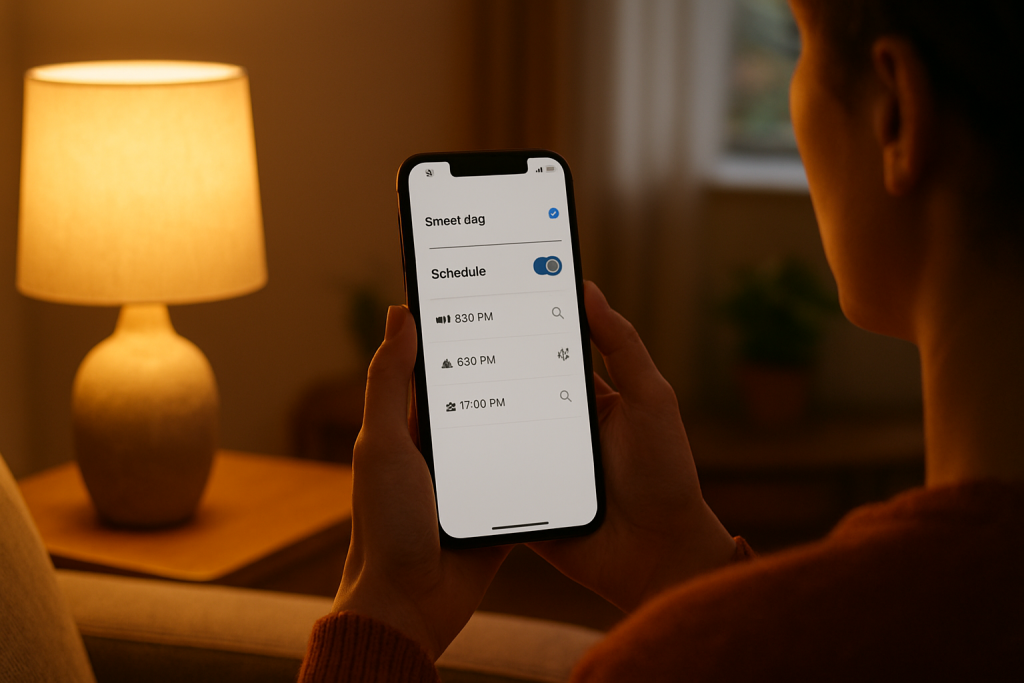
Check that the Home address (or map pin) is correct and that the time zone matches your actual location. Then open the sunrise/sunset schedule and tap Save/Update, even if you don’t change anything.
If this fixes it, the issue was incorrect location/time zone or a stale calculation that needed re-saving. If it doesn’t, move to the next step to prove whether scheduling works at all.
Run a simple “clock-based” test to separate scheduling problems from sunrise/sunset calculation problems.
Create a temporary schedule: “Turn on in 2 minutes” (or at a specific time 5–10 minutes from now), then “Turn off 2 minutes later.”
If this works, your device can follow schedules and stay online; the failure is strongly tied to location/time zone/sunrise-sunset computation or integration sync. If this fails, jump to step 7 because the platform may not be reliably executing any schedules.
Check the next scheduled run time shown in the app and compare it to a local sunrise/sunset time for your address.
Most apps display “Next run” or show today’s sunrise/sunset time inside the automation. If it’s off by exactly one hour, that usually points to daylight saving or time zone mismatch. If it’s off by many hours, it’s typically the wrong location (another city/region) or the wrong Home selected.
If the displayed next run time is wrong, fix the Home location/time zone again (including the phone OS time zone set to automatic), then re-save the automation. If the displayed time is correct but it still doesn’t trigger, continue.
Force a cloud/account refresh so the updated sunrise/sunset schedule is pushed to the device.
In the owning platform, sign out and sign back in (or toggle the integration): for Alexa/Google Home, disable then re-enable the skill/service; for hubs/controllers, ensure the controller is online and refresh device status.
If it starts working after re-linking, the problem was cloud sync or stale tokens. If it still fails, proceed to conflict isolation.
Eliminate automation conflicts by temporarily disabling all other routines for that plug/switch.
Disable other schedules such as bedtime routines, “away” modes, scenes, energy-based automations, or “turn off after X minutes” timers. Also check shared household members’ accounts if applicable.
If the sunrise/sunset schedule works once other routines are off, re-enable them one at a time to find the conflict. If nothing changes, move on to device reachability and controller stability.
Confirm the device stays reliably connected at the time schedules should run (without focusing on general WiFi).
Open the device in the app and look for “offline/unreachable” history around the missed sunrise/sunset time. If you use mesh WiFi, check whether the plug is far from the main node and tends to roam; some plugs reconnect slowly after a roam, and cloud-timed events can be missed.
If you see offline periods, try placing the plug/switch on a stable 2.4 GHz connection (avoid band-steering confusion) and keep it close to a consistent mesh node. If connectivity looks stable and only sunrise/sunset fails, proceed to updates and re-save.
Update the controlling app/firmware, then re-save (or recreate) the sunrise/sunset automation.
Check for app updates on your phone and firmware updates for the plug/switch/hub/controller. After updating, re-save the automation; if needed, delete and recreate only the sunrise/sunset rule (not a full factory reset).
If recreating the automation fixes it, the previous rule was likely corrupted or created under old location/time zone data. If it still fails, continue to advanced troubleshooting because you may have an ecosystem sync or account issue.
Advanced Troubleshooting
This section is only needed if basic fixes fail.
Account/cloud issue: If you can control the device manually but sunrise/sunset triggers never fire, the cloud scheduler may not be updating. Try changing the automation to “sunset minus 10 minutes,” save, then change it back and save again. If changes don’t “stick” across sessions, remove the device from the integration (skill/service/bridge) and add it back so the cloud rebuilds the device record.
Network issue tied to sync: If the device shows online but schedules act delayed, test whether the automation behaves differently when your phone is on the same home network versus cellular. If the app can’t refresh status consistently on home WiFi, your router may be blocking the cloud connection the scheduler relies on. Focus on restoring stable outbound connectivity rather than toggling random router settings; a simple router reboot after the device is powered can help re-establish cloud sessions.
Firmware/software cause: After a major platform update (including Matter controller updates or hub firmware updates), some devices need a “schedule rewrite.” Delete the sunrise/sunset automation and create a fresh one using the current app version, then avoid editing it from multiple phones for a day to allow cloud propagation.
Configuration conflict: Groups and scenes can mask what’s happening. If the plug is part of a group/scene (for example, a “Porch Lights” group), a sunrise/sunset routine might be targeting the group while another routine targets the individual device. Temporarily remove the device from groups and test the schedule on the single plug/switch to see if the issue is group targeting.
Ecosystem sync issue: If you’re using bridges/integrations (Zigbee hub to Alexa, Matter device to multiple controllers, or Philips Hue style integrations controlling a smart plug/switch), ensure only one primary controller is responsible for automations. Multiple controllers can each calculate sunrise/sunset using their own Home settings, resulting in inconsistent triggers. Choose one platform to run the automation and use the others only for voice control.
When to Reset or Replace the Device
A soft restart is simply power-cycling the smart plug (unplug/replug) or toggling the circuit for a smart switch in a normal, safe way, then waiting a minute for it to reconnect. This can clear a stuck cloud session and is worth trying after you’ve confirmed the correct location/time zone and removed automation conflicts.
A factory reset wipes the device’s pairing and settings. After a reset you may lose: device-to-app pairing, schedules/automations stored in the device app, room and home assignment, and for energy-monitoring smart plugs, historical energy data in the app. Use factory reset when the device won’t stay online, won’t accept firmware updates, or the schedule system is clearly corrupted and recreating automations didn’t help.
Replacement is reasonable if the device repeatedly goes offline despite stable placement, consistently fails firmware updates, or shows unstable switching behavior (random clicking, not responding to commands, or frequent state mismatches). Stop using the device immediately and replace it if you notice overheating, a burning smell, discoloration, melting, or any visible damage.
How to Prevent This in the Future
Keep one “source of truth” for sunrise/sunset automations. Decide whether the device app, hub, or voice assistant runs the schedule, and avoid duplicating the same on/off rule across multiple platforms.
Lock in accurate location and time zone. Set your phone and hub/controller time zone to automatic, confirm the Home address/map pin after moving, and re-check after daylight saving changes or major app updates.
Maintain stable connectivity where it matters: keep WiFi smart plugs on a consistent 2.4 GHz network (avoid frequent band steering changes), and place them where they don’t constantly roam between mesh nodes. For hubs, keep the hub/controller powered and connected so cloud sync doesn’t stall.
Use clean organization. Consistent device names and room assignments reduce the odds of creating a routine against the wrong duplicate device (for example, “Porch Plug” vs “Porch Plug 2”) after a migration or re-pair.
Practice outage recovery habits. After a power outage or router replacement, give the network a few minutes to settle, then open the owning app once to let devices re-register and pull updated schedules before the next sunrise/sunset event.
Keep software aligned. Update the controlling app and device firmware periodically, and after updates, open and re-save sunrise/sunset automations once to refresh the calculated times in the cloud.
Manage sharing carefully. In shared homes, confirm everyone is using the same Home location/time zone and understands which app “owns” the schedule to avoid competing routines.
FAQ
Why does my smart plug work with manual control but not with sunrise/sunset?
Manual control proves the device can receive commands, but sunrise/sunset relies on a correct location/time zone calculation and a scheduler (cloud, hub, or assistant). If the plug toggles fine on demand yet misses sunrise/sunset, it usually points to wrong Home settings, daylight saving/time zone mismatch, or a cloud sync problem rather than a broken plug.
Do sunrise/sunset schedules run locally or in the cloud?
It depends on the ecosystem and where you created the automation. Many WiFi plug schedules (and some assistant routines) are cloud-based, while hub-based Zigbee automations can be local to the hub. The practical takeaway: edit the schedule in the same platform that executes it, and force a resync if changes don’t apply.
My sunrise/sunset times are off by exactly one hour. Is my plug defective?
No—an exact one-hour offset almost always indicates a time zone or daylight saving setting issue. Check the Home time zone in the app that owns the automation, and ensure your phone (and any hub/controller) is set to automatic time and time zone.
Can having both Alexa/Google Home and the device’s own app cause random on/off near sunset?
Yes. A common misconception is that duplicating schedules makes them “more reliable.” In reality, two sunrise/sunset automations (or a sunset automation plus a bedtime timer) can fight each other, creating the appearance of random behavior. Disable duplicates and keep only one schedule owner.
What’s left now isn’t the mystery, it’s the moment of relief when everything clicks into place. The noise fades, and the page feels lighter—like you can finally exhale.
That’s the quiet payoff: fewer second thoughts, fewer mental detours, more room for ordinary life to get on with itself. Not dramatic, not flashy, just right enough to matter.