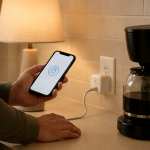
Smart Plug Turns On by Itself at Night? How to Stop It
Quick Answer
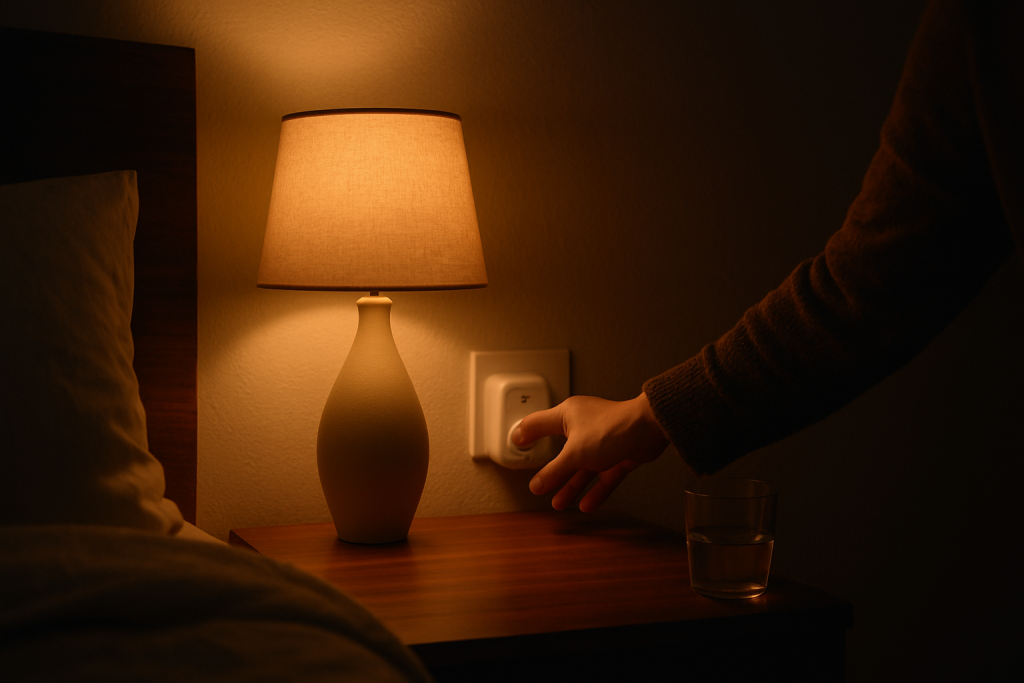
When a smart plug or smart switch turns on by itself at night, the most common reason is an automation firing: a schedule inside the device’s own app, a routine in Alexa/Google Home/Apple Home/SmartThings, or a scene/group that includes the plug. Nighttime is when many “sunset,” “bedtime,” and “away” routines run, so conflicts show up then.
A close second is a timing or sync glitch: the device or hub has the wrong time zone, a “sunset/sunrise” automation is using an old location, or the device briefly drops offline and then “recovers” into the ON state due to power-recovery settings or a cloud replay of a queued command.
Do these three diagnostics now: (1) check every app that can control the plug (brand app plus Alexa/Google Home/Apple Home/SmartThings) for schedules/routines/scenes that include it, (2) verify the home’s time zone and location in those apps (especially if you moved, changed phones, or daylight saving time recently changed), and (3) open the device event/activity history (if available) to see whether the ON command came from an automation, a voice assistant, or “device/local.”
Why This Happens
Self-activation at night is rarely “random.” In most homes it’s a command being generated somewhere, then delivered later (or repeated) due to timing rules, cloud sync, or reconnect behavior. Smart plugs and smart switches can be controlled by multiple controllers at once: the manufacturer’s app, a voice assistant, a hub (Zigbee/Matter), and sometimes multiple family members. That overlap is exactly what creates nighttime surprises.
Common causes that fit nighttime patterns include:
First, schedules and routines: a simple “turn on at 10:00 PM” schedule, a “sunset” routine, or an “arrive home” automation that runs in the evening. Second, duplicate automations: the same behavior is set in two places (for example, Kasa/Tapo schedule plus an Alexa routine), so you forget one exists and it keeps firing.
Third, a time zone or location mismatch: if the phone, router, hub, or assistant thinks you’re in a different time zone, your 7:00 AM automation can become a midnight automation. Fourth, reconnect/power recovery behavior: after a brief outage or a router/mesh restart overnight, some devices restore their last state or default to ON when they reconnect.
Real-world scenario: your mesh WiFi node reboots at 2:00 AM for an update, the smart plug reconnects, and a queued “on” from a routine (or a “power restore = on” setting) makes it energize the outlet. Common user mistake: setting a schedule in the plug’s app and later adding a similar routine in Alexa, assuming the older one is automatically replaced. Overlooked technical cause: “sunset/sunrise” automations run from a hub/controller’s location, which can remain set to an old address even after you update your phone.
Most Likely Causes in Real Homes
1) A hidden schedule or timer in the device’s own app (Kasa/Tapo, Meross, Hue integration, SmartThings device handler): many people only check Alexa/Google Home and miss the manufacturer schedule.
2) Duplicate routines across ecosystems (Alexa routine plus Google Home automation, or Apple Home automation plus the brand app): the plug is following whichever controller speaks up.
3) Sunset/sunrise routine using the wrong location or time zone: it looks “night-only” because sunrise/sunset rules shift and land in unexpected hours.
4) Power restoration or reconnect behavior after brief outages: a momentary power flicker overnight or router restart can cause the plug/switch to come back ON.
5) Group/scene side effects: a “Good Night” scene might turn off most devices but turn on a lamp outlet, or a “Lights” group command may include the plug accidentally.
Step-by-Step Fix
List every controller that can operate the plug/switch (brand app, Alexa, Google Home, Apple Home, SmartThings, Zigbee hub app, Matter controller). Result: if you discover more than one, you likely have overlapping automations. Next if you fail: if you’re unsure, check your phone(s) for installed smart home apps and look at each app’s “Devices” list for the plug name.
In the manufacturer’s app, disable schedules/timers/away modes for that device (don’t delete yet; just toggle off). Result: if the nighttime turn-on stops, the schedule was local to the device/app. Next if it fails: re-enable schedules one-by-one later; proceed to voice assistant routines and scenes.
Check automations in Alexa/Google Home/Apple Home/SmartThings for anything that includes the plug (routines, household “Good night,” “Sunset,” “Away,” “Arrive home,” or motion-based rules). Result: if you find the plug included, removing it should stop the behavior immediately. Next if it fails: look for indirect control via scenes and groups (for example, a routine that runs a scene that contains the plug).
Inspect groups/scenes and device names for accidental inclusion (rooms, “All Lights,” “Bedroom,” “Downstairs,” or scenes like “Evening”). Result: if the plug shares a group with lights, a single group command can switch it on at night. Next if it fails: temporarily remove the plug from all groups/scenes, test overnight, then re-add it only where needed.
Verify time zone and location in each ecosystem (phone OS time zone, brand app home location if it has one, Alexa device location, Google Home address, Apple Home home settings, SmartThings location). Result: if anything is wrong, sunset/sunrise and scheduled triggers can shift into nighttime. Next if it fails: toggle “Set Automatically” for time zone on your phone, then fully close and reopen the smart home apps to force a refresh.
Check the device’s history/activity/event log (where available) around the time it turns on. Result: if the log shows “Automation,” “Routine,” “Scene,” or “Voice assistant,” you know it’s a software trigger; if it shows “Power restored” or “Device restarted,” suspect outage/reconnect behavior. Next if it fails: if there’s no history, use a simple isolation test: disable all automations for one night and see if it still turns on.
Address power recovery behavior: in the device app (or hub settings), look for “Power-on state,” “Restore last state,” or “Turn on after power loss.” Set it to “Off” (or “Last state” if you prefer, but avoid “On”). Result: if the issue follows outages/router restarts, this stops surprise ON after reconnect. Next if it fails: monitor whether you’re having nightly power blips or scheduled router/mesh reboots.
Rule out overnight reconnect glitches with a controlled test: before bed, turn the plug OFF, then reboot only your router/mesh (not everything) and wait 5–10 minutes for the plug to reconnect. Result: if it turns ON during/after reconnect, the issue is likely a queued automation command, a cloud resync, or a power-recovery setting. Next if it fails: if it stays OFF during this test but turns ON later at night, you’re back to a time-based automation (schedule, sunset rule, or delayed routine).
Update and refresh software: update the plug/switch firmware (if offered) and update the controlling apps; then sign out/in if the app supports it. Result: fixes known schedule and time-sync bugs that sometimes appear after app migrations. Next if it fails: proceed to Advanced Troubleshooting for account and ecosystem sync conflicts.
Advanced Troubleshooting
This section is only needed if basic fixes fail.
Account/cloud sync issues: If you see the plug turn on even after all schedules are disabled, a stale cloud routine may still be linked. Unlink and relink the device/service in the voice assistant (for example, disable the skill/integration, then re-enable and re-discover devices). If the behavior stops after relinking, the cause was a cloud-side mismatch or an orphaned routine reference.
Configuration conflict across shared users: In shared homes, another household member can create an automation on their phone that you can’t see if you’re not in the same “home” or don’t have permission. Confirm everyone is using the same Home/Household (Alexa Household, Google Home household, Apple Home home) and that the plug appears only once. If there are duplicates (same plug showing twice), routines may target the “other” copy and cause confusing behavior.
Ecosystem sync and Matter bridging: With Matter or hub bridges (Zigbee hubs, Hue bridges, SmartThings hubs), the device may be exposed to multiple controllers. A controller can re-assert state after a reconnect (for example, a hub restores a scene). Temporarily choose one primary controller: remove the plug from secondary integrations for a night (not factory reset), then add back one-by-one. If the problem appears only after adding a particular integration, that controller is where the automation exists.
Network-related trigger timing (not “bad WiFi,” but roaming/reconnect): In mesh WiFi homes, a plug may roam or reconnect overnight when nodes optimize channels or reboot. If the plug is WiFi-based, try placing it where it consistently connects to one node (or temporarily move the mesh node closer) and test again. If stability fixes the self-activation, the underlying issue is likely reconnect behavior combined with a queued routine or power-on-state setting.
Firmware/software glitches affecting schedules: If schedules run at the wrong time despite correct time zone settings, disable all schedules, reboot the device via app (or power cycle the plug by unplugging it for 10 seconds and plugging back in), then recreate a single simple schedule to test. If the simple schedule works but complex sunrise/sunset rules misbehave, keep rules in one ecosystem (not multiple) to reduce interpretation differences.
When to Reset or Replace the Device
A soft restart is a normal reboot: power the smart plug off by unplugging it for about 10 seconds, then plug it back in; for a smart switch, use the app to power it off/on (or flip it off/on if it’s designed for manual control). This clears temporary sync issues without wiping your setup.
A factory reset wipes configuration and pairing. After a reset, you may lose: the device’s WiFi credentials or hub pairing, schedules/timers stored on the device, room/home assignments, scenes/groups, and any energy monitoring history (for smart plugs that track usage). Plan to re-add it to each ecosystem and rebuild automations carefully, ideally in one place.
Reset is reasonable if: the device shows duplicated entries you can’t remove, schedules behave incorrectly even after time zone checks, firmware updates partially apply, or the device repeatedly comes back with wrong state after reconnects. Replacement is reasonable if: it frequently goes offline across different networks, cannot complete firmware updates, or shows unstable relay behavior (rapid clicking or switching unrelated to automations).
Safety note: if the smart plug or switch feels unusually hot, smells like burning, shows discoloration, or has visible damage, stop using it immediately and replace it. Do not continue troubleshooting with a potentially damaged device.
How to Prevent This in the Future
Keep automations in one “source of truth.” If you prefer Alexa routines, disable schedules in the manufacturer app (or vice versa). This single habit prevents most nighttime mystery activations.
Use consistent naming and room organization. Give the plug a clear name (for example, “Bedroom Fan Plug”) and avoid generic names like “Lamp” that get accidentally added to scenes or “All Lights” groups.
Audit sunset/sunrise and time-based rules after changes. After moving, changing routers, replacing phones, or daylight saving time changes, verify the Home address and time zone in your main ecosystem and in any hub/controller that runs automations.
Plan for outages and router restarts. If your router or mesh system is set to reboot overnight, set the plug’s power-on behavior to “Off” or “Last state” so it doesn’t energize unexpectedly after reconnect. If you experience brief power flickers, consider keeping critical devices off smart plugs where an unexpected ON would be problematic.
Maintain firmware and app health, but avoid “set and forget” drift. Update firmware and apps when convenient, then re-check that schedules still exist only where you want them. In shared homes, review who has access and remove old accounts or former household members from the home to avoid unseen routines.
FAQ
Why does it only turn on at night, not during the day?
Nighttime strongly points to a time-based trigger: a schedule, a “sunset” automation, or an away/bedtime routine. It can also be an overnight reconnect pattern (router/mesh updates or power blips) combined with a “power-on after outage” setting.
If I deleted the routine in Alexa, why does it still happen?
Because the routine may exist somewhere else: the manufacturer’s app schedule, Google Home, Apple Home, SmartThings, or a hub scene. Also check for scenes/groups that are triggered by a routine; removing the routine but leaving the scene in another controller can still cause the plug to turn on.
Is this caused by “bad WiFi”?
Not usually. WiFi problems more often cause “offline” devices, delayed responses, or missed commands. However, overnight reconnects can indirectly cause a turn-on if the plug is set to power up ON after a restart, or if a controller replays or re-applies a state when the device comes back online.
Will a factory reset stop the plug from turning on by itself?
It can, but only if the trigger was stored on the device or the device’s cloud profile was corrupted. If the turn-on is caused by an automation in a voice assistant or hub, the behavior can return as soon as you re-add the device and the automation still exists. Reset is best used after you’ve audited and cleaned up routines, schedules, and scenes.
After all that noise, the most striking part is how plain it feels on the other side. The problem stops being a topic and starts behaving like a solved footnote.
Not everything needs to be dramatic to matter. Sometimes it’s just the world clicking back into place—quietly, almost boringly, which is the best kind of change.