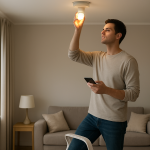
Smart Lights Respond Slowly or With Delay: How to Fix It
Quick Answer
The most common reason smart lights respond slowly is not the bulb itself, but the path your command takes to reach it. In many homes, the delay comes from a weak or “confused” connection between the light and its controller: a WiFi bulb hopping between access points, a Zigbee mesh missing a good repeater route, or a hub/cloud account taking too long to confirm the command.
If the delay is inconsistent (sometimes instant, sometimes 3–10 seconds), it usually means the light is intermittently losing its best route. If the delay is consistent (always slow), it often points to a configuration issue like a cloud-dependent automation, a congested WiFi band, or a group/scene that is waiting for multiple devices to report back.
Do these three quick diagnostics first: (1) Control one light directly from its own app (not a voice assistant) and note the delay. (2) Stand near your router or hub and try again to see if distance/mesh routing changes the response. (3) Test a single light versus a group/room to see if the delay is caused by group synchronization. This applies to WiFi bulbs, Zigbee hub systems (including Philips Hue), Thread/Matter setups, and mixed ecosystems using Alexa/Google/HomeKit.
Why This Happens
Smart lighting feels “simple,” but the command path is often multi-step: your phone or voice assistant sends a command to an app or platform, which may contact a hub or cloud service, which then reaches the light over WiFi, Zigbee, Thread, or Bluetooth. Delays happen when any part of that chain is forced to retry, wait for confirmation, or choose a slower route.
In real homes, the dominant cause is unreliable routing and roaming. WiFi bulbs may roam between mesh nodes or access points and briefly stall while reconnecting. Zigbee lighting depends on a strong mesh of repeaters; if the mesh is thin (few powered Zigbee devices acting as routers), commands take longer because they hop through weak links or re-route after failures. Matter setups can also slow down if the controller (phone, hub, or speaker) is not on the same local network segment, or if the system falls back to cloud mediation for certain actions.
Three tightly related technical causes show up repeatedly:
First, network contention and retries. If the 2.4 GHz band is crowded (neighbors, baby monitors, older wireless devices), WiFi bulbs may receive commands late or need retransmissions. Zigbee also lives in the 2.4 GHz space and can be affected by WiFi channel overlap, causing subtle delays rather than complete failure.
Second, group and scene synchronization. When you turn on a “Room” or “All Lights” group, some platforms wait for each device to acknowledge. If one bulb is slow to report status, the entire action can feel delayed or staggered. This is common in mixed-brand groups controlled through a central platform.
Third, cloud round-trips and account sync. If your command is routed through a cloud service (common with voice assistants, remote access, or some brand apps), a slow internet connection, temporary service degradation, or account token issues can add seconds. The light may be fine locally, but the control path is not.
One real-world scenario: a homeowner adds a mesh WiFi system and places a node near the living room. The bulbs start responding slowly only in the evening. The likely explanation is that bulbs roam between nodes as signal conditions change, and the mesh backhaul becomes busy when the family streams video. The bulbs still “work,” but they lag.
One common user mistake: grouping bulbs across different control paths (some on a hub, some WiFi-direct, some Matter) and expecting them to behave like a single system. The platform may queue commands or wait for slow devices, creating the impression that all lights are delayed.
One overlooked technical cause: status polling and “instant state” features. Some apps constantly query device state to keep dashboards updated. On a busy network, that background traffic can slow real commands, especially for WiFi bulbs and for hubs that are also handling sensors and automations.
Most Likely Causes in Real Homes
1) Weak or unstable routing (WiFi roaming or thin Zigbee/Thread mesh). The light is reachable, but not reliably on the best path.
2) Group/room actions waiting on one slow device. One bulb’s delay makes the whole group feel slow or staggered.
4) Cloud/account latency (voice assistant, remote control, or token sync). Local control may be fast while assistant control is slow.
5) Firmware/app issues or configuration conflicts (duplicate devices, multiple controllers, competing automations). Commands collide or get rate-limited.
Step-by-Step Fix
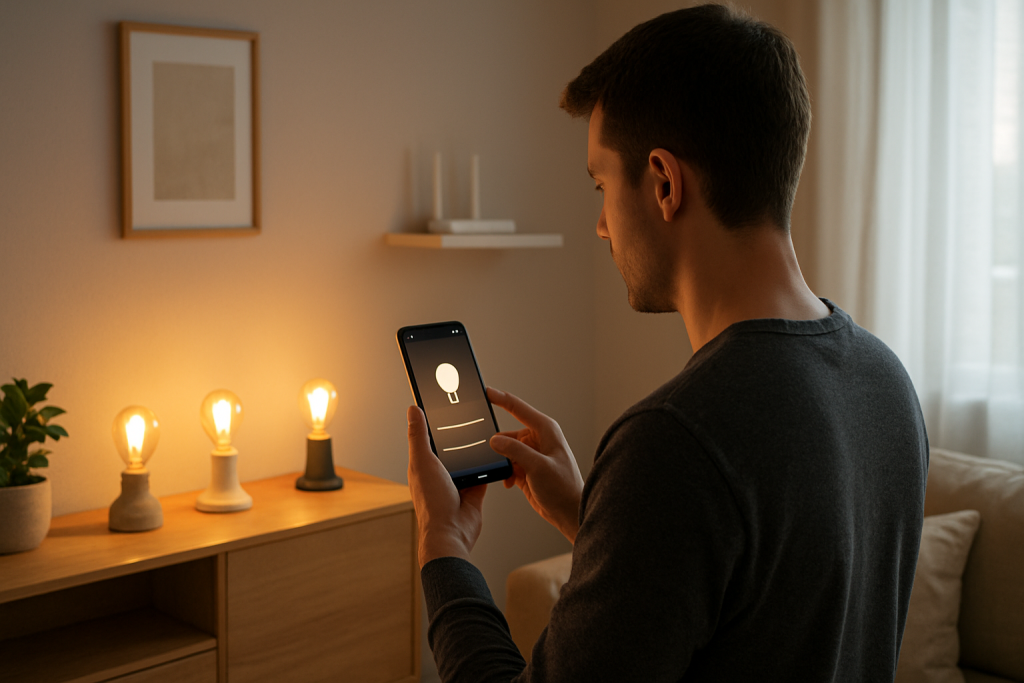
Test local control vs assistant control. Open the light’s native app (or hub app) and toggle one single bulb on/off five times. Then repeat using your voice assistant or a third-party platform.
What the result means: If the native app is fast but the assistant is slow, the delay is usually cloud/account related or caused by the assistant’s integration. If both are slow, the issue is more likely network routing, interference, or device/mesh health.
If it fails, try next: Continue to step 2 to isolate whether the delay is tied to groups or a specific device.
Compare a single light to a group/room. Turn on one bulb by itself, then turn on the entire room/group. Watch whether the group turns on all at once or in a “wave.”
What the result means: If single control is quick but group control is slow, the problem is usually group synchronization, one weak device in the group, or a platform that waits for acknowledgments. If both are slow, focus on network and mesh stability.
If it fails, try next: Identify the slowest bulb by toggling each bulb individually (still within the same room) and note which one lags. Then go to step 3.
Check device status in the app (signal/route/online state). In your lighting app or hub app, look for indicators like “poor signal,” “offline,” “last seen,” “connected to node,” or “route.” For WiFi bulbs, check whether they show as connected and responsive; for Zigbee/Thread, look for weak link or unreachable nodes.
What the result means: A bulb that frequently shows “offline” or “updating” is usually the one slowing groups and scenes. A hub showing weak connections suggests mesh routing problems or interference.
If it fails, try next: Move to step 4 to stabilize the connection path without changing hardware.
Run a clean power cycle sequence (router/hub first, then lights). Turn lights off using the app (not the wall switch). Reboot your router/mesh system. If you use a hub (Hue bridge, Zigbee hub, Matter controller), reboot it after the router is back online. Then power-cycle the affected bulbs by turning their power off for 10 seconds and back on (only if they are on a normal switch that will not trigger pairing mode).
What the result means: If delays improve immediately, the issue was likely stale routing, a hung hub process, or a network device that needed to rebuild connections.
If it fails, try next: Continue to step 5 to verify WiFi band and mesh behavior.
Verify WiFi band and mesh behavior (WiFi bulbs and Matter over WiFi). Confirm your WiFi bulbs are on 2.4 GHz (most require it). If you have a mesh system, check whether bulbs are bouncing between nodes. If your system allows it, temporarily place the phone on the same WiFi network and stand near the node/router that should serve the bulbs, then test again.
What the result means: If response improves near a specific node, the issue is usually roaming, weak signal at the bulb, or a congested backhaul. If response is poor everywhere, the 2.4 GHz band may be congested or the router is overloaded.
If it fails, try next: Go to step 6 to test isolation and determine whether the issue is your home network or the lighting system.
Do a hotspot isolation test (WiFi bulbs only). Create a temporary 2.4 GHz hotspot on a phone (if supported) using a simple SSID and password. Add one affected bulb to the hotspot (only one bulb for this test). Then test on/off response from the bulb’s app while your controlling phone is on the same hotspot.
What the result means: If the bulb becomes fast on the hotspot, your main home WiFi environment is the cause (congestion, roaming, router load, or interference). If it is still slow, the issue is more likely the bulb firmware/app, the phone, or the vendor cloud.
If it fails, try next: Reconnect the bulb back to your home WiFi and proceed to step 7 for Zigbee/Thread mesh checks or step 8 for cloud/account checks.
For Zigbee systems: strengthen the mesh route. If you use a Zigbee hub (including Hue-style setups), ensure there are enough always-powered Zigbee devices acting as repeaters (such as smart plugs or in-wall modules, if already installed). Avoid turning off power to Zigbee bulbs at the wall, because that removes them from the mesh. After ensuring key devices are powered, reboot the hub and wait 15–30 minutes for the mesh to settle.
What the result means: If delays reduce after the mesh “settles,” the issue was weak routing. If only one area remains slow, that area likely lacks a good repeater path or has interference.
If it fails, try next: Move the hub slightly (higher, more central, away from the router) if possible without rewiring, then retest. If still slow, go to step 8.
Check schedules, scenes, and automation conflicts. Look for automations that trigger at the same time (sunset routines, motion rules, “adaptive lighting,” or third-party integrations). Temporarily disable them for 10 minutes and test manual control again.
What the result means: If manual control becomes instant when automations are disabled, the delay is often command collisions (multiple systems sending different brightness/color commands) or rate limiting when many actions fire at once.
If it fails, try next: Re-enable automations one at a time until the delay returns, then adjust that automation (reduce group size, add a small delay between actions, or remove duplicate rules).
Verify room/location and group membership in every controlling app. If you use multiple ecosystems (native app + Alexa/Google/HomeKit + Matter), confirm the same bulb is not duplicated, assigned to multiple rooms, or included in overlapping groups that trigger together.
What the result means: Duplicates and overlapping groups often create “double commands” (on, then brightness, then color) that feel like lag. If a bulb appears twice, one entry may be stale and slow to update.
If it fails, try next: Remove the duplicate entry from the assistant/platform, re-sync devices, and test again. If delays persist, go to step 10.
Update firmware and app software, then retest. Check for firmware updates for bulbs, hubs/bridges, and your router/mesh. Update the controlling apps as well. After updates, reboot the hub/router once to clear old sessions.
What the result means: If delays improve after updates, the issue was likely a known performance bug, a compatibility issue (especially after platform updates), or a memory leak in a hub/router.
If it fails, try next: Proceed to Advanced Troubleshooting to focus on account/cloud and deeper network causes.
Advanced Troubleshooting
This section is only needed if basic fixes fail.
Account or cloud issue: If delays happen mainly when you are away from home, or mainly through a voice assistant, the command is likely going through a cloud path. Sign out and back into the lighting app and the assistant app, then re-link the lighting service. If relinking fixes it for a day and then it returns, it often indicates an account token problem or a platform outage pattern. In that case, prioritize local control (native app/hub) for critical routines until the service stabilizes.
Network issue (only where it matters): For WiFi bulbs and Matter-over-WiFi, check whether your router is overloaded (many devices, heavy streaming, or frequent reboots). If delays appear during peak usage, it usually means the router is struggling with airtime or device management. If your router has settings for “IoT network,” “client steering,” or “fast roaming,” temporarily disable aggressive steering features and see if bulbs stop pausing during transitions.
Firmware/software cause: If one model of bulb is always slower than others, even with good signal, it may be running older firmware or handling color/brightness transitions slowly. Test a simple on/off versus a scene that changes brightness and color. If on/off is fast but scenes are slow, the delay is often the extra commands required for transitions, not basic connectivity.
Configuration conflict: Mixed ecosystems can fight each other. If the same lights are controlled by a native hub app, a Matter controller, and a voice assistant, you may have multiple “brains” issuing follow-up commands (for example, turning on and then applying a scene). If you notice that lights turn on quickly but reach the final brightness/color after a delay, that usually means a second automation is applying settings after the initial on command. Consolidate automations so one platform is responsible for the final scene.
When to Reset or Replace the Device
Soft restart vs factory reset: A soft restart is simply power-cycling the bulb or rebooting the hub/router. Try this first because it does not remove the device from your system. A factory reset removes the light from its pairing and forces you to set it up again.
What you lose after a reset: Expect to lose room assignments, scenes, automations, and assistant links for that device. Some systems will also require re-adding the device to groups and re-running any “sync” steps in Alexa/Google/HomeKit/Matter controllers.
When reset is justified: Reset if one specific bulb is consistently slow while others are instant, especially if it frequently shows offline/online flapping or fails firmware updates. Reset can clear corrupted configuration and stale network keys.
When to replace: Replace the device if it overheats, smells hot, shows visible damage, flickers with heat, or becomes too hot to touch during normal use. Also consider replacement if the bulb cannot stay connected even after a reset and after you have confirmed the network is stable with other devices in the same location.
How to Prevent This in the Future
Keep the control path simple: Use one primary platform for automations and scenes where possible. The more systems issuing commands, the more likely you’ll see delayed “final state” behavior.
Maintain a stable network: Avoid frequent SSID/password changes. If you use WiFi bulbs, keep 2.4 GHz stable and avoid aggressive steering settings that cause IoT devices to roam. If you use hubs (Zigbee/Thread), place them centrally and away from the WiFi router to reduce interference.
Be careful with wall switches: If smart bulbs are regularly powered off at the wall, they will drop from the network and rejoin later, which often creates delays and group problems. If you must use a switch, try to keep it consistently on and control the light via app/automation.
Manage automations deliberately: Stagger large scenes (especially whole-house scenes) so they don’t all fire at once. Avoid duplicate schedules across multiple apps. After adding new devices, re-check group membership so you don’t accidentally create overlapping groups.
Plan for power outages: After an outage, give hubs and routers a few minutes to fully stabilize before testing lights. If your system supports it, review “power restore behavior” so lights don’t all come on and then get hit with immediate automation changes that can look like lag.
Stay current on firmware: Update bulbs, hubs, and controllers periodically, not all at once during a busy evening. If you notice new delays after an update, test local control first to determine whether the issue is device-side or platform-side.
FAQ
Why are my smart lights slow only when I use a voice assistant?
If the native app is fast but voice control is slow, the assistant is usually taking a cloud path or the integration is lagging. This can be caused by temporary service issues, account token problems, or the assistant sending multiple commands (on, then scene). Re-link the service and test again. If local control remains fast, the bulbs and hub are likely fine.
My lights turn on quickly, but brightness/color changes happen seconds later. Is that normal?
It usually means two steps are happening: an “on” command first, then a scene or adaptive lighting rule applies brightness/color afterward. This is common when multiple platforms manage the same lights. If you want instant final state, make one platform responsible for the scene and disable duplicate adaptive lighting or scene automations elsewhere.
Do slow responses always mean weak WiFi?
No. Slow responses often come from routing and synchronization rather than raw signal strength. A bulb can show decent signal and still lag if it is roaming between mesh nodes, the 2.4 GHz band is congested, a Zigbee mesh route is weak, or a group action is waiting on one slow device to report status.
Why is one bulb slow and the rest are fine?
That usually points to a device-specific issue: marginal placement, a poor mesh route, outdated firmware, or a corrupted configuration. Test that bulb individually, check its status in the app, and consider a factory reset if it remains the only lagging device after network and group checks.
Is it better to control lights as a group or individually?
Groups are convenient, but they can reveal the weakest link. If group commands are slow, control a single bulb to find the one that lags. Once that device’s connection is stable, group performance typically improves. The misconception is that a slow group means all bulbs are bad; more often, one device or one route is dragging down the group experience.
There’s a strange relief in finally setting the argument down. The noise becomes background chatter, and the work—whatever it is—stays right where it belongs.
It feels almost unfair how simple things look from here, like the world is briefly cooperating. Not perfect, not miraculous, just steadier.