IP Address Conflict at Home: How to Fix It for Smart Devices
Quick Answer
An IP address conflict happens when two devices on your home network end up using the same local IP address (for example, two devices both trying to use 192.168.1.25). When that occurs, your router and devices can’t reliably decide where traffic should go, so smart devices may go offline, appear “unreachable,” or work intermittently.
The fastest fix is to reboot your router (to refresh DHCP assignments), then restart the affected smart device so it requests a fresh address. If the problem returns, the most common underlying cause is duplicate IP assignment: a device was set to a “static” IP that overlaps with the router’s DHCP range, or the router is re-issuing an address that another device is already using.
Why This Happens
Most home networks use DHCP (Dynamic Host Configuration Protocol). DHCP is the router feature that automatically hands out IP addresses to devices when they connect. In a healthy setup, each device gets a unique address for a lease period, and the router tracks who has what.
Duplicate IP assignment occurs when that uniqueness breaks. The most common reasons are:
1) A device is manually set to a static IP inside the DHCP pool. This is a classic conflict. For example, your router hands out 192.168.1.2 through 192.168.1.200, and you manually set a camera to 192.168.1.50. Eventually the router may also give 192.168.1.50 to another device, causing both to fight for the same address.
2) DHCP reservations are misconfigured. A reservation is where the router always assigns the same IP to a device based on its MAC address. If you accidentally reserve the same IP for two different MAC addresses, you’ve created a built-in conflict that returns after reboots.
3) Router firmware bugs or a corrupted DHCP lease table. Some ISP modem-router combo units are prone to odd DHCP behavior after firmware updates, long uptimes, or power flickers. The router may “forget” a lease but the device keeps using it, or the router may reissue an address too quickly.
4) Overlooked cause: multiple DHCP servers on the same network. If you have an ISP gateway plus a second router or mesh system that’s accidentally also running DHCP (for example, you plugged a new router into the old one without enabling bridge/AP mode), devices can receive conflicting instructions. This can look like random smart-home instability, especially after reconnects.
5) Wi-Fi band and signal behavior can make the conflict appear worse. Many smart devices use 2.4GHz for range and compatibility. In an apartment with thick walls or heavy interference from neighbors, devices may disconnect and reconnect frequently. Each reconnect is a chance to request an IP again, exposing DHCP/reservation mistakes. Meanwhile, your phone on 5GHz may stay stable, making it seem like “only smart devices are broken.”
Common user mistake: copying a “recommended” static IP from a forum post or old setup notes (like 192.168.0.10) without checking the current router subnet and DHCP range. The device may work for days, then fail when another device is assigned that same address.
Step-by-Step Fix
Confirm it’s an IP conflict (quick symptom check). Look for patterns: the device works briefly after a reboot, then becomes unreachable; two devices drop at the same time; or a device shows “connected to Wi-Fi” but the app can’t find it. If your router log has entries like “IP conflict,” “duplicate IP,” or “ARP conflict,” that’s a strong indicator.
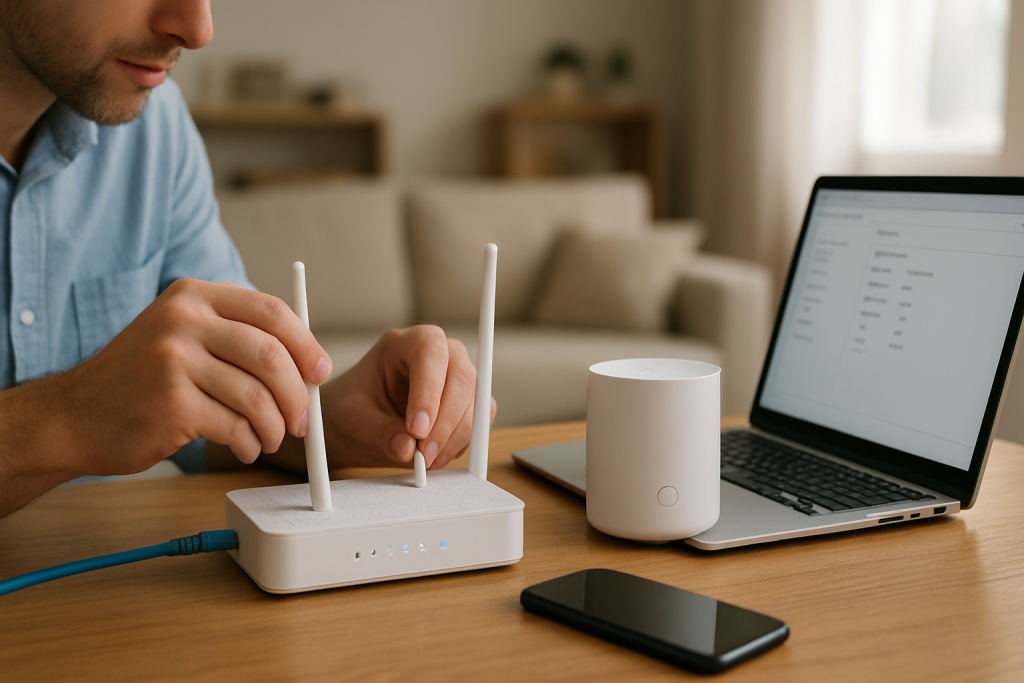
Reboot in the correct order to force a clean DHCP request. Power off the affected smart device(s). Reboot the router (and modem if separate). Wait until Wi-Fi is fully back. Then power on the smart device and let it reconnect. This sequence reduces the chance that the device clings to an old address while the router is rebuilding its lease table.
Check the router’s DHCP range and avoid manual IPs inside it. Log into your router’s admin page and find the DHCP settings (often under LAN, Network, or DHCP Server). Note the DHCP pool start/end (example: 192.168.1.100–192.168.1.200). If any smart device is configured with a manual/static IP within that range, change it to DHCP/Automatic, or move the static IP outside the pool (example: 192.168.1.10).
Fix or create DHCP reservations the right way (recommended for smart devices). For devices that you want to remain stable (cameras, hubs, doorbells), use DHCP reservations instead of setting static IPs on the device itself. In the router, reserve a unique IP for each device’s MAC address. Double-check you didn’t reserve the same IP for two devices. Save and reboot the router if required.
Remove “stale” leases and reconnect devices. Many routers show a DHCP lease list. If you see duplicates (same IP shown for different device names) or unknown entries, clear the lease table if the router supports it, or shorten the lease time temporarily (for example, to 1 hour), then reconnect devices. After things stabilize, you can return the lease time to a normal value.
Check for a second DHCP server (overlooked but common). If you have an ISP modem-router combo plus a separate router/mesh, ensure only one device is doing routing and DHCP. If using a mesh system, set the ISP gateway to bridge mode, or set the mesh to AP/bridge mode. A quick clue: if some devices get addresses like 192.168.0.x while others get 192.168.1.x, you likely have double NAT or multiple DHCP servers.
Separate or simplify SSIDs during troubleshooting (2.4GHz vs 5GHz). Many smart devices only support 2.4GHz. If your router uses a single SSID with band steering, a device may bounce during setup or reconnects. Temporarily create separate SSIDs (for example, “Home-2.4” and “Home-5”) and connect smart devices to 2.4GHz. This doesn’t directly “fix” duplicate IP assignment, but it reduces reconnect churn that can trigger the conflict repeatedly.
Update router firmware and smart device firmware/apps. Firmware updates often include DHCP, Wi-Fi stability, and security fixes. Update the router first, then update the smart device (or its hub/bridge) and the controlling app. If your ISP controls firmware on a gateway, check for updates or request a push update from the ISP if the interface allows it.
Advanced Troubleshooting
If the conflict keeps returning, you’ll want to identify exactly which two devices are colliding and why. This is especially important in busy homes with many smart devices, or in apartments where interference causes frequent reconnects.
Use a practical testing method: ping and ARP to spot duplicates
From a computer on the same network, open a command prompt/terminal and ping the IP you suspect is conflicted (for example, the IP shown for your camera in the router’s client list). Then check the ARP table (Address Resolution Protocol), which maps IP addresses to MAC addresses. If the MAC address associated with that IP changes over time, or flips after a device reconnects, that’s a strong sign two devices are claiming the same IP.
If you don’t want to use command-line tools, another practical method is to temporarily power off one suspected device and see if the other immediately becomes stable. Then swap: power the first on and power the second off. If stability follows whichever device is powered, you’ve likely found the pair involved in the duplicate assignment.
Look for router configuration issues that cause repeats
Some routers have features that can worsen conflicts if misconfigured:
IP pool too small: If your DHCP range only has a handful of addresses and you have many devices, the router may recycle addresses aggressively. Expand the pool to cover your device count (including guests).
Client isolation or guest network confusion: If you connect some smart devices to a guest network and others to the main network, discovery may fail and look like “offline” behavior. This isn’t a duplicate IP issue by itself, but it can mask what’s happening and lead to incorrect “fixes” like assigning manual IPs that later conflict.
Band steering and roaming settings: Aggressive roaming can cause frequent reconnects for 2.4GHz-only devices in marginal signal areas (garage, far bedroom). That can expose DHCP/reservation mistakes. If your router allows it, reduce roaming aggressiveness or ensure the device has adequate signal.
Real-world scenario: ISP modem-router combo in an apartment
In an apartment with thick concrete walls, a doorbell camera on 2.4GHz may sit at the edge of coverage and reconnect often. If you added your own router behind an ISP gateway and forgot to put one of them into bridge/AP mode, both may run DHCP. The camera might get one IP from the ISP gateway one moment and a different IP from your router the next, or it may keep using an old address while the other DHCP server assigns it elsewhere. The result looks like random outages, delayed notifications, or a device that only works right after you reboot everything.
When to Reset or Replace the Device
Most IP conflicts are network-side problems, but there are cases where the smart device contributes by holding onto an invalid configuration or behaving poorly after updates.
Reset the device if you’ve confirmed the router DHCP settings are correct, reservations are unique, and there is only one DHCP server, but the device still insists on using an old IP or won’t request a new lease. A factory reset forces it to forget stored network parameters. After resetting, reconnect it to the intended SSID (usually 2.4GHz) and confirm it appears in the router client list with a unique reserved IP.
Consider replacing the device if it repeatedly drops Wi-Fi despite strong signal, fails to accept firmware updates, or shows unstable network behavior across multiple routers. Older smart devices sometimes have buggy network stacks that mishandle DHCP renewals, especially after long uptimes. If you’ve proven other devices remain stable under the same conditions, replacement may be the most time-effective solution.
How to Prevent This in the Future
Use DHCP reservations for all smart devices that need reliability. This is the cleanest way to avoid duplicate IP assignment without relying on manual static settings inside each device. Reserve a unique address for hubs, cameras, doorbells, thermostats, and media streamers.
Keep static IPs outside the DHCP pool. If you must use static IPs (for a NAS, printer, or a controller that requires it), set them in a range the router will never hand out. Also document them so you don’t accidentally reuse an address later.
Ensure only one router is doing DHCP. If you add a mesh system or a second router for better coverage, set the network topology intentionally: either the ISP gateway is bridged and the mesh routes, or the ISP gateway routes and the mesh is in AP mode. Avoid “router behind router” setups unless you know exactly why you need it.
Improve Wi-Fi stability to reduce reconnect churn. Place the router more centrally, away from microwaves, cordless phone bases, and dense electronics. In larger homes or thick-wall apartments, add a mesh node or access point so 2.4GHz smart devices aren’t constantly reconnecting at the edge of signal. While interference doesn’t create duplicate IPs by itself, it increases the number of DHCP events and makes a misconfiguration show up more often.
Maintain firmware updates. Keep router firmware current and update smart device firmware through the vendor app. If a problem started right after a router update, check release notes and consider a reboot plus lease table refresh before making bigger changes.
FAQ
How do I know if my smart device has a static IP set?
Check the device’s network settings in its app (if exposed) or in the device’s local web interface (common for some cameras). If it shows “Static” or “Manual” instead of “DHCP/Automatic,” it may be using a fixed address. If you can’t see it on the device, check your router: a DHCP reservation is fine, but a device-set static IP can still conflict if it overlaps the DHCP pool.
Will changing my Wi-Fi password fix an IP address conflict?
Not directly. Changing the password forces devices to reconnect, which may temporarily clear the issue because they request new DHCP leases. But if the root cause is duplicate IP assignment (like a bad reservation or a static IP inside the DHCP range), the conflict will return.
Why do my 2.4GHz smart devices fail more often than my phone on 5GHz?
Many smart devices use 2.4GHz because it travels farther and works through walls better, but it’s also more crowded and prone to interference. If the device is far from the router or near interference sources, it may disconnect and reconnect often. Frequent reconnects can repeatedly trigger a DHCP misconfiguration, making an IP conflict appear “random” even though the underlying issue is consistent.
Can two devices share the same IP if they’re on different Wi-Fi networks (guest vs main)?
They can, depending on how the router segments the networks. Some guest networks use a different subnet, which avoids overlap; others use the same subnet with isolation rules. The bigger risk is accidentally running two routers with DHCP on the same physical network, which can assign overlapping addresses unpredictably.
What’s the safest long-term fix for smart home stability?
Use a single DHCP server, reserve IPs in the router for critical smart devices, keep any manual static IPs outside the DHCP pool, and improve coverage so devices aren’t reconnecting constantly. This combination prevents duplicate IP assignment and reduces the network instability that makes smart devices seem unreliable.
Reading this feels less like cracking a code and more like unclenching a fist you didn’t realize you’d been holding. The pieces finally line up, and that odd blur at the edge of everyday life gets sharper.
Not everything changes overnight, but the direction does. After all the noise, it’s oddly calming to see things click into place.