WiFi Drops Only on 2.4GHz for Smart Devices: How to Fix It
Quick Answer
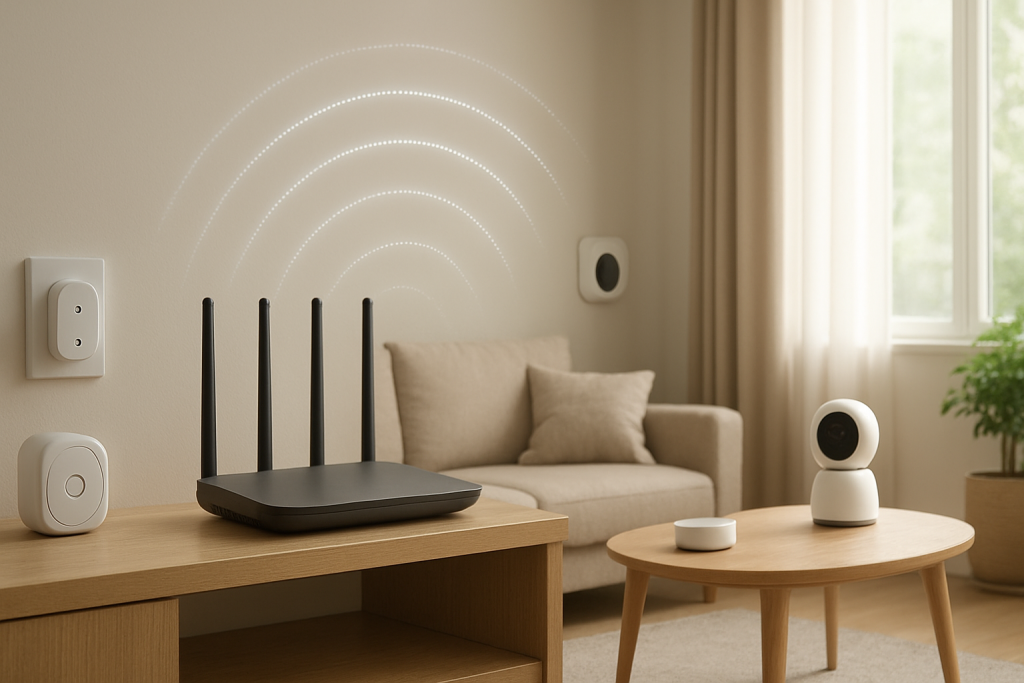
If your smart plugs, cameras, thermostats, or bulbs keep disconnecting only on 2.4GHz while phones and laptops seem fine (often on 5GHz), the most common cause is 2.4GHz congestion overload. The 2.4GHz band is crowded, slower, and more prone to interference from neighbors and household electronics, so smart devices that rely on it can get pushed off the network.
Start by reducing 2.4GHz congestion: pick a clean channel (usually 1, 6, or 11), narrow channel width to 20 MHz, and move or reposition the router away from interference sources. Then verify router settings that commonly break IoT stability (band steering, “smart connect,” aggressive roaming, or legacy mode mismatches).
Why This Happens
Most smart home devices use 2.4GHz because it travels farther and penetrates walls better than 5GHz, and the radios are cheaper and lower power. The tradeoff is that 2.4GHz has fewer non-overlapping channels, lower real-world throughput, and far more “noise” competing for airtime.
Congestion overload happens when too many devices (yours and your neighbors’) contend for the same limited 2.4GHz airtime. In an apartment building, it’s common to see a dozen nearby networks stacked on top of each other. Even if your signal looks “strong,” the band can be busy, forcing retries and delays. Smart devices often have small antennas and simple WiFi chipsets; when the network gets chatty or noisy, they time out and drop.
Interference is not only from other WiFi networks. Bluetooth, baby monitors, some cordless phones, microwave ovens, and even poorly shielded USB 3.0 devices can raise the noise floor on 2.4GHz. A real-world example: a router placed behind a TV near a soundbar and streaming box may work fine for 5GHz phones in the same room but cause 2.4GHz IoT devices across the house to disconnect intermittently, especially when the microwave runs or when neighbors are active in the evening.
A common user mistake is enabling a single combined SSID with “Smart Connect” or band steering and assuming it will always help. Many smart devices can only join 2.4GHz and may fail during setup or roam poorly when the router tries to optimize clients. Another overlooked technical cause is router configuration that increases congestion: using 40 MHz channel width on 2.4GHz, enabling “auto” channels that hop frequently, or turning on features that generate extra management traffic (like certain “optimization” or “WiFi AI” modes) can make a crowded band even less stable.
Finally, drops can be amplified by network housekeeping issues. If the router’s DHCP server is misbehaving or the network has an IP conflict (two devices trying to use the same address), a smart device may appear to “drop” even though WiFi is still connected. This is less common than congestion overload, but it’s worth checking when disconnects happen at regular intervals or after power outages.
Step-by-Step Fix
Confirm it’s truly a 2.4GHz-only problem. Check whether your phone stays stable on 5GHz while the smart device drops on 2.4GHz. If your router has separate SSIDs (recommended for troubleshooting), temporarily connect a phone to the 2.4GHz SSID and run a simple test: stream an internet radio station or start a continuous ping to your router’s IP (often 192.168.0.1 or 192.168.1.1) for 5–10 minutes. If the 2.4GHz ping shows spikes or timeouts while 5GHz is clean, you’ve confirmed the band is unstable.
Reduce 2.4GHz congestion by setting a clean channel and 20 MHz width. Log into the router and set the 2.4GHz channel manually to 1, 6, or 11 (choose the least crowded). Avoid “Auto” if it changes channels often. Then set channel width to 20 MHz (not 40 MHz). In congested areas, 40 MHz overlaps too much and usually performs worse, increasing collisions and disconnects for low-power IoT devices.
Reposition the router to reduce interference and improve airtime fairness. Place the router in a more central, elevated location, away from thick walls, metal cabinets, aquariums, and electronics that radiate noise. Keep it away from microwaves and cordless phone bases. Even a 3–6 foot move can change the interference profile dramatically on 2.4GHz. If you use an ISP modem-router combo in a utility closet or behind a TV, consider relocating it or adding a better access point in a central spot.
Split SSIDs (temporarily or permanently) and disable band steering for IoT. If your router uses one SSID for both bands, create separate names like “Home-2.4” and “Home-5.” Connect smart devices to the 2.4GHz SSID and keep phones/laptops on 5GHz when possible. This reduces 2.4GHz load and avoids band steering behavior that some smart devices handle poorly.
Adjust 2.4GHz compatibility settings (without going too “legacy”). Set 2.4GHz mode to 802.11n (or “b/g/n mixed” if you have very old devices). Avoid forcing “802.11b” support unless you must, because it can slow the whole band and increase airtime usage. If there’s an option for “WMM” (Wi-Fi Multimedia), keep it enabled; some devices require it for stable 802.11n behavior.
Use WPA2-Personal (AES) if possible. Many smart devices struggle with WPA3-only or WPA2/WPA3 mixed modes. Set security to WPA2-Personal (AES) on 2.4GHz. This is a router configuration issue that frequently appears as “random drops,” especially right after a router upgrade that enabled WPA3 by default.
Update router firmware and smart device firmware/app. Congestion overload is the main driver, but firmware can determine how gracefully devices handle noisy airtime. Update the router to the latest stable firmware from the manufacturer (or your ISP). Then update the smart device firmware through its app. If disconnects started after an update, check release notes or temporarily roll back (if supported) or disable newly introduced “optimization” features.
Check DHCP scope and prevent IP conflicts. In the router’s LAN settings, ensure DHCP is enabled and the address pool is large enough (for example, 192.168.1.100–192.168.1.250). If you have many devices, a small pool can run out, causing devices to drop offline. IP conflicts can happen if you manually set a static IP on a device that overlaps the DHCP range. A simple fix is to reserve IPs for key smart devices using DHCP reservations, keeping them outside any manually assigned addresses.
Reduce 2.4GHz load by moving capable devices to 5GHz or wired. Phones, laptops, TVs, and game consoles should use 5GHz or Ethernet where possible. This frees 2.4GHz airtime for smart devices that have no choice. Remember: 5GHz is faster and less crowded but has shorter range; 2.4GHz reaches farther but is easier to overload.
Advanced Troubleshooting
If the basic steps improve things but you still see periodic dropouts, focus on identifying what is saturating 2.4GHz airtime and whether the router is mishandling crowded conditions.
Run a practical congestion test at the worst time of day
Congestion often peaks in the evening. Use a WiFi analyzer app on Android (or your router’s built-in site survey) to view nearby 2.4GHz networks and their channels. You’re looking for heavy overlap on your channel and strong neighboring signals. Then repeat your ping test to the router while standing near the smart device location. If timeouts increase during peak hours, that strongly points to congestion overload rather than a defective device.
Check for channel-hopping and “auto optimization” features
Some routers change channels automatically when they detect interference. In a crowded environment, that can cause repeated brief outages that smart devices interpret as a disconnect. If you see drops at irregular intervals every few hours, set a fixed channel and disable features labeled “Auto Channel,” “WiFi Optimization,” “AI WiFi,” or similar (names vary by brand). Stability is usually more valuable than chasing a slightly better channel score.
Verify transmit power and airtime fairness settings
Higher transmit power is not always better on 2.4GHz. If your router is set to “High” power, it can increase interference with neighbors and invite more contention. Try “Medium” if available. Also check “Airtime Fairness.” In some homes it helps, but with many low-power IoT devices it can cause them to be deprioritized. If you suspect this, disable Airtime Fairness and retest for 24 hours.
Look for non-WiFi interference sources
Microwave interference often shows up as short bursts of packet loss. Bluetooth-heavy environments (multiple speakers, trackers, game controllers) can also add noise. If drops correlate with a specific appliance or activity, relocate the router or the smart device hub away from that source, or change the 2.4GHz channel to reduce overlap with the interference pattern.
Mesh and extender pitfalls (overlooked cause)
A common overlooked cause is a mesh node or range extender using 2.4GHz backhaul in a congested area. That doubles airtime usage because the extender must receive and retransmit on the same band. If your smart devices connect through an extender, try connecting them directly to the main router, or use a mesh system with dedicated backhaul (or Ethernet backhaul) to avoid overloading 2.4GHz.
When to Reset or Replace the Device
Resetting a smart device is reasonable after you’ve stabilized the 2.4GHz environment and verified the router settings. Do a device reset if it repeatedly fails to reconnect even when other 2.4GHz clients stay connected, or if it was moved to a new SSID/security mode and is “stuck” remembering old credentials.
Replace the device if it shows any of these patterns: it overheats, it drops even when placed within a few feet of the router on a clean channel, it cannot handle WPA2-AES reliably while other devices can, or it has a known problematic WiFi chipset with widespread reports of instability. Also consider replacement if the device only supports very old 2.4GHz standards and forces the router into legacy modes that worsen congestion for everything else.
How to Prevent This in the Future
Design your home network so 2.4GHz is reserved for what truly needs it. Keep high-bandwidth devices on 5GHz or wired Ethernet, and avoid adding extenders that repeat 2.4GHz unless absolutely necessary. If you live in an apartment or have thick walls, a better approach is a properly placed access point or mesh node with Ethernet backhaul.
Keep 2.4GHz settings conservative and stable: 20 MHz width, channel 1/6/11, WPA2-AES, and minimal “auto optimization.” Periodically check for firmware updates on the router, especially if the vendor notes WiFi stability fixes. If your ISP modem-router combo is underpowered or lacks useful controls, consider putting it in bridge mode (if supported) and using a dedicated router with better 2.4GHz tuning options.
Finally, prevent IP conflicts by keeping a clean addressing plan. Use DHCP reservations for smart devices you rely on (cameras, doorbells, hubs). Avoid manually assigning static IPs inside the DHCP pool. After power outages, give the router a minute to fully boot before smart devices power up, or use a smart plug delay routine for hubs if your setup is sensitive.
FAQ
Why do my smart devices drop on 2.4GHz but my phone is fine?
Phones often prefer 5GHz, which is typically less congested and has more available airtime. Smart devices usually stay on 2.4GHz, where neighbor networks and interference are heavier. Also, many smart devices have weaker antennas and less robust WiFi chips, so they fail sooner when 2.4GHz gets busy.
Should I use “Auto” channel on 2.4GHz?
In congested areas, “Auto” can cause channel changes that look like random disconnects. A fixed channel (1, 6, or 11) with 20 MHz width is usually more stable for smart devices, even if the router claims another channel is slightly faster.
Does switching to 5GHz fix smart device dropouts?
Only if the device supports 5GHz, which many do not. 5GHz is faster and less crowded but has shorter range and struggles more through thick walls. The practical fix is usually to reduce 2.4GHz congestion and interference, not to force 5GHz on devices that can’t use it.
Can DHCP issues really look like WiFi drops?
Yes. If a device can’t get a valid IP address, or if two devices end up with the same IP (an IP conflict), the smart device may appear offline even though its WiFi radio is connected. Ensuring a healthy DHCP pool and using DHCP reservations for key devices can prevent this.
Will a WiFi extender help with 2.4GHz smart device stability?
Sometimes it improves signal strength, but it can worsen congestion because many extenders retransmit on the same 2.4GHz channel, consuming extra airtime. If you need more coverage, a wired access point or mesh with Ethernet backhaul is usually a more reliable way to help smart devices stay connected.
There’s a strange satisfaction in seeing the same facts finally line up with the daily reality. Not dramatic, not magical—just less friction where it used to snag.
Now the conversation can move past the familiar arguing and into something quieter, steadier, and easier to live with. The best part is how fast your attention stops drifting back to the problem.