Alexa Not Responding Only at Night: Common Reasons
Quick Answer
When Alexa works normally during the day but stops responding at night, the most common cause is a scheduled “quiet” setting: Do Not Disturb, a household routine, or Night Mode/quiet hours that suppresses sounds and notifications. Many people interpret this as “Alexa is offline,” but the device may simply be intentionally muted or restricted during certain hours.
The other major night-only cause is your network doing something different overnight: scheduled router reboots, automatic firmware updates, Wi-Fi “smart” features changing bands, or an ISP maintenance window. Start by checking Do Not Disturb and routines in the Alexa app, then confirm whether your router is restarting or dropping the Echo from the client list at the same time each night.
Why This Happens
Night-only failures are usually not random. They tend to follow a schedule, and Alexa is very schedule-driven: routines can change volume, enable Do Not Disturb, or even stop music and announcements at set times. Routers are also schedule-driven: many perform maintenance overnight (updates, channel changes, reboots) because fewer people are online.
Here are the most common causes that fit the “only at night” pattern:
1) Do Not Disturb is enabled on the device (often on a schedule). When Do Not Disturb is on, Alexa may still hear you, but it will suppress certain responses like calls, Drop In, announcements, and some notifications. If you mainly notice the problem when trying to call the device, use Drop In, or hear reminders, this is a prime suspect.
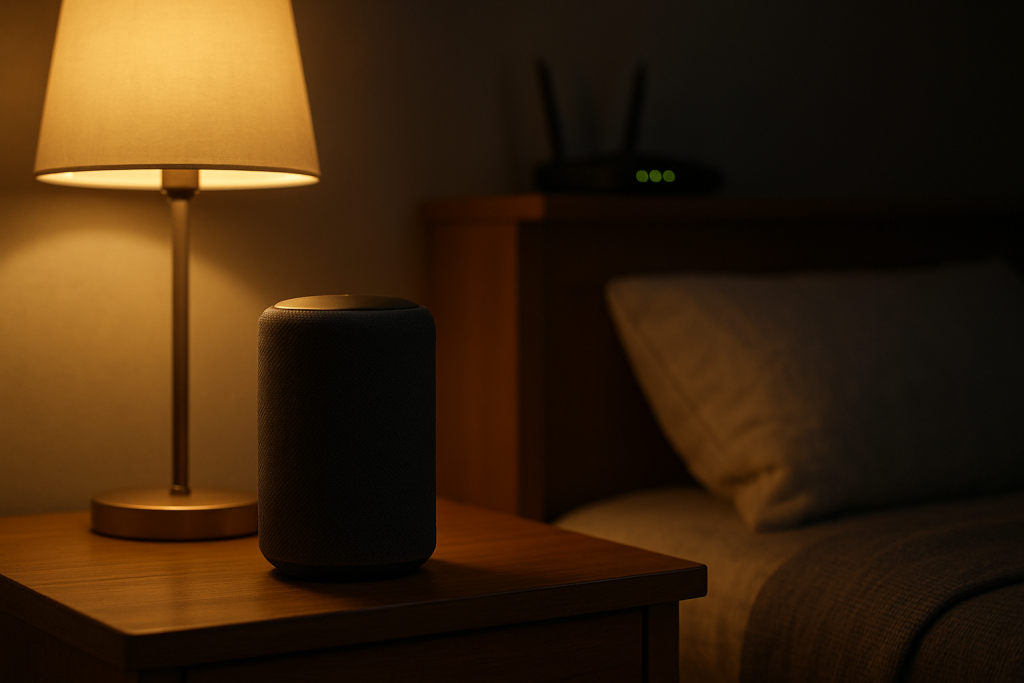
2) A routine changes volume, turns on a “quiet” mode, or mutes the device. A bedtime routine can lower volume to 0 or 1, turn on Do Not Disturb, or pause media. The device is technically responding, but you can’t hear it. This is especially common with Echo devices in bedrooms.
3) Router overnight behaviors (auto reboot, firmware update, or Wi-Fi optimization). Some routers restart nightly or apply updates automatically. Others run “Wi-Fi optimization” that changes channels or bands. Echo devices can take longer than phones to recover, or they may reconnect to a weaker band and appear unresponsive.
4) Band steering or mesh roaming gets worse at night. In mesh systems, devices may roam between nodes. At night, a nearby node might be powered off, a door may be closed, or a neighbor’s Wi-Fi interference pattern changes, pushing the Echo to a different node or band. The result can be delayed responses, “Sorry, I’m having trouble,” or silence.
5) Quiet hours on the router or a parental control schedule. Some networks have schedules that pause internet for “kids’ devices” or unknown devices. If the Echo is in a group that gets paused at night, it will look fine in the Alexa app but won’t reach Amazon’s servers reliably.
6) An overlooked technical cause: the Echo is connected to a guest network that disables device-to-device features. Guest networks sometimes block local discovery and certain features. During the day you might not notice, but at night you may rely more on Drop In, multi-room audio, or smart home control that is sensitive to those restrictions.
Real-world scenario: In an apartment with a mesh Wi-Fi system, a homeowner sets a “Goodnight” routine that turns the bedroom Echo volume down and enables Do Not Disturb at 10:30 PM. The mesh also runs an automatic optimization around 2:00 AM. The next morning they remember that “Alexa didn’t respond last night,” but the device was either too quiet to hear or briefly offline during the mesh maintenance window.
Common user mistake: Turning on Do Not Disturb once (to stop notifications) and forgetting it stays on per-device. Many people assume it’s a global setting, then wonder why only the bedroom Echo “stops working” at night.
Overlooked technical cause: A router schedule or “internet pause” rule that targets the Echo because it was named like a child’s device, placed in a restricted profile, or categorized as “entertainment.” This can happen after renaming devices or reorganizing profiles in the router app.
Step-by-Step Fix
Check the obvious “silent” indicators first (fastest win).
What to do: Look at the Echo device. If the light ring is red, the microphone is muted. If the device has a volume indicator (or you can ask during the day), confirm the volume isn’t set extremely low. On Echo Shows, check if a “moon” or Do Not Disturb indicator appears in the status area.
What the result means: Red light usually means the mic is muted, which can look like “no response.” Very low volume can look like “silent Alexa.”
If it fails: If there’s no red light and volume seems normal, move to Do Not Disturb and routine checks next.
Verify Do Not Disturb for the specific Echo that fails at night.
What to do: Open the Alexa app > Devices > Echo & Alexa > select the problem device > Settings (gear icon) > find Do Not Disturb. Turn it off. Also check if there’s a schedule for Do Not Disturb and disable the schedule temporarily.
What the result means: If turning off Do Not Disturb immediately restores normal behavior at night (especially for calls, Drop In, announcements, and reminders), the issue was intentional quieting.
If it fails: If Do Not Disturb was already off, or the issue is broader (Alexa can’t answer basic questions), check routines next.
Audit routines that run in the evening (volume, DND, or “stop audio”).
What to do: In the Alexa app, go to More > Routines. Review any routine triggered by a time (for example, “10:00 PM”), “Goodnight,” or a smart home event. Open each routine and look for actions like: Set volume, Do Not Disturb, Stop audio, Turn off lights (not a problem), or anything that targets the affected Echo.
What the result means: If you find a routine that sets volume very low or enables Do Not Disturb, that’s a clean explanation for night-only “no response.”
If it fails: Temporarily disable the routine for one night. If the problem still happens, move to router overnight behavior checks.
Check whether the Echo is actually online at night using the Alexa app.
What to do: When the issue happens, open the Alexa app > Devices > select the Echo. Look for status messages like “Device is unresponsive” or “Offline.” Try a simple action from the app, like changing the volume or playing a short piece of music on that Echo.
What the result means: If the app can control it, the Echo is online and the problem is more likely a quiet setting (volume/DND) or a specific feature restriction. If it shows Offline/Unresponsive, focus on router/ISP behavior.
If it fails: If it’s offline, go to step 5 and confirm whether the router is dropping it at night.
Confirm the router is not rebooting or “pausing” the Echo overnight.
What to do: Log into your router or router app. Look for: scheduled reboot settings, automatic firmware updates, parental controls, access schedules, or “pause internet” rules. Also check the connected client list at night (or the next morning) to see if the Echo disappears around the time it stops responding.
What the result means: If you see a nightly reboot time, an update log, or a schedule that pauses the Echo, you’ve found a likely cause. The Echo may not reconnect cleanly, or it may reconnect to a different band/node.
If it fails: If there are no schedules, proceed to a controlled test that separates Wi-Fi/router issues from Alexa settings.
Run a temporary mobile hotspot test (strong diagnostic).
What to do: During the time window when Alexa usually fails, create a mobile hotspot on your phone. Then, in the Alexa app, update the Echo’s Wi-Fi to connect to that hotspot (Device Settings > Wi-Fi Network > Change). Test basic voice requests and any feature that usually fails.
What the result means: If Alexa works normally on the hotspot at night, the issue is almost certainly your home network’s overnight behavior (reboots, optimization, schedules, or band steering). If it still fails on the hotspot, the issue is more likely account/configuration or a device-specific software problem.
If it fails: If you can’t change Wi-Fi easily, try moving the Echo closer to the router for one night and see if the night-only failure changes. Then continue to Advanced Troubleshooting.
Use a proper restart sequence only after you’ve identified a likely cause.
What to do: If your router is updating/rebooting at night, do a controlled restart during the day to confirm behavior: unplug modem (if separate) for 30 seconds, plug it in and wait until it’s fully online, then restart the router, then power-cycle the Echo last. After everything is stable, test Alexa.
What the result means: If Alexa behaves normally after a clean network bring-up, your night issue may be caused by the router restarting and the Echo not recovering well afterward.
If it fails: If the Echo still becomes unresponsive only at night, focus on configuration conflicts and account/cloud issues next.
Advanced Troubleshooting
Account and cloud issues that show up at night
Multiple profiles or Household misrouting: If your home uses Amazon Household or multiple voice profiles, a routine may be tied to one profile and not another. At night, you may use different phrases (“Goodnight,” “Drop In on bedroom”) that trigger profile-specific behaviors. Test by using the Alexa app (which uses your signed-in account) to initiate the same action that fails by voice.
Skills with quiet-hour settings: Some communication and smart home skills have their own notification or quiet-hour settings. If only one feature fails (for example, a specific smart home device control or a calling feature), disable and re-enable that skill, then re-check its settings for schedules.
Network issues relevant to night-only behavior
Band steering and mesh roaming conflicts: If your router combines 2.4 GHz and 5 GHz under one name, the Echo may bounce to a weaker band at night after an optimization event. A practical test is to temporarily separate Wi-Fi bands (distinct names) and connect the Echo to the band that stays stable in its location. If stability improves, the issue was band steering/roaming rather than Alexa itself.
Client isolation or guest network limitations: If the Echo is on a guest network, some features can fail even when basic questions work. Move it to the main network and retest Drop In, multi-room audio, and smart home control.
Firmware/software causes
Overnight updates: Echo devices and routers may update overnight. If the Echo becomes unresponsive at roughly the same time and then recovers later, it may be applying an update or reconnecting after a router update. Check the Alexa app for any device status messages and confirm the router isn’t also updating at that time. If possible, disable router auto-optimization or reschedule it to a time when you’re awake to observe the behavior.
Configuration conflicts (routines, permissions, and communication settings)
Communication settings: If “Alexa, call…” or Drop In fails only at night, check Alexa app > Settings > Communication settings and the specific device’s Drop In permissions. Do Not Disturb can suppress these features, and a routine can toggle it without you realizing.
Guard/Night Mode interactions: If you use Guard or Night Mode, verify what it changes on the device (volume, sounds, notifications). Temporarily disable these features for one night to see if the pattern changes.
When to Reset or Replace the Device
Try a soft restart first when: the Echo shows as online but acts “stuck,” the light ring behaves oddly, or the device is slow to respond after a router event. A soft restart (power off for about 30 seconds, then power back on) is appropriate after you’ve checked Do Not Disturb/routines and confirmed the network is stable.
Consider a factory reset when: the device repeatedly goes unresponsive at night even on a mobile hotspot, it won’t stay connected to Wi-Fi despite stable settings, or the Alexa app cannot complete setup reliably. Factory reset removes the device from your account and clears Wi-Fi credentials, device-specific settings, and customizations tied to that Echo (such as device name, room/group assignments, and some preferences). You will need to set it up again in the Alexa app.
Replace or stop using the device immediately if you notice overheating, a burning smell, crackling from the power adapter, swelling, or discoloration. Unplug it and keep it unplugged. Those symptoms point to hardware or power issues, not a settings problem.
How to Prevent This in the Future
Make quiet settings intentional and visible: If you want quiet hours, use one method (either Do Not Disturb schedule or a routine), not both. Name routines clearly (for example, “Bedroom Quiet Hours ON”) so you recognize them later.
Avoid routines that set volume to near-zero: Instead of setting volume to 0 or 1, choose a low-but-audible level so you can still confirm Alexa is responding. If you truly want silence, consider using Do Not Disturb for notifications while keeping volume reasonable for voice responses.
Stabilize overnight router behavior: If your router has scheduled reboots or Wi-Fi optimization, set it to a time when you can observe the effect or disable it if it causes problems. If you rely on Alexa overnight (bedroom, security routines, alarms), consistency matters more than aggressive optimization.
Be deliberate with mesh placement and roaming: Keep mesh nodes powered on consistently and avoid placing an Echo in a spot where it’s “between” two nodes. If the Echo frequently roams, it can look like it’s failing only when conditions change at night.
Keep device grouping and permissions tidy: Review room groups, speaker groups, and Drop In permissions after account changes or adding new devices. Many night-only complaints trace back to a routine or permission that targets the wrong Echo.
FAQ
Why does Alexa ignore me at night but the light still turns on?
If the device lights up, it’s hearing you. Night-only “ignoring” usually means the response is being suppressed (Do Not Disturb) or you can’t hear it (volume reduced by a routine). Check Do Not Disturb and any bedtime routines that change volume.
Does Do Not Disturb stop Alexa from answering questions?
Common misconception: Do Not Disturb does not typically block basic question-and-answer responses. It mainly suppresses notifications, calls, Drop In, and announcements. If basic questions fail too, look harder at router overnight reboots, Wi-Fi optimization, or an internet pause schedule.
How can I tell if it’s my router causing the night problem?
If Alexa works on a mobile hotspot during the same night window when it fails on home Wi-Fi, the router/network is the cause. Also check the router’s logs/schedules and whether the Echo disappears from the connected client list around the failure time.
Only one Echo fails at night. Why not all of them?
Do Not Disturb and routines are often set per-device, especially for bedroom Echos. Also, one device may be in a weaker Wi-Fi spot and is more affected by overnight channel changes, mesh roaming, or a router reboot.
My Echo is “offline” in the app only at night. What’s the most likely reason?
A scheduled router reboot, automatic firmware update, or a parental control/quiet hours rule is the most likely cause. Confirm there’s no internet pause schedule affecting that device, and consider disabling overnight Wi-Fi optimization if it coincides with the offline period.
After all the noise, it’s almost a relief to land on something that feels obvious in hindsight. The argument can stop circling and start breathing.
Not because the world magically gets easier, but because the clutter clears enough to see what’s already been there. You don’t have to squint anymore—just move on with your day.