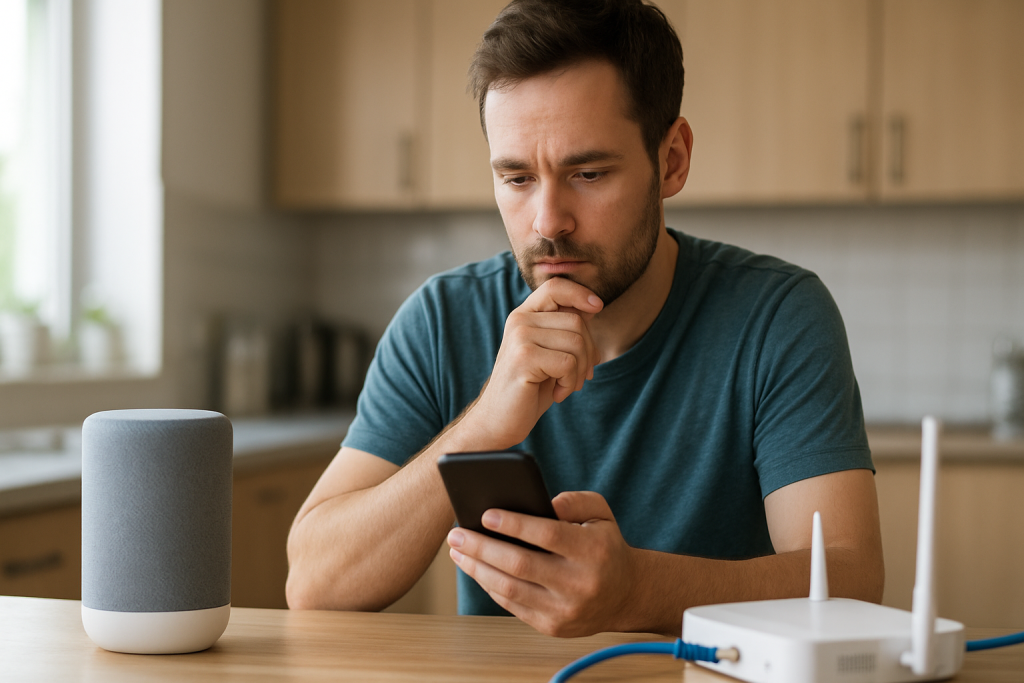
person troubleshooting smart speaker with phone and router nearby

Google Assistant Says Something Went Wrong: How to Fix It

Quick Answer

The most common reason Google Assistant says something went wrong is that the device cannot complete a cloud request. The request may be failing due to an account authentication problem, a temporary Google service issue, or a region/language mismatch that prevents the cloud service from responding correctly.

Start with these three quick checks (they take under five minutes):

1) Check Google service status: if Google’s voice services are having an outage, your device will hear you but fail when it tries to reach the cloud.

2) Confirm the device is signed into the right Google account and still authorized: expired tokens, password changes, or security prompts can silently break Assistant requests.

3) Test the same command on your phone using Google Assistant on mobile data: if it fails there too, it’s likely an account or service-side issue, not your speaker.

This applies to Google Nest speakers/displays, Google Home devices, and Google Assistant-enabled speakers and displays (including many third-party models).

Why This Happens

When you speak to Google Assistant, your device records a short audio clip and sends it to Google’s cloud to be interpreted and answered. Something went wrong usually means the cloud request did not complete successfully. The device may be connected to Wi‑Fi and still fail if the specific cloud call is blocked, rejected, or times out.

Common cloud-request failure causes that fit this message include:

1) Authentication or authorization problems: the device is signed in, but the account session is no longer valid (password changed, security challenge pending, account removed from the Home, or consent revoked).

2) Temporary service errors: Google’s servers can have partial outages where Assistant hears you but cannot return results, or specific features (music, routines, smart home control) fail while others work.

3) Region, language, or device locale mismatch: Assistant features vary by region and language. A mismatch can cause certain requests to fail even though basic questions work.

4) Home structure or device assignment issues: the device may be in the wrong Home, wrong room, or not fully linked to the correct household, causing requests that depend on household context to fail.

5) Network path issues that affect cloud calls: DNS problems, captive portals, VPNs, ad blockers, or router security filters can allow general internet access but break the specific endpoints Assistant needs.

Real-world scenario: a homeowner changes their Google account password after a security alert. Phones are updated automatically, but the Nest speaker keeps an expired token. The speaker still shows as connected in the Google Home app, but every voice request returns something went wrong because the cloud rejects the request.

Common user mistake: focusing only on Wi‑Fi signal strength and repeatedly power-cycling the speaker, while the real issue is an account prompt waiting for approval (for example, a security check or re-consent) that must be completed in the Google app.

Overlooked technical cause: DNS or filtering settings on the router (or a network-wide content filter) can block or delay Google endpoints. The device stays online, but cloud requests time out and Assistant reports a generic failure.

Most Likely Causes in Real Homes

1) Temporary Google service issue or partial outage affecting Assistant or a linked service (music, smart home platform).

2) Account authorization problem after a password change, security update, or account removal from the Home.

3) Router or ISP path issue that breaks cloud requests (DNS problems, filtering, VPN, captive portal, or unstable upstream connection).

4) Language/region mismatch or multiple languages set in Assistant causing certain queries to fail.

5) Home/room configuration conflict (device assigned to the wrong Home, duplicated homes, or routines tied to a different household).

Step-by-Step Fix

  1. Check whether Google Assistant services are having problems.

    What to do: On your phone or computer, search for Google Nest or Google Assistant outage and open Google’s service status information or widely reported outage trackers. Also try a basic web search from the same network to confirm the internet is working.

    What the result means: If many users report issues or status indicates a disruption, your device is likely fine and the cloud request is failing upstream.

    If it fails: If there is no outage reported, continue to Step 2 to test your specific account and network path.

  2. Run a split test: ask Google Assistant on your phone using mobile data.

    What to do: Turn off Wi‑Fi on your phone so it uses mobile data. Open Google Assistant (or the Google app microphone) and ask a simple question like What time is it or What is the weather.

    What the result means: If the phone also fails on mobile data, the problem is likely account-related or a broader service issue. If the phone works on mobile data but your home device fails, the issue is likely your home network path or the device’s sign-in state.

    If it fails: If both fail, go to Step 4 (account checks). If only the home device fails, go to Step 3 (network path test).

  3. Do a hotspot test to isolate your home network from the cloud request.

    What to do: Create a personal hotspot on your phone. On the Nest/Google Home device, use the Google Home app to move the device to the hotspot Wi‑Fi (you may need to forget the old network during setup). Then try the same voice request.

    What the result means: If Assistant works on the hotspot, your device and account are probably fine and your home network is blocking or breaking the cloud request (DNS/filtering/ISP/router issue). If it still fails on the hotspot, the issue is more likely account authorization, device firmware, or a service-side problem tied to the account.

    If it fails: If hotspot works, skip to Step 6 (router and DNS checks). If hotspot fails, continue to Step 4.

  4. Confirm the device is signed into the correct Google account and still authorized.

    What to do: Open the Google Home app, select your device, and check the account at the top (or under device settings). Make sure it matches the account you expect. Then open the Google app on your phone, go to your profile and verify there are no security prompts, consent requests, or account warnings. If you recently changed your password, sign out and sign back in on your phone to refresh tokens.

    What the result means: If you find a pending security prompt or the wrong account, that can directly cause cloud requests to be rejected, producing something went wrong.

    If it fails: If everything looks correct but the issue persists, proceed to Step 5 to verify Home structure and Assistant settings.

  5. Check Home structure, device assignment, language, and Voice Match settings.

    What to do: In the Google Home app, confirm you are in the correct Home (especially if you have more than one). Verify the device is assigned to the correct Home and room. Then open Assistant settings and check Language: set one language temporarily (avoid multiple languages while troubleshooting). If Voice Match is enabled, retrain it or temporarily disable Voice Match to test basic commands.

    What the result means: If changing to a single language or correcting the Home assignment fixes the issue, the cloud request was failing due to configuration mismatch or household context problems.

    If it fails: If basic questions still fail, continue to Step 6 for network and router checks, because the device may be online but unable to reliably reach Assistant endpoints.

  6. Verify the device is actually reaching the internet reliably (not just connected to Wi‑Fi).

    What to do: In the Google Home app, check the device’s Wi‑Fi signal and run any available connectivity test. Then, in your router’s client list, confirm the device is connected and has a stable IP address (not rapidly reconnecting). If your router shows frequent reconnects, that can interrupt cloud requests mid-stream.

    What the result means: A stable connection with a consistent IP suggests the issue is higher-level (DNS/filtering/auth). Frequent reconnects point to a network stability problem that can cause Assistant requests to time out.

    If it fails: If the device is unstable, move it closer to the router temporarily and retest. If it is stable, proceed to Step 7.

  7. Check for DNS, filtering, VPN, or security features that can block Assistant cloud calls.

    What to do: Look for router features such as DNS filtering, parental controls, ad blocking, safe browsing, VPN clients, or firewall rules. Temporarily disable these features and test Assistant again. If your ISP uses a security filter or you use a custom DNS provider, temporarily switch the router DNS to a standard public DNS (or your ISP default) and retest.

    What the result means: If Assistant starts working after disabling filtering or changing DNS, the cloud request was being blocked or misrouted. This is a common cause when general browsing works but Assistant fails.

    If it fails: If there is no change, continue to Step 8 to check Wi‑Fi band behavior and routing quirks that affect smart speakers.

  8. Check Wi‑Fi band steering and network name setup (2.4 GHz vs 5 GHz) for consistency.

    What to do: If your router uses a single Wi‑Fi name for both bands, band steering may move the device between 2.4 GHz and 5 GHz. For troubleshooting, try connecting the device to the band that is most stable at its location (often 2.4 GHz for longer range). If your router provides separate network names, connect the speaker/display to the one with the best stability and keep it there.

    What the result means: If Assistant stops failing after the device stays on a stable band, the earlier errors were likely timeouts during cloud requests caused by roaming or marginal signal quality.

    If it fails: If band changes do not help, proceed to Step 9 to refresh the network path in a controlled order.

  9. Restart in the correct order to refresh the cloud connection path (modem → router → device).

    What to do: Power off the modem (or gateway) for 30 seconds, power it on and wait until it is fully online. Then power off the router for 30 seconds, power it on and wait until Wi‑Fi is stable. Finally, restart the Google/Nest device from the Google Home app (preferred) or by unplugging it for 30 seconds.

    What the result means: This order matters because the router may obtain a new WAN address or DNS settings from the modem/ISP. Restarting the speaker last forces it to rebuild its cloud session after the network is stable.

    If it fails: If the error persists, go to Step 10 to check for app/device updates and then decide whether a reset is warranted.

  10. Update the Google Home app and confirm the device firmware is current.

    What to do: Update the Google Home app on your phone. In the device settings, check for firmware information (many devices update automatically). Leave the device powered on and connected for at least 30 minutes to allow background updates.

    What the result means: If the problem started after a network change or a recent update cycle, a pending firmware update or app mismatch can cause cloud request failures or sign-in problems.

    If it fails: If updates do not help, continue to Step 11 to re-link the device to your Home cleanly.

  11. Remove the device from the Google Home app and add it back (without factory resetting yet).

    What to do: In the Google Home app, remove the device from your Home (this breaks the Home association but does not always wipe the device). Then add it back and complete setup on the same Wi‑Fi network. Test a basic request immediately after setup.

    What the result means: If this fixes it, the issue was likely a corrupted Home association, stale authorization, or a configuration conflict rather than hardware failure.

    If it fails: If it still fails after re-adding, proceed to the Advanced Troubleshooting section before doing a factory reset.

Advanced Troubleshooting

Only use this section if the basic fixes above did not resolve the issue. At this point, you are trying to prove whether the failure is tied to your Google account/cloud state, a specific network behavior, or a device software/configuration conflict.

Account and cloud checks:

1) Try a different Google account on the same device: If a second account works, your original account likely has an authorization or profile issue (security prompt, restricted settings, or a corrupted Assistant profile). Focus on account recovery, security prompts, and Assistant settings for the failing account.

2) Check linked services: If only music, smart home control, or routines fail, the core Assistant may be fine but the linked cloud service is failing. Re-link the specific service in the Google Home app and test again. A service token can expire independently of your Google sign-in.

Network checks (only if hotspot worked):

1) Look for double NAT or captive portal behavior: If you have an ISP gateway plus your own router, the network can behave unpredictably for certain cloud calls. If possible, put the ISP gateway into bridge mode or ensure only one device is doing routing. Captive portal issues can also appear after ISP maintenance; confirm your internet connection does not require a sign-in page.

2) Review router logs for blocked requests: Some routers log blocked domains or security events. If you see repeated blocks around the time you test Assistant, that supports a filtering/DNS/security cause.

Firmware/software cause:

1) If the device recently updated and then started failing, leave it powered on overnight on a stable network. Some devices complete staged updates or re-indexing after initial installation.

2) If you use multiple Google/Nest devices, compare behavior: if all devices fail the same way at the same time, it points away from one device and toward account or network path issues.

Configuration conflict:

1) Duplicate Homes or duplicated devices in the app can confuse household context. Remove unused Homes, and ensure the device exists only once in your Home.

2) Temporarily simplify Assistant settings: one language, disable Voice Match, and test with a basic query. Once stable, re-enable features one at a time to identify the trigger.

When to Reset or Replace

A soft restart is appropriate when the device is responsive, shows as connected in the Google Home app, and the issue appears intermittent or started after a network hiccup. A restart refreshes the device’s connection and can clear temporary session problems, but it will not fix a persistent account authorization failure by itself.

A factory reset is appropriate when:

1) Hotspot testing fails and account checks are clean, suggesting the device’s local configuration or stored credentials are corrupted.

2) The device cannot be re-added properly in the Google Home app, or setup repeatedly fails at the same point.

3) The device behaves inconsistently (for example, it hears the wake word but cannot complete any request across multiple networks).

What a factory reset removes: the device’s saved Wi‑Fi network, its Home/room assignment, linked settings stored on the device, and any local customizations. You will need to set it up again in the Google Home app.

Hardware safety warning: use only the official reset method for your specific model and keep the device plugged into a properly grounded outlet. Do not open the device or attempt internal repairs; there are no user-serviceable parts inside.

Replacement is rarely needed for this specific error message because something went wrong usually indicates a cloud request failure, not a speaker hardware fault. Consider replacement only if the device cannot stay powered, cannot connect to any Wi‑Fi network, or fails setup on multiple networks and accounts after a factory reset.

How to Prevent This

Keep account access stable: if you change your Google password, plan to re-check your Nest/Google Home devices afterward. Confirm there are no pending Google security prompts on your phone, because those can quietly block cloud requests from household devices.

Maintain a predictable network path: avoid frequent changes to DNS providers, router security filters, or VPN settings without retesting Assistant. If you use parental controls or filtering, whitelist Google services where your router allows it, and monitor for false positives.

Use consistent Wi‑Fi naming and placement: place speakers/displays where they can hold a stable connection. If band steering causes frequent roaming, consider keeping smart speakers on the more stable band for their location. This is less about speed and more about avoiding brief drops that interrupt cloud requests.

Plan mesh networks carefully: if you use a mesh system, keep the device within good range of a node and avoid placing it in areas where it constantly switches nodes. Node switching can briefly interrupt the upstream connection even when Wi‑Fi looks strong.

Routine service management: if you rely on music or smart home integrations, re-check linked services occasionally in the Google Home app. Tokens can expire, and re-linking before it becomes urgent can prevent sudden failures.

FAQ

Why does it say something went wrong even though my Wi‑Fi is connected?

Wi‑Fi connected only means the device is attached to your local network. The error usually appears when the device cannot complete a request to Google’s cloud services. DNS filtering, account authorization problems, or temporary service issues can break cloud calls even while the device remains connected to Wi‑Fi.

If my phone’s Assistant works, does that prove Google isn’t down?

Not always. Your phone may be using a different network path (mobile data vs home Wi‑Fi) or a different account state. That is why the mobile-data test is useful: if your phone works on mobile data but the home device fails, it points toward your home network path or the device’s sign-in state rather than a general outage.

Does something went wrong mean the speaker is broken?

This is a common misconception. Most of the time, it indicates a cloud request failure (authorization, region/language, or service-side error), not a hardware defect. Hardware issues are more likely when the device cannot power on reliably, cannot connect to any network, or cannot complete setup after a factory reset.

Why do some commands work but smart home control fails?

Basic questions may use core Assistant services, while smart home control depends on additional cloud-to-cloud links and permissions. If only smart home commands fail, re-link the affected service in the Google Home app and confirm the device is in the correct Home and room. This pattern strongly suggests a linked-service authorization issue rather than a general connectivity problem.

What should I do if it only happens at certain times of day?

Time-based failures often point to ISP congestion, router scheduling features (like nightly filtering updates), or intermittent DNS issues. Use the hotspot test during the problem window. If the hotspot works when your home network fails, focus on router logs, DNS/filtering settings, and ISP stability during those hours.

If your voice assistant is still not working, you can follow our complete voice assistant troubleshooting guide to identify the issue step by step.

There’s a clean kind of relief in realizing the problem has edges you can see clearly. The noise fades, and what’s left feels almost ordinary—like a door that finally latches.

Not every day will be dramatic, but that’s the point. Things stop fighting you in the background, and the world gets a little quieter around the edges.

Scroll to Top