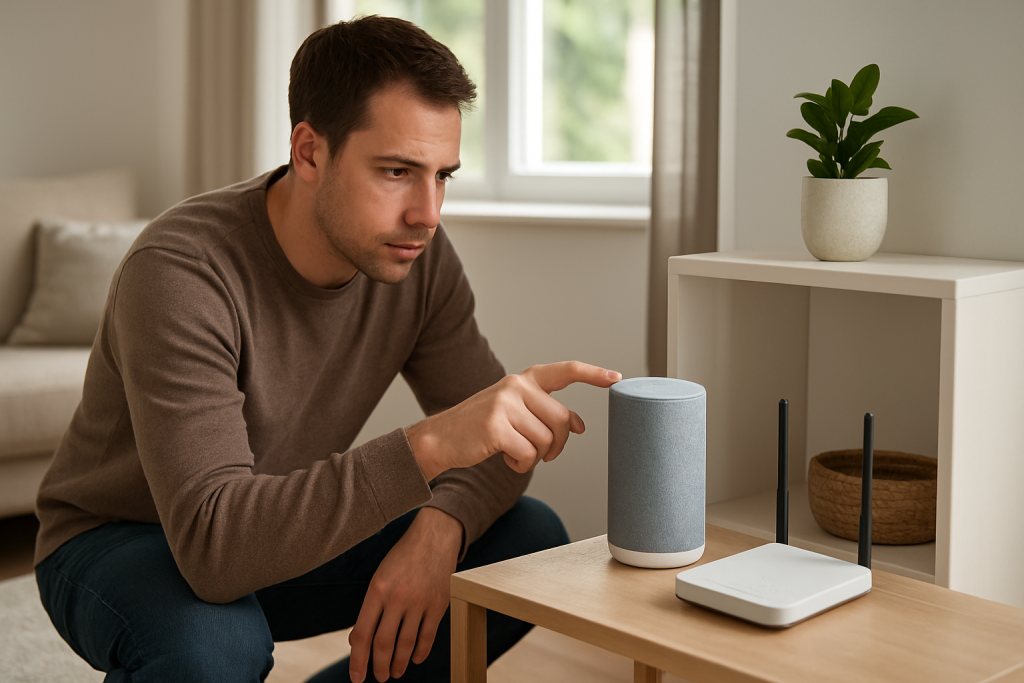
Google Home Speaker Responds Slowly or With Delay: Whats Going On
Quick Answer
The most common real-world reason a Google Home, Nest speaker, or Nest display responds slowly is network jitter plus DNS resolution delays. Your device hears you quickly, but the request still has to travel to Googles servers and back. If your network has inconsistent timing (jitter) or slow DNS lookups, the cloud request starts late or arrives in bursts, which feels like a delayed response.
Three immediate checks you can do right now:
1) Try the same command twice in a row. If the first attempt is slow but the second is faster, DNS lookup delay is very likely (the name gets cached after the first request).
2) Run a quick speed test on your phone while standing near the speaker. If download speed looks fine but the test shows high latency or inconsistent ping, jitter is the likely culprit.
3) Temporarily connect the speaker to a phone hotspot. If the delay disappears on hotspot, your home network (not the speaker) is causing the slow response.
This can affect Google Home Mini, Nest Mini, Nest Audio, Nest Hub, Nest Hub Max, and Google Assistant-enabled speakers. Displays may feel even slower because they also fetch visual cards.
Why This Happens
When you speak to a Google Home or Nest device, the response is not generated locally. The device captures audio, sends it to the cloud, waits for processing, then receives the result and speaks back. A small delay is normal, but noticeable lag usually means the cloud request is being slowed before it even reaches Google reliably.
The dominant root cause is network jitter combined with DNS resolution delays:
Network jitter means packets do not arrive at steady intervals. Even if your internet speed is high, jitter can make real-time services feel sluggish because the device has to wait for missing packets or retransmissions. DNS resolution delay means the device takes too long to translate a service name into an IP address before it can even start the secure connection.
Related causes that tie closely to this:
1) Congested Wi-Fi airtime in the home (many devices competing), which increases jitter even if the router shows a strong signal.
2) Band steering or roaming behavior on mesh systems, where the speaker gets moved between 2.4 GHz and 5 GHz or between nodes, briefly disrupting timing-sensitive traffic.
3) Router DNS settings pointing to a slow or unreliable DNS resolver, or a router that struggles to cache DNS effectively.
4) ISP-side latency spikes, especially in the evening, which look like jitter from your devices point of view.
5) IPv6 or dual-stack quirks where the device tries IPv6 first, fails or times out, then falls back to IPv4, adding delay before the request proceeds.
A real-world scenario: You ask for the weather and it takes 6 to 10 seconds, but music playback once started is fine. That pattern often points to DNS and connection setup delays rather than raw bandwidth. Streaming can buffer and hide jitter; short cloud requests cannot.
A common user mistake is focusing only on Wi-Fi signal bars. Strong signal does not guarantee low jitter. A crowded or unstable channel can have full bars and still deliver inconsistent timing.
An overlooked technical cause is slow DNS due to router-level filtering, misconfigured DNS, or a DNS server that is reachable but slow to respond. This can make the assistant appear to think longer, when it is actually waiting to start the cloud session.
Most Likely Causes in Real Homes
1) Wi-Fi jitter from airtime congestion (multiple phones, TVs, cameras, and smart devices competing), causing delayed cloud round-trips.
2) Slow DNS resolution from router DNS settings, ISP DNS issues, or a router that is overloaded and slow to forward DNS.
3) Mesh roaming or band steering moving the speaker between access points or bands, causing brief stalls right when you speak.
4) ISP latency spikes or packet loss, especially during peak hours, making responses inconsistent even though speed tests look acceptable.
5) Network configuration edge cases (IPv6 timeouts, VPN or custom DNS on the router, or guest network isolation) that add extra handshake time.
Step-by-Step Fix
Confirm the pattern and rule out a one-off cloud hiccup.
What to do: Give the same simple command twice, back-to-back, like Hey Google, what time is it. Then ask a second command that requires the internet, like Hey Google, whats the weather.
What the result means: If the first internet-based request is slow and the second is faster, DNS delay or initial connection setup is strongly indicated. If both are slow every time, jitter, packet loss, or roaming is more likely.
What to try next if it fails: Continue to Step 2 to separate home network issues from device or account issues.
Run a hotspot test to isolate your home network.
What to do: On your phone, enable a personal hotspot. In the Google Home app, move the speaker to the hotspot network (or set up a spare speaker on the hotspot if you prefer not to change your main one). Then try a few voice commands.
What the result means: If responses become normal on hotspot, the speaker and account are generally fine and your home network is the bottleneck (jitter, DNS, roaming, or router load). If the delay remains on hotspot, look harder at account sync, language settings, or a broader service issue.
What to try next if it fails: If hotspot is also slow, go to Step 6 for account and configuration checks. If hotspot is fast, go to Step 3 for network-focused checks.
Check latency and jitter, not just speed.
What to do: Stand near the speaker with your phone on the same Wi-Fi network. Run a speed test that reports ping/latency. If your router app provides real-time latency or quality metrics, check those too.
What the result means: Good download speed with high ping or unstable ping points to jitter or congestion. Consistently low ping but slow responses points more toward DNS or cloud/account issues.
What to try next if it fails: If ping is unstable, proceed to Step 4 (Wi-Fi and roaming). If ping is stable, proceed to Step 5 (DNS).
Reduce Wi-Fi roaming and band steering surprises for the speaker.
What to do: In your router or mesh app, find the speaker in the client list and note which band and node it is using. If your system has band steering or a single SSID for both 2.4 GHz and 5 GHz, watch whether the device flips bands. If your system allows it, temporarily pin the speaker to one node or disable band steering for testing. Also, avoid placing the speaker right on the edge between two mesh nodes.
What the result means: If the delay improves when the speaker stays on one node/band, roaming or band steering was causing micro-disconnects or timing issues that show up as slow responses.
What to try next if it fails: If there is no change, keep the stable setting you prefer and move to Step 5 to focus on DNS delays.
Test for DNS resolution delay by changing DNS at the router (or temporarily on a test network).
What to do: Check your router internet settings for DNS. If it is set to automatic/ISP DNS, switch to a known reliable public DNS service (many homeowners use public resolvers; choose one you trust). Save settings and allow the router to reconnect. Then test a few voice commands again.
What the result means: If the first-response delay improves noticeably, slow DNS was a major contributor. If there is no improvement, DNS may not be the primary issue, or the problem is jitter/packet loss elsewhere.
What to try next if it fails: If DNS changes do not help, proceed to Step 6 and Step 7 to check device configuration and then do a clean network restart in the correct order.
Verify Google Home app status, device assignment, and language consistency.
What to do: Open the Google Home app and confirm the speaker is in the correct Home and Room. Check the device settings for Assistant language and make sure it matches what you actually speak. If you use multiple languages, temporarily set only one language for testing. If Voice Match is enabled for multiple people, confirm each person is still linked correctly.
What the result means: If the device is assigned to the wrong Home, has conflicting languages, or Voice Match is confused, the request may take longer while it tries to resolve which profile and settings apply, especially for personalized results.
What to try next if it fails: If everything looks correct, continue to Step 7 for a full network restart sequence that targets jitter and DNS cache issues.
Restart in a sequence that clears stale network state (modem → router → speaker), with a reason.
What to do: Power off your modem (or gateway) and router/mesh, wait about 60 seconds, then power on the modem first. Wait until it is fully online, then power on the router/mesh. After Wi-Fi is stable, power cycle the Google speaker/display.
What the result means: This clears stuck DNS forwarding, renegotiates WAN routing, and often reduces jitter caused by a degraded connection state. If the delay improves for a day and then returns, it suggests recurring congestion, ISP instability, or a router that struggles under load.
What to try next if it fails: If there is no improvement, go to Step 8 to check for device-specific network isolation or guest network issues.
Confirm the speaker is not on an isolated or filtered network.
What to do: Ensure the speaker is on your main network, not a guest network with client isolation. In the router app, look for settings like AP isolation, device isolation, parental controls, or security filtering that could delay DNS or block certain traffic. Temporarily relax filtering for the speaker to test.
What the result means: If the delay improves when isolation/filtering is removed, the issue is not the speaker but the network policy adding latency, retries, or slow DNS proxying.
What to try next if it fails: If nothing changes, proceed to Advanced Troubleshooting to check for account/cloud issues, IPv6 behavior, and firmware factors.
Advanced Troubleshooting
Only use this section if the basic fixes above did not change the delay or if the problem comes and goes in a way you cannot explain.
Account or cloud-side issue: If multiple Google Assistant devices in your home all respond slowly at the same time, including phones, check whether Google services are having an outage in your region. Also confirm the Google account on the device is still signed in correctly. If you recently changed your password or enabled additional security, the device can behave oddly until it re-authenticates cleanly.
Network issue deeper than Wi-Fi: If hotspot is fast but home Wi-Fi is slow, look for background traffic that creates jitter, such as cloud backups, camera uploads, or a busy TV streaming in high resolution. The key clue is inconsistency: voice requests are short and sensitive to timing, so they suffer first. If your router app shows high utilization, many retransmissions, or frequent channel changes, that aligns with jitter.
Firmware or software cause: In the Google Home app, check whether the device firmware is up to date. Outdated firmware can have Wi-Fi driver bugs that show up as intermittent latency. Also check the router firmware; some updates specifically address DNS forwarding performance and stability under load.
Configuration conflict: If you use custom DNS filtering, VPN at the router, or advanced security inspection, test by temporarily disabling those features. A common pattern is slow first response, faster second response, which often points to DNS interception or slow TLS handshake due to inspection. If disabling the feature fixes it, re-enable features one by one to find the exact setting responsible.
IPv6 edge case: If your ISP provides IPv6 and your router advertises it, some devices may attempt IPv6 connections first. If IPv6 is unstable, the device can wait for a timeout before falling back to IPv4. If your router allows it, test by disabling IPv6 temporarily. If responses become consistently faster, keep IPv6 disabled until your ISP or router firmware resolves the stability issue.
When to Reset or Replace
A soft restart (power cycle) is appropriate when the speaker is generally working but has become sluggish, especially after network changes. It does not remove settings; it simply refreshes the connection.
A factory reset is appropriate when the device stays slow even on a hotspot, fails to stay connected, or behaves inconsistently after you have verified DNS and jitter are under control. A factory reset removes the device from your Google Home setup, clears Wi-Fi credentials, unlinks it from your Home structure, and requires full setup again in the app. It does not delete your Google account, but it does remove local device configuration.
Replace is rarely needed for slow responses alone. Consider replacement only if the device cannot maintain Wi-Fi on multiple known-good networks, overheats, reboots unexpectedly, or has physical damage.
Hardware safety warning: Do not open the speaker, puncture the enclosure, or attempt internal repairs. These devices contain components that can be damaged easily and may pose a safety risk if tampered with. Use only normal setup steps and external power cycling.
How to Prevent This
Prioritize stable timing over peak speed. For voice assistants, low jitter and reliable DNS matter more than impressive download numbers. If your router offers a way to view connected devices and traffic, keep an eye on heavy uploads that correlate with slow assistant responses.
Keep DNS dependable. Use a DNS configuration that is consistently fast and avoid stacking multiple DNS-altering features at once (for example, combining router-level filtering with additional DNS proxying). If you change DNS, give it a day and see whether first-response delays return.
Plan Wi-Fi placement to avoid roaming triggers. Place speakers where they have a clear, steady connection to one access point or mesh node, not in hallways or midpoints where devices constantly switch. For mesh systems, fewer well-placed nodes can be better than many competing nodes.
Maintain account stability. If you change your Google password, enable new security settings, or add/remove household members, check the Google Home app afterward to confirm devices are still properly linked. Mis-linked profiles can add delay for personalized requests.
Schedule disruptive network tasks. If your router supports it, schedule large backups or updates overnight. This reduces jitter during the times you most often use voice commands.
FAQ
Why is my Google Home slow only on the first question, then faster after?
This is a classic sign of DNS or initial connection setup delay. The first request forces a DNS lookup and a fresh secure connection; the second request often benefits from cached DNS and an already-warm connection. If changing router DNS improves this pattern, you have likely confirmed the cause.
My Wi-Fi signal is strong. Does that mean the network is not the problem?
No. Strong signal mainly indicates radio strength, not timing quality. You can have full signal and still have jitter due to congestion, interference, or roaming between mesh nodes. Voice assistant requests are short and sensitive to inconsistent timing, so they can feel slow even when streaming video seems fine.
Is this caused by the speaker being old or not powerful enough?
Usually not. Most noticeable delays come from the network path to the cloud, especially jitter and DNS resolution time. Older devices can be slightly slower, but if the delay disappears on a hotspot, the device hardware is not the limiting factor.
Why does music start quickly but simple questions take longer?
Music services can buffer and keep a steady stream once started, which hides some jitter. A question like weather or timers needs a quick round-trip request and response. If DNS is slow or jitter is high, that short transaction is delayed and feels more obvious.
Will factory resetting fix slow responses?
It can help if the device has a corrupted configuration, is stuck with bad network credentials, or has account linking issues. But if the real cause is jitter or slow DNS on your home network, a reset may only provide temporary relief or no change at all. Use the hotspot test first to decide whether resetting is worth the effort.
Good piece of work, even if it doesn’t pretend everything is instantly fixed. The main thread is already in place, and the rest feels less like a battle and more like catching your breath.
It lands where it should: in the part of your day that usually gets trampled by noise. From here, it’s just a matter of letting the new normal sit there—quietly, without drama.