Smart Lights Not Working After an App Update: What to Do
Quick Answer
After an app update, smart lights usually stop responding because the app’s connection method changed: your account session may be expired, local-network permissions may have been reset, or the app may now prefer a different control path (cloud vs local, hub vs direct). The lights often still have power and may even be reachable, but the app can’t “see” them correctly.
This is most common with WiFi bulbs (direct-to-router), hub-based Zigbee systems (lights talk to a hub), and newer Matter setups where the “controller” role can shift after an update. A single permission or account mismatch can make an entire home look offline even though nothing physically changed.
Do these three checks immediately: (1) Open the app and look at device status details (offline vs unreachable vs “needs setup”). (2) Confirm the app still has Local Network permission (iOS) or Nearby Devices/Local network access (Android). (3) Force-close and reopen the app, then sign out and back in to refresh the account session.
Why This Happens
App updates don’t just change the interface. They often change how the app authenticates, how it discovers devices on your home network, and how it syncs device lists, rooms, and automations from the cloud. When that control path changes, devices that were previously “fine” can appear missing, stuck updating, or offline.
Here are the most common technical causes tied directly to app updates:
1) Local network permission resets or new permission requirements. After an update, your phone may silently revoke or re-prompt for access that the app needs to discover devices on your LAN. If the app can’t scan locally, WiFi bulbs and hubs may show as offline even though they’re connected.
2) Account token/session expiration. Updates can invalidate login tokens. If your app is partially logged out, it may load an empty home, show “No devices,” or fail to send commands through the cloud. This is especially noticeable when you can still control lights with voice assistants or physical switches, but not the app.
3) Home/Location/Controller mismatch. Many ecosystems support multiple “homes,” “locations,” or “structures.” Updates can change the default home selection or how it syncs. With Matter, the phone running the updated app may no longer be the active controller, or it may lose permission to manage devices until it’s re-authorized.
4) Group/scene schema changes. Some updates migrate how groups, rooms, or scenes are stored. If the migration fails or partially completes, individual bulbs might work while groups don’t, or scenes run but do nothing.
5) Hub handshake changes. Hub-based systems (Zigbee bridges, multi-protocol hubs) may require a refreshed link between the app and the hub after an app update. The hub can be healthy, but the app’s pairing to the hub’s local API may need re-approval.
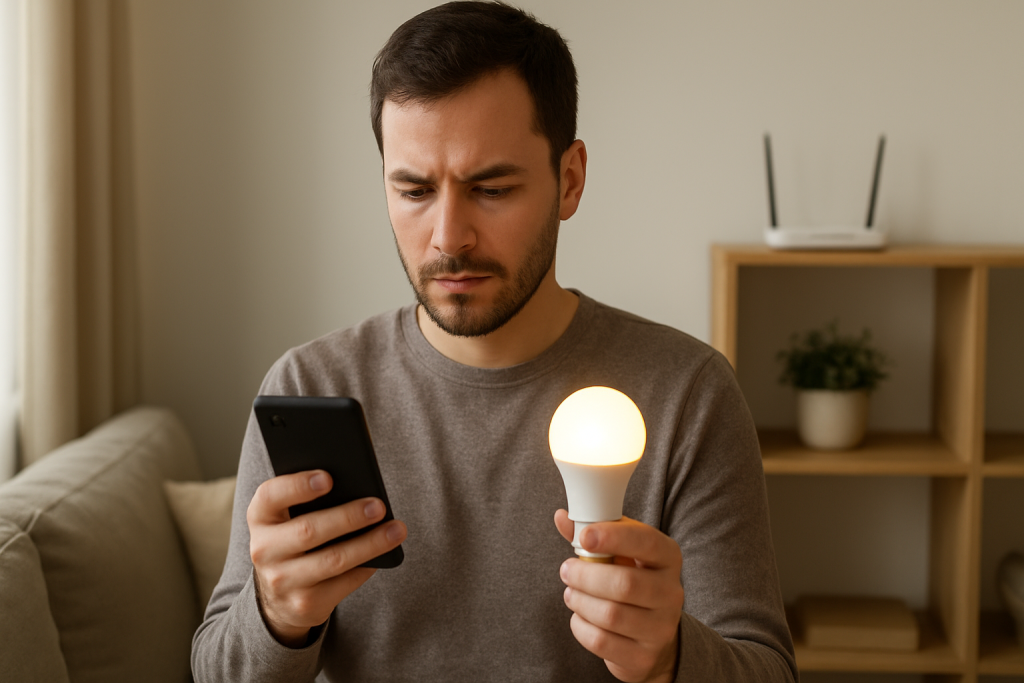
Real-world scenario: You update the lighting app while on cellular data at work. That evening, the app says every light is offline. The bulbs still turn on with a wall switch, and a voice assistant might still work. What happened is the updated app now requires Local Network access to discover the hub or bulbs, and the permission prompt was missed or denied.
Common user mistake: Updating the app and then immediately trying to “re-add” devices. This can create duplicates, broken rooms, or a mix of old and new entries. It’s better to restore app access and sync first, then only re-pair if the app confirms the device is truly unpaired.
Overlooked technical cause: Phone privacy features such as “Local Network” (iOS), “Private Wi-Fi Address,” or VPN/DNS filtering can interact differently after an app update. The app may be installed with new defaults, and discovery traffic can be blocked even though your WiFi itself is fine.
Most Likely Causes in Real Homes
1) Local Network permission was denied after the update. The app can’t find WiFi bulbs or the hub on your LAN.
2) You’re signed out or partially authenticated. Devices appear missing, or commands fail with generic errors.
3) The app switched to the wrong Home/Location. Your devices are still there, just not in the selected home.
4) Groups/scenes didn’t migrate cleanly. Individual lights may respond, but rooms/groups don’t.
5) The hub is online but the app-to-hub link needs re-authorization. The hub works for other controllers, but not your updated phone.
Step-by-Step Fix
Check what the app is actually reporting (offline vs missing vs “needs setup”). What to do: Open the app, tap a light, and look for status details like “Offline,” “Unreachable,” “Not responding,” “Updating,” or “Add to home.” Also check whether individual devices are listed but groups fail.
What the result means: If devices are listed but “Offline,” discovery or hub communication is failing. If devices are missing entirely, you may be in the wrong home/location or signed out. If it says “needs setup,” the app may have lost controller permission or device ownership.
If it fails, try next: Move to the permission and account checks in steps 2 and 3 before attempting to re-add anything.
Verify phone permissions that often change after updates (Local Network / Nearby Devices / Bluetooth). What to do: On iPhone, go to Settings > the lighting app > enable “Local Network” (and Bluetooth if the ecosystem uses it for setup). On Android, check App permissions for “Nearby devices,” “Location” (sometimes required for discovery), and local network access where applicable.
What the result means: If enabling Local Network immediately makes devices appear or go from Offline to Online, the update reset permissions and the lights were fine all along.
If it fails, try next: Proceed to step 3 to refresh the app session and cloud sync.
Force-close the app, then sign out and sign back in (account sync test). What to do: Fully close the app (remove it from recent apps), reopen it, then sign out and sign back in. If the app supports it, also use any “Refresh,” “Sync,” or “Reload devices” option.
What the result means: If your devices reappear or start responding, the update invalidated your login token or the app was stuck with stale cloud data.
If it fails, try next: Go to step 4 to confirm you’re in the correct home/location and that rooms didn’t change.
Confirm you’re controlling the correct Home/Location/Structure (room/location check). What to do: In the app, look for a home selector, location name, or “My Home” drop-down. Switch between homes if more than one exists. Check whether devices are sitting in “Default room,” “Unassigned,” or a new location created during migration.
What the result means: If devices show up in another home or unassigned area, the update changed the default view rather than breaking the lights.
If it fails, try next: Continue to step 5 to test whether the problem is local-only or cloud-only.
Run a local-vs-cloud control test (hotspot isolation test). What to do: Put your phone on the same home WiFi as usual and try controlling a light. Then, turn off WiFi on the phone (use cellular) and try again. If you don’t have cellular, temporarily connect the phone to a personal hotspot and test app control.
What the result means: If it works on cellular but not on home WiFi, local network discovery or router filtering is blocking local control. If it works on home WiFi but not on cellular, the cloud account/session or remote access is the issue. If neither works, the app may not be properly authorized or devices may actually be offline.
If it fails, try next: Move to step 6 to check WiFi band and mesh behavior, which frequently affects discovery after updates.
Check WiFi band and mesh behavior (WiFi band check + mesh behavior test). What to do: Confirm your phone is on the same network name as your smart lights or hub. If your router uses separate 2.4 GHz and 5 GHz names, connect the phone to the same band the devices use (many WiFi bulbs are 2.4 GHz only). If you have a mesh system, move near the main router and test again, then move near a satellite node and test again.
What the result means: If control works near the main router but fails near a mesh node, the mesh may be isolating clients or handling multicast discovery poorly. If switching the phone to 2.4 GHz makes devices appear, the app’s discovery relies on being on the same local segment as the bulbs/hub.
If it fails, try next: Proceed to step 7 to power-cycle in the correct order to re-establish hub/router/device relationships.
Power-cycle in a sequence that restores the control path (power cycle sequence). What to do: Turn lights off using the app if possible, then: (1) Unplug the hub/bridge (if you have one). (2) Reboot your router/mesh main unit. Wait until WiFi is fully back. (3) Plug the hub/bridge back in and wait 2–5 minutes for it to reconnect. (4) Finally, power-cycle one affected bulb by turning it off at the switch for 10 seconds, then on.
What the result means: If devices come back online after this sequence, the update likely exposed a stale network route or hub session that needed a clean restart.
If it fails, try next: Continue to step 8 to verify groups, scenes, and schedules didn’t break even if individual devices respond.
Test individual control vs group control (group sync test) and verify schedules. What to do: Pick one light and control it directly (on/off, brightness). Then try controlling the room/group. Next, check the app’s schedules/automations for that room and temporarily disable them for 10 minutes.
What the result means: If individual control works but group control fails, the update likely broke group membership or scene definitions. If lights keep changing unexpectedly, an automation may be firing with outdated targets after migration.
If it fails, try next: Go to step 9 to check for firmware updates and controller permissions that may be required after the app update.
Update firmware where the app indicates it’s required, and re-authorize controller access if prompted. What to do: In the app, look for firmware update banners for bulbs, hubs, or bridges. Apply updates one category at a time (hub first, then bulbs). If using Matter, check if the app asks to “reconnect,” “re-add controller,” or “allow access” to the home.
What the result means: If a firmware update resolves it, the app update introduced a compatibility requirement. If re-authorization fixes it, the app update changed controller credentials.
If it fails, try next: Stop and avoid re-pairing everything at once. Move to Advanced Troubleshooting to isolate whether the issue is cloud, network policy, or configuration conflict.
Advanced Troubleshooting
This section is only needed if basic fixes fail.
Check for an account or cloud-side outage
If the app can’t load devices, can’t save changes, or shows spinning sync indicators, the cloud service may be degraded. A quick sign is that multiple phones on the same account behave the same way. If another household member’s phone also can’t control lights after updating, wait 30–60 minutes and try again after signing out/in once more. Avoid repeated re-adding during an outage; it often creates duplicates when the cloud recovers.
Network policy issues that block discovery (relevant when local control fails)
If the hotspot isolation test showed “works on cellular but not on home WiFi,” focus on local network traffic. Common culprits are VPN profiles, “Private DNS” filtering, or router features like client isolation/guest mode. Also check that your phone is not connected to a guest network while the bulbs/hub are on the main network. If you recently enabled a new router security feature, temporarily disable it and retest. If disabling a VPN immediately restores control, leave it off for the lighting app or use split-tunneling if available.
Firmware/software compatibility mismatch
Sometimes the app update expects a newer hub firmware or a newer device firmware. If the app shows “Update required” or “Limited functionality,” complete firmware updates with the phone near the hub/router and keep the app open until finished. If updates repeatedly fail, try updating one device at a time rather than the whole home at once.
Configuration conflicts: groups, scenes, automations, and permissions
If direct control works but scenes and schedules don’t, rebuild the configuration before resetting devices. Remove one problematic light from a group and add it back. Recreate one scene from scratch and test it. Check app permissions for notifications and background activity; some ecosystems rely on them for geofencing or schedule triggers. If multiple controllers exist (two phones, a tablet, a voice assistant), confirm they’re all attached to the same home and that the updated app still has permission to edit devices rather than view-only access.
When to Reset or Replace the Device
Try a soft restart first: power-cycle the bulb (off for 10 seconds, then on) and restart the hub/bridge and router in the correct order. A soft restart keeps your device pairing and usually resolves temporary communication issues.
Use a factory reset only when the app explicitly shows the device as unpaired, stuck in setup, or permanently unreachable even after network and permission fixes. A factory reset typically removes the bulb from rooms, groups, scenes, and automations. You will need to add it back and rebuild any custom settings tied to it.
If a bulb or hub is overheating, smells unusual, has visible damage, or repeatedly drops offline within minutes of reconnecting, stop using it and replace it. Do not open devices or attempt repairs.
How to Prevent This in the Future
Keep the control path stable. Avoid changing router settings (SSID names, guest networks, isolation features) at the same time as app updates. If you must change network settings, do it separately so you can tell what caused the issue.
Place hubs and bridges in consistent, central locations. App updates can make discovery more sensitive to weak connections. A hub tucked behind a TV or inside a cabinet may work for months and then become unreliable when the app changes timing or retries.
Manage automations carefully. Before major app updates, take a quick inventory of key scenes and schedules. If the app offers export/backup or a way to duplicate scenes, use it. After an update, test one automation at a time before assuming devices are broken.
Plan for power outage recovery. Brief outages can leave bulbs on, hubs rebooting, and routers still starting up. After an outage, wait for the router to fully stabilize before opening the lighting app. Opening the app too early can cause it to cache “offline” states that persist until you refresh.
Maintain firmware in small batches. Update hubs first, then a few bulbs at a time. If everything updates at once, it’s harder to identify which device or step caused a new problem.
FAQ
My lights work with the wall switch but not in the app. Does that mean the bulbs are dead?
No. If the bulbs turn on with power, they’re usually fine electrically. After an app update, the more likely issue is that the app can’t reach them due to permissions, account sync, or local network discovery problems. Start by checking Local Network permission and signing out/in.
The app shows the lights, but rooms and groups won’t respond. What does that indicate?
If individual bulbs respond but groups don’t, the issue is usually configuration: group membership, scenes, or a migration problem after the update. Re-test by controlling one bulb directly, then rebuild one group or scene and try again. Also verify schedules aren’t overriding your manual commands.
Do I need to delete and re-add all my lights after an app update?
Usually not. Re-adding is a last resort because it can break automations and create duplicates. First restore the app’s ability to see and authenticate: permissions, correct home/location selection, sign out/in, and a proper hub/router reboot sequence.
Misconception: “If the app updated, my router must be the problem.” Is that true?
Not necessarily. Many failures after updates are on the phone side: revoked Local Network access, a stale login token, or the app switching to a different home/location. Router issues matter mainly when local control fails on WiFi but works on cellular.
What if only one phone can’t control the lights, but other family members can?
That points strongly to a phone-specific issue: permissions, VPN/DNS settings, or the app being signed into a different account or home. Compare the home/location selected on both phones, then re-check Local Network/Nearby Devices permissions and sign out/in on the affected phone.
What’s left now is the mundane part: letting the noise settle and moving forward without constantly re-checking the same ground. The weight lifts in that understated way, like you finally set something down and realize your shoulders had been doing overtime.
Not every day will feel dramatic, but the whole thing becomes less of a living problem. You don’t need a new obsession—just room to breathe, and the patience to let things line up on their own schedule.