Smart Plug Shows Offline in Home App? Try These Fixes
Quick Answer
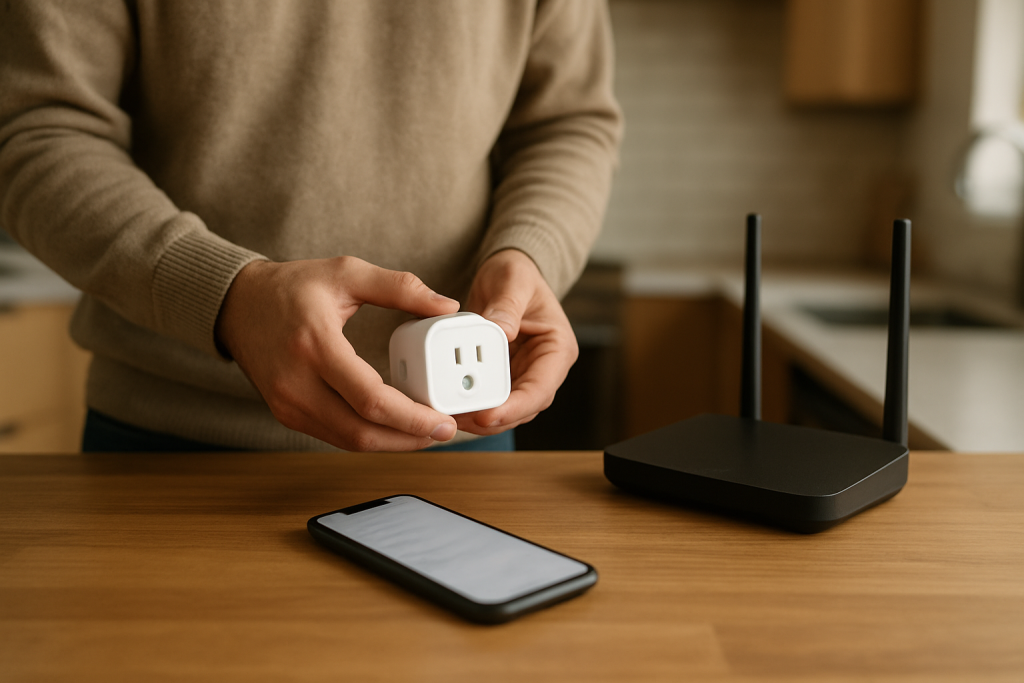
When a smart plug or smart switch shows “Offline” in a home app, it’s often not a dead device. In many homes, the plug is still powered and sometimes even controllable in its own brand app, but the home app is displaying a stale status because the ecosystem hasn’t synced correctly after a router change, power outage, app update, or account/session change.
This “offline” label usually means the controller app (Apple Home, Google Home, Alexa, SmartThings, or a Matter controller) can’t currently confirm the device’s state through the expected path (local hub, cloud link, or Matter fabric). Fixing the sync path is more common than replacing hardware.
Do these three quick checks first: (1) Open the device maker’s app (or hub app) and try turning the plug on/off there. (2) Force a refresh by closing and reopening your home app, then toggle Wi-Fi off/on on your phone. (3) Confirm you’re in the correct Home/Location and the device didn’t get duplicated or moved to a different room/home after an update.
Why This Happens
Common causes stay tightly clustered around sync and “who is the current controller”:
Real-world scenario: after a power outage, your router comes back quickly, but your mesh nodes, hub, or phone rejoin later. The smart plug reconnects to Wi‑Fi, but the home app’s controller (or cloud session) hasn’t refreshed yet, so the app keeps showing the old offline status.
Common user mistake: controlling the same plug in multiple places (brand app + Alexa + Google Home + Apple Home) and assuming all of them update instantly. One app may still be authorized while another needs a re-login or re-link, creating a mismatch.
Overlooked technical cause: band steering and mesh roaming. Many Wi‑Fi plugs use 2.4 GHz only; if your network merged names (same SSID for 2.4/5 GHz) or the router “optimizes” channels, a plug can reconnect but the controller’s local discovery path changes, leaving the home app temporarily blind.
Most Likely Causes in Real Homes
These are ordered by how often they cause “Offline” without the device actually failing:
1) App or cloud session desync: the home app or linked account token expired after an update, password change, or long idle period.
2) Post-outage or post-router-restart timing: the plug reconnects, but the hub/controller or cloud registration is still catching up.
3) Wrong “Home/Location” or duplicate device entry: the device exists twice, was moved, or you’re viewing a different home (common in shared households).
4) Wi‑Fi path changed (2.4 GHz/mesh roaming): the plug joined a different access point/node, got a new IP, or is stuck on a weak mesh node, so the app’s reachability checks fail.
5) Automation conflict creating “status lies”: routines in multiple ecosystems fight each other, making the device appear offline or “not responding” when it’s actually being rapidly toggled or overridden.
Step-by-Step Fix
Confirm the device has power and local behavior makes sense. Plug a lamp into the smart plug (or use the switch’s physical control) and look for normal indicators (LEDs, click/relay sound, expected on/off behavior). What it means: If the plug/switch still controls power locally, hardware failure is less likely and a sync/reachability issue is more likely. If it fails: Try a different outlet and stop using it if you notice heat, smell, or discoloration; then jump to “When to Reset or Replace the Device.”
Test control in the “closest” app first (manufacturer app or hub app). For Wi‑Fi plugs (Kasa/Tapo, Meross, etc.), open the brand app and toggle the device. For Zigbee plugs or Zigbee switches, check the hub app (Hue, SmartThings, etc.). For Matter devices, check the controller that originally added it (Apple Home, Google Home, Alexa, SmartThings). What it means: If it works here but shows offline in the home app, you’ve confirmed a platform sync issue—not a dead plug. If it fails: Move to the network and controller checks in the next steps.
Force a clean status refresh on your phone. Fully close the home app, then toggle your phone’s Wi‑Fi off and back on, reopen the app, and wait 30–60 seconds. What it means: If the device comes back, the issue was stale app state or local discovery not refreshing. If it fails: Continue with reboot order (next step) to refresh hubs and cloud sessions.
Use the correct reboot order after an outage or router change. Power cycle in this order: (1) modem, (2) router/mesh main node, (3) mesh satellites (if any), (4) hubs/bridges (Hue Bridge, SmartThings hub, etc.), then (5) the smart plug/switch. Give each stage 2–3 minutes to fully come online. What it means: If the device returns, the offline status was caused by the controller/hub/cloud reconnect sequence—not device failure. If it fails: Check whether the device is on the expected Wi‑Fi band and node.
Confirm the plug is on the intended network (especially 2.4 GHz). In the manufacturer app (or your router client list), verify the plug is connected and note the network name. If you recently changed SSID/password, the plug may be “online” to you (powered) but not actually joined to Wi‑Fi. What it means: Seeing the plug connected with a stable signal suggests the home app’s offline label is a sync/account issue. If it fails: If the plug is missing from the client list, move it closer to the router or main mesh node temporarily and re-check; then proceed to the hotspot isolation test.
Run a hotspot isolation test to separate Wi‑Fi problems from ecosystem sync problems. Create a temporary 2.4 GHz hotspot (if your phone supports it) and connect the plug to that network using its normal in-app “change Wi‑Fi” flow. What it means: If it works reliably on the hotspot, your home Wi‑Fi/mesh setup is the root cause (often roaming, band steering, or node placement). If it fails: If it still won’t stay online anywhere, you may be dealing with a device firmware issue or a failing unit.
Check Home/Room assignment and duplicates in the ecosystem app. In Apple Home, Google Home, Alexa, or SmartThings, confirm you’re in the correct Home/Structure and the device is not duplicated (two entries with similar names) or placed in a different room. What it means: If you find a duplicate, one entry often goes “offline” while the other works—this is a sync artifact, not a dead plug. If it fails: Move to relinking and re-syncing the ecosystem integration.
Re-sync the integration (without resetting the device yet). For Alexa/Google Home: disable and re-enable the linked skill/service in the assistant app, then run device discovery/sync. For Apple Home with bridges: restart the bridge (Hue/SmartThings) and confirm it appears as connected in Home settings. For Matter: ensure the controller phone and the home hub (HomePod/Apple TV/Nest Hub/etc.) are online, then retry from the Matter controller that originally paired it. What it means: If devices reappear, the issue was account authorization or controller sync. If it fails: Proceed to firmware/app version checks and automation conflict isolation.
Check for firmware/app updates and “stuck” migrations. Update the manufacturer app and the home ecosystem app, then check device firmware in the manufacturer app/hub app. What it means: If a firmware update completes and the device returns, it was likely stuck in a half-updated state that broke sync. If it fails: Move to automation/routine conflict checks, then consider a reset only if everything else is clean.
Isolate automations, schedules, and scenes that may be causing status mismatch. Temporarily disable schedules in the manufacturer app and routines in Alexa/Google Home/SmartThings/Apple Home that reference the plug or switch. What it means: If “offline” clears or control stabilizes, you had a conflict (multiple systems trying to control the same device) or timing/time zone mismatch. If it fails: At this point, a factory reset and re-pair is reasonable if the device is otherwise safe and stable.
Advanced Troubleshooting
This section is only needed if basic fixes fail.
Account/cloud issue: If the plug works locally in the brand app but assistants still show offline, log out and back into the brand account and the assistant account on the phone that manages the home. Password changes, MFA changes, or revoked permissions can silently break syncing.
Network issue: If you use mesh Wi‑Fi, temporarily place the plug closer to the main node and see if it stays online for a full day. If it does, the plug is likely sticking to a weak satellite or roaming poorly. Also check for router settings that isolate clients or block local discovery (guest networks, client isolation, or certain “IoT network” modes) which can make a device “online” but still unreachable to the controller app.
Firmware/software cause: A failed firmware update can leave the device connected but not reporting status correctly. If the app shows an update that never completes, try again when the network is stable, and avoid interrupting power during the update window.
Configuration conflict: Shared homes often have multiple admins. If one person removed the device from a room, changed its name, or re-added it, another person’s app may show the old, now-orphaned entry as offline. Confirm which household member “owns” the device in the manufacturer app and keep a single source of truth for naming and room assignment.
Ecosystem sync issue (Alexa/Google Home/Apple Home/Matter): Matter devices can appear offline if the wrong controller is trying to manage them, or if the primary home hub is offline. Make sure your home hubs are updated and online, and manage the device from the controller that originally commissioned it before attempting to share it to another ecosystem.
When to Reset or Replace the Device
Soft restart vs factory reset: A soft restart is simply power-cycling the plug/switch (or restarting its hub/bridge). A factory reset wipes the device’s pairing and forces a full setup again. Try soft restarts and re-sync steps first, because most “offline” cases are sync-related.
What you may lose after a factory reset: You’ll typically lose the device’s pairing to your home app, room assignment, name, and any schedules/timers stored on the device or in the manufacturer app. For smart plugs with energy monitoring, you may also lose historical energy data and accumulated totals.
When replacement is reasonable: Replace the device if it repeatedly drops offline across different networks, cannot complete firmware updates after multiple attempts, or behaves erratically (random toggles not explained by automations, unstable relay clicking). If the device becomes hot to the touch, shows discoloration, emits a burning smell, or has visible damage, stop using it immediately and replace it.
For smart switches, if the switch is consistently offline across apps but still toggles lights physically, that still points more to platform sync than hardware; replacement is usually a last resort unless there are safety symptoms.
How to Prevent This in the Future
Keep the control chain simple: Decide where schedules live. If you set schedules in the manufacturer app, avoid duplicating the same routine in Alexa/Google Home/Apple Home/SmartThings.
Make Wi‑Fi behavior predictable for 2.4 GHz devices: Don’t frequently rename SSIDs or rotate passwords unless needed. After router changes, expect to re-authenticate integrations and allow time for devices to re-register.
Plan for mesh realities: Place plugs where they have stable signal to the main node or a nearby satellite, and avoid outlets at the far edge of coverage. If a plug is sensitive to roaming, keeping it in a strong, consistent area reduces “offline” status events.
Use consistent naming and rooms: Choose a single name for the plug (for example, “Coffee Maker Plug”) and keep it consistent across the brand app and the home ecosystem. This reduces duplicates and makes voice assistants less likely to target the wrong entry.
Outage recovery habits: After a power outage, give the network time to settle, then reboot hubs/bridges before assuming devices are dead. Many offline labels clear once the hub/controller reconnects.
Maintain apps and permissions: Keep your home app, manufacturer app, and hub firmware updated. In shared homes, limit admin access to a few people and avoid multiple users re-adding the same device.
FAQ
If my smart plug shows offline, does that mean it’s broken?
No. “Offline” usually means the app can’t currently confirm status through its normal sync path (cloud link, hub, or local discovery). If the plug works in the manufacturer app or responds after a re-sync, it wasn’t a hardware failure.
Why does it work in the brand app but show offline in Apple Home/Google Home/Alexa?
That points strongly to an ecosystem sync issue: the assistant’s account link may need re-authorization, the home hub/controller may be offline, or you have a duplicate/orphaned device entry. Re-link the service or re-sync devices before resetting the plug.
Will factory resetting fix an “offline” plug every time?
No, and it’s a common misconception. A reset can fix corrupted pairing, but if the underlying problem is mesh roaming, band steering, a blocked local network, or a broken cloud authorization, the device may go offline again after you re-add it.
My plug is online, but energy monitoring is blank or delayed. Is that the same issue?
Often it’s a reporting sync delay rather than an offline device. Energy data may refresh slower than on/off status, especially after app updates, outages, or when cloud services are catching up. If control works reliably but energy data lags, focus on app refresh, account session, and firmware/app versions rather than assuming the plug is failing.
What’s left now feels almost anticlimactic—in the best way. The noise fades, the stakes stay steady, and the page stops asking for more attention than it deserves.
There’s room again for ordinary days, the kind that don’t require a checklist. The change doesn’t announce itself, it just shows up, quietly, like a light turning on when you’re already walking toward the door.