Smart Plug Keeps Blinking and Won’t Pair? What It Means
Quick Answer
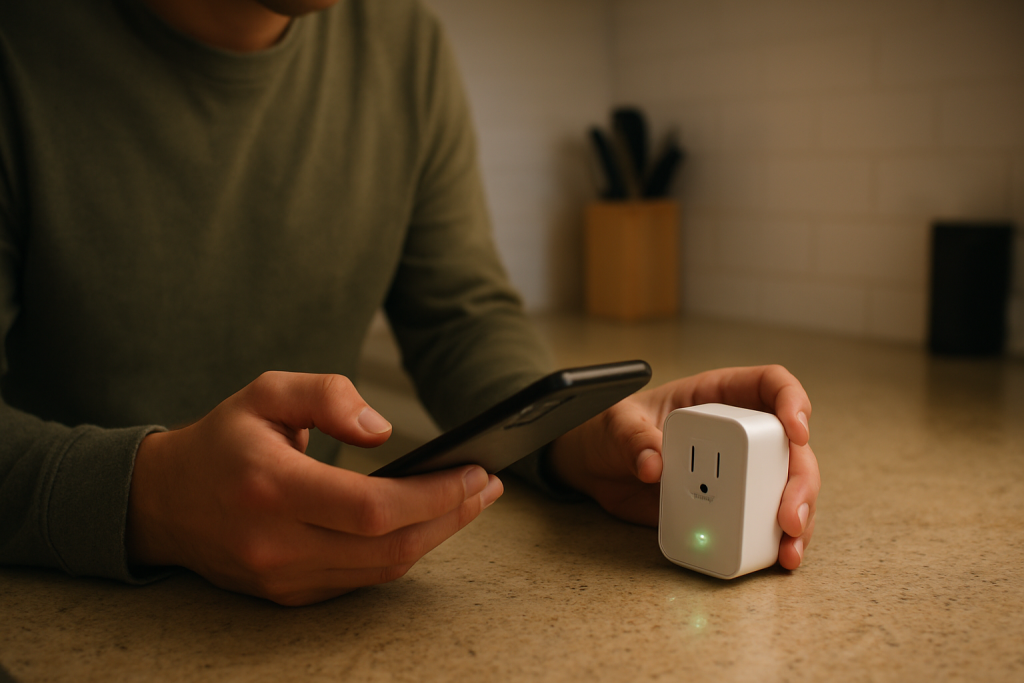
A blinking smart plug or smart switch that won’t pair is usually telling you its current “status mode.” Most blinking patterns mean one of three things: it’s in pairing mode but can’t complete setup, it’s trying to reconnect to a network/controller it already knows, or it’s stuck in an error state after a power or network change. The fastest fix comes from matching the blink pattern to what the device is actually attempting to do.
In real homes, pairing fails most often after a router change (new SSID/password, band steering to 5 GHz), a mesh WiFi node move, an app/account mismatch (wrong home/room/controller), or a hub ecosystem issue (Zigbee/Matter controller not in pairing mode or already “owns” the device).
Do these three actions first: (1) Watch the blink pattern for 15–20 seconds and note whether it’s fast, slow, or alternating. (2) Confirm whether you’re pairing a WiFi device vs a Zigbee/Matter device (the setup path is different). (3) Try pairing with your phone temporarily on 2.4 GHz and standing within a few feet of the plug/switch.
Why This Happens
Blinking is the device’s way of communicating state when it can’t fully connect. During pairing, the plug/switch must complete a chain: power stable → radio ready → pairing mode recognized by the right app/controller → network or hub join succeeds → cloud/account registration (for many WiFi devices) → device appears in the correct “home” and becomes controllable. If any link fails, many devices keep blinking to show they’re still waiting for the next step.
Common causes tied to blinking and pairing failure include:
1) The device is in pairing mode, but the phone is on the wrong WiFi band. Many WiFi plugs only support 2.4 GHz; if your phone is on 5 GHz (or the router is steering bands), the app may fail during the handoff step.
2) The device is trying to reconnect to an old network or old controller. After a router replacement or password change, some devices blink to indicate “can’t reach known network,” not “ready to pair new.”
3) The wrong pairing method is being used for the device type. A Zigbee plug paired through a hub (SmartThings, Hue bridge integrations, etc.) won’t join through a WiFi-only flow, and a Matter device may require a specific controller (Apple Home, Google Home, Alexa, SmartThings) to commission it.
Real-world scenario: A power outage resets the router and mesh nodes, the phone reconnects on 5 GHz, and the plug starts slow blinking. The app tries to add it, but the device never receives the correct credentials on 2.4 GHz, so it keeps blinking indefinitely.
Common user mistake: Starting setup from a different app than the one that originally “owns” the device (for example, trying to add a Matter plug in a second ecosystem without first checking which controller it was commissioned to).
Overlooked technical cause: Your phone blocks the app from using Local Network/Bluetooth permissions, which can prevent discovery even when the device is blinking correctly for pairing.
Most Likely Causes in Real Homes
1) Phone on 5 GHz while the plug/switch requires 2.4 GHz. The device blinks as if pairing is available, but the credential handoff fails partway through.
2) Band steering or mesh roaming confusion. The phone moves between nodes/bands during setup, and the pairing session times out while the device keeps blinking.
3) Wrong ecosystem/controller for the device type (WiFi vs Zigbee vs Matter). The device is waiting for a hub/controller join, but you’re running a WiFi add flow (or vice versa).
4) The device is already registered to an account/home. It may blink to indicate “not connected,” but the app you’re using can’t claim it because it’s owned elsewhere or still linked to the old home.
5) App/OS permission blocks discovery. Pairing fails even at close range because the app cannot scan locally or use Bluetooth when required.
Step-by-Step Fix
Identify the blink pattern and what you were doing when it started (after outage, router change, app update, moving homes). Result meaning: fast blinking usually indicates pairing mode; slow blinking often indicates “trying to reconnect” or “waiting for network”; alternating colors (on some devices) can indicate a mode like AP/hotspot setup or an error. Next if it fails: if you cannot reliably classify the blink, proceed to the device-type check in step 2 because the correct pairing path matters more than the exact cadence.
Confirm the device type and choose the correct pairing path. What to do: check the device’s packaging/app listing or the existing setup screen to see whether it’s WiFi-only, Zigbee (pairs to a hub), or Matter. Result meaning: WiFi devices must join your 2.4 GHz network; Zigbee devices must be added from the hub’s app while the hub is in “add device” mode; Matter devices must be commissioned from a Matter controller (Apple Home, Google Home, Alexa, SmartThings) and typically use Bluetooth for onboarding. Next if it fails: if you’re unsure, try adding from the original ecosystem you used before; if it used to appear under a hub (Hue/SmartThings), start there rather than the manufacturer app.
Lock your phone onto 2.4 GHz for setup and stand close to the plug/switch. What to do: temporarily disable mobile data/VPN, connect your phone to the 2.4 GHz SSID (or a separate 2.4 GHz guest SSID if you have one), and keep the phone within a few feet of the device during pairing. Result meaning: if pairing succeeds now, the blink was signaling “pairing available but network handoff failing,” usually due to 5 GHz/band steering or weak signal at the device. Next if it fails: proceed to step 4 to isolate mesh behavior or router security settings that block onboarding.
Test for mesh/roaming issues by pairing near the main router (or temporarily away from satellite nodes). What to do: plug the device in closer to the main router for pairing (for switches, keep the phone close to the installed location and instead move closer to the main router with your phone connected to the primary node if your mesh app lets you choose). Result meaning: if it pairs near the main router but fails in its usual spot, the blink was effectively “I’m trying, but the signal or roaming path is unstable,” common with mesh steering. Next if it fails: try step 5 to isolate whether the router is blocking the onboarding method (local discovery/AP mode).
Use a hotspot isolation test to separate “device problem” from “home network problem” (WiFi devices only). What to do: create a 2.4 GHz hotspot on another phone (or use a simple 2.4 GHz guest network) and attempt pairing there. Result meaning: if it pairs on the hotspot, your plug is fine and your home network is the cause (band steering, WPA3-only mode, client isolation, or DNS/firewall rules). Next if it fails: move to step 6; consistent failure on a clean hotspot suggests an account/controller ownership issue or a permission/app problem rather than WiFi quality.
Check app permissions and the “right home” selection before trying again. What to do: on your phone, ensure the app has Local Network permission (iOS), Nearby Devices permission (Android), Bluetooth permission (often required for Matter commissioning), and that you’re adding to the correct Home/Structure/Location inside the app. Result meaning: if discovery starts working immediately, the blink was “ready,” but your phone couldn’t see it due to permission blocks or the app was targeting the wrong home. Next if it fails: go to step 7 to rule out account or ecosystem ownership conflicts.
Look for ecosystem ownership conflicts (especially Matter, hubs, and shared homes). What to do: check whether the device already exists in Alexa/Google Home/Apple Home/SmartThings or the manufacturer app under another home, another user, or an old account login. If you have a shared household, confirm the correct primary account is performing setup. Result meaning: if you find a “ghost” device entry or it shows as already added, the blink may be signaling “not connected,” but pairing fails because the platform thinks it’s already claimed. Next if it fails: continue to step 8 to handle post-outage and cloud sync issues.
Run a clean post-outage recovery sequence (router/cloud sync). What to do: close the smart home apps, reboot your router (and mesh) once, wait until internet is stable, then power-cycle the plug/switch by unplugging it for 10 seconds and plugging back in. Open the app and wait 1–2 minutes before re-trying pairing. Result meaning: if blinking stops and the device appears, the failure was a timing/sync issue after DHCP reassignment or cloud session refresh. Next if it fails: proceed to step 9 to check for software/firmware mismatch that blocks onboarding.
Update the app and check for pending firmware updates (if the device is sometimes discoverable). What to do: update the controlling app (manufacturer app or hub app) and the platform app (Alexa/Google Home/Apple Home/SmartThings). If the device appears briefly, check for firmware update prompts and complete them with the phone close by. Result meaning: pairing failures that start after an app update can be caused by a required permission prompt, a new onboarding method, or a firmware compatibility step. Next if it fails: move to the reset/replace section, because repeated onboarding failures after these checks often require clearing prior pairing records.
Advanced Troubleshooting
This section is only needed if basic fixes fail.
Account/cloud issue: If the plug/switch pairs locally but later shows “offline” while still blinking or cycling, log out/in of the controlling app and confirm you’re on the same region/account as before. Cloud-linked WiFi devices can fail registration if the app session is stale or you accidentally created a second account.
Network issue: Some routers block onboarding when using WPA3-only, certain “IoT protection” modes, or client isolation on guest networks. If the device pairs on a hotspot but not at home, check for WPA2/WPA3 mixed mode availability and disable VPN/DNS-filtering temporarily during setup. Also confirm your 2.4 GHz network name/password uses simple characters; some devices fail with unusual symbols.
Firmware/software cause: A device that starts blinking after a failed update may be stuck in a partial state where it can advertise for pairing but cannot complete provisioning. In that case, stability improves when you keep the phone very close, avoid backgrounding the app, and keep the screen awake through the entire pairing process.
Configuration conflict: If pairing succeeds but behavior is wrong (random on/off, schedules not matching, status mismatch), check for duplicate automations across apps (manufacturer app plus Alexa/Google/HomeKit scenes). One routine turning it on while another turns it off can look like a “fault,” even though the device is obeying commands.
Ecosystem sync issue (Alexa/Google Home/Apple Home/Matter): If the device is controllable in the manufacturer app but not in a voice assistant, run the platform’s device discovery/sync and confirm it’s assigned to the correct home/room. For Matter, ensure you’re using the same primary controller that commissioned it; adding it again from a second controller may require the existing pairing to be removed first.
When to Reset or Replace the Device
A soft restart is simply a power cycle (unplug for 10 seconds, plug back in). Use this when the device is blinking after a router reboot, power outage, or app update. It preserves your pairing, schedules, and room assignments.
A factory reset clears pairing records so the plug/switch can be added again from scratch. Use this when the device is stuck blinking in “pairing mode” but never completes setup after you’ve confirmed the correct device type, 2.4 GHz onboarding (for WiFi), and correct controller/app permissions. After a factory reset, you may lose room/home assignment, schedules/timers, automations, and for energy-monitoring smart plugs, you may also lose historical energy data stored in the app or cloud.
Replacement becomes reasonable if the device repeatedly drops offline after successful pairing, cannot complete firmware updates even on a clean network/hotspot, or shows unstable relay behavior (turning on/off without any matching automation activity). Stop using the device and replace it immediately if you notice overheating, a burning smell, discoloration, cracking, or other visible damage.
How to Prevent This in the Future
Keep onboarding conditions consistent: use a stable 2.4 GHz network for WiFi plugs, and avoid renaming SSIDs or changing passwords frequently. If you use a mesh system, try to keep the IoT device in a spot with consistent coverage rather than on the edge between nodes.
Reduce pairing confusion across apps: decide which “owner” app controls the device (manufacturer app, SmartThings, Apple Home, Google Home, Alexa, or a hub) and keep naming and room assignments consistent. Duplicate names across platforms can cause you to control the wrong device and think pairing failed.
Avoid duplicate automations: if you set a schedule in the manufacturer app, don’t also set a similar routine in Alexa/Google Home/HomeKit unless you intentionally want layered behavior. Conflicting automations often look like random behavior or status mismatch.
Build an outage recovery habit: after a power outage, wait for the router/mesh and internet to be fully stable before cycling smart plugs. Many devices reconnect slowly and will blink during re-registration; interrupting that process can prolong the problem.
Maintain software carefully: keep the controlling apps updated, but after major phone OS updates, re-check Local Network/Bluetooth permissions. In shared homes, periodically confirm that the primary account still has ownership and that secondary users have correct permissions.
FAQ
What does fast blinking vs slow blinking usually mean?
Fast blinking usually indicates the plug/switch is in pairing mode and ready to be added, but it still needs the correct app/controller and successful network/hub join. Slow blinking more often means it’s trying (and failing) to reconnect to a previously saved network or controller, which is common after a router change, password update, or outage.
My phone finds the plug, but pairing fails at the “connecting” step. Why?
This commonly happens during the WiFi credential handoff: your phone is on 5 GHz, band steering switches you mid-setup, or the router blocks the device (WPA3-only, isolation, or filtering). If it pairs on a 2.4 GHz hotspot, the device is fine and the home network settings/steering are the likely cause.
Misconception: “Blinking means it’s broken.” Is that true?
No. Blinking usually means the device is waiting for the next step (pairing, network join, hub join, or cloud registration). The goal is to match the blink state to the correct pairing method and remove the most common blockers (wrong band, wrong controller/app, permissions, or ownership conflicts).
It pairs in the manufacturer app, but Alexa/Google Home/Apple Home can’t control it. What does that indicate?
That typically indicates an ecosystem sync or linking issue rather than a pairing failure. Re-run device discovery/sync in the voice assistant, confirm the device is in the correct home/room, and check for duplicates. For Matter devices, verify you’re using the same controller that commissioned the device and that the integration/bridge is online.
What’s left now is almost anti-climactic: the loud part is over, and the rest can settle into the background where it belongs. The problem stops feeling bigger than life, and that alone is a kind of relief.
There’s room to breathe again, even if the world stays messy. Not everything has to be a crisis to deserve attention—sometimes it just needs to be put back in its place.