Smart Bulb Wont Pair to 2.4GHz WiFi: How to Fix It
Quick Answer
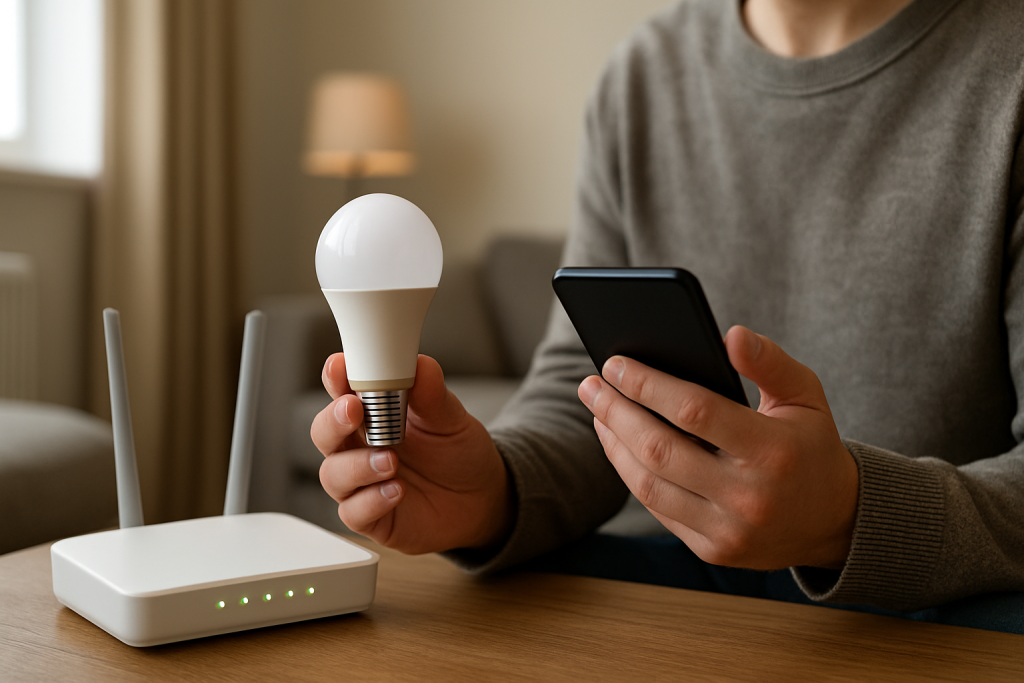
Most “won’t pair to 2.4GHz” smart bulb problems are not caused by the bulb itself. The most common real-world cause is that your phone and the bulb are not actually on the same usable 2.4GHz path during setup. This happens when a router combines 2.4GHz and 5GHz under one network name, when a mesh system steers devices between nodes, or when the app can’t reliably hand off WiFi credentials to the bulb.
A close second is a network security mismatch: many bulbs cannot join WPA3-only networks, “enhanced” security modes, or guest networks with client isolation. In practice, the bulb sees the 2.4GHz network but fails during the final join step, so it looks like “pairing failed” even though the WiFi name was correct.
Immediate diagnostics: (1) Confirm your phone is connected to 2.4GHz (not just the same WiFi name). (2) Temporarily disable VPN/private relay and turn on Bluetooth and Location for the setup app. (3) Try pairing with the phone’s hotspot (2.4GHz hotspot if available) to separate bulb issues from home network issues. This applies to WiFi bulbs, hub-based bulbs (Philips Hue via a bridge), Zigbee hubs, and Matter devices that use Wi-Fi for onboarding.
Why This Happens
Smart bulb pairing is a short, fragile process: the bulb boots into setup mode, your phone app discovers it (often using Bluetooth, local network discovery, or a temporary WiFi network), then the app passes your 2.4GHz credentials to the bulb so it can join your home network. The primary failure point in real homes is that the phone, router, and bulb are not aligned on the same 2.4GHz network behavior at the exact moment the handoff occurs.
Common, tightly related causes include:
1) Band steering and “same name” WiFi: Many routers broadcast 2.4GHz and 5GHz with one SSID. Your phone may show the correct WiFi name but be connected on 5GHz. Some setup flows require the phone to be on 2.4GHz to pass credentials correctly or to discover the bulb on the local network.
2) Mesh node mismatch: In a mesh system, your phone may connect to one node while the bulb tries to join through another node with a weaker signal or different settings. If the mesh is steering aggressively, the bulb can fail to authenticate or complete setup.
3) Security mode incompatibility: Many bulbs support WPA2-Personal but fail on WPA3-only, WPA2/WPA3 “transition” modes with certain routers, or networks using enterprise authentication. Some routers also enable features like Protected Management Frames (PMF) in a strict mode that breaks older IoT radios.
4) AP isolation or guest network rules: If you’re using a guest SSID, “device isolation,” “client isolation,” or “block LAN access,” the bulb may join WiFi but the app can’t see it to finish linking it to your account. Pairing looks stuck at the final step.
5) App permission and local discovery limitations: Modern phones restrict local network scanning. If Local Network permission, Bluetooth, or Location is off (or a VPN is active), the app may not discover the bulb or may fail to complete provisioning even when the WiFi is correct.
Real-world scenario: You stand in the kitchen near a mesh node with strong 5GHz, start pairing, and the app finds the bulb. Halfway through, your phone roams to 5GHz or to a different mesh node. The bulb tries to join 2.4GHz through the nearest node, but the app is now on a different path, so the final “bind” step fails.
Common user mistake: Entering the WiFi password correctly but selecting the wrong network name (for example, the guest network or a similarly named extender network), then repeating attempts without changing anything else.
Overlooked technical cause: Some routers automatically block “new” devices for a short time (MAC filtering, access control, or “pause new devices” features). The bulb connects, then gets blocked, so the app never sees it come online.
Most Likely Causes in Real Homes
1) Phone is on 5GHz while the bulb requires 2.4GHz during setup. The WiFi name matches, but the band does not.
2) Router security settings (WPA3-only, strict PMF, or enhanced IoT protection) prevent the bulb from completing authentication.
3) Mesh steering or node mismatch causes the bulb to join a different node than the phone, breaking discovery/account linking.
4) Guest network or client isolation blocks the app from seeing the bulb after it joins WiFi.
5) App permissions/VPN/private relay interfere with local discovery or provisioning.
Step-by-Step Fix
Confirm the bulb is truly in pairing mode and close to the router. Turn the bulb off/on using the wall switch in the pattern required by your bulb (usually multiple toggles) until it flashes or pulses. Place the lamp within 10–15 feet of the main router or primary mesh node for setup.
What the result means: If it flashes/pulses, the bulb is ready for onboarding. If it never enters pairing mode, the issue is likely the bulb state (already paired, stuck) or the switch timing.
If it fails: Power the bulb off for 30 seconds, then try the pairing toggle pattern again. If it still won’t enter pairing mode, skip to the “When to Reset or Replace” section.
Force your phone onto 2.4GHz during setup. The goal is not just “same WiFi name,” but a real 2.4GHz connection. If your router has separate SSIDs, connect your phone to the 2.4GHz SSID. If it uses one SSID, temporarily move farther from the router (5GHz drops sooner), or temporarily disable 5GHz in the router settings if you can do so safely.
What the result means: If pairing succeeds after forcing 2.4GHz, the primary issue was band steering or phone band mismatch.
If it fails: Keep the phone on 2.4GHz and continue; the next most likely issue is security/isolation or app discovery.
Turn off VPN/private relay and enable required app permissions. Disable any VPN, iCloud Private Relay (if used), and “Limit IP Address Tracking” for the WiFi network. Ensure Bluetooth is on and the app has Location and Local Network permissions. Then fully close and reopen the smart home app.
What the result means: If the bulb is discovered immediately or setup completes, the failure was local discovery/provisioning being blocked by privacy features.
If it fails: Proceed to a network security check; the bulb may be connecting but not completing authentication.
Check router security for compatibility (WPA2 vs WPA3 and PMF). In your router WiFi settings, set 2.4GHz security to WPA2-Personal (AES) if possible. Avoid WPA3-only for the 2.4GHz SSID during setup. If there is a PMF/802.11w setting, set it to “optional” rather than “required” for IoT compatibility.
What the result means: If pairing works after switching to WPA2/optional PMF, the bulb’s WiFi radio does not support the stricter security mode.
If it fails: Continue to isolation/guest network checks; the bulb might join WiFi but be unreachable to the app.
Make sure you are not using a guest network or client isolation. Pair on your main 2.4GHz network, not a guest SSID. In router settings, disable “AP isolation,” “client isolation,” “block local network,” or similar options for the SSID you are using.
What the result means: If the bulb joins and the app can finally “finish” setup, the issue was isolation preventing the phone from talking to the bulb locally.
If it fails: Test whether the bulb can join any network at all using a hotspot isolation test.
Run a hotspot isolation test to separate bulb problems from home network problems. Create a hotspot on a second phone (or temporarily use your phone’s hotspot if your bulb supports that flow). Use a simple SSID and password (letters/numbers only). Attempt pairing to the hotspot.
What the result means: If it pairs to the hotspot, the bulb is fine and your home network settings (band steering, security, isolation, mesh behavior) are the problem. If it fails on the hotspot too, the issue is likely the bulb, the app/account, or the phone’s permissions.
If it fails: Try a different phone/tablet for setup, then continue to the next steps.
Test mesh behavior: pair near the primary node, then lock the phone to that node if possible. If you have mesh WiFi, do setup next to the main router/primary node (not a satellite). Some systems allow you to temporarily pause other nodes or use a “device binding” feature. Keep the phone stationary during provisioning.
What the result means: If pairing works only near the primary node, the bulb likely has marginal 2.4GHz signal at its usual location or the mesh is steering in a way that breaks onboarding.
If it fails: Continue with a clean reboot sequence to clear stale sessions in the router and bulb.
Do a clean power cycle sequence (router first, then bulb). Unplug the router/mesh for 60 seconds, plug it back in, and wait until WiFi is fully restored. Then turn the bulb off for 10 seconds and back on, re-enter pairing mode, and try again.
What the result means: If it pairs after a clean reboot, the issue was likely a stuck DHCP lease, a router process glitch, or the bulb holding a stale network state.
If it fails: Check the app’s device status and account sync next.
Check app device status, room/location, and account sync. In the app, look for the bulb listed as “offline” or stuck in a previous home/room. Remove it from the app if it’s partially added. Confirm you are logged into the correct account and selected the correct “home” or “location” (common in ecosystems that support multiple homes). Then try adding again.
What the result means: If the bulb appears but can’t be controlled, it may already be linked to your account but on the wrong home/room, or the app is stuck on a partial setup record.
If it fails: Temporarily disable automations and schedules that might be turning the bulb off or changing its state during setup.
Verify schedules, scenes, and group sync are not interfering. If the bulb is in a group (or you are adding it into an existing room), temporarily disable routines/automations involving that room. For hub ecosystems (Zigbee/Philips Hue), ensure the hub is online and the app shows it as connected before adding bulbs.
What the result means: If setup completes only after disabling routines, an automation was changing the bulb state mid-provisioning or immediately after joining.
If it fails: Move to advanced troubleshooting for firmware, cloud, and configuration conflicts.
Advanced Troubleshooting
This section is only needed if basic fixes fail.
Account or cloud service issues
If the bulb joins WiFi but the app can’t finish linking, it often means the app cannot reach the vendor cloud or your account token is stale. Sign out of the app, reboot the phone, sign back in, and try again. If the app has a “region” or “data center” setting, confirm it matches where your account was created. If other devices in the same ecosystem are also failing to update status, the issue is more likely account/cloud than WiFi.
Network issues that specifically block onboarding
Some routers have security features that are helpful but can break smart device onboarding: “IoT protection,” “intrusion prevention,” DNS filtering, or parental controls applied to new devices. If you can, temporarily disable those features for 10 minutes during setup. Also check whether “Pause internet” or access control is enabled for unknown devices. If pairing works with protections off, re-enable them and add an exception for the bulb.
Firmware/software mismatch
If you are using a hub ecosystem (Zigbee bridge, Matter controller, or a lighting bridge), confirm the hub/controller firmware is current and the controlling app is updated. For Matter devices, onboarding can fail if the controller (phone/home hub) is out of date or if permissions for local network discovery are blocked. Update the phone OS and the smart home app, then retry.
Configuration conflicts: groups, scenes, permissions, and multiple controllers
Bulbs can behave oddly when they are controlled by multiple apps or linked through multiple platforms (for example, added to a vendor app and also imported into another platform). If pairing succeeds but control is inconsistent, remove the bulb from secondary platforms temporarily and complete setup in one place first. If the home has multiple administrators, confirm you are using an admin account; limited-permission users can sometimes discover devices but fail to add them.
When to Reset or Replace the Device
A soft restart is simply turning the bulb off for 10–30 seconds and back on. This clears minor glitches but keeps the bulb’s saved network and account link. A factory reset returns the bulb to out-of-box state so it forgets WiFi credentials, rooms, and any platform links. After a factory reset, you will need to add it again and rebuild any scenes, schedules, or automations that referenced it.
Use a factory reset when the bulb is stuck in a partial setup (shows “offline” but won’t re-add), when it was previously paired to a different router/account, or when it won’t enter pairing mode reliably. Follow the reset method in the bulb’s instructions (usually a specific on/off toggle pattern). Do not open the bulb or attempt repairs.
Replace the bulb if it overheats, smells like burning plastic, has visible damage, flickers excessively even when not connected to any app, or repeatedly drops offline across multiple networks and phones after resets. If you notice heat that is unusual for an LED bulb, stop using it and let it cool before handling.
How to Prevent This in the Future
Keep the 2.4GHz environment predictable for smart devices. If your router supports it, consider a dedicated 2.4GHz SSID for smart home devices with WPA2-Personal security and a simple name/password. Avoid frequently changing WiFi names or passwords, because bulbs often do not recover gracefully without re-provisioning.
Place bulbs and lamps where 2.4GHz signal is stable. Smart bulbs are small radios inside metal fixtures and enclosed shades; they may have weaker reception than phones. If a bulb works during setup near the router but fails in its final location, the fix is usually better WiFi coverage (or moving the mesh node), not repeated pairing attempts.
Manage automations carefully. After adding new bulbs, wait to re-enable schedules and scenes until you confirm the bulb stays online for a day. After power outages, give the router/mesh time to fully stabilize before toggling bulbs rapidly; repeated power cycling can confuse pairing state and trigger setup mode on some models.
Keep apps and hubs updated. Many pairing issues are fixed by app updates, controller firmware updates, and phone OS updates that improve local network permissions and device discovery. When you update the router’s security features, expect to re-check IoT compatibility settings if devices suddenly stop joining.
FAQ
My WiFi is 2.4GHz, so why does the bulb still say it can’t connect?
In many homes the WiFi name is shared by 2.4GHz and 5GHz. Your router may be broadcasting 2.4GHz, but your phone may be connected on 5GHz during setup, or the mesh may be steering devices between nodes. For pairing, the important detail is that the phone and bulb can complete the handoff on a compatible 2.4GHz connection without isolation or strict security modes.
Does the bulb need the internet to pair, or just WiFi?
Most WiFi bulbs need both: they join your WiFi first, then the app links them to your account through the internet. If the bulb joins WiFi but setup fails at the final step, it can indicate a cloud/account problem, DNS filtering, or router security features blocking the bulb’s outbound connection.
Is it okay to pair the bulb on a guest network?
It often fails. Guest networks commonly enable client isolation, which prevents your phone from discovering and finishing setup with the bulb. Pair on the main network first. If you later move the bulb to a restricted network, confirm that local device discovery and control are still allowed for your setup.
Misconception: “If my phone can use the WiFi, the bulb should too.”
Phones support newer security standards and handle roaming and band steering better than many small IoT radios. A bulb may fail on WPA3-only, strict PMF, or when signal is marginal inside a fixture. Success on a phone does not guarantee compatibility for a smart bulb during onboarding.
My bulb pairs, then goes offline a few minutes later. What does that usually mean?
That pattern usually points to mesh steering, weak 2.4GHz signal at the bulb’s location, or access control filtering that blocks the bulb after it first appears. Test by moving the lamp closer to the primary node and watching whether it stays online. If it does, the long-term fix is improving stable 2.4GHz coverage where the bulb is installed.
What’s strange is how quickly the noise fades when the facts finally line up. The whole thing starts to feel less like a problem to solve and more like weather that you can actually predict.
There’s a kind of relief in that—no big fanfare, just a little room to breathe. After that, the days move on with fewer little stutters and more steady momentum.