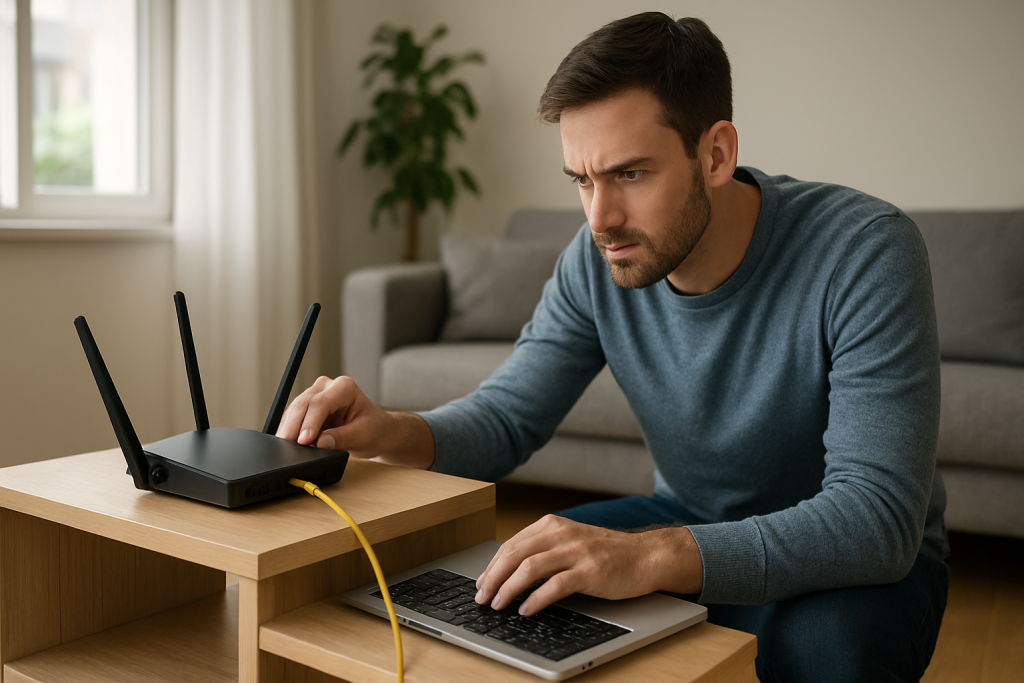
WiFi Keeps Asking You to Sign In: How to Stop Captive Portal Loops
Quick Answer
If your phone, laptop, or smart device keeps popping up a “Sign in to Wi‑Fi” message at home, you’re usually stuck in a captive portal loop. Your device believes the network requires a web login (like a hotel), but your router or ISP gateway is misdirecting the connection checks that confirm “this is normal internet.”
To stop the loop, first confirm you’re on the correct home SSID, then power-cycle the modem/router, forget and rejoin the network, and ensure your device is getting a valid IP address from DHCP. If it still loops, the most common home cause is a router configuration issue (DNS, DHCP, or security filtering) or an ISP modem-router combo that’s partially online and intercepting traffic.
Why This Happens
A captive portal is the web page that appears when a network wants you to accept terms or sign in before you can browse. In a home network, you typically should never see this. The “loop” happens when your device repeatedly runs a connectivity test (for example, checking a known URL) and gets an unexpected response—often a redirect to a login page, a blocked page, or a DNS result that doesn’t match what it expects.
The dominant root cause in homes is misdirection: something on the network is intercepting or rewriting traffic in a way that resembles a captive portal. Common culprits include ISP gateways that aren’t fully provisioned, routers with DNS filtering or parental controls that redirect unknown sites, and mesh systems that have a split-brain moment where the WiFi is up but internet routing is unstable.
Home network instability makes this worse for smart devices. Many smart plugs, cameras, and speakers only support 2.4GHz and have simpler network stacks. If your router is steering devices between 2.4GHz and 5GHz, or if the 2.4GHz signal is noisy (neighbors, microwaves, baby monitors), the device may drop and reconnect repeatedly—triggering the portal check over and over.
Real-world scenario: in an apartment with thick walls and dozens of nearby networks, your phone may cling to a weak 5GHz signal from the living room router, while your smart camera on 2.4GHz is barely hanging on. The router keeps reassigning addresses or the connection flaps, and your devices interpret the inconsistent responses as a captive portal that never completes.
One common user mistake is tapping “Cancel” on the sign-in prompt and continuing to use apps that still partially work (because they’re cached). That leaves the device in a half-connected state and can prolong the loop. An overlooked technical cause is an IP conflict: two devices end up with the same local address (often from manual/static IP settings or a misbehaving device), confusing the router and causing redirects or failed connectivity checks.
Step-by-Step Fix
Confirm you’re joining the correct network (and not a “setup” SSID). Check the WiFi name carefully. Some routers broadcast multiple SSIDs (2.4GHz and 5GHz) or a temporary “Setup” network. If you recently changed the SSID/password, make sure your device isn’t auto-joining an old network with a similar name.
Power-cycle in the right order (modem first, then router). Unplug your modem (or ISP gateway) and router/mesh nodes. Wait 60 seconds. Plug in the modem/gateway first and wait until it shows a stable online status. Then power the router/mesh back on. Captive portal loops often happen when the router is up but the WAN side is not fully authenticated, causing redirects.
Forget the WiFi network and rejoin. On your device, “Forget” the network, then reconnect and re-enter the password. This clears cached captive portal states and old security parameters. If prompted to sign in, complete it once; if the page is blank or keeps reappearing, continue to the next steps.
Check that DHCP is working (you need a valid local IP). On your device’s WiFi details, look for an IP address like 192.168.x.x, 10.x.x.x, or 172.16–31.x.x. If you see 169.254.x.x, your device didn’t get an address from DHCP and will often trigger captive portal behavior. Fix by rebooting the router, disabling any “DHCP off” setting, and removing any manual/static IP set on the device.
Disable VPN, private DNS, and security apps temporarily. VPNs and “secure DNS” features can interfere with the connectivity check and make the device think it’s behind a captive portal. Turn off VPN, iCloud Private Relay (if applicable), Private DNS/DoH settings, and any ad-blocking DNS apps. Reconnect to WiFi and see if the sign-in prompt stops.
Switch bands: test 2.4GHz vs 5GHz intentionally. If your router uses the same SSID for both bands, temporarily split them (or use a guest SSID on one band) and test. Use 5GHz near the router for speed and stability if signal is strong; use 2.4GHz for longer range through walls. Portal loops can happen when band steering keeps bouncing a device, especially in apartments with interference.
Try a practical test: run a simple reachability check. On a phone or laptop, open a browser and visit a plain HTTP site such as http://neverssl.com. If it redirects to a login page or your router’s page, you’re seeing interception consistent with a captive portal loop. Then try loading your router’s gateway IP (often 192.168.0.1 or 192.168.1.1) to confirm local routing is working.
Fix DNS settings on the router (a common configuration trigger). If your router is set to a custom DNS provider, temporarily switch to “Automatic/ISP DNS” or a well-known public DNS provider. Misconfigured DNS, DNS filtering, or a failing upstream DNS can cause the connectivity check domain to resolve incorrectly, triggering repeated sign-in prompts.
Check for IP conflicts and address pool issues. If you have many smart devices, your DHCP pool may be too small (for example, only 50 addresses). Expand the pool in the router settings. Also look for devices with manually assigned IPs that overlap DHCP. An IP conflict can cause intermittent connectivity that looks like a portal loop because traffic goes to the wrong device.
Advanced Troubleshooting
If the basic steps don’t stop the captive portal loop, focus on what could be intercepting or rewriting traffic between your device and the internet.
Check the WAN status and double-NAT/bridge mode on ISP modem-router combos
ISP gateways often combine modem and router functions. If you added your own router behind it, you might have double NAT or conflicting DHCP servers. In some failure states, the ISP gateway may present a “walled garden” page for account activation or outage notices, which your devices interpret as a captive portal.
What to do: confirm whether your ISP gateway is in bridge mode (if you use your own router) or whether your personal router is in access point mode (if you want the ISP gateway to route). Only one device should hand out IP addresses via DHCP on the same network.
Look for router features that redirect traffic
Several router settings can mimic captive portal behavior:
Parental controls/content filters: Some redirect blocked sites to a notice page. If the connectivity check domain is blocked or rewritten, you’ll get repeated sign-in prompts.
DNS-based ad blocking: If enabled at the router, it can break the OS connectivity test.
Guest network isolation: Misconfigured guest rules can allow WiFi association but block DNS or HTTP/HTTPS, causing portal detection loops.
Firmware and software causes
Router firmware bugs can cause intermittent DNS proxy failures, DHCP hiccups, or WAN flaps—each can trigger portal loops. Update your router/mesh firmware to the latest stable release. If the issue started right after an update, consider rolling back (if supported) or toggling off experimental features like “AI protection,” “smart connect,” or advanced traffic inspection.
On phones and laptops, OS updates can also change captive portal detection behavior. If only one device is affected, update the device OS, then reset network settings (as a last resort) to clear stored portal states and certificates.
Interference, distance, and roaming instability
Captive portal loops can be a symptom of frequent disconnects, not the root problem. In a home with thick plaster walls or a router tucked into a cabinet, the signal may be strong enough to connect but too weak for stable internet traffic. Test by standing within 10–15 feet of the router on 5GHz. If the loop disappears up close, you likely have a coverage issue.
For mesh systems, verify node placement and backhaul quality. A weak wireless backhaul can cause intermittent WAN reachability that looks like a portal loop on clients.
When to Reset or Replace the Device
Resetting is appropriate when the captive portal loop affects only one device and other devices work normally on the same WiFi. Before resetting, remove VPN/private DNS profiles, forget the network, and confirm the device is set to obtain IP and DNS automatically.
Consider a network settings reset on the device if:
1) the device repeatedly shows “Sign in” on multiple home networks, 2) it keeps a 169.254.x.x address even when other devices get normal IPs, or 3) it has old management profiles (work/school) that enforce proxy or DNS rules.
Replace or retire the device (or its WiFi adapter) if it cannot maintain a stable connection on either 2.4GHz or 5GHz near the router, or if it’s an older smart device with outdated WiFi security support that struggles with modern WPA3/WPA2 mixed modes. For smart home gear that only supports 2.4GHz, persistent looping can also indicate the device’s WiFi radio is failing—especially if it used to work in the same location and now doesn’t.
How to Prevent This in the Future
Keep your home network from drifting into captive portal loop conditions by making connectivity predictable and reducing interception points.
Stabilize routing and DHCP: Ensure only one router is doing DHCP. If you use an ISP gateway plus your own router, choose bridge mode or access point mode to avoid conflicts. Expand the DHCP pool to fit your number of smart devices and avoid manual IP assignments unless you track them carefully.
Use sensible band strategy: Put smart home devices on 2.4GHz for range and compatibility, and keep phones/laptops on 5GHz when close to the router. If band steering causes frequent bouncing, split SSIDs or tune roaming settings so devices don’t flap between bands.
Reduce interference and improve placement: Place the router centrally, away from microwaves, cordless phone bases, and dense metal objects. In apartments, choose a less congested channel (often 1/6/11 on 2.4GHz) and consider a mesh or wired access point for thick-wall layouts.
Be careful with filtering features: DNS filtering, parental controls, and security inspection can inadvertently break the connectivity check and create portal loops. If you enable these features, test onboarding for phones and smart devices afterward.
Maintain firmware and document changes: Update router firmware periodically, but avoid stacking multiple changes at once. A common mistake is changing DNS, enabling a filter, and renaming SSIDs on the same day—then not knowing what triggered the loop. Make one change, test, then proceed.
FAQ
Why does the sign-in prompt appear even though I’m at home and know my WiFi password?
The prompt isn’t asking for your WiFi password. It appears when your device thinks it must pass a captive portal check to reach the internet. If the router, ISP gateway, DNS, or a filter redirects the connectivity test, the device keeps asking you to “sign in” even on a normal home network.
Why do my smart devices fail while my phone seems mostly fine?
Many smart devices use 2.4GHz only and have less tolerant WiFi stacks. If 2.4GHz is congested or the router is far away, they may reconnect repeatedly and re-trigger portal detection. Phones may appear “fine” due to cached apps, cellular fallback, or stronger radios, even while the network is unstable for IoT devices.
Can DHCP or an IP conflict really cause a captive portal loop?
Yes. If DHCP fails, the device may assign itself a 169.254.x.x address and won’t reach the internet, which often triggers the sign-in workflow. If two devices share the same IP (an IP conflict), traffic can go to the wrong device or fail intermittently, leading to repeated connectivity checks and recurring portal prompts.
Should I use 2.4GHz or 5GHz to stop the loop?
Use 5GHz when you are close to the router and want the most stable, high-throughput link. Use 2.4GHz when you need range through walls. If the loop is caused by roaming or band steering, splitting SSIDs and choosing one band deliberately is often the quickest way to confirm and reduce the problem.
What’s the fastest way to confirm it’s a captive portal loop and not just “no internet”?
Connect to WiFi, then open a browser to http://neverssl.com. If you’re redirected to a login/notice page or a router/ISP page instead of a plain site, traffic is being intercepted in a way consistent with a captive portal loop. Then check your device’s IP address to confirm DHCP is providing a valid local address.
There’s a moment after the last line where everything feels a little less loud. Not dramatic, not cinematic—just the sense that the air has cleared enough to breathe normally again.
What’s left now is mostly motion: day to day, decision to decision. The problem doesn’t get to linger in the margins anymore.