WiFi Signal Looks Strong but Smart Devices Lag: The Real Causes
Quick Answer
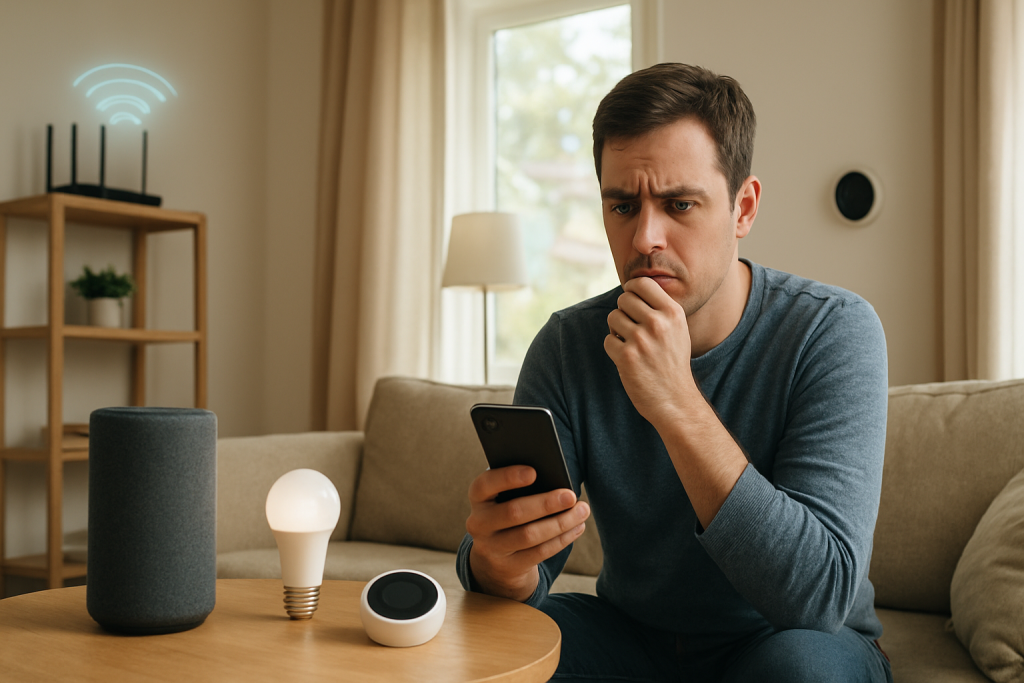
If your phone shows a strong WiFi signal but smart devices (cameras, plugs, speakers, thermostats) lag, buffer, or miss commands, the most common reason is not “weak WiFi”—it’s packet loss. Packet loss happens when interference, congestion, or WiFi retries corrupt or drop data frames, forcing retransmissions that add delay and make devices appear slow or unreliable.
Smart devices are especially sensitive because many use 2.4GHz radios with small antennas, low-power transmitters, and simpler chipsets. They may still show “connected” with strong signal, yet experience high retry rates, unstable roaming, or brief disconnects that you notice as lag, stuttering audio, delayed app updates, or missed automations.
Why This Happens
WiFi “bars” mainly reflect received signal strength (RSSI), not the quality of the link. A strong RSSI can coexist with a noisy channel, heavy contention, or interference that causes corrupted frames. When frames are corrupted, WiFi retransmits them. Enough retransmissions look like lag: commands take seconds, video streams drop resolution, and devices fall “offline” intermittently.
Packet loss and retries are common in homes because WiFi is a shared, half-duplex medium: only one device effectively talks at a time per channel. If neighbors, appliances, or your own devices create interference, your router and clients spend more time retrying than delivering new data.
Interference that causes packet loss (even with strong signal)
On 2.4GHz, interference is often the main culprit. Only three non-overlapping channels (1, 6, 11) exist in most regions, so nearby networks collide and force backoff/retries. Common household sources also inject noise: microwave ovens, older Bluetooth devices, baby monitors, cordless phones, and some USB 3.0 hubs/cables near a router.
A real-world scenario: in an apartment building, your router may show excellent signal to a smart plug 20 feet away, but dozens of neighboring routers share the same 2.4GHz channel. The plug’s packets collide repeatedly, so the app “spins” or automations trigger late even though the device never looks disconnected for long.
2.4GHz vs 5GHz: why “strong” can still be slow
2.4GHz travels farther and penetrates walls better, so it often shows stronger signal. But it is more crowded and more vulnerable to interference, which increases packet loss. 5GHz usually has more available channels and less interference, so it can be faster and more stable at short to medium range, but it drops off faster through thick walls and floors.
Many smart devices only support 2.4GHz. That means you can have a strong 2.4GHz signal and still suffer lag if the channel is congested or noisy. Meanwhile, your phone on 5GHz may feel fast, creating the impression that “WiFi is fine” while smart devices struggle.
Router configuration issues that amplify instability
Some settings can increase packet loss or make smart devices roam or reconnect unnecessarily. Band steering can push borderline devices between 2.4GHz and 5GHz. “Smart connect” features sometimes work well for phones but confuse low-cost IoT radios. Overly aggressive channel width (40MHz on 2.4GHz) can overlap neighbors and worsen collisions. Airtime fairness can also starve slow IoT clients on crowded networks.
Firmware/software causes
Router firmware bugs can cause periodic stalls, multicast flooding, or unstable WiFi drivers that look like random lag. Smart devices can also have firmware that mishandles power-saving states, leading to delayed wakeups or missed packets. A common pattern is “it works after a reboot for a day, then gets laggy again,” which often points to firmware issues, memory leaks, or unstable radio behavior.
Overlooked technical cause: DHCP delays or IP conflicts
DHCP is how devices get an IP address. If your router’s DHCP pool is too small, leases are expiring too quickly, or you have an IP conflict (two devices trying to use the same address), devices may appear connected to WiFi but fail to reliably reach the network. This can look like lag, timeouts, or “device offline” messages that come and go.
One common user mistake
A frequent mistake is placing the router next to interference sources (behind a TV, inside a cabinet, next to a soundbar, near a microwave, or beside a mesh node backhaul device) because it “looks tidy.” The signal can still read strong nearby, but the noise floor rises and packet loss increases—especially on 2.4GHz.
Step-by-Step Fix
Confirm it’s packet loss, not just slow internet.
Stand near the affected smart device with a phone or laptop on the same WiFi band (ideally 2.4GHz if the device is 2.4-only). Run a continuous ping to your router’s LAN IP (often 192.168.0.1 or 192.168.1.1). If you see timeouts or highly variable latency (for example, 2ms jumping to 200–1000ms), that points to WiFi packet loss/interference rather than ISP speed.
Reduce interference and improve placement.
Move the router higher and more central, away from TVs, metal shelves, aquariums, and thick masonry walls. Keep it several feet from microwaves, cordless phone bases, and USB 3.0 hard drives/hubs. If you use an ISP modem-router combo in a corner cabinet, test with the cabinet door open and the unit moved into open air; many “mystery lag” cases improve immediately.
Fix 2.4GHz channel and channel width.
Log into the router and set 2.4GHz to 20MHz channel width (not 40MHz). Then manually select channel 1, 6, or 11—choose the least crowded using a WiFi analyzer app on your phone. This reduces overlap and retransmissions, often improving smart device responsiveness more than any speed upgrade.
Split SSIDs (temporarily) to stop band steering issues.
If your router uses a single network name for both bands, create separate SSIDs like “Home-2.4” and “Home-5.” Connect smart devices to the 2.4GHz SSID and keep phones/laptops on 5GHz when possible. This prevents devices from bouncing between bands or attempting a weak 5GHz connection that increases retries.
Reboot in the right order and update firmware.
Power off modem and router for 30 seconds, then power on the modem first, wait until it’s fully online, and then power on the router. After that, check for router firmware updates and apply them. Also update the smart device firmware in its app. Firmware fixes frequently address WiFi stability, multicast handling, and reconnection behavior.
Check for DHCP pool issues and IP conflicts.
In the router’s LAN/DHCP settings, ensure the DHCP pool is large enough for all devices (including guests). If you have many smart devices, expand the pool (for example, .100 to .250). If you set static IPs on devices manually, avoid overlaps with the DHCP range or convert them to DHCP reservations on the router to prevent conflicts.
Test load and reduce chatter.
Temporarily pause high-traffic activities (cloud backups, large downloads, 4K streaming) and see if smart devices become responsive. If they do, you may be dealing with airtime contention, not raw signal. Consider enabling QoS (if available) or limiting upload-heavy tasks that can increase latency and packet loss for smaller devices.
Add coverage the right way if distance is the problem.
If the device is far away or behind thick walls, add a mesh node or access point closer to the device rather than relying on a single router at maximum power. Avoid cheap repeaters when possible; they often cut throughput and can increase latency. A wired access point or mesh with a strong backhaul reduces retries and stabilizes IoT traffic.
Advanced Troubleshooting
Measure retries and channel quality
If you have access to your router’s advanced stats, look for metrics like “TX retries,” “CRC errors,” or “PHY errors.” A high retry rate indicates interference or poor link quality even when RSSI looks good. On some systems, you can also view per-client RSSI and negotiated data rate; a device showing strong RSSI but very low data rate or frequent rate changes is often suffering from noise or contention.
Check for multicast/broadcast storms (overlooked but impactful)
Many smart home ecosystems rely on multicast discovery (mDNS/SSDP). If a router mishandles multicast or your network has excessive broadcast traffic, low-power devices can lag or fail to respond. Symptoms include devices that are “online” but not discoverable, delayed status updates, or voice assistants that intermittently can’t find devices. Updating router firmware and disabling obscure “IGMP proxy” tweaks (unless required by your ISP TV service) can help. If your router offers “IGMP snooping,” it can improve multicast efficiency on some networks.
Inspect 2.4GHz-only device behavior
Some IoT devices use aggressive power saving and wake at intervals. If the WiFi environment is noisy, they may miss beacons or buffered frames and appear laggy. Try disabling “eco” or “power saving” modes in the device settings if available, or ensure the device is not right next to interference sources (for example, a smart plug behind a refrigerator or a camera mounted near a metal gutter).
Router features that can hurt IoT stability
If you’ve tried the basic fixes, test these changes one at a time:
Disable “Airtime Fairness” if IoT devices disconnect or lag under load. Disable “802.11ax/Wi-Fi 6 mode” on 2.4GHz if your router allows it and you suspect compatibility issues with older clients. Avoid WPA3-only mode if some devices are older; use WPA2/WPA3 mixed mode if needed. Also confirm the 2.4GHz channel width remains 20MHz after reboots or “auto optimize” routines.
Practical testing method: isolate with a temporary SSID
Create a temporary 2.4GHz SSID that only your problematic smart device uses. Keep it on a clean channel with 20MHz width. If the device becomes stable, the root cause is likely contention from other clients or channel overlap rather than the device itself. If it still lags, the cause is more likely distance, interference near the device, or device firmware/hardware.
When to Reset or Replace the Device
Reset the smart device (and re-add it to your app) when it repeatedly shows incorrect status, refuses to reconnect after WiFi changes, or behaves normally only right after you power-cycle it. A reset clears stored network parameters and can fix corrupted WiFi profiles.
Replace the device if it consistently performs poorly in a known-good WiFi environment (for example, it lags even when placed near the router on a clean 2.4GHz channel), or if it only supports older security or has a history of firmware issues that are no longer updated. Also consider replacement if the device has a visibly weak radio design (tiny internal antenna, installed inside a metal enclosure) and you can’t relocate it.
How to Prevent This in the Future
Design your home WiFi around stability, not just signal strength. Keep the router in open air, centrally located, and away from interference sources. For apartments, assume 2.4GHz is crowded and proactively choose channel 1, 6, or 11 with 20MHz width to reduce collisions and packet loss.
Use 5GHz for phones, laptops, and streaming boxes when possible, and reserve 2.4GHz for smart devices that need range. If your router supports separate SSIDs, keep them split or ensure band steering is gentle and tested with your IoT devices. Avoid placing smart devices in “RF-hostile” spots like behind TVs, near large metal appliances, or inside electrical panels.
Maintain your network: update router firmware quarterly, keep the DHCP pool sized for growth, and use DHCP reservations for critical devices to avoid IP conflicts. If you add many smart devices, consider adding a dedicated access point or mesh node to reduce contention and improve airtime efficiency rather than pushing a single router to cover everything.
FAQ
Why do my smart devices lag but my phone is fast on WiFi?
Your phone may be on 5GHz with cleaner channels and better antennas, while many smart devices use 2.4GHz and cheaper radios. Even with strong signal, 2.4GHz interference can cause packet loss and retries that show up as lag for IoT devices.
Does “strong signal” guarantee a stable connection?
No. Strong signal only indicates the device can hear the router well. Stability depends on interference, channel congestion, and error rates. A strong but noisy link can drop packets and force retransmissions, creating delays and timeouts.
Should I use Auto channel selection on my router?
Auto can work, but it often chooses poorly in crowded environments or changes channels at inconvenient times. For 2.4GHz, manually setting channel 1, 6, or 11 and using 20MHz width is frequently more stable for smart devices.
Can DHCP or IP conflicts really cause “lag”?
Yes. If a device can’t reliably get or keep a valid IP address, it may stay connected to WiFi but fail to communicate consistently, which looks like lag or random offline states. Expanding the DHCP pool and using DHCP reservations helps prevent conflicts.
Will adding a WiFi extender fix smart device delays?
Sometimes, but extenders can add latency and increase interference if they retransmit on the same channel. A better fix is a properly placed access point or mesh node with a strong backhaul (ideally wired), plus clean 2.4GHz channel settings to reduce packet loss.
What’s left isn’t invention, it’s recognition—like finally putting the right name to a recurring feeling. The work is quieter now, less trying to force sense and more just letting it land where it belongs.
There’s a small relief in that. Not everything needs to be complicated to matter, and this time the noise can fade without losing the point.