Smart Devices Keep Reconnecting All Day: What Usually Causes It
Quick Answer
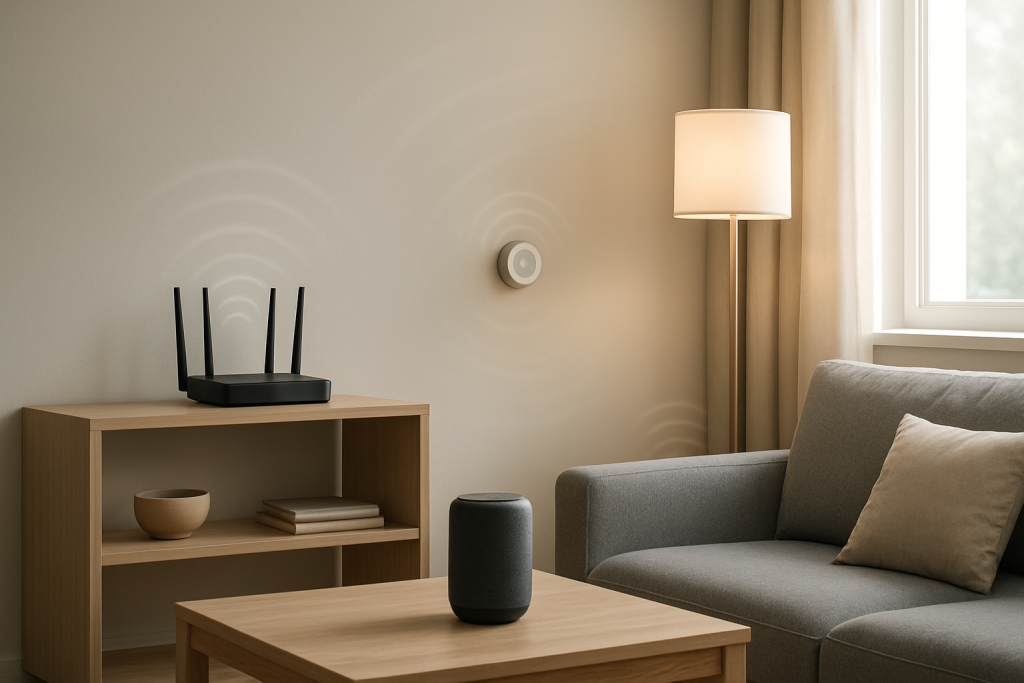
If your smart plugs, cameras, speakers, or thermostats keep disconnecting and reconnecting throughout the day, the most common cause is intermittent signal fluctuation: the WiFi signal at the device is repeatedly dipping below a usable threshold and then recovering. Smart devices tend to have small antennas and conservative power-saving radios, so they “fall off” the network sooner than phones or laptops when signal quality wobbles.
Signal fluctuation is usually triggered by distance, interference, or obstacles (thick walls, metal, appliances), and it can be amplified by router settings like band steering, auto channel changes, or aggressive roaming features. Fixing the underlying instability—rather than repeatedly rebooting the device—is what stops the reconnection cycle.
Why This Happens
Smart devices often use 2.4GHz WiFi because it travels farther and penetrates walls better than 5GHz. That sounds ideal, but 2.4GHz is also crowded: neighboring routers, Bluetooth, baby monitors, and even some USB 3.0 devices can raise noise levels. When noise rises or the signal drops, your device may still “see” the network name but fail to maintain a clean link, causing repeated reconnects.
Intermittent signal fluctuation is different from a total outage. Your internet may look fine on a laptop in the same room, yet a smart device in a corner or behind furniture can be hovering right at the edge of reliable coverage. Tiny changes—someone closing a door, a microwave running, a neighbor’s router changing channels, or a mesh node shifting backhaul—can push the signal-to-noise ratio back and forth all day.
A real-world example: in an apartment building, a smart speaker near the kitchen keeps reconnecting between 6–9 PM. During that time, neighbors are home, WiFi congestion spikes, and the microwave is used frequently. The speaker’s 2.4GHz signal quality fluctuates just enough to trigger repeated re-associations, while your phone on 5GHz closer to the router seems unaffected.
Router configuration can also create “artificial” fluctuation. Band steering (one SSID for 2.4GHz and 5GHz) may repeatedly nudge a borderline device between bands. Auto channel selection can move your network to a new channel after a scan, briefly dropping clients. Some routers enable features like “Smart Connect,” “Airtime Fairness,” or fast roaming that can be great for phones but destabilizing for low-power IoT devices.
Firmware and software matter too. Router firmware bugs can cause periodic WiFi restarts, memory leaks, or unstable radio behavior. On the device side, outdated firmware can mishandle roaming, power saving, or WPA security rekeys. These issues often look like “random reconnects” but follow a pattern (every few hours, after heavy traffic, or when many devices are online).
An overlooked technical cause is IP addressing churn. If your router’s DHCP server is unstable, misconfigured, or running out of addresses, devices may reconnect and fail to obtain a valid IP, then retry repeatedly. A related issue is an IP conflict: two devices end up trying to use the same local IP address, causing brief connectivity failures that prompt reconnect attempts. This is more common when people set manual/static IPs without reserving them properly in the router.
A common user mistake is repeatedly power-cycling the smart device without checking WiFi placement or router behavior. Reboots can temporarily “fix” symptoms by forcing a fresh connection, but if the signal keeps fluctuating, the reconnecting will return as soon as conditions change again.
Step-by-Step Fix
-
Confirm it’s WiFi instability, not the service itself. When the smart device reconnects, check whether other devices lose WiFi at the same time. If only the smart device drops while phones and laptops stay connected, that points strongly to local signal fluctuation at the device’s location. If everything drops together, focus on router/ISP stability in later steps.
-
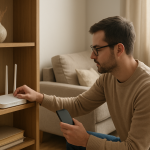
Measure signal quality at the device location (practical test). Stand where the smart device sits and use a WiFi analyzer app (or your router’s client signal readout) to check RSSI/Signal. As a rough guide, many IoT devices become unreliable around -70 dBm and worse, especially with interference. Also note whether the signal jumps around by 10 dB or more over time—big swings are a hallmark of intermittent fluctuation.
-
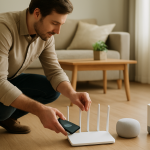
Reduce distance and obstacles first. Temporarily move the device closer to the router (or move the router higher and more central). If reconnects stop when the device is closer, you’ve confirmed a coverage/quality issue. Keep the router away from thick walls, metal shelving, aquariums, and appliances. Even rotating the router or moving it 3–6 feet can change reflections and improve stability.
-
Prefer 2.4GHz for most smart devices, but make it stable. If your router uses one combined network name for 2.4GHz and 5GHz, create separate SSIDs (for example, “Home-2.4” and “Home-5”) and connect smart devices to 2.4GHz. Many IoT devices do not handle band steering well and will reconnect repeatedly when the router tries to move them.
-
Manually set a clean 2.4GHz channel and channel width. In the router’s WiFi settings, set 2.4GHz to channel 1, 6, or 11 (choose the least congested) and set channel width to 20 MHz. Avoid “Auto” if your router frequently changes channels. Channel hopping can look like random reconnects, especially during busy hours in apartments.
-
Disable settings that can destabilize IoT clients. Temporarily turn off features like Smart Connect/band steering, Airtime Fairness, and fast roaming (802.11r/k/v) if available. These can cause low-power devices to be de-prioritized or forced to roam, leading to repeated reconnects.
-
Update router firmware and the smart device firmware. Update the router first, then the device. Router firmware fixes often improve radio stability and DHCP behavior. For the device, use the manufacturer app to check updates. If updates are available, install them and monitor for a full day because intermittent issues can be time-based.
-
Check DHCP behavior and prevent IP conflicts. In the router, confirm DHCP is enabled and the address pool is large enough (for example, 192.168.1.100–192.168.1.250). If you have many devices, expand the pool. If you’ve set any manual/static IPs on devices, remove them unless you also created DHCP reservations that match. For frequently dropping smart devices, create a DHCP reservation so they always get the same IP without collisions.
-
Test for interference sources and timing patterns. Note whether reconnects correlate with microwave use, cordless phones, Bluetooth hubs, or USB 3.0 hard drives near the router. As a test, turn off suspected sources for 30–60 minutes and watch whether reconnects stop. Also check if the issue happens at the same time daily, which can indicate congestion or scheduled router tasks.
-
If you use an ISP modem-router combo, reduce complexity. Many ISP gateways have weaker WiFi radios and limited tuning. If you already have a separate router, put the ISP gateway into bridge mode (or disable its WiFi) to avoid double NAT and competing WiFi networks. Two overlapping networks with similar names can cause clients to bounce and reconnect.
Advanced Troubleshooting
Check router logs and uptime behaviors. Many routers have system logs that show WiFi restarts, DFS events (mostly 5GHz), and client deauth/disassoc reasons. If you see the 2.4GHz radio restarting or many deauth events, the router may be unstable, overheating, or running buggy firmware. Ensure the router has ventilation and is not stacked on other warm equipment.
Run a controlled relocation test. Place the smart device in three locations for at least 1–2 hours each: next to the router, halfway point, and original spot. If it only reconnects in the original spot, you have a coverage/interference problem. If it reconnects even next to the router, suspect router settings, firmware, or the device itself.
Separate “internet drops” from “WiFi drops.” If possible, connect a computer to the router with Ethernet and run a continuous ping to the router’s LAN IP (for example, 192.168.1.1) and another ping to a public DNS server. If LAN ping is stable but internet ping drops, the ISP link is unstable. If LAN ping drops, the local network/WiFi is the issue. This helps you avoid chasing the wrong layer.
Evaluate mesh backhaul quality. In mesh systems, a weak backhaul link between nodes can cause downstream devices to reconnect when the node’s quality shifts. If your mesh supports Ethernet backhaul, use it. Otherwise, move nodes to improve line-of-sight and avoid placing a node in a dead zone just because you want coverage there; the node needs a strong upstream signal to be stable.
Security mode compatibility. Some older smart devices struggle with WPA3 or WPA2/WPA3 mixed mode and may reconnect during key renegotiation. If you suspect this, set the IoT SSID to WPA2-Personal (AES) only and test. Keep WPA3 on your main SSID for phones and laptops if your router supports multiple SSIDs.
Look for “sticky client” behavior and roaming thresholds. Some routers allow adjusting roaming aggressiveness. If a device is bouncing between access points (or between 2.4 and 5) due to marginal signal, reducing steering aggressiveness or disabling it for the IoT SSID can stabilize connections.
When to Reset or Replace the Device
Reset the smart device after you have stabilized WiFi conditions (closer placement, stable 2.4GHz settings, firmware updated). Resetting before fixing signal fluctuation often leads to the same reconnect behavior, just with extra setup time.
Consider a factory reset if the device reconnects even when placed near the router and after router settings are simplified (separate SSIDs, fixed channel, WPA2-AES). A reset clears corrupted WiFi profiles and can fix devices that are stuck in a loop after a router password change or security mode change.
Replace the device if it consistently fails while other devices in the same spot remain stable, or if it cannot maintain a connection within a few feet of the router. Some low-cost IoT devices have poor radios or failing power components. Also replace or change the power adapter if the device uses an external supply; undervoltage can mimic WiFi instability by causing the radio to brown out and reconnect.
How to Prevent This in the Future
Design for stable coverage, not just coverage. Aim for strong, consistent 2.4GHz signal where smart devices live. Central router placement, higher mounting, and avoiding dense obstructions reduce fluctuations. In homes with thick plaster walls, brick, radiant barrier insulation, or metal lath, plan for additional access points or a mesh system with good backhaul rather than pushing one router to its limits.
Create an IoT-friendly WiFi setup. Use a dedicated 2.4GHz SSID for smart devices with 20 MHz channel width, a fixed channel, and WPA2-AES. Keep band steering and aggressive roaming features for your main SSID if you want, but isolate IoT devices from “smart” optimizations that can cause reconnect loops.
Keep firmware current and avoid unnecessary tweaks. Update router firmware a few times per year (or enable automatic updates if stable on your model). Update smart device firmware when offered. Avoid changing channels, security modes, or SSID names frequently; each change forces devices to renegotiate and can expose compatibility quirks.
Manage IP addressing proactively. If you have many devices, ensure your DHCP pool is large enough and use DHCP reservations for critical smart devices (cameras, doorbells, hubs). This reduces the chance of IP conflicts and makes troubleshooting easier because the device’s IP stays consistent.
Plan for interference and peak congestion. In apartments, expect evening congestion. A fixed 2.4GHz channel and careful placement can help, but if the band is saturated, adding a well-placed access point or moving high-bandwidth devices (streaming boxes, laptops) to 5GHz can free 2.4GHz airtime for IoT stability.
FAQ
Why do my smart devices reconnect but my phone stays connected?
Phones generally have better antennas, stronger radios, and more advanced roaming logic. Many smart devices have minimal WiFi hardware and are more sensitive to small drops in signal quality or spikes in interference, so intermittent signal fluctuation affects them first.
Should I use 2.4GHz or 5GHz for smart devices?
Most smart devices are best on 2.4GHz because it reaches farther and handles walls better. Use 5GHz only if the device supports it reliably and is close to the router. If reconnects are happening, separating SSIDs and keeping IoT on a stable 2.4GHz network is usually the most reliable approach.
Can DHCP really cause reconnecting?
Yes. If a device reconnects and cannot get a valid IP address due to a small DHCP pool, a router glitch, or an IP conflict, it may appear to “drop WiFi” and retry repeatedly. Expanding the DHCP range and using DHCP reservations for key devices often stabilizes this.
What is one overlooked cause of all-day reconnecting?
Auto channel changes on 2.4GHz are commonly overlooked. Some routers periodically scan and switch channels, especially in crowded areas. That brief disruption can be enough to make smart devices reconnect repeatedly. Setting a fixed channel (1, 6, or 11) and 20 MHz width often helps.
How long should I test after making changes?
Because this problem is often intermittent, test for at least 24 hours after each major change (placement, channel, SSID separation, firmware). If the reconnects used to happen at certain times (like evenings), make sure your test window includes those peak periods.
For a broader overview of common network problems, see our complete smart home WiFi troubleshooting guide.
There’s a little relief in watching the noise thin out, like a crowded street finally clearing. The words don’t fix everything, but they do make the path feel less foggy.
Now the conversation can move on to the part that actually matters: what comes next for real life, not just the page. It’s not dramatic—more like a door that finally closes properly.