Thick Walls Killing Your WiFi: Practical Ways to Improve Coverage
Quick Answer
Thick walls reduce WiFi range because common building materials absorb and reflect radio energy. The denser or more conductive the wall (brick, concrete, plaster with metal lath, foil-backed insulation, tile over cement board), the more your signal drops—often enough to make smart devices disconnect, stall, or “go offline” even when the router seems fine.
Start by improving placement and band choice: move the router to a more central, open location, prefer 2.4GHz for devices behind multiple walls, and reduce the number of walls between the router and problem devices. If that’s not enough, add a wired access point or mesh node positioned on the “good signal” side of the thick wall rather than deep in the dead zone.
Why This Happens
WiFi is radio. When radio waves hit a wall, three things happen: some energy passes through, some is absorbed (turned into heat), and some is reflected or scattered. Thick walls increase the distance through the material, so absorption rises. Materials that contain water, minerals, or metal reduce signal even more.
Wall material attenuation is the dominant reason coverage collapses in certain homes. Drywall over wood studs is relatively friendly. Brick and concrete are not. Plaster walls in older buildings can be surprisingly harsh because they may include metal mesh (lath) that behaves like a partial shield. Bathrooms and kitchens can be worse because tile, mirrors, and plumbing add reflective and absorptive surfaces, creating multipath and dead spots.
The WiFi band matters. 5GHz (and 6GHz, if you have it) provides higher speeds but generally loses strength faster through walls than 2.4GHz. That’s why a phone may show “connected” on 5GHz but a smart lock, camera, or thermostat two rooms away keeps dropping. Many smart devices also have smaller antennas and lower transmit power than phones and laptops, so they are more sensitive to attenuation.
A real-world scenario: in an apartment with thick masonry walls, an ISP modem-router combo is installed in a front closet where the coax/fiber enters. The living room works fine, but a bedroom camera and a smart speaker behind two brick walls constantly disconnect. The router isn’t “bad”—it’s simply trapped behind the worst possible material and location, and 5GHz can’t reliably penetrate the structure.
One common user mistake is placing the router directly against a wall, inside a cabinet, or behind a TV. This adds immediate attenuation and can block antennas from radiating properly. Another frequent mistake is adding a WiFi extender in the dead zone; extenders need a strong signal to repeat, so placing them where WiFi is already weak often makes the connection slower and less stable.
An overlooked technical cause is that some walls aren’t just “thick”—they’re effectively RF barriers. Foil-backed insulation, radiant barriers, metal studs, elevator shafts, and even large mirrors can reflect WiFi so strongly that signal paths become unpredictable. You may see decent signal in one spot and almost none a few feet away.
Finally, instability can be amplified by network management issues. If devices frequently roam between 2.4GHz and 5GHz (same network name) or between nodes, they may drop sessions. And if your network has DHCP problems (the router’s service that hands out IP addresses), a device can appear “connected” to WiFi but fail to reach the internet due to an IP conflict—two devices accidentally using the same address.
Step-by-Step Fix
Confirm it’s a wall attenuation problem (quick testing method).
On a phone, stand next to the router and run a speed test, then walk to the problem device location and test again. Also note the WiFi signal indicator. If speed and signal drop sharply after crossing one specific wall (especially brick/concrete/plaster), attenuation is the primary culprit. If the signal stays strong but the internet fails, you may be dealing with interference, ISP issues, or DHCP/IP problems instead.
Move the router to reduce the number of walls and dense materials in the path.
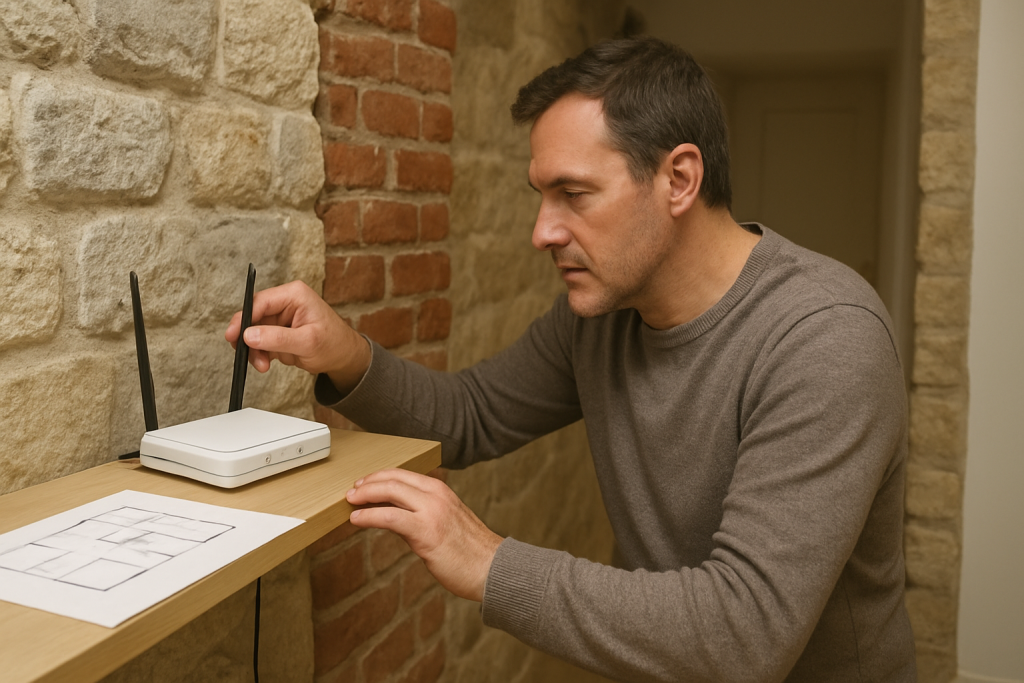
Place the router as centrally as possible, elevated (on a shelf), and in the open. Avoid closets, cabinets, behind TVs, and near large metal objects. Even moving the router 6–10 feet can change which walls the signal must penetrate. If your ISP modem-router combo is stuck at the entry point, consider asking the ISP to relocate the line, or use Ethernet (or MoCA over coax) to place your WiFi router/access point in a better spot.
Choose the right band: prefer 2.4GHz through thick walls, reserve 5GHz for nearby rooms.
If your router uses a single network name for both bands, temporarily split SSIDs (for example, “Home-2.4” and “Home-5”) so you can force smart devices onto 2.4GHz. Many smart plugs, bulbs, and older cameras are more stable on 2.4GHz, especially through masonry. Use 5GHz for laptops/phones in the same room or one light wall away where speed matters.
Fix a common configuration issue: channel and channel width.
On 2.4GHz, set channel width to 20MHz (not 40MHz) for reliability in crowded areas. Choose channel 1, 6, or 11 (pick the least congested). On 5GHz, avoid DFS channels if your devices disconnect randomly; some clients handle DFS poorly and will drop when the router changes channels. These settings won’t “punch through” concrete, but they can reduce retries and stabilize smart devices that are already operating near the edge.
Add coverage the right way: wired access point or well-placed mesh node.
The most effective fix for thick walls is to place a second WiFi source on the far side of the barrier. If possible, run Ethernet to an access point in the hallway outside the problem rooms. If you can’t run Ethernet, consider MoCA (using existing coax) or powerline as a backhaul option. If you use mesh, put the node where it still receives a strong signal from the main router (often one room before the dead zone), not inside the worst-coverage room.
Stabilize smart devices: reduce roaming and “sticky” behavior.
Smart devices often cling to a weak connection. If your system supports it, enable band steering cautiously, or keep IoT devices on a dedicated 2.4GHz SSID. If you have multiple nodes, avoid placing them too close together; overlapping coverage can cause devices to bounce between access points. After changes, power-cycle the problem device so it reconnects cleanly.
Check for DHCP/IP conflicts (simple sanity check).
If a device shows “connected” but won’t load anything, reboot the router and the device. In the router’s client list, confirm each device has a unique IP address. If your router allows it, set DHCP reservations for key smart devices (cameras, hubs, thermostats) so they always get the same address. IP conflicts are not caused by walls, but they can mimic “WiFi instability,” especially after adding extenders, mesh nodes, or a second router.
Advanced Troubleshooting
If you’ve improved placement and added a node/access point but still see dropouts, focus on the edge cases that thick walls tend to expose: low signal-to-noise ratio (SNR), multipath reflections, and client compatibility.
Identify the “bad wall” and the “bad angle”
Thick walls don’t just weaken signal; they can create sharp coverage shadows. Try rotating the router slightly, changing antenna orientation (if external antennas exist), and moving it laterally along the same wall by a few feet. In some homes, moving the router away from a masonry chimney or reinforced column changes the reflection pattern enough to stabilize a room.
Check for interference that stacks with attenuation
When the signal is already weakened by brick or concrete, normal interference becomes more damaging. Common sources include neighboring WiFi on 2.4GHz, Bluetooth devices near the router, microwave ovens, and cordless phone bases. If dropouts happen mostly at meal times, the microwave is a strong suspect. Move the router away from the kitchen, or move the node so the path avoids that area.
Firmware and software causes that look like “weak WiFi”
Update router firmware, mesh firmware, and the controlling app. Some updates fix roaming behavior, band steering bugs, DFS channel handling, and stability under heavy IoT traffic. Also update phone OS and smart home hubs; a hub that repeatedly reconnects can trigger cascaded device “offline” events even if WiFi coverage is acceptable.
Router feature conflicts
Some settings improve security but can break older smart devices: WPA3-only mode, Protected Management Frames (PMF) set to “required,” or overly aggressive client isolation/guest mode rules. If devices fail to stay connected, try WPA2/WPA3 mixed mode and set PMF to “capable” rather than “required,” then retest. Keep IoT devices off the guest network unless you’re sure local device discovery still works for your smart home platform.
Double NAT and modem-router combo pitfalls
In apartments, it’s common to add your own router behind an ISP modem-router combo. If both are routing (double NAT), some devices behave unpredictably, and port-based services may fail. Put the ISP unit into bridge mode (if supported) or set your router to access point mode. This won’t increase signal through walls, but it reduces random “connected but unreachable” behavior that gets blamed on WiFi.
When to Reset or Replace the Device
Resetting makes sense when configuration drift or corrupted settings are likely. Replace hardware when radio performance or software support is the limiting factor.
Reset the router/mesh if:
You’ve changed many settings (band splitting, security modes, extenders, mesh nodes) and stability got worse, or firmware updates left the system behaving oddly. Back up settings if possible, then factory reset and reconfigure minimally: one SSID for 2.4GHz (and optionally one for 5GHz), WPA2/WPA3 mixed, sane channels, and DHCP enabled.
Replace or upgrade if:
Your router is older and struggles with many smart devices, or it lacks features that help in dense environments (better radios, improved roaming, stronger CPUs). If thick walls are the core issue, prioritize systems that support wired backhaul and multiple access points. A single powerful router rarely defeats reinforced concrete; distributing access points is more reliable than “more power.”
Replace the problem smart device if:
Only one device drops while others in the same location remain stable. Some low-cost IoT devices have weak antennas and poor WiFi chipsets. If the device supports only 2.4GHz but still fails behind one thick wall, consider relocating it, adding a nearer access point, or choosing a model known for better connectivity.
How to Prevent This in the Future
Plan WiFi around wall materials, not just square footage. When you know you have brick, concrete, plaster with metal, or tile-heavy rooms, assume you’ll need more than one access point. The goal is to avoid forcing the signal through the worst barriers.
During setup, place the main router centrally and run Ethernet (or coax for MoCA) to at least one additional access point. If you’re renovating, add low-voltage wiring paths; a single Ethernet run to a hallway ceiling or central room can eliminate years of smart device instability.
Keep IoT devices on a stable 2.4GHz network when walls are involved, and reserve 5GHz for high-throughput devices close to an access point. Avoid the common mistake of placing extenders in dead zones; place them where they still have strong backhaul signal. Periodically check for firmware updates and avoid unnecessary feature toggles that can destabilize older clients (security modes, DFS channels, aggressive steering).
Finally, document your network basics: SSID names, admin password, IP range, and any DHCP reservations. If you ever see “connected but no internet,” you’ll be able to quickly rule out IP conflicts and focus on the physical reality—what the walls are doing to your signal.
FAQ
Is 2.4GHz always better than 5GHz for thick walls?
Usually, yes for coverage and stability through dense materials. 2.4GHz tends to penetrate walls better and maintain usable signal at longer distances. 5GHz is often faster nearby but can become unreliable after multiple thick walls, which is why many smart devices behave better on 2.4GHz.
Why does my phone work but my smart camera keeps going offline?
Phones typically have better antennas and radios, and they may switch bands or roam more gracefully. Many smart cameras have weaker WiFi hardware and are mounted in difficult spots (near exterior walls, corners, or behind tile/plaster). Thick walls can push the camera below its stability threshold even if a phone still shows a connection.
Will a “stronger” router fix concrete or brick walls?
It can help at the margins, but it rarely solves the core problem. WiFi is limited by both the router’s transmit power and the client device’s transmit power. Even if the router is strong, the client still has to talk back through the same wall. Adding an access point or mesh node on the far side of the wall is typically more effective.
What’s the best way to test if a specific wall is the culprit?
Do a controlled walk test: run a speed test and observe signal near the router, then repeat immediately on the other side of the suspect wall, and again one room farther. If the biggest drop happens right after crossing that wall, attenuation is the dominant factor. If the signal is similar but performance varies wildly, interference or router configuration is more likely.
Can IP conflicts or DHCP issues really look like WiFi problems?
Yes. DHCP assigns IP addresses to devices; if it glitches or two devices end up with the same IP, a device may stay connected to WiFi but fail to reach the internet or local services. This is more common after adding extenders/mesh, using multiple routers, or frequently rebooting devices. Reserving IP addresses for key smart devices can reduce these “mystery offline” events.
For once, the problem stops tugging at the edge of your day. The words on the page land where they’re supposed to, and the noise fades into something calmer.
Not everything feels fixed forever, but it feels less tangled. That’s the quiet kind of win that doesn’t need fireworks—just a little space to breathe.