Smart Device Setup Times Out on WiFi: Steps That Actually Help
Quick Answer
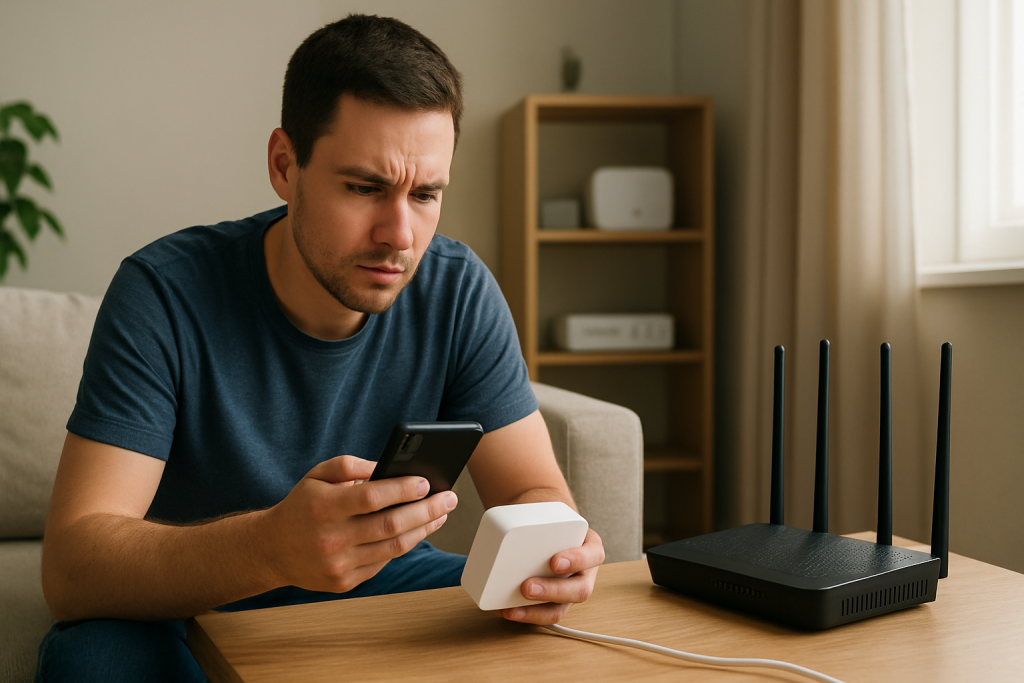
When a smart device setup “times out” on WiFi, the most common underlying reason is a DHCP timeout during pairing: the device joins the network briefly but fails to obtain an IP address before the app gives up. Without an IP address, the device can’t talk to your phone or the cloud service, so the setup stalls or fails.
Focus first on stabilizing the 2.4GHz connection and fixing anything that delays or blocks DHCP (the router feature that hands out IP addresses). Reboot the router, reduce interference and distance, and temporarily simplify the network (single router, no VPN, no aggressive security). Then try pairing again.
Why This Happens
During setup, most smart devices do a fast sequence: connect to WiFi, request an IP address via DHCP, resolve DNS, then contact a cloud endpoint or local pairing service. The “timeout” often happens in the DHCP stage because it’s time-sensitive and surprisingly fragile on busy or misconfigured home networks.
DHCP works like a quick negotiation. Your router (or ISP gateway) offers an IP address, the device requests it, and the router confirms the lease. If any part of that exchange is delayed, filtered, or answered by the “wrong” device, the smart device may sit there connected to WiFi but effectively offline. Many setup apps interpret that as “couldn’t connect” and time out.
Home network instability makes this worse. In an apartment building with dozens of overlapping 2.4GHz networks, interference can corrupt packets and slow the DHCP handshake. Thick walls, a router tucked behind a TV, or a device being paired on the far side of the house can also increase retransmissions and latency during the exact moment the device needs a clean connection.
A real-world scenario: you’re using an ISP modem-router combo in a small apartment. It broadcasts both 2.4GHz and 5GHz with the same network name. Your phone stays on 5GHz, the smart device only supports 2.4GHz, and the gateway is also running “smart” WiFi steering. The device connects, but the gateway delays or mishandles the DHCP offer during steering or band management, and the setup app times out.
One common user mistake is entering the WiFi password correctly but attempting setup while connected to a VPN on the phone, or while using a “Private Address/MAC randomization” mode that changes network identity between attempts. This can confuse pairing flows and sometimes triggers security features that slow or block DHCP.
An overlooked technical cause is an IP conflict or exhausted DHCP pool. If your router’s DHCP range is tiny (for example, only 20 addresses) and you have many devices, the router may have no free leases to offer. Another overlooked cause is a second DHCP server on the network (often from an old router left in “router mode” instead of access point mode), which can cause devices to receive conflicting offers and fail to complete the lease.
Firmware and software also matter. Some router firmware versions have bugs in DHCP handling, multicast, or client isolation features that break onboarding. Likewise, smart device setup apps sometimes have issues when the phone’s OS is outdated or when local network permissions are disabled.
Step-by-Step Fix
Move the device and your phone closer to the router for setup.
Distance and interference are setup killers because DHCP needs a clean exchange. Place the smart device within 6–10 feet of the router if possible. Avoid pairing from behind thick walls, near microwaves, baby monitors, or Bluetooth-heavy areas. After setup succeeds, you can move the device to its final location and test stability.
Force the phone onto 2.4GHz and use a simple SSID during pairing.
Most smart devices only support 2.4GHz. If your router uses one name for both 2.4GHz and 5GHz, temporarily split them (for example, “Home-2.4” and “Home-5”). Connect your phone to the 2.4GHz network before starting setup. This reduces band steering delays and makes it more likely the phone and device are on the same segment during the DHCP/pairing window.
Reboot the router/gateway and wait for it to fully come back.
Power-cycle the router (and modem, if separate). Unplug for 30 seconds, plug in, then wait 3–5 minutes until the internet light is stable. This clears stuck DHCP states, flushes ARP tables, and can restore normal lease assignment. Then retry pairing immediately while the network is “fresh.”
Check the DHCP pool size and lease time on the router.
In your router settings, find DHCP Server settings. Ensure the DHCP range is large enough (for many homes, at least 100 addresses is a safe baseline). If it’s something like 192.168.0.100–192.168.0.120, expand it. If the lease time is extremely long and the pool is small, old leases can “hog” addresses. A moderate lease time (such as 1 day) is typically fine for home networks.
Remove IP conflicts by clearing old reservations and avoiding duplicate static IPs.
If you manually assigned static IPs to devices, make sure none overlap with the DHCP range. Also check for duplicate DHCP reservations (two devices reserved to the same IP). IP conflicts can look like “setup timeout” because the smart device may get an address that’s already in use, then lose connectivity immediately.
Temporarily disable features that can block onboarding traffic.
Turn off (temporarily) client isolation, “AP isolation,” guest network mode, ad-blocking DNS filters, and strict firewall options that block local discovery. If your router has WPA3-only enabled, switch to WPA2/WPA3 mixed mode for setup. Some devices fail to complete DHCP or local pairing when security modes are too strict or discovery traffic is filtered.
Turn off VPN and confirm local network permissions on the phone.
Disable any VPN, “private DNS,” or security app that intercepts traffic. On iOS, ensure the setup app has Local Network permission. On Android, ensure Location is enabled if the app requires it for WiFi scanning. These settings don’t “fix WiFi,” but they can prevent the app from completing the pairing step after DHCP succeeds.
Retry setup with a clean, compatible WiFi configuration.
Use 2.4GHz with WPA2 (AES). Avoid special characters in the SSID/password if the device is known to be picky. Avoid hidden SSIDs during setup. If your router supports 20/40MHz channel width on 2.4GHz, try 20MHz for stability in crowded areas. Then run the device setup again.
Advanced Troubleshooting
If the steps above don’t help, assume the device is connecting to WiFi but failing the DHCP handshake or immediately losing its lease. The goal now is to prove where the failure occurs and remove anything on the network that could be answering DHCP incorrectly or delaying responses.
Use a practical test to confirm a DHCP problem
Testing method: check the router’s client list during the exact moment of pairing. Start setup, then open the router’s “Connected Devices” or “DHCP Leases” page and refresh. If you see the device appear without an IP address, or appear briefly and disappear, that strongly suggests a DHCP timeout or conflict. If it gets an IP but still fails, the issue may shift to DNS, firewall rules, or cloud reachability.
Look for a second DHCP server (common in mesh and “old router” setups)
If you have a mesh system plus an ISP gateway, or you kept an old router plugged in, you may accidentally have two routers both handing out IP addresses. This can break onboarding because the smart device might accept an offer from the “wrong” DHCP server and end up on a different subnet than your phone. Put the ISP gateway into bridge mode (if you use your own router), or put the secondary router into access point mode. Only one device should run DHCP on a typical home network.
Check for router configuration issues that delay DHCP
Some routers have features that can interfere with fast onboarding: WiFi band steering, “smart connect,” airtime fairness, or aggressive intrusion prevention. If your router logs show repeated DHCPDISCOVER messages without DHCPOFFER, or if the device repeatedly reconnects, try disabling band steering and airtime fairness temporarily. In dense apartment environments, manually setting a cleaner 2.4GHz channel (1, 6, or 11) can reduce packet loss during DHCP.
Firmware and app version alignment
Update the router firmware, especially if you’re using an ISP modem-router combo that hasn’t been rebooted in months. DHCP-related bugs and WiFi stability issues are frequently addressed in updates. Also update the smart device app and your phone’s OS. If the device supports firmware updates only after onboarding, you may need to complete setup on a simpler network first (for example, a temporary 2.4GHz hotspot) just to get the device updated, then move it back to your home WiFi.
Try a temporary “known-good” network to isolate the cause
Create a 2.4GHz hotspot from another phone (with a simple WPA2 password) and attempt setup. If onboarding succeeds quickly on the hotspot, the device is likely fine and your home network is the cause—most often DHCP configuration, dual-DHCP, or router security features. If it still times out on the hotspot, the device or app workflow is more suspect.
When to Reset or Replace the Device
Reset the device when it has failed multiple setup attempts after you’ve corrected likely DHCP issues (expanded DHCP pool, ensured only one DHCP server, simplified WiFi security). A factory reset clears cached network profiles and can fix a device that is stuck trying to reuse an old lease or old network credentials.
Replace or RMA the device if it consistently fails DHCP on multiple known-good networks (your router and a phone hotspot), or if it connects but never holds an IP address long enough to finish setup. Also consider replacement if the device only supports outdated security or has known compatibility problems with modern routers and cannot be updated.
Before replacing, verify you are using the correct power supply and that the device isn’t browning out. Low power can cause repeated WiFi reconnects that look like DHCP timeouts because the device restarts mid-handshake.
How to Prevent This in the Future
Keep your network predictable for onboarding. Maintain a dedicated 2.4GHz SSID (even if you normally use a combined SSID) so you can quickly pair devices without band steering complications. In crowded areas, use 20MHz channel width on 2.4GHz and select a stable channel to reduce retransmissions during DHCP.
Right-size DHCP. Use a sufficiently large DHCP pool and avoid overlapping static IPs with the DHCP range. If you like fixed addresses, use DHCP reservations instead of manual static IPs on devices; this prevents conflicts while keeping addresses consistent.
Minimize “double router” setups. If you use your own router with an ISP gateway, put one device in bridge/access point mode so only one DHCP server exists. This single change prevents a large class of pairing failures that present as random timeouts.
Keep firmware current on the router and mesh nodes. If your home has thick walls or a long distance to the device location, add a properly placed access point or mesh node rather than relying on a weak 2.4GHz signal. A stable signal reduces the chance that DHCP packets are lost at the worst time.
FAQ
Why does the device say it’s connected to WiFi but setup still times out?
WiFi association (joining the network) is not the same as getting online. The device can connect to the access point but fail to obtain an IP address via DHCP, or it can get an IP but be blocked from reaching the phone or cloud service. DHCP timeouts are especially common because the setup process expects a quick lease assignment.
Does 5GHz cause setup timeouts?
Indirectly, yes. Many smart devices don’t support 5GHz, so if your phone is on 5GHz and the device is on 2.4GHz, band steering or network segmentation can complicate pairing. For best results, connect your phone to the 2.4GHz SSID during setup and keep the device close to the router.
What router setting most commonly breaks smart device onboarding?
Client/AP isolation, guest network mode, and overly strict security modes can prevent local discovery and pairing. Another frequent culprit is having two DHCP servers on the same network (for example, an ISP gateway plus a second router in router mode), which can cause the device to receive the wrong IP configuration and time out.
How can I tell if my DHCP pool is exhausted?
Check the router’s DHCP lease list and compare it to the configured DHCP range. If the range is small and nearly every address is leased, new devices may not get an IP in time. Expanding the DHCP range and rebooting the router typically resolves this quickly.
Should I factory reset the router to fix this?
Only after you try targeted fixes like expanding the DHCP pool, disabling double-DHCP, and simplifying WiFi security for setup. A router factory reset can help if the configuration is unknown or corrupted, but it also wipes settings. If you do reset, reconfigure with a stable 2.4GHz network and confirm DHCP is enabled on only one router before pairing devices again.
There’s a strange satisfaction in watching the loudest parts of the problem fade into the background, like a radio finally tuned in. The main thing is already in place, so the rest feels less like a fight and more like ordinary life continuing.
What’s left is just the day-to-day texture—quieter decisions, fewer second-guessing moments, and a little more room to breathe. Not everything suddenly becomes perfect, but it stops feeling like it’s constantly tugging at your sleeve.