Phone Keeps Switching to Mobile Data Instead of WiFi: How to Fix It
Quick Answer
Most phones switch to mobile data when the WiFi signal becomes too weak or unstable to maintain a reliable connection. The most common trigger is weak RSSI (signal strength) at the phone’s location, which causes the phone to “fall back” to cellular to keep apps working smoothly.
Start by checking whether the problem happens in specific rooms or at specific times. Then improve WiFi RSSI (move closer to the router, switch bands, reduce interference, or reposition the router) and disable any phone features that intentionally prefer mobile data when WiFi quality drops.
Why This Happens
Phones don’t decide between WiFi and mobile data based on “connected” versus “not connected” alone. They continuously evaluate WiFi quality. When RSSI is low (a weak signal) or the connection is unstable (high packet loss, frequent retries, or long latency), the phone may switch to mobile data to avoid stalled video calls, slow web loads, or buffering.
Weak RSSI fallback is especially common in homes with distance and obstacles between the phone and the router. Thick plaster walls, brick, concrete, radiant floor heating, metal ductwork, and mirrors can weaken WiFi dramatically. A real-world example: in an apartment building, the router is in the living room near the ISP modem-router combo, but the bedroom is separated by a bathroom with tile and plumbing. The phone shows “WiFi connected,” yet RSSI is poor, so the phone quietly prefers mobile data whenever the connection hiccups.
Band choice matters. 5GHz is usually faster and less congested, but it has shorter range and is more easily blocked by walls. 2.4GHz travels farther and penetrates better, but it’s more prone to interference from neighbors, Bluetooth devices, microwaves, and older smart home gear. If your phone clings to 5GHz with a weak RSSI, it may bounce to mobile data more often than it would on a stronger 2.4GHz signal.
There are also phone-side features designed to “help” that can backfire. Many devices have settings such as WiFi Assist, Adaptive Connectivity, or “Switch to mobile data” that automatically uses cellular when WiFi quality is poor. A common user mistake is leaving these enabled while assuming the phone will always prioritize WiFi if it shows the WiFi icon.
An overlooked technical cause is router behavior that looks like weak signal from the phone’s perspective. Aggressive band steering can push a phone between 2.4GHz and 5GHz, causing brief drops. Another is a DHCP/IP issue: if the router hands out conflicting IP addresses or the lease process is failing, the phone may keep “connecting” but not actually pass traffic reliably, which triggers mobile fallback.
Finally, software and firmware matter. A router firmware bug can cause intermittent drops, and a phone OS update can change how it evaluates WiFi quality. When the phone detects repeated failures, it may decide the WiFi is “bad” even if the signal icon looks acceptable.
Step-by-Step Fix
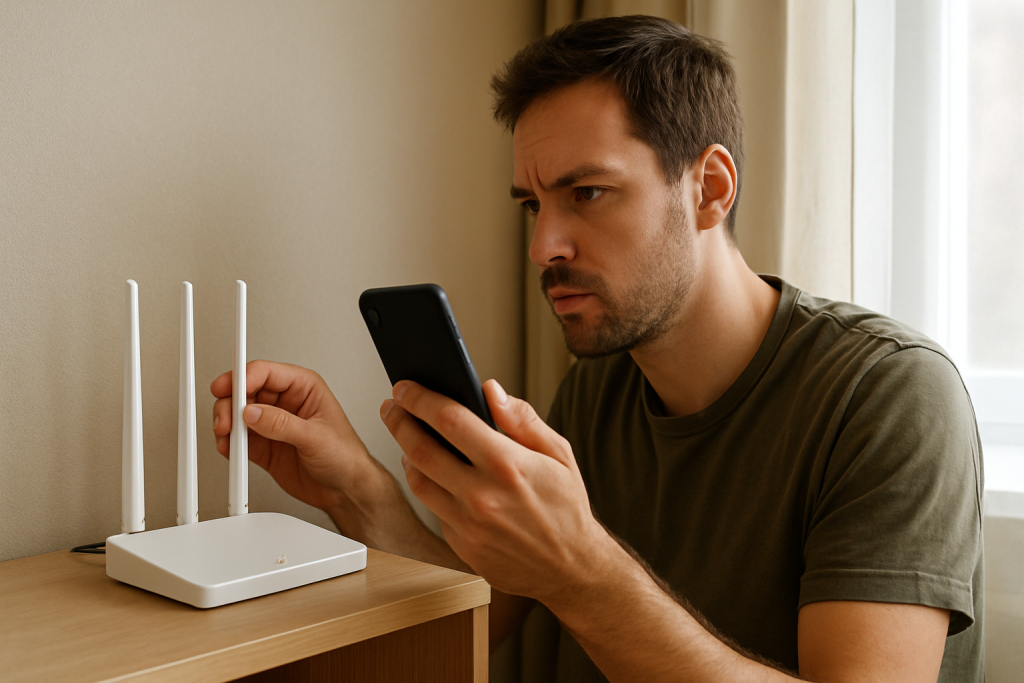
Confirm it’s weak RSSI fallback (not just a data setting). Stand next to your router and use the phone normally for 2–3 minutes. If the phone stays on WiFi near the router but switches to mobile data in a bedroom or office, the dominant issue is weak RSSI or interference at that location.
Practical testing method: run a continuous ping from a computer on your WiFi (or use a simple network utility app) and watch for spikes or timeouts when you walk to the problem area. If latency jumps or packets drop as RSSI falls, your phone is switching because the WiFi connection is degrading, not because of a billing or carrier issue.
Turn off “WiFi Assist” / “Adaptive Connectivity” / “Switch to mobile data.” These features are designed to keep apps responsive by using cellular when WiFi quality is poor. If you want the phone to stay on WiFi as long as it’s connected, disable them.
On many phones, this is found under WiFi settings, mobile/cellular settings, or network assistance features. After changing it, test again in the same room where the switching occurs.
Improve RSSI where you actually use the phone. If the router is tucked in a cabinet, behind a TV, or on the floor, move it to a more open, central, elevated spot. Even a one-room shift can significantly improve signal strength and stability.
Also check distance: if the phone is two rooms away with multiple walls in between, the WiFi icon may still show, but the RSSI may be low enough to trigger fallback during bursts of traffic (video calls, cloud backups, social media).
Split SSIDs or choose the right band (2.4GHz vs 5GHz). If your router uses a single network name for both bands, your phone may stick to 5GHz even when it’s too weak in distant rooms. If possible, temporarily split the SSIDs (for example, “Home-2.4” and “Home-5”) and connect the phone to:
– 5GHz when you’re close to the router and want speed. – 2.4GHz when you need range and stability through walls.
This is one of the fastest ways to confirm whether weak 5GHz RSSI is the trigger.
Reduce interference and congestion. In apartments, neighboring WiFi networks can crowd the same channels, especially on 2.4GHz. If your router is on “Auto” channel selection, it may still choose a busy channel or fail to adapt well.
Try setting 2.4GHz to channel 1, 6, or 11 (choose the least congested if your router shows it). For 5GHz, try a different channel group if your router offers it. Also move the router away from cordless phone bases, baby monitors, microwave ovens, and dense clusters of cables and electronics.
Restart the network in the correct order. Power cycling can clear temporary routing, DHCP, or radio glitches.
Turn off the modem and router (or your ISP modem-router combo) for 30 seconds, power on the modem first, wait until it’s fully online, then power on the router. Finally, toggle WiFi off/on on the phone and reconnect.
Forget and rejoin the WiFi network. If the phone has a corrupted WiFi profile or a stale configuration, it may behave unpredictably.
On the phone, “Forget” the network, reboot the phone, then reconnect and re-enter the password. If your router supports WPA3 and you see instability, test WPA2/WPA3 mixed mode or WPA2 temporarily to rule out a compatibility edge case.
Update router firmware and phone software. Router firmware updates can fix WiFi radio stability, band steering issues, and DHCP bugs. Phone updates can fix WiFi driver behavior and network switching logic.
After updating, reboot both router and phone. If your ISP provided an all-in-one gateway, check the ISP app/portal for firmware status; many update automatically but can lag behind.
Advanced Troubleshooting
If the basic steps help but don’t fully resolve the switching, the goal now is to identify what’s making WiFi “look bad” to the phone: low RSSI, packet loss, roaming behavior, or IP/DNS problems.
Check router band steering and roaming settings
Some routers aggressively steer devices between 2.4GHz and 5GHz or use features intended for mesh systems (802.11k/v/r). If the router pushes the phone to 5GHz when you’re far away, RSSI drops and the phone may abandon WiFi.
In the router settings, look for band steering, smart connect, or roaming assistance. As a test, disable band steering or reduce its aggressiveness. If you have a mesh system, verify nodes are placed so the phone can maintain a strong signal without “hopping” between nodes too often.
Look for DHCP issues or IP conflicts
DHCP is the router service that hands out local IP addresses. If two devices end up with the same IP (an IP conflict) or the DHCP lease process fails, the phone may connect to WiFi but lose actual connectivity, prompting a switch to mobile data.
Signs include: WiFi shows connected, but pages don’t load; the problem appears after a certain time interval (lease renewal); or multiple devices drop at once. Fixes include rebooting the router, ensuring the DHCP pool is large enough, and removing any manual/static IP settings on devices that overlap with the DHCP range.
Test DNS reliability
Sometimes WiFi is technically connected, but DNS lookups are slow or failing, which makes the phone think the network is unusable. As a test, set the router or phone DNS to a known reliable provider, or revert to ISP DNS if you previously customized it. If the switching stops, the issue may be DNS timeouts rather than pure signal strength.
Check for “double NAT” or gateway conflicts with ISP modem-router combos
A common home setup is an ISP gateway (modem-router combo) plus a separate WiFi router plugged into it. If both are routing and broadcasting WiFi, devices can bounce between networks or hit inconsistent DHCP behavior.
Best practice is to use one device as the main router. Either put the ISP gateway into bridge mode (if supported) or set your added router to access point mode. Then ensure only one DHCP server is active on the network.
Measure RSSI and stability in the problem area
If you can, use a WiFi analyzer app to check signal strength in dBm. Very roughly, a stable experience typically needs stronger than about -67 dBm for demanding tasks, while -75 dBm or worse often leads to retries and dropouts, especially on 5GHz. If the problem room shows weak readings, the fix is coverage: reposition the router, add a mesh node, or add a wired access point.
When to Reset or Replace the Device
Resetting is appropriate when the phone keeps switching even with strong WiFi RSSI near the router, other devices stay connected fine, and you’ve already disabled mobile-data assist features and rejoined the network.
Consider a network settings reset on the phone if:
– The phone frequently shows “Connected, no internet” while other devices work. – The issue started after an OS update and persists across reboots. – The phone fails on multiple known-good WiFi networks (home, work, friend’s house).
Replacement is a last resort, but it can be justified if the phone has a failing WiFi radio (intermittent hardware), especially if it overheats, drops WiFi under light movement, or performs poorly on every router while other phones do not. Also consider replacing an older router if it can’t maintain stable connections under modern loads (multiple smart devices, video streaming, and busy apartment WiFi environments).
How to Prevent This in the Future
Design your home WiFi around consistent RSSI, not just peak speed. Place the router centrally and in the open, and prioritize coverage in the rooms where you actually use your phone (bedroom, office, kitchen). If your home has thick walls or a long layout, a mesh system or a wired access point is often a better long-term fix than repeatedly toggling phone settings.
Use 5GHz for nearby performance and 2.4GHz for reach, and don’t be afraid to split SSIDs if your phone keeps choosing the wrong band. Keep firmware updated on both router and phone, and avoid running two routers in routing mode unless you understand double NAT and DHCP conflicts.
Finally, periodically test the “weak spots” in your home. If a new smart TV, baby monitor, or neighbor’s router changes the interference environment, you may need to adjust channels or node placement. Catching RSSI drops early prevents the phone from learning that your WiFi is unreliable and defaulting to mobile data.
FAQ
Why does my phone show the WiFi icon but still uses mobile data?
The phone may be connected to WiFi but detecting poor quality (weak RSSI, packet loss, or high latency). If a “WiFi Assist” or “Switch to mobile data” feature is enabled, it will route traffic over cellular when WiFi performance drops, even though the WiFi icon remains visible.
Is 5GHz more likely to cause switching to mobile data than 2.4GHz?
Yes, in many homes. 5GHz has shorter range and weakens faster through walls, so RSSI can fall below a stable threshold in bedrooms or back rooms. 2.4GHz often holds a stronger signal at distance, which can reduce fallback behavior, though it may be slower and more interference-prone.
Can my router settings cause this even if the signal looks okay?
Yes. Band steering that’s too aggressive can cause brief disconnects as the phone is pushed between bands. DHCP issues can also create “connected but not working” moments. Both scenarios can make the phone decide WiFi is unreliable and switch to mobile data.
How can I test whether it’s a coverage problem or an internet problem?
Test near the router versus in the problem room. If it’s stable near the router but fails farther away, it’s coverage/RSSI. If it fails everywhere, check the modem/router internet link, DNS reliability, and whether other devices are also dropping. A quick ping test or repeated speed tests in both locations can reveal packet loss and latency spikes tied to weak signal.
Will adding a WiFi extender fix it?
Sometimes, but placement and type matter. A poorly placed extender can repeat a weak signal and still produce weak RSSI and instability. A mesh node or a wired access point is usually more reliable for preventing weak RSSI fallback, especially in homes with thick walls or high interference.
For a moment, the noise finally drops out of the picture, and what’s left feels simpler than it did on page one. The work is already done—now it’s just a matter of living with the decision without overthinking it.
Not every problem gets a neat, dramatic bow. This one just loosens its grip, then lets you get back to your day, a little lighter around the edges.