Crowded WiFi Channels: How to Pick a Better Channel for Stability
Quick Answer
If your smart devices keep dropping offline, buffering, or showing “connected but no internet,” crowded WiFi channels are a common cause—especially on 2.4GHz. The fix is usually to pick a less-overlapping channel (2.4GHz: use 1, 6, or 11) and ensure your router isn’t auto-switching to a congested option.
Start by checking which channels nearby networks are using, then set your router’s 2.4GHz channel to the least busy of 1/6/11 and set 2.4GHz channel width to 20MHz. For 5GHz, choose a non-DFS channel if your devices are sensitive to channel changes, and keep the router firmware updated.
Why This Happens
WiFi is shared radio space. Your router and every nearby router, phone hotspot, and some smart home hubs are all competing to talk over the same frequencies. When too many networks use overlapping channels, devices must wait longer to transmit, retransmit more often, and may “stick” to a weak or noisy connection. This shows up as random smart plug timeouts, camera stream stutter, voice assistant delays, and frequent reconnects.
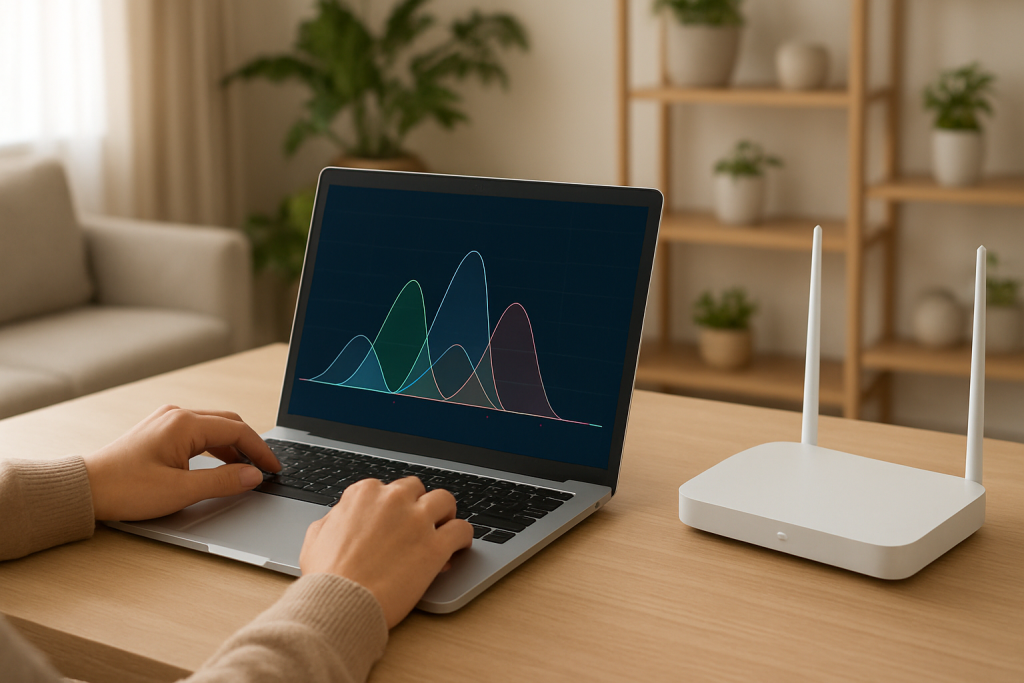
Channel overlap is the key detail many people miss. On 2.4GHz, channels are spaced so closely that most of them overlap each other. That means “channel 4” doesn’t just affect channel 4—it interferes with parts of channels 1 through 7. In practice, only channels 1, 6, and 11 are non-overlapping in most regions. Choosing any other 2.4GHz channel often increases interference, even if it looks “different” in the router settings.
A real-world example: in an apartment building, you might see 20–40 nearby networks. Many routers ship with “Auto” channel enabled and tend to pick the same few channels after reboot. If your neighbors’ routers also pick channel 6 at night, your smart bulbs (which often use 2.4GHz only) may start dropping around the same time every evening. This isn’t your internet speed—it’s airtime contention and overlap.
5GHz helps because it has more channels and less overlap, but it has shorter range and is more affected by walls, floors, and dense materials. Thick plaster, brick, radiant heating foil, mirrors, and metal appliances can reduce 5GHz coverage enough that devices fall back to 2.4GHz—right back into the crowded band. An overlooked technical cause is that some routers dynamically change channels (especially on DFS channels) when they detect radar or interference, which can force brief disconnects that smart devices handle poorly.
A common user mistake is setting 2.4GHz channel width to 40MHz to “make it faster.” On 2.4GHz, 40MHz nearly guarantees overlap with multiple neighboring networks and can reduce stability for everyone, including you. Another frequent issue is leaving a modem-router combo from an ISP in charge of WiFi while also running a separate router—creating competing networks and extra interference, sometimes even on the same channel.
Finally, not every dropout is purely RF. Congestion triggers retries and delays, which can expose other weaknesses: buggy router firmware, a misconfigured guest network, or a DHCP issue where devices fight for the same IP address. DHCP (Dynamic Host Configuration Protocol) is what hands out local IP addresses; if the router’s DHCP pool is too small or a device is using a conflicting static IP, devices can appear “offline” even though WiFi looks connected.
Step-by-Step Fix
Confirm it’s a WiFi stability problem (not an internet outage).
Test with two devices: one close to the router and one where the smart devices fail. If the close device is stable but the far device drops, you’re likely dealing with interference, overlap, or range. If both drop at the same time, check modem status lights and your ISP connection first.
Scan nearby networks to identify channel overlap.
Use a WiFi analyzer app on a phone or laptop to view nearby SSIDs and their channels. You’re looking for how many networks sit on or overlap your channel, not just signal strength. Do this in the room where smart devices struggle, not only next to the router.
Set 2.4GHz to a non-overlapping channel and reduce channel width.
Log into your router and set 2.4GHz channel to 1, 6, or 11—whichever has the least congestion where your devices are. Then set 2.4GHz channel width to 20MHz. This is the most reliable stability setting for smart devices in crowded areas.
Separate 2.4GHz and 5GHz names (temporarily) to control device band choice.
Many smart devices only support 2.4GHz. Some phones prefer 5GHz and may “helpfully” roam, making setup and testing confusing. Temporarily give 2.4GHz and 5GHz different SSIDs (for example, HomeWiFi-2G and HomeWiFi-5G). Connect smart devices to 2.4GHz and keep high-bandwidth devices (streaming boxes, laptops) on 5GHz to reduce 2.4GHz airtime load.
Pick a stable 5GHz channel and avoid unnecessary auto-changes.
On 5GHz, choose a channel that’s less crowded and compatible with your devices. If you see frequent disconnects that look like brief “blips,” try using a non-DFS channel (often in the lower range like 36–48, depending on region) because some devices react badly when the router changes channels due to DFS events. Keep 5GHz channel width reasonable (80MHz is common; reduce to 40MHz if stability improves).
Check router placement and local interference sources.
Move the router higher and more central if possible. Avoid placing it behind a TV, inside a cabinet, or next to a microwave, cordless phone base, baby monitor, or large metal objects. Distance matters: even a few feet away from dense electronics can reduce noise and improve signal quality.
Update router firmware and reboot in the right order.
Install the latest firmware for your router (or ISP gateway). Firmware bugs can cause poor roaming behavior, unstable channel selection, or memory leaks that show up as nightly dropouts. After updating, reboot the modem first (if separate), wait for it to fully come online, then reboot the router, then reconnect smart devices.
Rule out DHCP/IP conflicts that masquerade as WiFi drops.
In the router settings, check the DHCP pool size and lease time. If you have many devices (smart plugs, cameras, phones, tablets), ensure the DHCP range is large enough. Avoid assigning a static IP inside the DHCP range unless you also create a DHCP reservation. An IP conflict can cause a device to “vanish” from the network intermittently, especially after reboots.
Advanced Troubleshooting
If you’ve chosen better channels and stability is still inconsistent, focus on proving whether overlap is still the dominant issue or if a secondary cause is taking over.
Use a practical testing method: controlled channel comparison
Pick a time when problems are common (evenings in apartments are ideal). Run a simple test for 10–15 minutes per channel: set 2.4GHz to channel 1, then 6, then 11 (one at a time), and observe smart device responsiveness and ping stability from a phone or laptop. If one channel consistently improves response time and reduces dropouts, you’ve confirmed overlap/congestion as the primary driver.
Check for router configuration issues that worsen overlap
Disable “smart connect” or band steering temporarily if devices bounce between bands. Also look for settings like “Airtime Fairness,” “802.11ax/WiFi 6 mode on 2.4GHz,” or aggressive roaming assistance. These can help in some networks but can destabilize older 2.4GHz-only smart devices. If you change these, do it one setting at a time so you can identify the culprit.
Identify hidden interferers and non-WiFi overlap
2.4GHz is shared with Bluetooth, some wireless speakers, baby monitors, and certain USB 3.0 devices (USB 3.0 noise can pollute 2.4GHz near the router). If your router is next to a USB 3.0 hard drive or hub, move it away and retest. Also consider Zigbee: it lives in 2.4GHz too. A busy Zigbee channel near your WiFi channel can contribute to congestion in smart homes with many sensors.
ISP modem-router combos and double NAT side effects
If you use an ISP gateway plus your own router, you may have two WiFi networks competing in the same space. Put the ISP gateway into bridge mode (or disable its WiFi) so only one device is broadcasting. While double NAT is more of a routing issue than a WiFi issue, the extra layer can complicate DHCP and device discovery, making smart devices appear flaky when the root problem is overlapping broadcasts and competing DHCP servers.
Mesh systems: backhaul and channel planning
Mesh can improve coverage, but it can also amplify channel overlap if nodes are too close or if the system uses 2.4GHz for backhaul in a crowded environment. If your mesh supports Ethernet backhaul, use it. If it supports a dedicated 5GHz backhaul, ensure it’s enabled. Place nodes so they have a strong link to the main router without being in the same room (too close can increase self-interference).
When to Reset or Replace the Device
Reset makes sense when configuration drift or corrupted settings are likely. Replace makes sense when hardware limitations prevent stable operation in a crowded RF environment.
Reset the router or gateway if:
You’ve changed many WiFi settings over time and can’t track what helped. Factory reset, then reconfigure only the essentials: WPA2/WPA3 security, separate SSIDs if needed, 2.4GHz channel set to 1/6/11, 20MHz width, and updated firmware. Also reset if firmware updates repeatedly fail or the router’s interface becomes slow/unresponsive, which can indicate resource issues.
Replace the router if:
The router is older and lacks stable firmware support, struggles with many devices, or doesn’t allow basic channel width/channel selection controls. In smart homes, device counts add up quickly; an underpowered router can become unstable under airtime contention. A newer router with better radios, improved interference handling, and ongoing firmware updates can maintain stability even when channels are crowded.
Replace or relocate smart devices if:
A device has a weak WiFi radio (common in low-cost plugs and bulbs) and sits far from the router or behind thick walls. If a device only connects on the edge of coverage, channel overlap will push it over the line. Consider moving it closer, adding a mesh node (properly placed), or choosing a device known for stronger connectivity.
How to Prevent This in the Future
Keep 2.4GHz optimized for reliability: channel 1/6/11 only, 20MHz width, and avoid “performance” tweaks that increase overlap. Treat 2.4GHz as the smart-device band and reserve it for low-bandwidth devices when possible.
Use 5GHz for bandwidth-heavy devices (TVs, laptops, consoles) to reduce 2.4GHz airtime contention. If 5GHz coverage is weak due to distance or thick walls, improve placement or add a well-positioned access point rather than forcing 2.4GHz to carry everything.
Schedule maintenance: check for firmware updates every few months, especially after major mobile OS updates or when you add many new devices. Keep your network addressing clean by using DHCP reservations for critical smart devices (cameras, hubs) and avoid random static IPs that can collide with DHCP assignments.
Finally, re-scan channels occasionally. Neighborhood WiFi patterns change when neighbors replace routers or add mesh systems. A channel that was clean six months ago may be crowded today, and “Auto” may not make the best choice in dense environments.
FAQ
Which 2.4GHz channel should I choose in a crowded area?
Use channel 1, 6, or 11 only. Pick the one with the fewest strong neighboring networks overlapping it where your devices are located. Also set channel width to 20MHz to minimize overlap and improve stability.
Is 5GHz always better for stability than 2.4GHz?
Not always. 5GHz usually has less congestion and less overlap, but it has shorter range and struggles more through thick walls and floors. If a device is far away, a stable 2.4GHz connection on a clean non-overlapping channel can be more reliable than a weak 5GHz signal.
Why does “Auto” channel still give me drops?
Auto channel selection can choose a channel based on a quick scan that doesn’t reflect peak-time congestion, and it may not account well for overlap. Some routers also re-evaluate and switch channels, which can briefly disconnect smart devices. Manually setting a stable channel (and correct channel width) often improves consistency.
Can crowded channels cause “connected but no internet” on smart devices?
Yes. Heavy overlap increases retries and delays, and some smart devices time out and report no internet even though WiFi is technically connected. However, also check DHCP/IP conflicts: if two devices end up with the same IP, one may lose access intermittently and look like it’s offline.
What’s the biggest mistake people make when trying to fix crowded WiFi?
Choosing a “random” 2.4GHz channel like 3, 8, or 9, or enabling 40MHz width to chase speed. Both typically increase overlap and make stability worse, especially for 2.4GHz-only smart devices in apartments or dense neighborhoods.
There’s a small relief in watching the noise finally lose its grip. The problem stops feeling like a constant background hum and starts acting like something you can set down for good.
What’s left is the quieter part: living with less friction, thinking a little clearer, and letting ordinary days do their job. No grand performance—just a steadier pace.