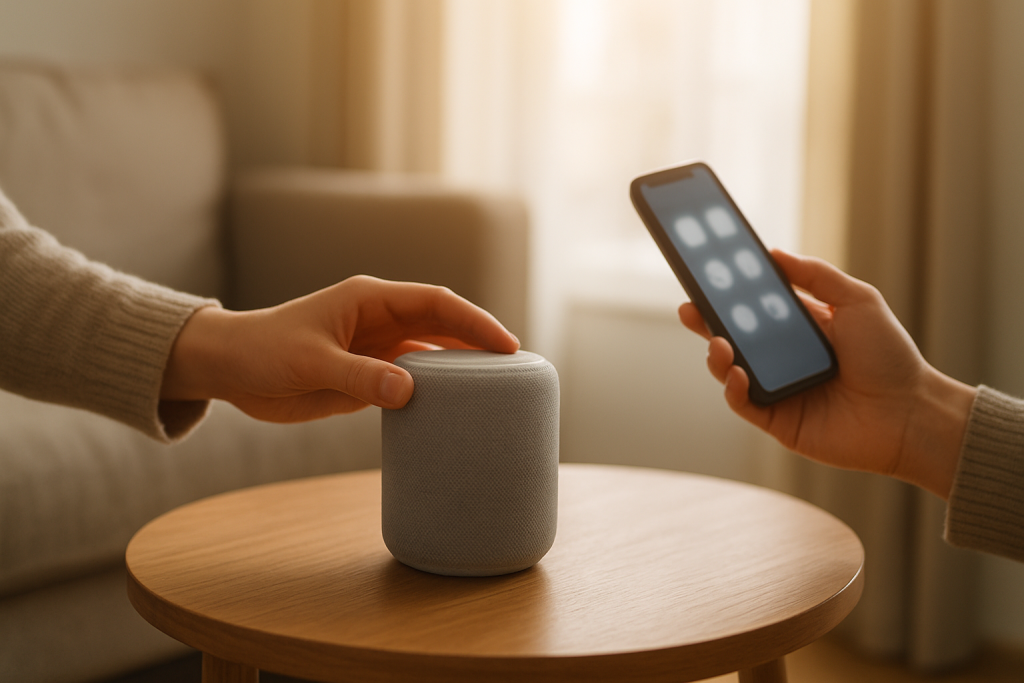
Alexa Timers and Alarms Not Going Off: How to Fix It
Quick Answer
When Alexa timers or alarms don’t go off, the most common cause is not the speaker “missing” the alarm—it’s that the device’s time settings are wrong or out of sync. A mismatched time zone, Do Not Disturb being enabled, or a schedule/routine setting overriding expected behavior can make alarms seem unreliable.
Start by confirming the Echo’s time zone and address in the Alexa app, then check Do Not Disturb and any routines that might be muting or changing volume overnight. After that, verify the alarm exists on the correct device and that the device is online and assigned to the right household/profile.
Why This Happens
Alexa alarms and timers rely on cloud timekeeping plus device-level settings. If the device thinks it’s in a different time zone, or if a schedule is muting audio at the wrong time, the alarm may “fire” silently, fire at the wrong time, or be created on a different device than the one you’re listening to.
Here are the most common, tightly related causes that fit this pattern:
1) Wrong time zone or incorrect device address. Echo devices use the address/time zone set in the Alexa app. If your device was moved, replaced, or set up under a different address, alarms can trigger an hour early/late (or appear to not trigger at all if you aren’t expecting it).
2) Do Not Disturb (DND) is enabled. DND can silence calls, drop-in, and notifications, and depending on how you use Alexa (and what you think is an “alarm” versus a reminder/notification), it can feel like alarms aren’t working. Many homeowners set DND once and forget it’s scheduled.
3) Scheduled volume changes or “Night Mode” style behavior. Routines can set volume to 0 or very low at night, or switch audio output to a different speaker group. The alarm may go off, but you can’t hear it.
4) Alarm created on the wrong device. In homes with multiple Echos, it’s easy to say “set an alarm” in the kitchen and later wait for it in the bedroom. The alarm exists, but it’s attached to the device that heard the command (or to a default device you didn’t intend).
5) Household/profile confusion (overlooked technical cause). If your Alexa app is signed into a different Amazon account than the Echo is registered to, or if you’re switched into a different adult profile in an Amazon Household, you may not see (or manage) the alarms that are actually set. The alarm can still exist, but you’re looking in the wrong place.
Real-world scenario: after a power outage in an apartment building, the router comes back with a slightly different configuration and an Echo reconnects later than usual. At the same time, the homeowner had a routine that sets volume to 1 at 10:00 PM and back to 5 at 7:00 AM. If the Echo’s clock/time zone is correct but the routine doesn’t run (or runs on the wrong device), the alarm may trigger at the right time but at volume 1, sounding like it never happened.
Common user mistake: setting a “reminder” and expecting it to behave like an alarm. Reminders and notifications are more affected by DND and notification settings than alarms, so they can be suppressed when you least expect it.
Step-by-Step Fix
-
Confirm the alarm/timer exists and is on the device you’re listening to.
What to do: Open the Alexa app > tap More > Alarms & Timers. Check the Alarms list and note which device name is shown for the alarm. If you have multiple Echos, use the device picker (if shown) to view alarms for each device.
What the result means: If the alarm is listed on a different Echo than expected, the device is working—your alarm was simply set on the wrong speaker.
If it fails: If you don’t see the alarm at all, you may be in the wrong Amazon account or profile. Continue to the next step to verify device registration and profile/account.
-
Verify the Echo is registered to the same account/profile you’re using in the app.
What to do: In the Alexa app, go to Devices > Echo & Alexa > select the problem device. Scroll to Registered To (or similar account info). Also check the profile selector in the Alexa app (often at the top of the Home screen) and ensure you’re not switched to a different adult profile.
What the result means: If the device is registered to a different account, alarms may be created and stored under that account, and you won’t reliably see or manage them from your current login.
If it fails: If you can’t confirm registration details, sign out of the Alexa app and sign back in with the Amazon account that originally set up the Echo. If you share a household, explicitly switch profiles and check alarms again.
-
Check the device time zone and address (high impact for “wrong time” alarms).
What to do: In the Alexa app, go to Devices > Echo & Alexa > select the device > Device Location (or Device Address). Confirm the address is correct and the time zone matches your location. If you recently moved, update it.
What the result means: If the address/time zone was wrong, that’s a direct explanation for alarms going off at unexpected times or seeming to “not go off.” Fixing it usually restores normal behavior immediately.
If it fails: If the app won’t save the address or time zone, you likely have an account permissions issue or the device isn’t fully online. Proceed to the next step to confirm connectivity and cloud sync.
-
Turn off Do Not Disturb and remove any DND schedules temporarily.
What to do: In the Alexa app, open the device page for the Echo > find Do Not Disturb and turn it off. If there is a schedule for DND, disable the schedule for testing. Also check if your phone’s Alexa notifications are being used instead of the Echo (some reminders/alerts may route to the phone).
What the result means: If alerts start working again, the issue wasn’t the alarm engine—it was a suppression setting. This is especially common when people confuse reminders/notifications with alarms.
If it fails: If true alarms still don’t sound, move on to volume/routine checks. If only reminders don’t sound, focus on DND/notification settings and routines that manage notifications.
-
Check for routines that change volume, mute audio, or switch speakers around the alarm time.
What to do: Alexa app > More > Routines. Look for routines scheduled near bedtime or morning (for example: “Good Night,” “Quiet Hours,” “Baby sleeping,” “Workday”). Open each routine and look for actions like Set volume, Mute, Stop audio, Do Not Disturb, or actions targeting a different device than you expect.
What the result means: If a routine sets volume to 0–1 before your alarm, the alarm may be going off but effectively inaudible. If a routine targets a different Echo, your bedroom alarm may be playing elsewhere.
If it fails: Temporarily disable the suspicious routines for one night and retest. If the alarm works with routines disabled, re-enable them one by one to find the conflicting setting.
-
Run a controlled test alarm and confirm the device is online at the time of the test.
What to do: Set an alarm for 2–3 minutes in the future on the specific Echo (use the app and choose the device explicitly). While waiting, in the Alexa app device page, confirm the device shows as online (not “Device is unresponsive”). When the alarm time arrives, listen for it and also try saying, “Alexa, stop.”
What the result means: If the test alarm works, the core alarm function is fine. Your problem is likely schedule-related (time zone, DND schedule, routine volume) or device-selection related (alarm created on another Echo).
If it fails: If the device is shown as offline/unresponsive during the test, the issue may be that the Echo is losing connectivity or power, preventing reliable time-based actions. Continue to the next step.
-
Quick network sanity check (only to confirm time sync and cloud reachability).
What to do: In your router’s connected clients list, confirm the Echo is connected and has a stable connection (it should appear consistently, not dropping in and out). If you can, do a short test by connecting the Echo to a temporary mobile hotspot for 10 minutes and repeat the 2–3 minute alarm test.
What the result means: If alarms work reliably on the hotspot but not on your home Wi-Fi, your home network is intermittently blocking or delaying the device’s cloud connection, which can affect syncing settings like time zone changes, DND schedules, and routine updates.
If it fails: If it fails on both networks, focus back on account/profile issues, device settings, or software/firmware problems in the next section.
Advanced Troubleshooting
If the steps above didn’t pinpoint it, these deeper checks usually reveal a desync between cloud settings (account, profile, routines) and what the device is actually doing.
Account and cloud sync issues
Household profile switching: If you use Amazon Household, alarms can feel inconsistent when different people set them under different profiles. A practical test is to ask, “Alexa, what alarms are set?” on the device itself. Then compare that to what you see in the app. If they don’t match, you’re likely viewing a different profile/account in the app than the device is using for that alarm list.
Multiple phones managing the same Echo: If two household members manage routines and DND schedules, one person can unknowingly re-enable DND or reset volume schedules. In the Alexa app, check Routines and look for recently modified items. If you find conflicting schedules, consolidate to one routine and remove duplicates.
Configuration conflicts (routines, permissions, and device targeting)
Device targeting inside routines: A routine can be set to run on “This device” or a specific Echo. If you copied a routine or replaced an Echo, the routine may still target the old device name. Edit the routine and confirm the correct playback device and action device are selected.
Misclassification of the problem (alarm vs reminder): Alarms are designed to be persistent and loud; reminders/notifications are more “polite” and easier to suppress. If you say, “Remind me at 7 AM,” and later expect an alarm-like ring, you may be relying on a reminder that is being silenced by DND or notification settings. Use “Set an alarm for 7 AM” when you need a guaranteed audible alert.
Firmware/software causes that look like time problems
Stuck settings after an update: Occasionally, after a device update, the Alexa app shows the correct settings but the device behaves as if an older schedule is still active (for example, DND remains effectively enabled). A good test is to toggle the setting off, wait 30 seconds, toggle it on, then off again, and run a short test alarm. This forces a fresh sync of that setting.
App cache/state issues: If the Alexa app is showing outdated alarms, you may be looking at stale data. Force-close and reopen the app, then re-check alarms by device. If the device itself reports alarms that the app doesn’t show, the app view is the problem, not the Echo.
Network-related issues (only as they relate to desync)
DNS or filtering interfering with cloud sync: If your network uses strict filtering, custom DNS, or parental controls, the Echo may intermittently lose access to Amazon services. The symptom is usually “sometimes it works, sometimes it doesn’t,” especially after changes to time zone, routines, or DND schedules. If the hotspot test worked, review your router’s filtering settings and temporarily relax them to confirm.
Mesh steering and device roaming: In some mesh systems, an Echo may roam between nodes and briefly drop connection. That can delay syncing changes you just made (like time zone or DND schedule). If you notice the Echo frequently going “unresponsive” in the app, try placing it a bit closer to one node, or reduce roaming by keeping it in a stable coverage area, then retest.
When to Reset or Replace the Device
Try a soft restart first when: the time zone is correct, DND is off, routines are clean, but the device still behaves inconsistently or shows as “unresponsive” in the app. A restart clears temporary state and forces the device to re-check cloud settings. Unplug the Echo for 30 seconds, plug it back in, wait for it to fully reconnect, then run a 2–3 minute test alarm.
Consider a factory reset when: alarms and timers fail across multiple tests, the Alexa app cannot reliably save device location/time zone, or the device remains registered but won’t sync settings correctly. Factory reset removes the device from your account and wipes local configuration, including Wi-Fi credentials, device name, room/group assignments, and some preferences. You will need to set it up again in the Alexa app and re-add it to speaker groups and routines.
Replace or stop using the device immediately if you notice overheating, a burning smell, crackling from the power adapter, or visible damage. In that situation, don’t troubleshoot further—disconnect power and address it as a hardware safety issue.
How to Prevent This in the Future
Lock in correct location/time zone: After moving or changing internet service, confirm each Echo’s device location in the Alexa app. In multi-Echo homes, it’s worth checking every device once so one “stray” address doesn’t become the source of confusing alarm behavior.
Be intentional with DND schedules: If you use Do Not Disturb, set a schedule and name a routine clearly (for example, “Quiet Hours”) so you remember it exists. If you rely on morning alarms, avoid DND schedules that end exactly at the alarm time; give a buffer (for example, end DND 10 minutes earlier).
Keep routines simple around bedtime/morning: The most common conflict is a routine that sets volume low at night and never restores it. If you want quiet evenings, add a matching morning routine that restores volume on the same device. Also confirm the routine targets the correct Echo, especially after replacing a device.
Use the right command for the job: For wake-ups, say “Set an alarm…” rather than “Remind me…” so you get alarm behavior instead of a notification that can be silenced. If you need multiple alerts, set multiple alarms rather than stacking reminders.
Stabilize device assignment in multi-Echo homes: Rename devices clearly (for example, “Bedroom Echo,” “Kitchen Echo”) and check that the alarm is created on the intended device in the app. This prevents the common “it didn’t go off” situation that’s really “it went off in the other room.”
Mesh/Wi-Fi planning (only where it affects sync): Place the Echo where it has consistent signal so it doesn’t frequently drop offline and miss setting updates. If you notice the device often shows as unresponsive, address placement so time zone and schedule changes reliably sync.
FAQ
Why did my alarm go off an hour late (or early)?
This almost always points to a time zone or device location mismatch. Check the Echo’s device address/time zone in the Alexa app. It can be wrong after moving, replacing a device, or changing account settings.
Does Do Not Disturb block alarms?
A common misconception is that DND blocks everything. DND mainly suppresses calls, drop-ins, and many notifications. However, if what you set was actually a reminder (not an alarm), DND can make it seem like “alarms” aren’t working. Confirm whether it’s listed under Alarms, and temporarily disable DND schedules to test.
I set the alarm, but it went off on a different Echo. Why?
By default, the alarm is created on the device that heard the command (or on a default device you selected earlier). In the Alexa app, check which device the alarm is attached to, and rename Echos clearly so it’s easier to target the right one.
My alarm is set, but I didn’t hear it. What’s the fastest check?
Check volume and routines. A bedtime routine may have lowered the device volume or muted it and never restored it. Temporarily disable routines that run overnight and run a 2–3 minute test alarm to confirm.
Why does it work some days and fail other days?
Intermittent behavior usually means a schedule-based setting is changing (DND schedule, routine volume changes) or the device is occasionally offline and not syncing changes reliably. Compare the days it fails to your routines and DND schedule times, then do a quick hotspot test to rule out a home-network sync problem.
If your voice assistant is still not working, you can follow our complete voice assistant troubleshooting guide to identify the issue step by step.
There’s a strange calm that comes with finally letting the right thing land where it belongs. The noise doesn’t vanish, but it stops crowding the day.
So much of this was never mysterious—just lingering. Now the issue feels less like a constant companion and more like something you’ve already handled.