Smart Bulb Not Responding After Changing WiFi Password: What to Do
Quick Answer
The most common reason a smart bulb stops responding right after a WiFi password change is simple: the bulb (or its hub/bridge) is still trying to connect using the old saved credentials. Unlike phones and laptops, many smart lighting devices cannot “learn” a new password automatically. They must be updated in the app, re-onboarded to the network, or reconnected through their hub.
This can affect WiFi bulbs directly, as well as ecosystems where the bulb is Zigbee/Thread but the bridge is on WiFi/Ethernet (for example, a lighting bridge, smart speaker, or Matter controller). If the bridge can’t reach your router or cloud account after the password change, the bulbs may appear offline even though they still turn on manually at the switch.
Do these three quick checks first: (1) confirm your phone is connected to the new WiFi and you’re using the same home/account in the lighting app, (2) power-cycle the bulb (or the hub/bridge) and the router in the right order, and (3) confirm your router didn’t split into a new 5 GHz-only network or a new guest network that the bulb can’t use.
Why This Happens
After a WiFi password change, the primary failure mode is credential mismatch: the device still holds the old network login details and cannot authenticate to the router. Smart lighting is especially sensitive because many bulbs have limited input methods (no screen or keyboard), so the only way to update WiFi credentials is through the app’s setup flow, which often looks like “add device” even though you already own it.
Several tightly related technical causes show up in real homes:
1) The bulb can’t rejoin WiFi because it saved the old password. This is the direct effect of changing a password. The bulb stays offline until it is put into pairing mode and given the new credentials.
2) The network changed more than you think (SSID, band, security mode). Many people change the password and also rename the WiFi network, enable WPA3-only, or move devices to a new router. Any of these can block older WiFi bulbs that require 2.4 GHz and WPA2.
3) Your “bulb” isn’t on WiFi at all; the hub is. Zigbee bulbs (and some Thread/Matter setups) talk to a bridge/controller, not directly to the router. If the bridge lost WiFi access (or got a new IP address and the app can’t find it), every bulb behind it can appear unresponsive.
4) Mesh WiFi behavior can strand devices on the wrong node or isolate them. After changes, mesh systems may steer devices between nodes or bands. Some IoT devices fail to roam cleanly and end up disconnected until rebooted or until the mesh stabilizes.
5) Cloud/account sync can lag or fail right after a network change. Some apps show devices “offline” because the bridge can’t reach the vendor’s cloud, or because your phone is signed into a different home/location profile. The bulbs may still work locally in one app but not via voice assistants.
Real-world scenario: you change the WiFi password on a Friday night, your phone reconnects automatically, but the bulbs don’t. The next morning, the app shows “offline,” voice commands fail, and schedules don’t run. The bulbs still turn on at the wall switch, which proves power is fine; the control path is what broke.
Common user mistake: changing the password and also enabling “WPA3 only” or turning on a guest network, then connecting the phone to the main network while the bridge is stuck trying to use the guest network (or vice versa).
Overlooked technical cause: some routers create separate “IoT” isolation modes or client isolation on guest WiFi. Even if the bulb connects, your phone may not be able to discover it for setup, making it look like pairing is broken.
Most Likely Causes in Real Homes
1) Bulb still has old WiFi credentials. It will not reconnect until re-added or reconfigured.
2) Bulb only supports 2.4 GHz, but you’re trying to use 5 GHz or band steering is interfering. Setup works only when your phone and the bulb are on a compatible 2.4 GHz network.
3) Hub/bridge/controller lost network access. Zigbee/Thread bulbs depend on the hub; if the hub is offline, all bulbs look offline.
4) Router security mode changed (WPA3-only, enterprise, or unusual settings). Many bulbs require WPA2-Personal (AES).
5) App/home/account mismatch or permissions issue. Devices are “missing” because you’re in the wrong home/room, or a shared account lost access.
Step-by-Step Fix
Confirm you’re on the correct network and the app is in the correct home. On your phone, connect to your main home WiFi (not guest). Open the lighting app and check you’re viewing the correct “Home/Location” and the correct account.
What the result means: If devices appear in a different home/location or under a different login, they may look offline or missing even though nothing is wrong with the bulbs.
If it fails, try next: Sign out/in, switch home/location inside the app, and confirm your phone is not using cellular data or a VPN that changes local discovery behavior.
Do a clean power-cycle sequence (router first, then hubs, then bulbs). Unplug your modem (if separate) and router for 30 seconds, plug them back in, wait until WiFi is stable. Then power-cycle any lighting bridge/hub/controller (and any smart speaker used as a Matter/Thread controller). Finally, turn the affected bulb off and on using its normal power source (wall switch or lamp switch), leaving it on afterward.
What the result means: If the hub comes back online and bulbs start responding, the issue was likely a stale network session, IP change, or mesh node confusion after the password update.
If it fails, try next: Move to band/security checks and then re-onboard the bulb or hub with the new credentials.
Check WiFi band and security settings (2.4 GHz and WPA2 are the usual requirements). In your router settings, confirm your 2.4 GHz network is enabled. If your router combines 2.4/5 GHz under one name, temporarily create a dedicated 2.4 GHz SSID for setup. Also confirm security is WPA2-Personal (AES) or WPA2/WPA3 mixed mode, not WPA3-only.
What the result means: If the bulb reconnects only when 2.4 GHz is clearly available, the bulb likely cannot use 5 GHz or is failing band steering during setup.
If it fails, try next: Temporarily disable “Smart Connect/Band Steering” and any “IoT isolation” features, then attempt reconnection again.
Identify whether your bulb is WiFi, Zigbee, or Matter/Thread (this changes the fix). If your bulbs normally require a bridge (common with Zigbee ecosystems), focus on getting the bridge online first. If they are WiFi bulbs, focus on re-provisioning each bulb to the new WiFi password. If they are Matter over WiFi or Thread, focus on the Matter controller (smart speaker/hub) and the app that originally commissioned the device.
What the result means: If a bridge is offline, individual bulbs won’t respond even though they still have power and may still be controllable only by a wall switch.
If it fails, try next: Proceed with the appropriate re-connection flow: bridge network reconnect, or bulb pairing mode and re-add.
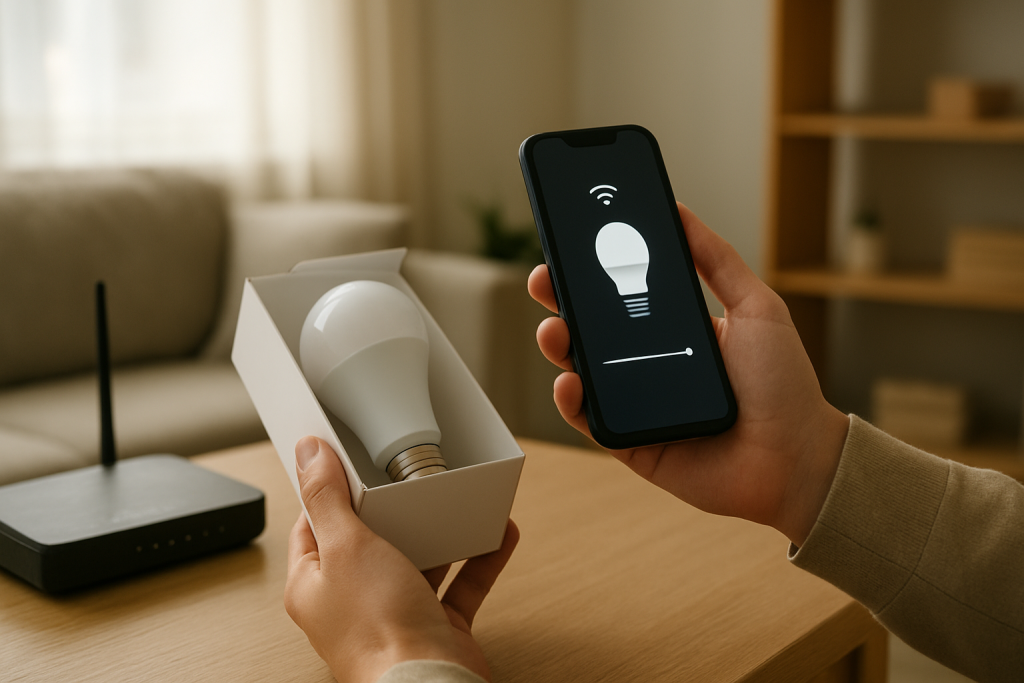
For WiFi bulbs: put the bulb into pairing mode and update WiFi credentials. In the bulb’s app, use the “Add device” or “Replace device” flow. Then put the bulb into pairing mode (often done by toggling power on/off in a specific pattern until it flashes). During setup, select your 2.4 GHz network and enter the new password carefully.
What the result means: If setup completes and the bulb responds, the problem was stored credentials. If setup fails at “connecting to WiFi,” it points to band/security incompatibility or router restrictions.
If it fails, try next: Try the hotspot isolation test (next step) and check router settings like MAC filtering, AP isolation, and WPA3-only.
Hotspot isolation test (to separate bulb issues from router issues). Create a temporary 2.4 GHz hotspot on your phone (if supported) with a simple SSID and password. Attempt to pair the bulb to the hotspot.
What the result means: If the bulb pairs to the hotspot but not to your home WiFi, the bulb is probably fine and your home router settings are blocking onboarding (band steering, security mode, isolation, or DHCP issues).
If it fails, try next: If it won’t pair even to the hotspot, the bulb may not be entering pairing mode correctly, may be stuck in a bad state, or may need a factory reset.
For Zigbee bulbs (bridge-based): reconnect the bridge to the new network and verify it’s online. If the bridge uses WiFi, reconfigure its WiFi in the app (some bridges require an Ethernet connection temporarily). If it uses Ethernet, ensure the router’s LAN is working and the cable is seated. Then check the app for “bridge online” status.
What the result means: If the bridge is online but bulbs are still unresponsive, it may be a Zigbee network issue (channel interference, bulbs removed from the bridge, or power-cycled repeaters).
If it fails, try next: Reboot the bridge again, then power-cycle a few always-powered Zigbee devices (smart plugs, in-wall modules) that act as repeaters, and re-check bulb status.
Check app device status, room placement, and group sync. In the app, open the specific bulb and look for status like “Offline,” “Unreachable,” or “Updating.” Verify the bulb is assigned to the correct room and not duplicated. If you use groups, try controlling the bulb individually (not through a group). Then resync or rebuild the group.
What the result means: If individual control works but group control fails, the issue is likely group configuration, not connectivity.
If it fails, try next: Remove the bulb from the group and add it back. If the bulb is duplicated, delete the offline copy and keep the working one.
Verify schedules, scenes, and power-on behavior. Check whether a schedule is immediately turning the bulb off, dimming it to 1%, or switching it to a color that looks “off.” Also check “power restore” or “power-on state” settings in the app.
What the result means: If the bulb responds but appears wrong only at certain times, automation is the real problem, not WiFi.
If it fails, try next: Temporarily disable schedules/automations for 24 hours and test manual control. Then re-enable one automation at a time.
Test mesh behavior: lock the phone and bulb to the same access point area. If you have mesh WiFi, move close to the main router node for setup. Temporarily turn off additional nodes (if your system allows) or pause mesh steering features during onboarding. After the bulb is stable, turn mesh features back on.
What the result means: If the bulb only works near one node or drops when it roams, the mesh is steering it poorly or signal quality is marginal.
If it fails, try next: Keep the bulb on 2.4 GHz, consider relocating the router/node for better coverage, and avoid placing the bulb in fixtures that heavily block signal (metal shades, enclosed cans) if possible.
Advanced Troubleshooting
This section is only needed if basic fixes fail.
Account or cloud issue: If the app shows the bulb offline but local control sometimes works, the cloud connection may be down or your account token may be stale. Sign out and back in. If you use a voice assistant, unlink and relink the lighting service, then run a device discovery. If the assistant works but the vendor app doesn’t (or the reverse), it usually means one side is logged into a different home, region, or account.
Network issue tied to password changes: Some routers change more than credentials when you save settings: DHCP ranges, firewall profiles, or isolation features can reset. If pairing fails consistently, check for client/AP isolation, MAC filtering, “block LAN to WLAN,” or an “IoT network” that prevents your phone from reaching devices. If the bulb connects but the app can’t find it, isolation is a prime suspect.
Firmware/software cause: If the bulb or bridge is stuck “updating” or frequently drops offline after reconnecting, update the lighting app, then check for firmware updates for the bridge/bulb once it’s online. A partially completed update can leave devices unstable until they finish updating on a strong connection.
Configuration conflicts (groups, scenes, permissions): If only some bulbs in a group respond, it often means the group contains a stale device entry from before the password change. Rebuild the group. If multiple household members control the same lights, verify shared-home permissions; a removed member may still be issuing automations from another platform, causing lights to appear “unresponsive” when they are actually being overridden.
Matter-specific note: Matter devices are commissioned to a fabric (controller/home). If you changed routers and also changed the network name or moved controllers, the device may still be tied to the original controller. Confirm you are using the same controller/home that originally added the bulb. If the controller changed, you may need to re-commission the device.
When to Reset or Replace the Device
Soft restart vs. factory reset: A soft restart is simply turning the bulb off and on (or power-cycling the hub/bridge). It can clear temporary network problems. A factory reset wipes the bulb’s stored network credentials and pairing information so it can be set up again from scratch.
What you lose after a factory reset: Expect to lose the bulb’s association with rooms, groups, scenes, and automations in that ecosystem. You may need to re-add it to voice assistants and rebuild schedules. If you have multiple bulbs, reset only the ones that will not rejoin after you confirm the network is compatible.
When replacement is more likely than reset: If the bulb cannot enter pairing mode, repeatedly drops offline even on a simple 2.4 GHz WPA2 network, or overheats or flickers abnormally, it may be failing. Do not continue using any bulb that smells of burning, shows discoloration, has a cracked globe, or becomes unusually hot to the touch; turn it off and stop troubleshooting.
How to Prevent This in the Future
Keep your network stable: If possible, change only the password, not the WiFi name (SSID). Keeping the SSID the same reduces the number of devices that need re-onboarding.
Maintain a reliable 2.4 GHz option: Many smart bulbs depend on 2.4 GHz. Keep it enabled, and avoid WPA3-only modes unless you know every device supports it.
Place hubs and controllers thoughtfully: Put bridges/controllers where they have strong, consistent connectivity to the router. For Zigbee/Thread setups, avoid placing the hub inside cabinets or behind dense materials that block signal.
Manage automations deliberately: Document key schedules and scenes. If something breaks after a network change, you can quickly tell whether the problem is connectivity or an automation overriding your commands.
Plan for power outage recovery: Set “power-on behavior” (where available) so lights return to a sensible state after outages. This reduces confusion when devices reboot and briefly appear offline.
Keep firmware and apps current: Update the lighting app and device firmware periodically. Many connectivity bugs are fixed over time, and updates can improve mesh roaming and network reconnection behavior.
FAQ
Do I have to reset every smart bulb after changing my WiFi password?
Not always. WiFi bulbs usually need to be re-provisioned with the new password, which often looks like re-adding them. Zigbee bulbs typically do not need resets because they don’t store your WiFi password; instead, you must get the bridge/controller back online. Start by identifying whether your bulbs connect directly to WiFi or through a hub.
My bulbs turn on at the wall switch, but the app says “offline.” What does that mean?
It usually means power is fine and the lighting hardware is working, but the control path is broken. For WiFi bulbs, that points to wrong WiFi credentials, band/security mismatch, or router isolation. For hub-based bulbs, it often means the bridge/controller is offline or the app can’t reach it on the network.
Misconception: “If my phone is online, the bulbs should come back automatically.” Is that true?
No. Phones and computers can prompt you for a new password and reconnect immediately. Many smart bulbs cannot do that. They keep the old password until you run the setup flow again or reset them into pairing mode.
Why does setup fail unless I disable 5 GHz or create a separate 2.4 GHz network?
Many smart bulbs only support 2.4 GHz. If your router combines bands under one name, your phone may be on 5 GHz while the bulb can only see 2.4 GHz, causing setup to fail. A dedicated 2.4 GHz SSID (even temporarily) removes that confusion and makes onboarding more reliable.
After reconnecting, some bulbs respond and others don’t. What’s the most likely cause?
If they are WiFi bulbs, the non-responding ones likely never received the new credentials and need to be put into pairing mode individually. If they are hub-based, it may be a group/scene sync issue or a weak mesh/repeater path. Test individual control in the app, then rebuild groups and confirm the hub shows “online.”
There’s a kind of calm that comes when the noise stops and the path ahead looks normal again. Not dramatic, not cinematic—just steadier.
It feels almost unfair how simple the end of the problem can be, but that’s the point: the story doesn’t need extra drama now. The rest is just living, uninterrupted.