Smart Light Switch Controls Not Updating Bulb Status: How to Fix It
Quick Answer
The most common reason a smart light switch (or smart button/dimmer) doesn’t show the correct bulb status is that the switch is sending control commands, but it is not receiving reliable state feedback from the bulb or hub. In real homes this usually happens when the bulb is being controlled through more than one path (app, voice assistant, automations, wall switch, scenes), or when the ecosystem can’t “see” the bulb’s true on/off state because power is being cut or the device is reporting through a different controller.
Start by confirming whether the bulb is actually reachable and reporting state in its own app (or hub app), then verify the bulb is not losing power, and finally check that the switch and bulb are in the same “home,” “room,” or integration link. This applies to WiFi bulbs (TP-Link, Wiz, etc.), Zigbee bulbs (Philips Hue and others), Matter devices, and mixed setups using Alexa/Google/HomeKit as the control layer.
Immediate diagnostic actions: (1) Open the bulb’s native app (or hub app) and confirm it shows live on/off changes when you toggle the bulb. (2) Confirm the bulb always has power (wall switch left on; no “smart switch controlling power” to a smart bulb). (3) In the controller app (Home app, Alexa, Google Home, Hue, SmartThings, etc.), check that the switch and bulb are in the same home/location and that the integration link is still connected.
Why This Happens
Status updates depend on a feedback loop: the bulb (or hub) must report its current state, and the app or switch must subscribe to those updates. When that loop breaks, you get symptoms like: the switch turns the light on/off but the app still shows the old state, the switch LED indicates the wrong status, automations don’t trigger correctly, or a group shows “some lights on” when they are not.
In most smart lighting ecosystems, the switch is not “reading” the bulb directly. Instead, it relies on one of these paths: cloud state (vendor servers), hub state (Zigbee bridge, Thread border router, Matter controller), or local LAN state (WiFi bulbs). If the bulb is controlled outside that path, or if the reporting path is delayed or blocked, the controller’s status becomes stale.
Tightly related technical causes include:
1) Split control paths (multiple controllers): If the bulb is paired to one system (for example, a Zigbee hub) but the switch is acting through another system (for example, a voice assistant integration), commands may work while state reporting does not stay consistent.
2) Power interruption to the bulb: Smart bulbs must stay powered to report status. If a wall switch, smart relay, or power-saving routine cuts power, the bulb can’t report its true state. The controller may keep showing the last known state.
3) Group/scene abstraction: Many apps show group status based on the last command sent to the group, not the confirmed state of each bulb. If one bulb misses a command, the group can look “wrong” even when most lights behave.
4) Cloud/account desync: If the ecosystem relies on a cloud link (common with WiFi bulbs and some integrations), a temporary account token issue can allow control to continue while state updates lag or stop.
5) Overlooked technical cause: duplicate devices or stale integrations. It’s easy to end up with two “copies” of the same bulb in a controller app (one from Matter, one from a vendor cloud, or one from a hub and one from a direct pairing). You may be controlling one entry while watching the status of the other.
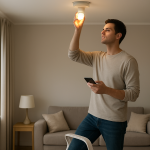
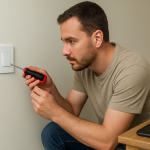
Real-world scenario: A homeowner installs smart bulbs in a room and later adds a smart wall switch. The switch is configured to cut power to the fixture (like a traditional switch). The bulbs work sometimes, but after someone toggles the wall switch off and on, the app shows the bulbs as “unreachable” or stuck “on,” and the switch status LED no longer matches reality.
Common user mistake: pairing the same bulb into multiple ecosystems “for convenience” (for example, adding a bulb to both the vendor app and a Matter controller, then also importing it into Alexa/Google). This often creates mismatched status, especially in groups and routines.
Most Likely Causes in Real Homes
1) The bulb is losing power (wall switch turned off, smart switch wired to cut power, or a fixture switch is off). No power means no status reporting.
2) The switch and bulb are controlled through different “homes” or integrations (wrong location, wrong account, or a disconnected link). Commands may route, but status won’t update reliably.
3) Group status is misleading because one device is missing commands or reporting late (common with large groups or mixed vendors).
4) WiFi/mesh behavior causes delayed or missing local updates (bulb on 2.4 GHz, phone on 5 GHz, roaming between access points, or client isolation settings).
5) Duplicate device entries (Matter + vendor cloud, hub import + direct pairing). You’re watching the wrong device tile.
Step-by-Step Fix
Confirm the bulb reports live status in its native app (or hub app). What to do: Open the bulb’s vendor app (for WiFi bulbs) or the hub app (for Zigbee hubs like Hue/SmartThings, or a Matter controller). Toggle the bulb on/off from that app and watch whether the status changes immediately and consistently.
What the result means: If the native/hub app shows correct live status, the bulb is fine and the problem is likely in the integration layer (Home/Alexa/Google), groups, or permissions. If the native/hub app is also wrong or slow, the issue is likely connectivity, power, or the bulb itself.
If it fails, try next: Go to step 2 to verify power and reachability before changing any integrations.
Make sure the bulb always has power (do not let a switch cut power to a smart bulb). What to do: Ensure the physical wall switch controlling that fixture is left ON. If you have a smart wall switch installed, confirm it is not configured to physically cut power to the smart bulb (many setups should use “smart bulb mode,” “decoupled mode,” or scene control instead of load control, depending on the ecosystem).
What the result means: If the bulb was losing power, status updates will be wrong because the bulb can’t report state when it’s off-line. Restoring constant power usually fixes “stuck status” immediately after the bulb reconnects.
If it fails, try next: If the bulb still shows wrong status even with constant power, continue to step 3 to isolate whether the controller is looking at the correct device entry.
Check for duplicate device entries and confirm you’re controlling the same bulb you’re monitoring. What to do: In your main controller app (Apple Home, Alexa, Google Home, SmartThings, etc.), search for the bulb name and look for duplicates (often one will be labeled by a different integration, such as Matter vs vendor, or hub vs cloud). Open each device tile and compare details like room assignment, model info, or “connected via” information if shown.
What the result means: If there are duplicates, one tile may send commands while the other shows status (or one is stale). This creates the classic “it turns on but status doesn’t change” symptom.
If it fails, try next: Remove the duplicate entry you are not using (from the controller app only, not necessarily factory resetting the bulb), then re-test. If you’re unsure which is correct, proceed to step 4 and confirm integration links.
Verify the switch and bulb are in the same home/location and the integration link is connected. What to do: In the controller app, confirm both devices are assigned to the same “Home” (not just the same room). Then check the integration: for example, the vendor skill/service linked to Alexa/Google, or the bridge connection to HomeKit/Matter. If there is a “Reconnect,” “Relink,” or “Reauthorize” option, use it.
What the result means: If relinking fixes it, the problem was usually an expired token or a cloud sync issue where commands still worked but state subscriptions were broken.
If it fails, try next: Continue to step 5 to test groups and automations, which often mask the real device state.
Test the bulb outside of groups/scenes to rule out group sync problems. What to do: Turn off all lighting automations temporarily for that room (only for testing). Then control a single bulb directly (not the group) and watch status updates. After that, control the group and see if the group status matches the individual bulb status.
What the result means: If individual bulbs update correctly but the group status is wrong, the issue is likely group logic, a missed command to one bulb, or a slow/unreachable device causing the group to show an incorrect summary.
If it fails, try next: If even individual control doesn’t update status, go to step 6 and check network path issues (WiFi band/mesh) or hub reachability.
Do a quick network path check (WiFi band, mesh roaming, and isolation). What to do: If the bulbs are WiFi, confirm they are on 2.4 GHz (most are). Then check your phone: if your phone is on 5 GHz, that is usually fine, but some routers enable settings that block device-to-device discovery across bands or across mesh nodes. If you have multiple access points/mesh nodes, stand near the main router and re-test. Also check for “AP isolation,” “client isolation,” or “guest network” usage; smart devices should not be on a guest network.
What the result means: If status updates work when you’re near the main router but fail elsewhere, roaming/mesh handling is likely causing delayed local discovery or inconsistent connections. If bulbs are on a guest network, they may be controllable via cloud but not report locally in a way your controller expects.
If it fails, try next: Continue to step 7 to isolate cloud vs local behavior using a hotspot test.
Hotspot isolation test (separates “cloud/account” issues from “home network” issues). What to do: Temporarily connect your phone to a mobile hotspot (not your home WiFi). Then open your controller app and check whether bulb status updates correctly when you toggle the bulb.
What the result means: If status updates work on hotspot but not on home WiFi, the issue is likely your home network path (mesh roaming, isolation, DNS filtering, or router security features). If it fails on both, the issue is more likely the account/cloud link, device firmware, or a controller configuration problem.
If it fails, try next: Proceed to step 8 for a clean power cycle sequence that often restores state reporting.
Power cycle in the correct order (controller first, then hub/router, then bulbs). What to do: Close the controller app completely. Restart the phone/tablet you use to control lights. If you have a hub/bridge (Zigbee hub, Hue bridge, Thread border router), reboot it. If the bulbs are WiFi, reboot the router. Finally, power-cycle the bulbs by turning them off for 10 seconds and back on using the fixture’s power (only if doing so does not require opening anything and is safe and accessible).
What the result means: If status updates return after a proper restart order, the problem was likely a stuck session, stale subscriptions, or a hub/router state issue after an outage.
If it fails, try next: Move to step 9 to check schedules, routines, and permissions that can “fight” your manual control and confuse status.
Verify schedules, routines, and permissions that can override status. What to do: Check the bulb’s vendor app, the hub app, and your main controller app for schedules, adaptive lighting, presence routines, or “turn off after X minutes” rules. Also check household permissions: if multiple family members control the same home, confirm everyone is using the same home and not a separate invited home that only partially syncs.
What the result means: If a schedule turns the bulb back on/off shortly after you change it, the status may appear to “not update” when it’s actually being immediately overridden. If permissions are mismatched, one person’s app can show stale status.
If it fails, try next: If you still have wrong status after disabling schedules, continue to Advanced Troubleshooting for deeper integration and firmware checks.
Advanced Troubleshooting
This section is only needed if basic fixes fail.
Account or cloud issue: If your system relies on a cloud link (common with WiFi bulbs and third-party integrations), sign out of the controller app and sign back in, then re-link the vendor service. If the vendor’s service is temporarily degraded, you may see control working intermittently while status stays stale; waiting and relinking later can resolve it. If only one ecosystem shows wrong status (for example, vendor app is correct but voice assistant app is wrong), the integration layer is the likely failure point.
Network issue (relevant when hotspot test points to home WiFi): Disable “smart connect” temporarily (combined 2.4/5 GHz steering) if bulbs frequently drop. Ensure IoT devices are on the main LAN, not a guest or isolated VLAN unless you have explicitly allowed local discovery between networks. If your router has security filtering, ad blocking, or DNS filtering features, temporarily disable them to see if state updates return; some ecosystems use specific discovery or messaging that can be blocked even when basic internet access works.
Firmware/software cause: Update firmware for bulbs, hubs/bridges, and the controller app. A common pattern is: after an app update, device tiles remain but background permissions change, and state subscriptions become unreliable until the app is updated again or reauthorized. If your phone has battery optimization enabled for the controller app, allow background activity; otherwise the app may not refresh status until opened.
Configuration conflict (groups, scenes, automation, permissions): If a smart switch controls a scene (not a direct on/off), the “bulb status” may not match what you expect. For example, a scene can set brightness to 1% (looks off) while the app shows “on.” If you use multiple controllers (vendor app + Matter + voice assistant), pick one primary control path for automations and remove redundant automations from the others. If X happens (status flips back after a second) it usually means two automations are competing.
When to Reset or Replace the Device
Soft restart vs factory reset: A soft restart is simply rebooting the bulb (power off/on) or rebooting the hub/router. A factory reset removes the device from its network and forces you to set it up again. Try factory reset only after you’ve confirmed constant power, removed duplicates, and relinked integrations.
What you lose after a reset: You typically lose room assignments, scenes, automations, and integrations tied to that device entry. In Matter setups, you may need to re-add the device to each controller that uses it. Plan to rebuild routines that reference the device.
Safety note: If a switch, bulb, or fixture plate is unusually hot, flickers with a burning smell, or shows visible damage, stop using it and leave it off. Status problems are not worth pushing through overheating symptoms.
How to Prevent This in the Future
Keep the control path simple: Avoid pairing the same bulb into multiple ecosystems unless you have a specific reason. Use one primary app for setup and one primary controller for automations to reduce status conflicts.
Maintain constant power to smart bulbs: Treat smart bulbs like small computers: they need continuous power to report status. If you want wall control, use a switch mode that sends smart commands rather than cutting power, or use a smart button that triggers scenes.
Stabilize device placement: Keep hubs/bridges and routers in open areas, not inside cabinets. For Zigbee systems, ensure you have enough always-powered devices (like smart plugs or in-wall devices installed by professionals) to form a stable mesh so bulbs don’t drop and miss state reporting.
Manage automations carefully: Document key routines (even a simple note of what controls what). After adding a new switch or voice routine, verify it doesn’t duplicate an existing schedule. Conflicts are a top cause of “status doesn’t match reality.”
Plan for power outages: After an outage, give hubs and routers a few minutes to fully restore before judging status accuracy. If your bulbs have a “power-on behavior” setting, set it intentionally so the on/off state after an outage matches how you expect the home to behave.
Stay current on firmware: Update bulbs, hubs, and controller apps periodically. Many status-sync bugs are fixed quietly in firmware updates, especially around Matter and multi-controller environments.
FAQ
Why does the switch turn the light on/off but the app still shows the old status?
This usually means commands are getting through, but state feedback is not. Common reasons are: the bulb is being controlled through a different integration than the one you’re viewing, the bulb is losing power and can’t report, or you’re looking at a duplicate device entry. Confirm live status in the bulb’s native/hub app, then check for duplicates and relink integrations.
My group says “On,” but the room looks dark. Is the bulb broken?
Not necessarily. Group status can be a summary based on the last group command, and one bulb missing the command can confuse the group tile. Also, a scene can set brightness extremely low while still technically “on.” Test each bulb individually outside the group to find the outlier.
Misconception: “If WiFi works for streaming, my smart lights must be fine.”
Streaming can work even when smart-device discovery and local messaging are unstable. Smart lighting status relies on consistent connectivity, correct network segmentation (not guest/isolation), and sometimes local multicast behavior. A network can feel “fast” but still cause delayed or missing status updates for IoT devices.
Do Matter devices prevent status sync problems?
Matter can improve interoperability, but it doesn’t eliminate status issues. You can still get stale status from duplicate device entries across controllers, competing automations, or a device losing power. Matter also makes it easier to have multiple controllers, which increases the need to keep your setup organized.
When should I factory reset the bulb or switch?
Factory reset is reasonable if: the bulb/hub app can’t get reliable live status even with constant power, re-linking accounts doesn’t help, and you’ve confirmed you are not dealing with duplicates or automation conflicts. Resetting is often effective, but expect to rebuild room assignments and automations afterward.
What’s left now isn’t a mystery, it’s just a cleaner line between the problem and what you can do with it. That shift feels oddly satisfying—like unclenching a fist you didn’t realize you were keeping tight.
There’s still plenty to live through, of course. But the noise has changed shape, and the next steps look a lot less dramatic from here.