How to Fix Smart Devices After Changing Your WiFi Name or Password
Quick Answer
After you change your WiFi name (SSID) or password, many smart devices keep trying to connect using the old credentials stored in their internal WiFi “memory.” That credential mismatch cache is the most common reason devices suddenly show as offline, blink an error light, or disappear from your app even though your phone and laptop connect fine.
The fix is usually to put each device back into WiFi setup mode and re-add it in the manufacturer’s app so the device overwrites the cached SSID/password. If the device still won’t join, the next most common blockers are 2.4 GHz vs 5 GHz band confusion, router security settings (WPA3-only), and a router that didn’t fully apply changes until rebooted.
Why This Happens
Most smart home devices store WiFi settings in non-volatile memory so they can reconnect after a power outage without needing your phone. When you change the SSID or password, the device doesn’t “learn” the new one automatically. It keeps attempting the old credentials, and many devices don’t have a screen to tell you what’s wrong—so you just see “offline.”
There’s also a second layer of caching that can confuse troubleshooting: your router may keep a record of prior connections, and your phone may auto-join the new WiFi while the device is stuck on the old one. This creates a misleading situation where the internet seems fine, but the smart device can’t authenticate.
A real-world example: in an apartment with lots of neighboring networks, you rename your WiFi to something new and enable “smart connect” or band steering on an ISP modem-router combo. Your phone happily connects on 5 GHz, but a smart plug only supports 2.4 GHz. The plug keeps trying the old SSID on 2.4 GHz, fails authentication, and never reaches the stage where it can be reconfigured unless you put it back into pairing mode.
One common user mistake is changing the WiFi name/password and then trying to “refresh” the device in the app without actually re-provisioning it. Refreshing doesn’t rewrite the device’s stored credentials. Another overlooked technical cause is router security mode changes during the rename—many routers default to WPA3-only or WPA2/WPA3 mixed mode after updates, and older smart devices can’t negotiate WPA3.
Step-by-Step Fix
Confirm the new network details and keep them simple. Verify the exact SSID and password you intend devices to use. Avoid special characters that some older devices struggle with (quotes, emojis, very long strings). Spaces are usually fine, but if you’re troubleshooting, temporarily use a simple password to test. Also confirm your router is broadcasting the SSID (not hidden), since hidden networks often break onboarding for smart devices.
Reboot the network in the right order. Power-cycle your modem (if separate) and router to ensure the new SSID/password and security settings fully apply. Unplug the modem for 30 seconds, plug it back in, wait for it to come online, then reboot the router. This clears stale sessions and can resolve a situation where the router UI shows the new credentials but the wireless radios are still behaving inconsistently.
Make sure you’re using 2.4 GHz when the device requires it. Many smart switches, plugs, bulbs, and older cameras only support 2.4 GHz. If your router uses the same name for 2.4 GHz and 5 GHz (band steering), setup can fail because your phone may be on 5 GHz while the device can only see 2.4 GHz. If possible, temporarily separate the SSIDs (for example, “HomeWiFi-2G” and “HomeWiFi-5G”) or temporarily disable 5 GHz during onboarding. After the device is connected, you can re-enable 5 GHz.
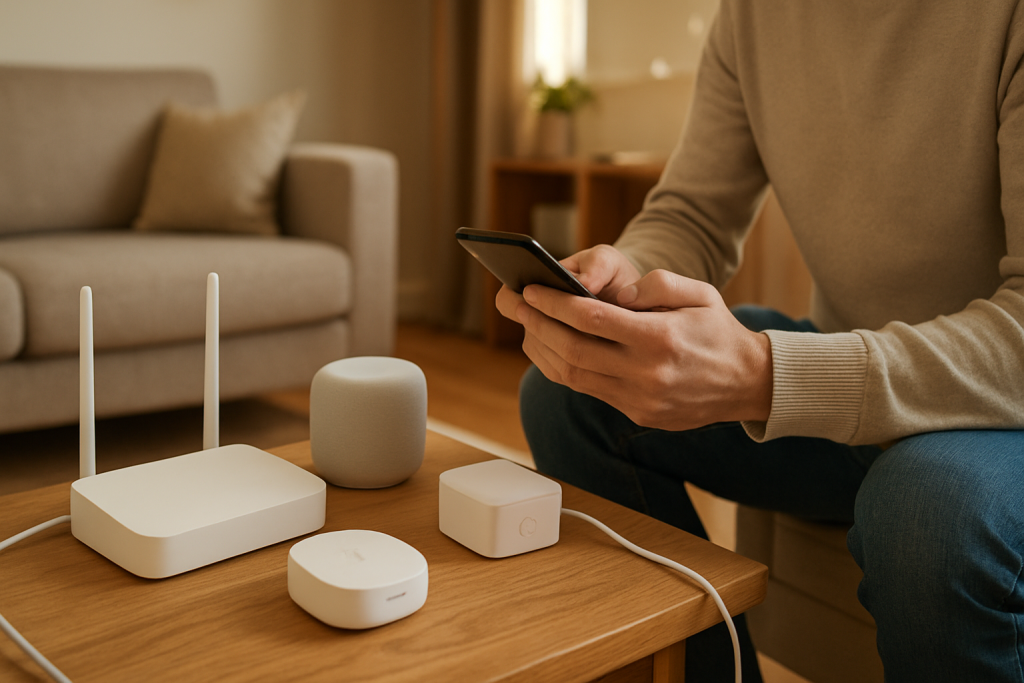
Put the device into WiFi setup/pairing mode to clear the credential mismatch cache. This is the key step. The device must enter a mode where it accepts new WiFi credentials and overwrites the old ones. Common methods:
• Smart plugs/switches: hold the button 5–10 seconds until the LED blinks rapidly.
• Bulbs: power on/off in a specific pattern (often 3–5 cycles) until it flashes.
• Cameras: hold reset/pair button until you hear a prompt or see a flashing status light.
If you’re not sure, look up the exact “pairing mode” instructions for your model. A quick press often just toggles power; a long press usually triggers provisioning.
Re-add the device in the manufacturer’s app (don’t just rename it). Open the device’s native app (not only a voice assistant app) and run the “Add device” flow. During setup, select the correct 2.4 GHz SSID and enter the new password. This is what actually writes the new credentials to the device and resolves the cached mismatch.
Use a practical testing method: bring the device close to the router. For one device that refuses to reconnect, temporarily move it within 6–10 feet of the router (or move the router closer if it’s fixed). This reduces interference and helps you separate “bad credentials” from “weak signal.” Thick plaster walls, metal lath, mirrored surfaces, and appliances can heavily weaken 2.4 GHz signals in older homes and apartments.
Verify router security and compatibility. In your router’s WiFi settings, set security to WPA2-Personal (AES) or WPA2/WPA3 mixed if your devices support it. Avoid WPA3-only while troubleshooting. Also disable enterprise modes (802.1X) and avoid WEP (insecure and often unsupported). If your router has a setting like “PMF/802.11w required,” set it to “capable” or “optional” for better compatibility with older smart devices.
Check for MAC filtering, access control, or a guest network mismatch. A router configuration issue that often gets overlooked: if MAC filtering is enabled, your device may be blocked even with the correct password. Also confirm you’re not accidentally onboarding to a guest network that isolates clients (prevents devices from talking to your phone or hub). If you use a guest network intentionally, ensure it allows local device communication if your smart ecosystem needs it.
Confirm the device shows connected in the router client list. Log into the router and look for the device in the connected devices list. If it appears with a signal strength indicator and an IP address, WiFi is working and the issue may be cloud/app-side. If it appears briefly then disappears, that points back to authentication, weak signal, or a compatibility setting.
Advanced Troubleshooting
Clear “sticky” onboarding problems caused by band steering and app behavior
Some phones aggressively prefer 5 GHz, and some apps fail onboarding if the phone switches bands mid-setup. If your router uses one SSID for both bands, temporarily split them or disable 5 GHz. Also turn off any VPN on your phone during setup; some device apps use local discovery that VPNs can disrupt.
Address DHCP issues and IP conflicts (simple explanation)
Once a device connects to WiFi, it still needs an IP address from your router using DHCP (automatic addressing). If the router’s DHCP pool is exhausted or there’s an IP conflict (two devices trying to use the same address), the device may connect to WiFi but fail to function in the app. Signs include the device showing “connected” on the router but unreachable in the app.
Fixes: reboot the router, ensure DHCP is enabled, and check that the DHCP range is large enough (for example, 192.168.1.100–192.168.1.250). If you use static IPs or reservations, confirm you didn’t accidentally assign the same IP to multiple devices. After changes, power-cycle the affected smart device so it requests a fresh lease.
Look for interference and channel problems, especially in apartments
In dense neighborhoods, 2.4 GHz can be crowded. Even though 2.4 GHz travels farther than 5 GHz, it’s more prone to interference from neighboring routers, Bluetooth devices, baby monitors, and microwaves. If devices connect near the router but fail in their normal location, set the 2.4 GHz channel manually to 1, 6, or 11 (pick the least congested if your router shows a scan). Keep channel width at 20 MHz for stability; 40 MHz on 2.4 GHz often makes things worse in busy areas.
Firmware and software causes that mimic credential problems
A router firmware update sometimes changes defaults (like enabling WPA3-only, turning on client isolation on guest WiFi, or changing band steering behavior). Likewise, smart devices may need a firmware update but can’t download it until they reconnect. If you can get a device online temporarily, check for device firmware updates in its app. For routers, verify you’re on a stable firmware release and consider rebooting after any configuration change—some ISP modem-router combos don’t apply wireless changes cleanly until restarted.
Factory reset vs. “network reset” (not the same thing)
Some devices offer a network-only reset that clears the stored SSID/password without wiping everything. If available, use that first. A full factory reset can remove automations, calibrations, or saved clips, and it may require re-adding the device to multiple services.
When to Reset or Replace the Device
Reset makes sense when the device cannot enter pairing mode reliably, keeps reverting to the old SSID/password, or you’ve confirmed the router settings are compatible (WPA2, 2.4 GHz available, no MAC filtering) and the device still won’t authenticate. If the device is stuck in a loop—connects for a minute, drops, and repeats—do a network reset first, then a factory reset if needed.
Replacement becomes more likely if the device is very old and only supports outdated WiFi standards or security methods, or if it cannot handle modern router features even after you adjust settings. Another sign: the device never appears in the router client list during setup even when placed close to the router and after a full reset. That can indicate a failing WiFi radio or power supply issues (common with older smart plugs and cameras).
If multiple devices from different brands all fail after the WiFi change, replacement is usually not the answer. That pattern points back to router configuration, band steering behavior, or a security mode mismatch rather than multiple devices failing at once.
How to Prevent This in the Future
If you plan to change routers or update WiFi credentials, consider keeping the same SSID and password as before. That’s the simplest way to avoid triggering the credential mismatch cache across dozens of devices. Many homeowners do this when upgrading to a new router: set the new router’s WiFi name and password to match the old one, and most devices reconnect automatically.
For households with many devices, maintain a short list of which devices require 2.4 GHz only. If your router supports it, create a dedicated 2.4 GHz SSID for smart devices and leave it stable. This reduces onboarding headaches and prevents a common mistake: trying to connect a 2.4 GHz-only device to a 5 GHz-only SSID.
Keep router settings conservative for compatibility: WPA2-Personal (AES), 2.4 GHz channel width at 20 MHz, and avoid enabling “isolate clients” on the network used by smart devices. If you use an ISP modem-router combo, note that firmware updates can silently change behavior; after updates, quickly verify that 2.4 GHz is still enabled and security mode didn’t flip to WPA3-only.
Finally, place your router thoughtfully. Distance and interference matter more than people expect: a router tucked in a basement corner or behind a TV can create dead zones that show up right after a credential change because devices are forced to reconnect from scratch. A more central location, higher placement, and avoiding metal enclosures can improve long-term stability.
FAQ
Do I have to reset every smart device after changing my WiFi name or password?
Usually, yes—unless you keep the exact same SSID and password on the router. Most smart devices won’t automatically update stored credentials, so you must re-run setup (or a network reset) to overwrite the cached WiFi details.
My phone is on WiFi, but the device won’t connect. What’s the most likely reason?
The most common reason is the device still has the old SSID/password saved and is failing authentication. The next most common is 2.4 GHz vs 5 GHz mismatch during onboarding, especially when the router uses one combined network name for both bands.
How can I tell if it’s a WiFi password problem or a weak signal problem?
Move the device close to the router and try onboarding again. If it connects reliably near the router, the password is probably correct and the issue is signal strength or interference at the original location. If it still won’t connect close to the router, focus on credential re-entry, security mode (WPA2 vs WPA3), and whether the device is truly in pairing mode.
Can changing the router’s security settings break devices even if the password is correct?
Yes. If the router is set to WPA3-only or requires advanced protection features that older devices don’t support, the device can fail to join even with the correct password. Setting the network to WPA2-Personal (AES) or WPA2/WPA3 mixed mode is often the most compatible option.
Why does the device show connected on the router but still offline in the app?
That can happen if the device got WiFi access but failed to obtain a working IP address via DHCP, or if there’s an IP conflict. It can also be caused by guest network isolation blocking local communication, or a temporary cloud/service outage. Rebooting the router, confirming DHCP is enabled with a healthy address pool, and ensuring the device is on the correct (non-isolated) network usually resolves it.
For once, the problem doesn’t get to keep a front-row seat in your day. It can hang out in the background now, muted, like a radio you finally turned down.
That shift feels small until you notice how much mental space it frees up. Not everything has to be a grand fight to matter—sometimes it’s just getting your footing back.