How to Fix Smart Devices That Stay Offline After a Power Outage
Quick Answer
After a power outage, smart devices often stay offline because the router and modem come back up in the wrong order. The router may boot before the modem (or before the internet signal is stable), so it hands out “temporary” network settings that later change, leaving devices unable to reconnect on their own.
Fix it by power-cycling in the correct sequence: modem first, then router, then smart devices. Also confirm your 2.4GHz Wi‑Fi network name and password didn’t change, since many smart plugs, bulbs, and cameras only rejoin 2.4GHz and won’t follow a new SSID automatically.
Why This Happens
Most home networks rely on a chain: the ISP line feeds the modem (or gateway), the router creates your Wi‑Fi, and smart devices connect to that Wi‑Fi. During an outage, everything loses power at once and then tries to recover at once. The problem is that “powered on” doesn’t mean “ready.” A modem can take several minutes to re-establish a stable connection to your ISP, while a router might boot in under a minute and start broadcasting Wi‑Fi immediately.
If the router comes up first, it may not receive a valid internet address (WAN IP) yet. Some routers handle this gracefully; others don’t, and they can end up in a half-connected state. Meanwhile, your smart devices see the Wi‑Fi is back and try to reconnect, but they may time out, get stuck in a loop, or cache an old network path that no longer works once the modem finally syncs.
DHCP (the service in your router that hands out local IP addresses like 192.168.1.25) can also be part of the issue. After a chaotic reboot, devices may request an address at the same time, and occasionally you’ll see an IP conflict (two devices trying to use the same address) or a device holding onto an expired lease. The symptom is frustratingly similar: the device looks connected to Wi‑Fi but shows “offline” in the app.
An overlooked cause is band steering and SSID changes. Many routers broadcast the same network name for 2.4GHz and 5GHz and automatically move devices between them. That’s usually fine for phones and laptops, but many smart devices are 2.4GHz-only. After a reboot, the router may temporarily prefer 5GHz, change channel width, or enable a “smart connect” feature that confuses onboarding and reconnection. If the device can’t see the 2.4GHz network in the way it expects, it may never rejoin, even though your phone works fine.
Real-world example: in an apartment building with dozens of neighboring networks, a router reboot after an outage may pick a crowded 2.4GHz channel. Your phone may still connect on 5GHz, but a smart lock on the far door (behind thick walls and metal framing) may only have a weak 2.4GHz signal and fail to reconnect until the network stabilizes or the channel changes.
Step-by-Step Fix
Confirm what’s actually offline. Check whether your phone has internet on Wi‑Fi and whether the router shows “internet connected.” If your phone works on cellular but not on Wi‑Fi, the issue is upstream (modem/ISP or router WAN). If your phone has internet on Wi‑Fi but smart devices are offline, focus on Wi‑Fi bands, DHCP, and device reconnection.
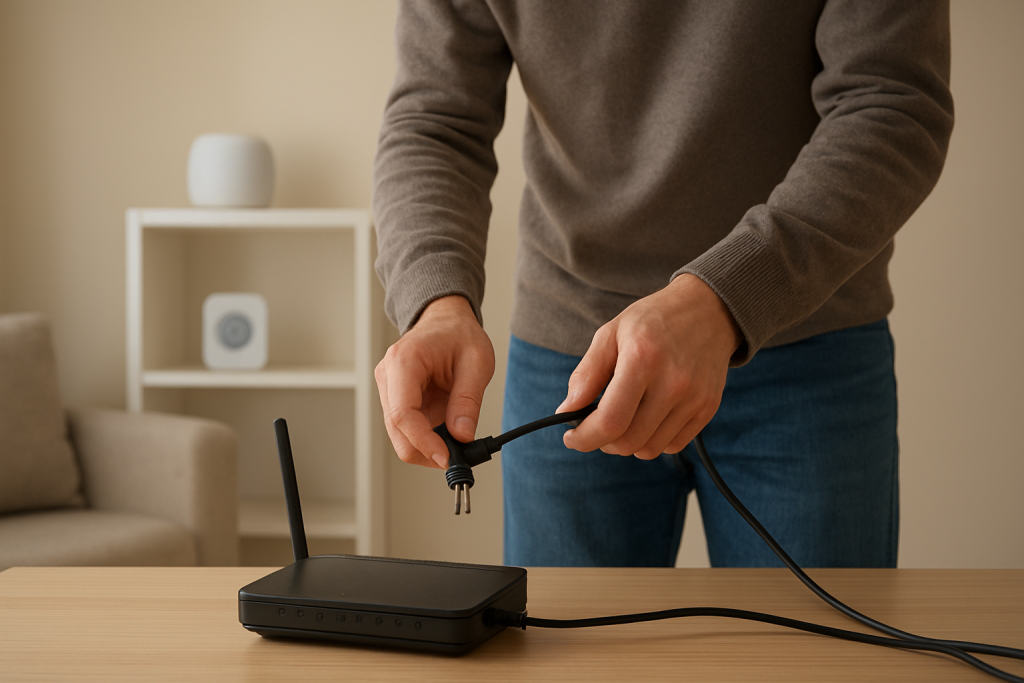
Do a correct boot-order power cycle (modem → router → devices). Unplug the modem (or ISP gateway) and the router. Wait 60 seconds. Plug in the modem first and wait until it’s fully online (often 2–5 minutes; look for stable “Online” or “Internet” lights). Then plug in the router and wait for Wi‑Fi to broadcast normally. Only after that, power-cycle the smart devices (or turn the breaker for that circuit off/on if it’s safe and appropriate).
Give devices time and reduce the reconnection stampede. A common mistake is rebooting everything repeatedly. That can keep the network in a constant churn and prevent DHCP from settling. After the boot-order reset, wait 5–10 minutes. If you have many devices, bring them back in batches (for example, power smart plugs in one room first, then the next room).
Verify the 2.4GHz network name and password didn’t change. Many routers revert settings after a power event if the firmware glitches or if the router was already unstable. Open your router app and confirm the SSID and password. If your router broadcasts separate names for 2.4GHz and 5GHz, make sure the 2.4GHz SSID is enabled and spelled exactly as before (case-sensitive). If you recently renamed the network, older smart devices will not “follow” the new name.
Temporarily disable band steering / “Smart Connect” if devices won’t rejoin. If your router uses one combined SSID for both bands, temporarily split them into two SSIDs (for example, HomeWiFi_2G and HomeWiFi_5G). Connect your phone to the 2.4GHz SSID and try reconnecting the offline devices. Once everything is stable, you can decide whether to keep them split (often more reliable for smart homes) or re-enable band steering.
Check router DHCP settings and available addresses. In the router settings, confirm the DHCP server is enabled and the address pool isn’t tiny. If the pool is too small (for example, only 20 addresses) and you have lots of devices, some will fail to obtain an IP after a reboot. A practical home setup is often 100+ addresses available. If your router shows a “client list,” look for devices connected without an IP or with duplicate IPs.
Restart the specific offline device and watch its status. Power it off for 10 seconds and back on. For battery devices, remove and reinsert the battery if possible. Then watch your router’s client list: does the device appear, and does it get an IP address? This is a simple testing method that separates “Wi‑Fi association” problems from “cloud/app” problems.
Confirm the router’s internet connection is stable. If smart devices connect to Wi‑Fi but still show offline, they may be failing to reach their cloud services. Run a quick test: on a phone connected to Wi‑Fi, open a few websites and run a speed test. If internet drops intermittently, your smart devices may repeatedly fail their check-ins and remain marked offline.
Advanced Troubleshooting
Check for double NAT or modem-router combo confusion
If you have an ISP modem-router combo (a gateway) plus your own router, a power outage can cause the gateway to re-enable routing features, creating a “double NAT” situation. Your router might still broadcast Wi‑Fi, but smart devices can have trouble with inbound connections, discovery, or cloud sessions.
Signs include: your router’s WAN IP looks like 192.168.x.x or 10.x.x.x (instead of a public IP), or your gateway’s Wi‑Fi is also active with a similar name. Fix by putting the gateway in bridge mode (if supported) or placing your router in access point mode. If you’re not sure, start by disabling Wi‑Fi on the ISP gateway to reduce confusion and interference.
Look for an IP conflict or “stuck” DHCP lease
After an outage, some devices may come back quickly and cling to an old IP address that the router later gives to another device. This can make one or both devices appear offline. In the router’s client list, look for duplicate IPs or repeated disconnect/reconnect logs.
Practical fix: reboot the router again (after the modem is stable), then reboot only the affected devices. If your router supports DHCP reservations, reserve an IP for critical devices like hubs, cameras, and smart speakers so they always get the same address.
Wi‑Fi interference and channel changes after reboot
Routers often auto-select channels at boot. In dense neighborhoods or apartments, the “best” channel at boot may become noisy minutes later as other routers recover. 2.4GHz travels farther but is more crowded; 5GHz is faster but shorter range. Devices at the edge of coverage (garage cameras, door locks, backyard plugs) may fail to reconnect if the router picks a channel that performs poorly through thick walls or metal appliances.
Testing method: stand near the device with your phone on 2.4GHz and check signal strength in your Wi‑Fi settings. If it’s weak near the device, consider moving the router higher and more central, rotating antennas (if present), or adding a mesh node or access point closer to that area. If you can set a fixed 2.4GHz channel (1, 6, or 11), pick the least congested one using a Wi‑Fi analyzer app.
Router configuration issues that block reconnects
Some security settings can break older smart devices after a reboot or firmware update. Watch for these router options:
WPA3-only mode: Many smart devices need WPA2-Personal. Use WPA2 or WPA2/WPA3 mixed mode.
MAC randomization / access control: If you use a MAC filter allow-list, a device that resets its Wi‑Fi module could present a different MAC (rare but possible) or simply fail to re-authenticate. Temporarily disable MAC filtering to test.
AP isolation / client isolation: This can prevent local discovery between your phone and devices or hubs. If your system relies on local LAN discovery, ensure isolation is off for the main network.
Firmware and cloud outages
Power events sometimes coincide with router firmware auto-updates or ISP maintenance. If your router updated overnight, settings like band steering, channel width, or security mode may have changed. Check the router’s firmware version and release notes if available. For smart devices, a vendor cloud outage can also make them appear offline even when connected; the router client list is your reality check.
When to Reset or Replace the Device
Resetting a smart device is appropriate when it no longer joins Wi‑Fi at all, doesn’t appear in the router client list after multiple correct boot-order attempts, or the device’s status LED indicates a fault state per the manufacturer (for example, rapid blinking that indicates provisioning mode but it never completes).
Before resetting, try one more targeted step: move the device temporarily closer to the router (or bring a mesh node closer) and attempt reconnection on 2.4GHz with band steering disabled. If it connects near the router but not in its normal location, the root problem is coverage or interference, not the device.
Replace the device when it repeatedly drops offline after every power event despite stable Wi‑Fi and correct router settings, or when it cannot maintain a connection on a known-good 2.4GHz network. Devices with failing power supplies or aging Wi‑Fi radios can become especially sensitive after outages. For critical devices (like a smart lock or security camera), prioritize models that support stronger Wi‑Fi reception or a dedicated hub protocol (Zigbee/Z-Wave/Thread) that’s less dependent on Wi‑Fi stability.
How to Prevent This in the Future
Use a small UPS (battery backup) for the modem and router. Keeping network gear powered through short outages prevents the boot-order problem entirely and avoids the reconnection stampede. Even a modest UPS can keep internet and Wi‑Fi up long enough for most brief power blips.
Stabilize boot order. If you can’t use a UPS, consider a smart plug with “power-on delay” for the router (or a dedicated delay timer) so the modem always comes up first. The goal is consistent sequencing: modem online, then router, then devices.
Reserve IPs for key devices. Use DHCP reservations for hubs, bridges, cameras, and smart speakers. This reduces the chance of IP conflicts and helps automations recover faster because devices stay at predictable addresses.
Keep 2.4GHz friendly settings. For smart-home-heavy networks, keep 2.4GHz enabled, use WPA2 or mixed WPA2/WPA3, and avoid exotic settings like 40MHz-only on 2.4GHz if devices are picky. If your router supports separate SSIDs, keeping a dedicated 2.4GHz SSID for smart devices can reduce reconnection problems.
Place the router for coverage, not convenience. A router tucked in a closet or behind a TV can work until conditions change after a reboot. Put it as centrally as possible, elevated, and away from interference sources like microwaves, cordless phone bases, and dense wiring panels. In homes with thick plaster walls or apartment buildings with heavy congestion, adding a wired access point or mesh node can make reconnection after outages far more reliable.
Update firmware intentionally. Check router firmware periodically and update when you can monitor the network afterward. If your router has an auto-update option, schedule it for a time you’re home so you can verify that Wi‑Fi bands and security settings didn’t change.
FAQ
Why do my smart devices show offline but my phone’s Wi‑Fi works?
Phones handle roaming, band changes, and captive states better than many smart devices. After an outage, your phone may connect on 5GHz with strong signal while a 2.4GHz-only device can’t rejoin, or the device may have Wi‑Fi but no valid IP address from DHCP. Checking the router’s client list helps confirm whether the device is actually connected to the network.
How long should I wait after rebooting the modem and router?
Wait until the modem is fully online (often 2–5 minutes) before powering the router. After the router boots, give smart devices 5–10 minutes to reconnect. If you keep rebooting during that window, devices may never complete authentication and DHCP, especially if many are trying to connect at once.
Should I split my Wi‑Fi into separate 2.4GHz and 5GHz names?
If you have frequent smart-device reconnect issues, splitting often improves reliability. It lets you keep phones and streaming devices on 5GHz while forcing smart devices onto 2.4GHz, which has better range through walls. You can always re-enable a combined SSID later, but a dedicated 2.4GHz SSID is a practical long-term fix for many homes.
What is DHCP, and how can it make devices stay offline?
DHCP is the router feature that assigns a local address to each device so it can communicate on your network and reach the internet. After a power outage, devices may request addresses at the same time, and occasionally an address conflict or expired lease can occur. The device may connect to Wi‑Fi but fail to communicate properly, making it appear offline in the app until it gets a clean DHCP assignment.
Do I need to factory reset every smart device after an outage?
No. Factory resets are usually a last resort. Start with the correct boot order (modem first, then router), confirm the 2.4GHz network is available with the same credentials, and check DHCP capacity. Reset only the devices that still won’t appear in the router’s client list or that refuse to reconnect even when placed close to the router on a stable 2.4GHz network.
There’s a strange comfort in having the pieces finally line up—like finding the right key in a cup of mismatched ones. The noise falls away, and the path ahead feels less like guessing and more like noticing.
Maybe that’s the real shift: not a big dramatic change, but a steady exhale. Life keeps moving, yet it doesn’t feel quite so snagged anymore.