How to Fix WiFi Thats Fast Near the Router but Slow in Other Rooms
Quick Answer
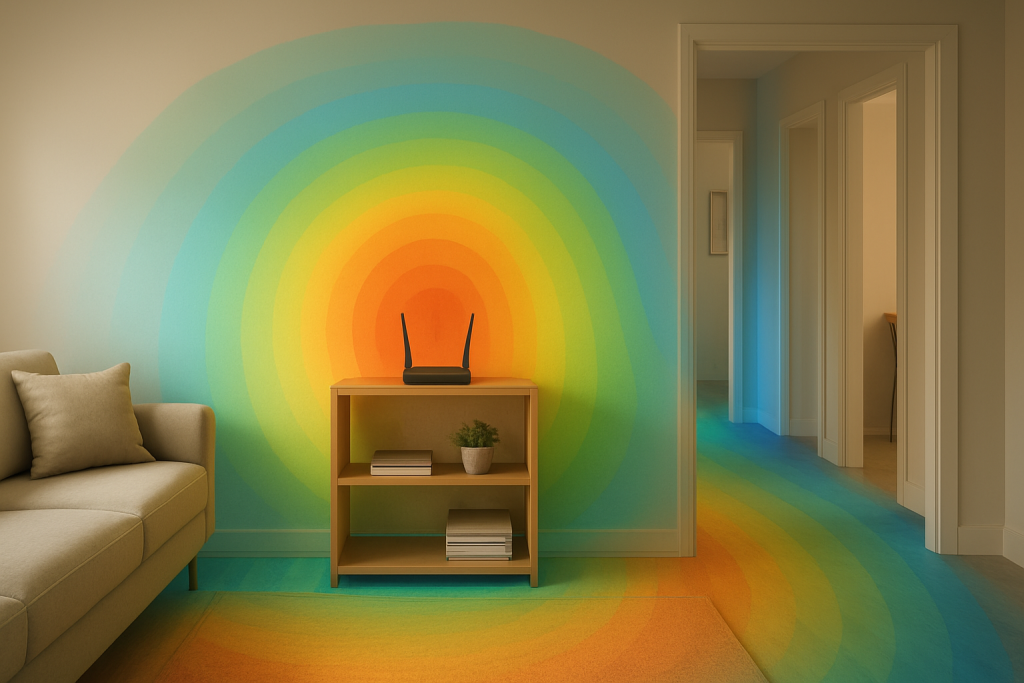
If your WiFi is fast near the router but slow in other rooms, the most common cause is signal degradation over distance. As you move away, the signal has to pass through walls, floors, furniture, and even people, which weakens it and forces your devices to use slower WiFi “speeds” (lower modulation rates) to stay connected.
Start by confirming the issue is WiFi signal strength (not your internet plan) using a quick speed test near the router and then in the slow room. Then improve coverage by relocating the router, switching bands (2.4GHz vs 5GHz), choosing a cleaner channel, and adding coverage hardware like a mesh node or access point if distance and building materials are the real limitation.
Why This Happens
WiFi performance drops with distance because radio signals lose power as they travel. The farther a device is from the router, the weaker the received signal becomes, and the more errors occur. To maintain a reliable connection, WiFi automatically “steps down” to slower rates that can survive in weaker conditions. This is why a device can show “connected” yet feel painfully slow in a back bedroom.
Walls and floors accelerate this drop. Drywall is usually manageable, but plaster, brick, concrete, tile, radiant floor heating, metal studs, mirrors, and large appliances can absorb or reflect WiFi. A common real-world scenario is an apartment where the router sits by the entryway because that’s where the ISP modem-router combo was installed. The living room nearby is fast, but the bedroom on the far side—separated by a bathroom with tile and plumbing—gets slow or unstable WiFi.
Band choice matters. 5GHz is typically faster at short range but has shorter reach and struggles more through walls. 2.4GHz travels farther and penetrates better, but it’s usually slower and more crowded (neighbors’ WiFi, Bluetooth devices, baby monitors, and some smart home gear). Many homes experience “fast near the router” because devices close by use 5GHz at high rates, while devices farther away fall back to 2.4GHz or cling to a weak 5GHz signal.
Interference and congestion can compound distance loss. If your router is near a microwave, cordless phone base, TV, soundbar, or dense cluster of cables and electronics, the signal-to-noise ratio drops even faster as you move away. In apartments, neighboring networks can crowd the same channels, especially on 2.4GHz, making distant rooms feel slower than they should.
There are also secondary causes that can look like “distance,” even when the real issue is configuration. One common user mistake is placing the router inside a cabinet, behind a TV, or on the floor. Another is assuming “Auto” settings always pick the best channel or band. An overlooked technical cause is a device clinging to a far-away node or band (sticky roaming), especially with extenders or mesh systems that aren’t optimally placed. Firmware bugs, outdated drivers, or router features like band steering and airtime fairness can also create uneven performance across rooms.
Finally, in rare cases, slow performance in one area can be triggered by network addressing problems. If two devices end up with the same IP address (an IP conflict), or if DHCP (the service that hands out IP addresses) is misbehaving, a device may connect but have erratic throughput. This is less common than signal degradation, but worth keeping in mind if the slowdown is sudden or affects specific smart devices.
Step-by-Step Fix
Confirm it’s WiFi coverage, not your internet plan. Run a speed test on the same device in two spots: (1) within 5–10 feet of the router, and (2) in the slow room. If you get strong speeds near the router but a big drop in the other room, you’re dealing primarily with signal degradation distance. If both locations are slow, troubleshoot your ISP connection or modem first.
Practical testing method: also check the device’s WiFi details (signal strength or RSSI if shown). If the slow room shows a much weaker signal than near the router, that’s your confirmation.
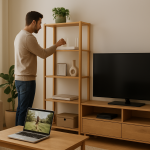
Relocate the router for better line-of-sight and height. Place the router as centrally as possible, elevated (on a shelf), and out in the open. Avoid closets, cabinets, and behind TVs. If your ISP modem-router combo is stuck in a corner, consider running a longer Ethernet cable to reposition it, or put the modem in bridge mode and use your own router placed centrally (if your ISP supports this).
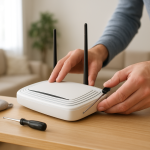
Also adjust antennas: if your router has external antennas, try one vertical and one angled to improve coverage across floors and rooms.
Choose the right band: 2.4GHz for reach, 5GHz for nearby speed. In distant rooms, 2.4GHz often performs better because it holds signal strength longer through walls. In rooms near the router, 5GHz can deliver higher speeds. If your router uses a single combined network name (SSID), devices may choose poorly and stick to a weak 5GHz signal.
Fix: temporarily split SSIDs (for example, “Home-2.4” and “Home-5”) so you can force distant smart devices onto 2.4GHz. Many smart plugs, cameras, and thermostats are more reliable on 2.4GHz anyway. After testing, you can keep them split or re-enable band steering if it works well in your home.
Change WiFi channels to reduce interference. On 2.4GHz, use channels 1, 6, or 11 (pick the least congested). On 5GHz, try a different channel block if your router allows it. “Auto” can be fine, but in crowded buildings it may pick a channel that looks okay at the router and performs poorly in distant rooms.
If your router has a built-in WiFi analyzer or “channel optimization,” run it, then re-test speeds in the slow room.
Check router configuration that can throttle distant devices. Look for settings such as QoS (Quality of Service), bandwidth limits, “eco” modes, or per-device limits. Misconfigured QoS can prioritize a streaming device near the router and starve a smart camera in a back room, making it appear like a distance-only problem.
Also verify you’re using WPA2 or WPA3 security (avoid legacy mixed modes if possible). Some older compatibility modes can reduce performance or stability.
Update firmware and device software. Router firmware updates often include radio stability improvements, bug fixes for band steering, and better handling of congested environments. Update the router, then reboot it. Also update phone/laptop WiFi drivers and any smart device firmware through its app.
Firmware/software causes are easy to overlook because the WiFi “works,” but performance collapses at the edges of coverage where the connection is most sensitive.
Add coverage the right way: mesh node or wired access point. If the slow room is simply too far or separated by dense materials, no setting will “create” signal that isn’t there. The reliable fix is to shorten the wireless distance.
Best option: run Ethernet to the far area and add an access point. Next best: a mesh system with a node placed halfway between the router and the slow room (not inside the slow room where the node would still receive a weak signal). If you use a WiFi extender, place it where the router signal is still strong; otherwise it just repeats a weak connection.
Advanced Troubleshooting
If you’ve improved placement and settings but still see major slowdowns in specific rooms, focus on identifying what changes at the edge of coverage: signal strength, interference, roaming behavior, or addressing issues.
Measure signal quality, not just “bars”
Bars are vague. Use a WiFi analyzer app on a phone or laptop to check signal strength and channel congestion in the problem room. You’re looking for a weak signal and/or heavy overlap with neighboring networks. If the signal is weak, the dominant cause remains distance and obstacles; if the signal is decent but throughput is poor, interference or configuration becomes more likely.
Look for “sticky” devices and roaming problems
With mesh or extenders, a device may stay connected to a farther node or to 5GHz even when 2.4GHz would be more stable. This is common with smart devices that have simple WiFi radios and rarely roam. Try turning WiFi off/on on the device, or rebooting it, to force a better association. If your system supports it, enable “fast roaming” (802.11k/v/r) carefully—some older IoT devices don’t like it and may disconnect.
Check for overlooked sources of attenuation
Some rooms are “WiFi dead zones” because of materials: a bathroom with tile and plumbing, a kitchen with appliances, a utility room with a breaker panel, or a room with a large mirror or metal-backed insulation. Even a fish tank can absorb and scatter WiFi. If the slow room is behind these, the fix is usually adding an access point or mesh node to reduce the distance and number of obstacles.
Verify backhaul and band usage on mesh/extenders
If you use a dual-band mesh, the node may be using the same band for both client traffic and backhaul, which can cut throughput, especially at range. If your system supports Ethernet backhaul, use it. If it supports tri-band, ensure the dedicated backhaul is active. Poor node placement is a top reason people get “full bars but slow” in distant rooms.
Rule out DHCP/IP conflicts when symptoms are strange
If only certain devices in the far room are slow or keep dropping while others are fine, check your router’s client list for duplicate IP addresses or repeated reconnects. DHCP is what assigns IP addresses to devices; if a device has a manually set IP that overlaps with DHCP, or if a second router is accidentally running DHCP, you can get conflicts that cause slow, unreliable connections.
Fix: ensure only one device on your network is acting as the router (and DHCP server). If you have an ISP gateway plus another router, set one to bridge/access point mode. Then reboot devices so they request fresh addresses.
When to Reset or Replace the Device
Resetting or replacing should come after you’ve addressed the dominant issue: distance-based signal degradation. Still, some devices behave poorly at low signal levels and can make the problem seem worse than it is.
Reset the device (or “forget” and re-add WiFi) if it consistently connects to the wrong band/SSID, shows a saved password error after changes, or refuses to roam after you add a mesh node. Smart devices can cache network parameters and get stuck until re-provisioned.
Consider replacing the device if it has an older WiFi standard (for example, very old 2.4GHz-only radios with poor sensitivity), if it frequently drops even when placed closer, or if it’s known to have weak antennas (common in some budget smart cameras). For routers, replacement is justified if firmware updates have ended, if it can’t handle modern interference well, or if it lacks features you need (mesh support, better radios, or stable band steering).
How to Prevent This in the Future
Plan WiFi around coverage, not just speed. When setting up a home network, place the router centrally and elevated, and assume that every wall reduces usable throughput. If your home has thick walls or a long layout, plan for at least one additional access point or mesh node from the start.
Use 5GHz where you need high speed close to the router (streaming boxes, gaming consoles) and 2.4GHz where you need reach and stability (many smart home devices). If you keep a single SSID, periodically confirm devices aren’t clinging to weak 5GHz at the edges of your home.
Keep firmware current on the router and update smart device apps/firmware when offered. Many “random” slowdowns are actually stability bugs that show up most in distant rooms. Also avoid common placement mistakes: don’t hide the router in a cabinet, don’t place it behind a TV, and don’t stack it next to other RF-heavy electronics.
Finally, document your network basics: SSIDs, passwords, and whether your ISP gateway is in bridge mode. This reduces accidental double-NAT and DHCP conflicts if you add equipment later. If you expand coverage, prefer wired Ethernet backhaul where possible, because it removes distance-related loss between nodes and keeps WiFi capacity available for your devices.
FAQ
Why does my phone show strong WiFi in the bedroom but pages still load slowly?
Signal bars don’t guarantee quality. In a distant room, the signal can be strong enough to connect but still have high interference or a low signal-to-noise ratio, forcing retries and slower rates. Test by switching between 5GHz and 2.4GHz, and try a different channel on the router to reduce congestion.
Should I use a WiFi extender or a mesh system?
Mesh is usually easier and more consistent for whole-home coverage, especially if you can place a node halfway to the problem room. Extenders can work, but only if placed where they still receive a strong router signal; otherwise they repeat a weak connection and stay slow. For best results, use Ethernet backhaul to an access point or mesh node if you can.
Is 2.4GHz always better for other rooms?
Not always, but it often reaches farther and handles walls better, which helps in distant rooms. 5GHz is typically faster near the router but drops off sooner with distance. A good approach is 5GHz for nearby high-speed devices and 2.4GHz for far rooms and many smart devices that prioritize stability.
Can router settings cause slow WiFi only in certain rooms?
Yes. Band steering can push a device onto 5GHz even when it’s too far away, and QoS or bandwidth limits can unintentionally deprioritize certain devices. Also, “Auto” channel selection can choose a channel that performs poorly in parts of the home. Testing with split SSIDs and manual channels can quickly reveal a configuration issue.
What does DHCP have to do with slow WiFi in one room?
DHCP assigns IP addresses to devices. If there’s an IP conflict (two devices trying to use the same address) or if you accidentally have two routers handing out addresses, some devices may connect but behave erratically, including slow loading and dropouts. Ensuring only one DHCP server is active and rebooting devices to get fresh addresses can resolve this.
It’s rare for a fix to feel so obvious after the fact, but this one does. The usual noise fades, and the whole thing starts reading like common sense—less puzzle, more plain air.
What’s left is the quiet confidence of seeing it clearly, and getting on with the day. Not dramatic, not flashy—just finally aligned.