How to Fix WiFi When Your Router Is in a Bad Spot for Smart Devices
Quick Answer
If your smart devices (cameras, plugs, bulbs, thermostats) keep dropping offline, the most common cause is a router placed in a poor location: too far away, blocked by dense materials, or surrounded by interference. Smart devices often have smaller antennas and weaker radios than phones or laptops, so they fail first when the router is in a “bad spot.”
Start by improving placement and signal path: move the router higher and more central, reduce obstructions, and prefer 2.4GHz for distant or through-wall devices. Then verify basics like channel congestion, band steering, and DHCP stability so devices can reliably reconnect after sleep or power cycles.
Why This Happens
WiFi is very sensitive to where the router sits. A router tucked in a corner, inside a cabinet, behind a TV, in a basement, or next to an ISP modem-router combo in a metal wiring panel can create dead zones. Smart devices are especially vulnerable because many use low-power 2.4GHz-only radios with simple antennas designed for efficiency, not maximum range.
Distance and obstacles are the biggest factors. Every wall reduces signal strength; dense materials (brick, concrete, plaster with metal lath, radiant floor heating, mirrors, and tile) can reduce it dramatically. In a real-world apartment scenario, a router placed by the front door (where the ISP line enters) may be separated from a bedroom camera by two thick walls, a bathroom mirror, and a refrigerator—enough to make the camera constantly buffer or disconnect even though your phone seems “fine” in the same room.
Interference compounds the problem. 2.4GHz travels farther and penetrates walls better, but it is crowded: neighboring routers, Bluetooth, baby monitors, cordless phones, and microwaves can all compete. 5GHz is usually faster and less congested, but it has shorter range and struggles more through walls and floors. If your router is poorly placed, 5GHz may look strong near the router but become unreliable for smart devices at the edges of your home.
A common user mistake is assuming “more bars on my phone” means the smart device has enough signal. Phones have better antennas and can roam intelligently between bands; many smart devices cannot. Another common mistake is placing the router inside a cabinet to “hide it,” which can cut signal and trap heat, reducing performance.
An overlooked technical cause is that poor placement can trigger frequent reconnects, which can expose router configuration weaknesses. For example, aggressive band steering may push devices between 2.4GHz and 5GHz, and some smart devices fail during that transition. Similarly, unstable DHCP behavior (the router handing out IP addresses) can cause a device to reconnect but end up with an IP conflict—two devices trying to use the same address—leading to random “offline” behavior even when WiFi signal looks acceptable.
Step-by-Step Fix
Confirm it’s a location problem (quick test). Take a phone or laptop to the smart device’s location and run a simple test: stand where the device sits and check WiFi signal and stability for 2–3 minutes. If you can, run a continuous ping to your router’s IP (often 192.168.0.1 or 192.168.1.1) and watch for spikes or timeouts. If the device is on 2.4GHz only, make sure your phone is also on 2.4GHz during the test; otherwise you may get a misleading result.
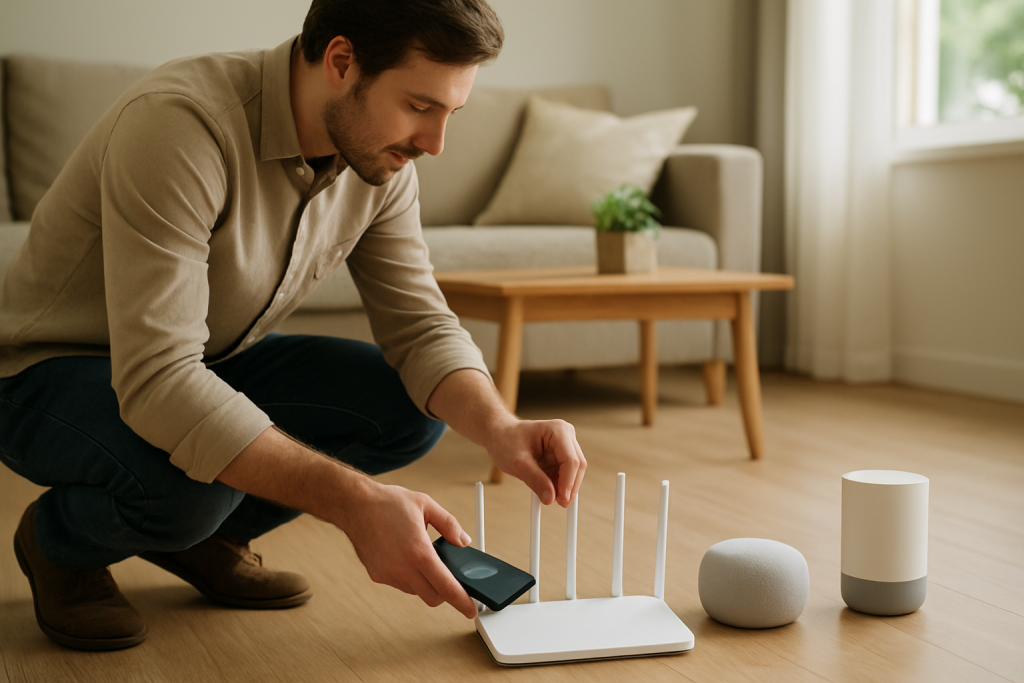
Reposition the router for coverage, not convenience. Aim for a central, elevated, open location: on a shelf or table, not on the floor. Keep it away from thick walls, large metal objects, and electronics that radiate noise (TVs, soundbars, microwave ovens, and cordless phone bases). If your router is inside an ISP-provided modem-router combo and it’s stuck in a bad spot, consider putting the ISP device into bridge mode (if supported) and using your own router placed where coverage is best.
Choose the right band for smart devices (2.4GHz vs 5GHz). For devices far away or separated by multiple walls, 2.4GHz is usually more reliable because it penetrates obstacles better. For devices near the router, 5GHz can be faster and less congested. If your router uses a single SSID for both bands, consider temporarily splitting SSIDs (for example, “HomeWiFi-2.4” and “HomeWiFi-5”) so you can intentionally connect smart devices to 2.4GHz. This avoids band-steering confusion during setup and reconnects.
Reduce interference by adjusting channel settings. In router settings, set 2.4GHz to channel 1, 6, or 11 (choose the least crowded). Avoid “Auto” if it keeps changing channels, as some smart devices handle channel switches poorly. For 2.4GHz channel width, use 20MHz for stability in dense neighborhoods. For 5GHz, use a non-DFS channel if you notice frequent drops (DFS channels can force the router to move if it detects radar, causing brief disconnects).
Check router features that break smart devices. Disable or adjust features known to cause instability when the router is in a marginal location: band steering (or “Smart Connect”), “Airtime Fairness,” and overly aggressive “WiFi optimization” modes. Also verify security is set to WPA2-Personal (or WPA2/WPA3 mixed if your devices support it). Some older smart devices fail on WPA3-only networks.
Stabilize DHCP to prevent IP conflicts and reconnect issues. In the router’s LAN/DHCP settings, ensure DHCP is enabled and the address pool is large enough (for example, .100 to .250). If devices frequently go offline after power outages, create DHCP reservations for key smart devices (camera hubs, thermostats, bridges) so they always get the same IP address. This reduces “IP conflict” scenarios where two devices end up competing for the same address, which can look like random WiFi drops.
Update firmware and reboot in the right order. Update router firmware (and mesh node firmware, if applicable). Firmware bugs can cause roaming issues, DHCP glitches, or radio instability that becomes obvious only when signal is weak. After updating, reboot the network in this order: modem (if separate) first, then router, then smart hubs/bridges, then individual devices. This helps ensure clean IP leases and fewer partial connections.
Add coverage the right way if you can’t move the router. If the router must stay where the ISP line enters, extend the network with a wired access point or a mesh system. A wired access point (Ethernet backhaul) is the most reliable. If wiring is impossible, place a mesh node halfway between the router and the problem devices (not in the dead zone). Avoid placing a range extender at the far edge where it barely receives signal; it will simply repeat a weak connection.
Advanced Troubleshooting
If basic placement and band/channel fixes help but don’t fully resolve the issue, dig deeper into how the router behaves under weak-signal conditions. Smart devices often sleep to save power, then wake and rejoin the network. A router in a poor spot can make that rejoin process fragile, especially if the router is also juggling many clients.
Run a practical stability test at the device location
Use a phone and a simple test routine: connect to the same band the device uses (usually 2.4GHz), then stream a 1080p video or run a continuous ping for 5 minutes while you stand where the device is installed. Watch for pauses, ping spikes, or disconnects. If it’s stable on 2.4GHz but not on 5GHz, that’s strong evidence the router location is making 5GHz unusable at that distance.
Check transmit power, antenna orientation, and placement height
Some routers allow transmit power adjustments. If it’s set to “Low” or “Eco,” raise it to “Medium/High.” Orient external antennas according to the router manual; as a general rule, a mix of vertical and slightly angled antennas can improve coverage across floors and rooms. Elevation matters: moving the router from behind a TV to the top of a bookshelf can dramatically improve signal paths.
Look for router configuration issues that show up as “offline” devices
Verify the router is not isolating clients (AP isolation/guest mode). Ensure smart devices are not accidentally connected to a guest network that blocks local traffic needed for discovery and control. If you use VLANs or advanced firewall rules, confirm mDNS/SSDP discovery isn’t being blocked for devices that need local broadcast to function.
Identify congestion from neighbors and your own devices
In apartments, channel congestion is often the hidden driver. If your 2.4GHz channel is saturated, smart devices may “connect” but perform poorly. Also consider your own traffic: a router in a bad spot may downshift to slower rates, and one high-usage device (cloud backups, game downloads) can increase latency enough to make smart devices appear offline. Enabling basic QoS can help, but fix placement first—QoS can’t repair a weak signal.
Consider DFS and radar events on 5GHz
If your router uses DFS channels, it may periodically switch channels when radar is detected, causing brief disconnections. Smart devices can react badly to these changes. If you notice drops at similar times or short, synchronized outages, set 5GHz to a non-DFS channel and retest.
When to Reset or Replace the Device
Resetting a smart device is reasonable after you’ve improved router placement and stabilized the WiFi settings, but before you replace hardware. If you reset too early, you may waste time re-pairing a device that will fail again due to the same weak signal conditions.
Reset the smart device if it repeatedly fails to rejoin after you change SSIDs/bands, if it was previously configured for a different router, or if it’s stuck in a partial setup state. After resetting, pair it while your phone is connected to the correct band (often 2.4GHz) and keep the phone near the device during setup.
Replace the device (or add a hub/bridge model) if it consistently shows poor reception compared to similar devices in the same spot, if it only supports outdated security that you can’t safely enable, or if vendor support has ended and firmware is no longer updated. Also consider replacement if the device overheats or reboots under normal conditions, which can look like WiFi instability.
How to Prevent This in the Future
Plan router placement as part of your smart home layout. Put the router where it can “see” the most space: central, elevated, and unobstructed. If your ISP installs equipment in a closet or at one end of the home, ask about relocating the drop, using longer coax/fiber, or switching the ISP device to bridge mode so your main router can sit in a better location.
Standardize your WiFi design for smart devices. Keep a stable 2.4GHz network for IoT gear, and avoid frequent SSID/password changes. If you must use a single SSID, test whether your router’s band steering is compatible with your devices; if not, keep bands split or disable steering. Choose channels deliberately, especially in apartments, and avoid 40MHz on 2.4GHz unless you have very little neighboring interference.
Maintain router health: update firmware a few times per year, reboot occasionally if the router becomes sluggish, and review connected-device lists for duplicates that may indicate IP conflicts. If you add many smart devices, consider a router known for handling many clients or add a wired access point/mesh with Ethernet backhaul to reduce reliance on a single poorly placed radio.
FAQ
Should I use 2.4GHz or 5GHz for smart devices?
Use 2.4GHz for devices far from the router or separated by multiple walls because it typically holds signal better at distance. Use 5GHz for nearby devices that need higher speed. Many smart devices are 2.4GHz-only, and even dual-band devices often behave more reliably on 2.4GHz when the router is in a suboptimal location.
My phone works fine where the smart device is. Why does the smart device still drop?
Phones usually have stronger antennas, better radios, and smarter roaming behavior than low-power smart devices. A router in a bad spot can create a “barely usable” signal that a phone can tolerate but a smart plug or camera cannot, especially when the device wakes from sleep and tries to reconnect quickly.
What’s the best way to extend coverage if I can’t move the router?
The most reliable fix is a wired access point connected by Ethernet and placed closer to the smart devices. If you can’t run Ethernet, a mesh system can work well, but place the mesh node where it still receives a strong signal from the main router (usually halfway). Avoid placing an extender in the dead zone, since it will repeat an already weak connection.
Can router settings cause “offline” smart devices even if signal strength is okay?
Yes. Band steering, WPA3-only security, DFS channel changes, guest network isolation, and unstable DHCP behavior can all cause devices to disconnect or fail to rejoin. DHCP issues can also create simple IP conflicts, where two devices try to use the same address, leading to intermittent connectivity that looks like poor WiFi.
Do firmware updates really matter for this problem?
They can. Router firmware updates often fix WiFi stability bugs, roaming behavior, DHCP problems, and compatibility issues with smart devices. When the router is in a marginal location, small firmware issues become more noticeable because devices are already operating close to their signal limits.
The air feels a little clearer when the noise stops, even if nothing about the bigger world has changed. The point lands cleanly, and you can almost hear your own thoughts getting their footing again.
There’s a quiet relief in noticing how straightforward it can be to move forward. Not fireworks—more like the satisfying click of things finally lining up.