Router Overheating Causing WiFi Drops: How to Fix It Safely
Quick Answer
If your WiFi drops repeatedly—especially after 20–60 minutes of use, during video calls, gaming, or when several smart devices are active—router overheating is a common cause. When internal temperatures rise, many routers protect themselves by thermally throttling: they reduce CPU/radio power, slow down processing, or temporarily disable a WiFi band to prevent damage.
The safest fix is to improve airflow and reduce heat buildup (relocate the router, remove obstructions, clean dust, and avoid stacking devices), then confirm stability with a controlled test. If drops continue, update firmware and check for configuration issues that increase load, such as channel width, band steering problems, or excessive logging and scanning features.
Why This Happens
Modern routers are small computers running a CPU, RAM, and one or more WiFi radios. Under heavy use—multiple streams, smart cameras uploading, cloud backups, or lots of small IoT connections—the CPU and radios work harder and generate more heat. In compact plastic enclosures with limited vents, heat can accumulate quickly, especially if the router is placed in a cabinet, behind a TV, on carpet, or near a window with direct sun.
Thermal hardware throttling is the key mechanism behind many “random” WiFi drops. As temperature rises, the router firmware may lower transmit power, reduce data rates, or scale back CPU frequency. In practical terms, that can look like: the 5GHz network disappears, devices roam to 2.4GHz unexpectedly, latency spikes, or the router stops responding until it cools down. Some models will reboot when they hit a critical threshold, which users often mistake for an ISP outage.
Real-world scenario: in a small apartment with thick walls, you might place the router on a bookshelf near the TV to “centralize” it. The TV, soundbar, and game console all radiate heat, and the router ends up in a warm pocket with poor airflow. At night, when smart plugs, cameras, and a streaming device are active, the router warms up, throttles, and the smart devices start showing “offline” in their apps even though the internet itself is fine.
One overlooked technical cause is that some ISP modem-router combo units run hotter than standalone routers because they combine multiple functions (DOCSIS/ONT processing, routing, WiFi radios) in a single enclosure. Another overlooked cause: USB storage or a USB LTE dongle attached to the router can increase internal temperature and CPU load, pushing it into thermal throttling sooner.
A common user mistake is stacking equipment: placing the router on top of the ISP modem, DVR, or an AV receiver. Each device warms the next, and the router’s vents (often on the bottom) get blocked. Another mistake is “fixing” drops by setting maximum channel width (like 160 MHz on 5GHz) or forcing high transmit power, which can increase radio workload and heat while also making stability worse in crowded areas.
Heat-related drops can be confused with interference or range issues. Interference and distance still matter—especially on 5GHz, which is faster but attenuates more through walls—yet overheating tends to create a pattern: performance degrades over time and improves after a cool-down or reboot. Recognizing that pattern helps you focus on the dominant root cause instead of chasing random settings.
Step-by-Step Fix
Confirm the heat pattern (simple test).
Start with the router at its current location. Note the time and use the network normally until a drop occurs. When it drops, feel the router casing near the top/vents (it may be very warm). Then power it off for 5–10 minutes to cool and power it back on. If the WiFi is stable again for a similar time window and then drops, overheating and thermal throttling are likely involved.
Improve placement and airflow immediately.
Move the router to an open, hard surface with airflow on all sides. Keep it upright if the design expects it (many are vented for vertical convection). Avoid cabinets, closets, and enclosed media consoles. Keep it at least a few inches away from walls and other electronics, and do not place it on carpet or a soft surface that blocks bottom vents. If you live in an apartment with thick walls, prioritize an open central location, but not inside a TV stand.
Separate stacked devices and reduce nearby heat sources.
If you have an ISP modem plus a router, do not stack them. Place them side-by-side with space between. Keep the router away from radiators, sunny windows, and game consoles. If the router must be near the TV area, elevate it and ensure vents are not facing a hot exhaust path from other devices.
Clean dust safely.
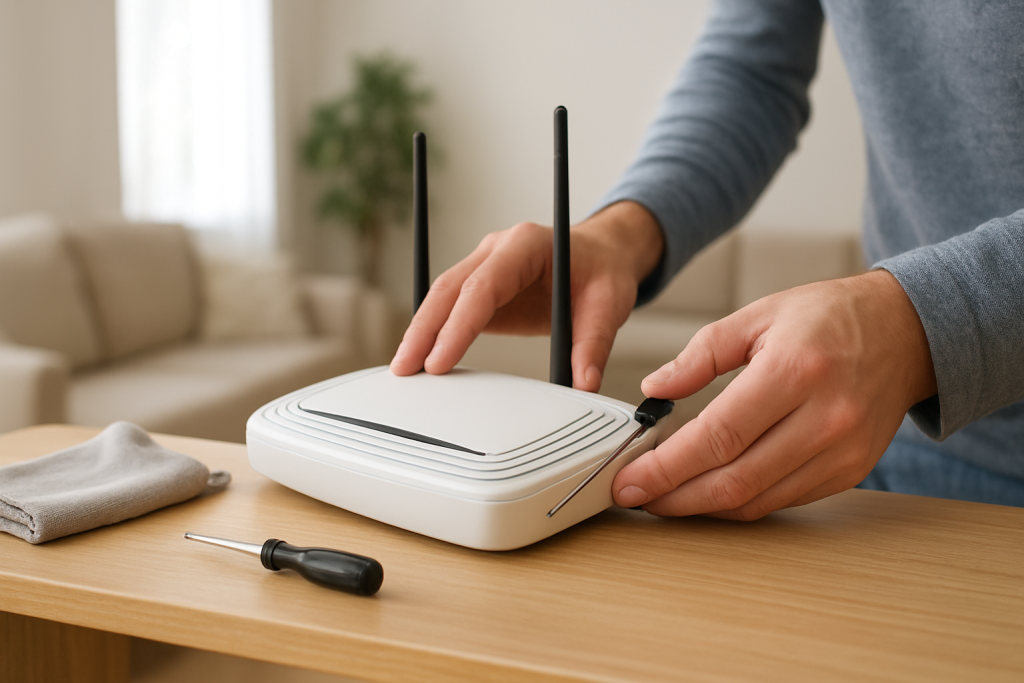
Unplug the router. Use compressed air to blow dust out of vents (short bursts, hold the can upright). Dust acts like insulation and can block airflow. Avoid opening the case unless the manufacturer explicitly supports it; opening can void warranty and risks damaging clips or antennas.
Reduce workload that triggers throttling.
Temporarily disable features that can spike CPU usage: traffic analyzers, deep packet inspection, excessive logging, and some “security scanning” add-ons. If your router supports QoS, set it to a basic mode rather than automatic “game boost” profiles that constantly classify traffic. Also disconnect unused USB devices from the router.
Adjust WiFi settings for stability (not maximum speed).
On 5GHz, set channel width to 80 MHz (or even 40 MHz in congested buildings) instead of 160 MHz. On 2.4GHz, use 20 MHz width. Choose a fixed channel if auto-channel keeps hopping (channel changes can look like drops). In many apartments, 2.4GHz is crowded but reaches farther; 5GHz is faster but can be less stable through thick walls. A stable setup often uses 5GHz for nearby devices and 2.4GHz for smart devices farther away.
Update firmware and reboot cleanly.
Check for router firmware updates from the manufacturer (or your ISP, for managed equipment). Firmware bugs can cause runaway CPU usage, memory leaks, or radio driver issues that worsen with heat. After updating, perform a clean reboot and monitor stability for a day.
Verify power and cabling.
An aging power adapter can run hot and deliver unstable voltage, which can mimic overheating symptoms. Ensure you use the original power supply. Check that Ethernet cables are firmly seated; a flapping WAN link can trigger repeated reconnections that increase CPU load and heat.
Advanced Troubleshooting
If the basic fixes help but do not fully solve the issue, use targeted tests to separate thermal throttling from interference, DHCP issues, or router configuration problems that intensify heat and instability.
Practical testing method: controlled cooling vs. controlled load
Try a controlled cooling test: place the router in its improved location and aim a small desk fan near it (not inside it) for an hour during normal use. If drops disappear with active airflow but return without the fan, that strongly supports overheating as the dominant cause.
Then try a controlled load test: run a continuous ping from a wired computer to the router’s LAN IP (often 192.168.0.1 or 192.168.1.1) while streaming or downloading. If ping to the router spikes or times out when the WiFi drops, the router itself is struggling (CPU/radio throttling). If ping to the router stays stable but internet sites fail, the issue may be upstream (modem/ISP) or a WAN/DNS problem.
Check logs and uptime patterns
If your router has system logs, look for messages like “wireless restart,” “radio reset,” “thermal,” “watchdog,” or repeated interface down/up events around the time of drops. Some routers expose CPU temperature; if you can view it, note whether it climbs steadily before failures. Even without explicit temperature readings, repeated radio resets under load are consistent with thermal stress.
Band steering and smart device compatibility
Band steering (one SSID for 2.4GHz and 5GHz) can cause smart devices to flap if the router is thermally throttling and briefly disables or weakens one band. Many IoT devices only support 2.4GHz and can behave poorly when the router tries to “help” them roam. If your smart devices go offline during drops, consider using separate SSIDs (for example, “Home-2G” and “Home-5G”) and connect IoT devices only to 2.4GHz for consistency.
Overlooked technical cause: DFS events on 5GHz
On some 5GHz channels (DFS channels), the router must vacate the channel if it detects radar-like signals. That can look like a sudden 5GHz drop. Heat can make radios more error-prone, increasing false detections or instability during channel changes. If you suspect this, set 5GHz to a non-DFS channel (commonly 36–48 or 149–161, depending on region) and retest.
Router configuration issue: DHCP scope and IP conflicts
Overheating is often the main trigger, but DHCP problems can amplify the symptoms. DHCP is the router service that hands out IP addresses to devices. If the DHCP pool is too small (for example, only 20 addresses) or if you have static IPs that overlap with DHCP assignments, devices can get IP conflicts. When that happens, smart devices may appear offline or disconnect and reconnect repeatedly, increasing router workload and heat. Expand the DHCP range and avoid assigning static IPs inside the DHCP pool unless you use DHCP reservations.
Interference and distance still matter
If the router is far from smart devices, the radios must work harder to maintain a link, especially on 5GHz through thick walls. That can raise heat and trigger throttling sooner. If you cannot relocate the router centrally, consider adding a wired access point or a mesh node with a strong backhaul. Avoid placing a mesh node in a hot cabinet; it can overheat too.
When to Reset or Replace the Device
Resetting makes sense when configuration drift or a firmware upgrade has left the router unstable. Replace the device when thermal throttling persists despite good airflow, or when the hardware is undersized for your device count and traffic patterns.
Consider a factory reset if:
You have tried relocation, cleaning, and firmware updates, but drops continue; you see repeated WiFi radio restarts; or you have complex settings (custom DNS, VPN, QoS, parental controls) and you want to rule out a misconfiguration. After the reset, reconfigure minimally: set SSIDs, WPA2/WPA3 security, and basic internet settings, then test before re-enabling advanced features.
Consider replacement if:
The router is too hot to touch even in open air, reboots under moderate load, or is an older model running near its capacity (many smart devices plus streaming). ISP modem-router combos that run hot and sit in poor locations are frequent culprits; in many homes, switching to a standalone router (and placing it properly) improves both thermals and stability. Also replace if the power adapter runs excessively hot or shows signs of failure.
How to Prevent This in the Future
Preventing overheating is mostly about keeping the router cool and avoiding settings that create unnecessary load.
Place the router in open air, elevated, and away from other heat sources. Maintain clearance around vents and avoid stacking devices. In warm climates or top-floor apartments, consider a location with better ambient airflow rather than the most convenient shelf.
Keep firmware current and avoid enabling every “optimization” feature at once. Features like aggressive QoS, continuous traffic monitoring, and some security add-ons can increase CPU usage and heat. Enable only what you need and verify stability after each change.
Use sensible WiFi settings: 2.4GHz at 20 MHz for reliability and IoT reach; 5GHz at 80 MHz for performance without pushing the radio too hard. In dense apartment buildings, pick stable channels and avoid frequent auto-channel hopping if it correlates with drops.
Plan for device growth. Smart homes add steady background traffic: cameras, speakers, thermostats, and plugs. If your router is entry-level, it may run hot under the constant connection count even if your internet speed is modest. A router with better thermal design, more CPU headroom, or a dedicated access point can reduce thermal stress and prevent throttling.
FAQ
How can I tell if it’s overheating versus normal WiFi interference?
Overheating usually shows a time-based pattern: WiFi works after a reboot or cool-down, then degrades after sustained use. Interference is more location- and time-of-day dependent (neighbors, microwaves, Bluetooth), and it doesn’t typically improve just because the router cooled for 10 minutes. A fan test (stable with airflow, unstable without) is a practical way to confirm heat involvement.
Why do my smart devices go offline first when the router overheats?
Many smart devices use 2.4GHz with small antennas and less robust roaming behavior. When a router thermally throttles, it may reduce transmit power, restart the 2.4GHz radio, or become slow at handling many small connections. Phones and laptops often recover faster, while IoT devices may take minutes to reconnect or may fail until the router stabilizes.
Does using 5GHz make overheating worse?
Not inherently, but 5GHz can increase workload if the signal is weak due to distance or thick walls, because devices retry transmissions and the router works harder to maintain high data rates. A stable approach is to use 5GHz for nearby high-bandwidth devices and keep distant or low-power smart devices on 2.4GHz.
Can firmware really cause heat-related WiFi drops?
Yes. Firmware bugs can cause high CPU usage, memory leaks, or radio driver instability that becomes more noticeable as the device warms up. Updating firmware can reduce CPU load and prevent the router from reaching thermal throttling thresholds as quickly.
What does DHCP or an IP conflict have to do with WiFi drops?
DHCP assigns IP addresses to devices. If the router runs out of addresses or two devices end up with the same IP (an IP conflict), devices may disconnect, reconnect, or appear offline even though WiFi signal is present. That reconnect churn increases router processing and can push a warm router into throttling sooner. Expanding the DHCP pool and using DHCP reservations for fixed devices can prevent this.
There’s a strange comfort in seeing the whole thing line up, like the last puzzle piece finally deciding to cooperate. The noise fades a little, and what’s left feels less heavy than it used to.
Even so, the world won’t suddenly become perfectly tidy. But the friction has a name now, and that alone changes the mood—quietly, almost against your will.