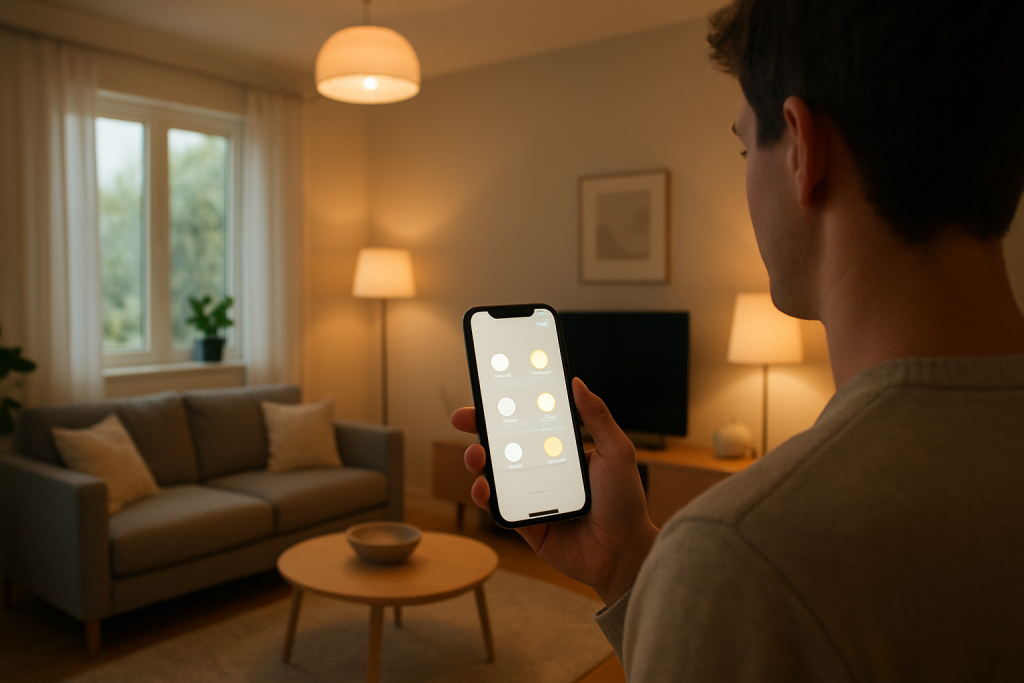
The most common reason smart light scenes stop working is that the scene is trying to control devices that are no longer in the same “home,” “room,” “zone,” or group the scene was built for, or the app can’t reliably reach the bridge/cloud account that stores and syncs scenes. In real homes this often happens after changing routers, renaming rooms, adding a second hub/bridge, switching phones, or mixing device types (WiFi bulbs plus a Zigbee hub plus a Matter controller).
Scenes can also fail when the app shows lights as “online,” but the scene uses a different control path (cloud vs local hub) than manual control. That’s why a single bulb may respond to a tap, but the scene fails, partially applies, or applies to the wrong lights.
Do these three quick checks first: (1) In the app, open the scene and confirm every listed light is still present and assigned to the correct room/zone. (2) Run the scene while watching device status (online/offline/unreachable) and note which devices don’t change. (3) Reboot in order: phone (or tablet), then hub/bridge (Hue/Zigbee/Matter), then router—then test the scene again.
Why This Happens
Scenes are not just “a set of colors.” They are saved instructions tied to specific device IDs, groups, and sometimes a specific controller (a hub/bridge or a Matter controller) and account. When any of those references change, the scene can still appear in the app but no longer targets the right devices or can’t deliver commands reliably.
Common technical causes that match what homeowners see day to day include:
1) Scene membership drift after changes. If you renamed rooms, moved bulbs between rooms, replaced a bulb, or added a second bridge/hub, the scene may still point to the old device or old group. If tapping a scene does nothing for one or two lights, it usually means those lights are no longer part of the scene’s stored device list.
2) Mixed control paths (local hub vs cloud). Many ecosystems can control devices locally (through a Zigbee bridge like Hue, or local LAN for some WiFi bulbs) but store scenes in the cloud, or vice versa. If your internet is flaky or the account is out of sync, manual control may work while scenes fail, delay, or only partially apply.
3) Group/scene command timing issues. Scenes often send multiple commands quickly (on/off, brightness, color temperature, color). If the hub is busy, the WiFi is congested, or the mesh is unstable, some devices miss part of the sequence. If lights turn on but don’t change color, it usually means the “on” command got through but the follow-up color/level commands did not.
4) Permissions and controller conflicts. With Matter and multi-admin setups, or households with multiple phones, voice assistants, and tablets, scenes may be created under one controller/account and not fully shared to others. If the scene works on one phone but not another, it usually means a sync/permission issue rather than a bulb problem.
5) Overlooked technical cause: duplicate devices or stale device IDs. After a factory reset, migration, or re-pairing, a bulb can appear twice (one “ghost” entry). Scenes may still reference the ghost. The app may hide this under a room view, so the scene looks correct but targets the wrong entry.
Real-world scenario: you replaced your router and reconnected your WiFi bulbs. Individual bulbs work in the app, but your “Movie Night” scene does nothing. That often means the scene was created in a different “home” or location profile, or it contains old device entries from before the router change.
Common user mistake: deleting and re-adding a bulb to “fix it” without checking scenes afterward. Re-adding typically creates a new device identity, so scenes built before the change may not control the new entry.
Most Likely Causes in Real Homes
1) Devices were moved/renamed, and the scene still targets the old room or old device list. Scenes commonly break after reorganizing rooms or replacing bulbs.
2) Hub/bridge is reachable but overloaded or desynced. Group commands partially apply, or scenes work intermittently.
3) Cloud/account sync problem. Scenes missing, duplicated, or only work on one phone/user.
4) Network instability affecting burst commands. Individual control works, but scenes fail or apply slowly (especially with many WiFi bulbs).
5) Automation conflict. A schedule, motion sensor, or “adaptive lighting” feature immediately overrides the scene.
Step-by-Step Fix
Confirm what “not working” means and which devices are affected. Run the scene once and watch each light: does it not turn on, turn on but wrong color, or only some lights respond? What the result means: If only certain lights fail, the issue is usually scene membership, device reachability, or a weak link in the network/mesh. If no lights respond, it’s more likely an app/account/hub problem. If it fails: Note the exact lights that fail and continue to the next step; you’ll use that list to isolate the cause.
Open the scene and verify its device list, room/zone, and controller. In your smart lighting app (or hub app), edit the scene and confirm every intended light is included and assigned to the correct room/zone. If your ecosystem has multiple “homes” or “locations,” confirm you’re in the right one. What the result means: If a missing light appears, add it back and save the scene; if a wrong light appears, remove it. This usually fixes scenes that partially work. If it fails: If you cannot edit the scene, or the app shows duplicates/ghost devices, proceed to step 4 and step 7.
Check device status in the app (online/offline/unreachable) and run a quick group sync test. Look for any light marked unreachable. Then try a simple group command like “turn all lights in this room on” (not a scene). What the result means: If group on/off works but the scene doesn’t, the problem is likely the scene configuration, an automation conflict, or a cloud sync issue. If group control also fails for the same lights, it’s connectivity (hub/mesh/WiFi). If it fails: Continue to step 5 for power and hub/router reboot, then step 6 for WiFi band/mesh checks.
Look for an automation or feature that is overriding the scene. Check schedules, routines, motion sensors, “circadian/adaptive lighting,” and any “power-on behavior” settings. Then run the scene and watch whether it changes briefly and then reverts. What the result means: If the scene applies and then changes back within seconds or minutes, an automation is winning the tug-of-war. If it fails: Temporarily disable schedules/automations for that room for 10 minutes, rerun the scene, and re-enable items one by one to find the conflict.
Do a clean power cycle in the right order (phone/tablet → hub/bridge → router → lights if needed). Close the lighting app completely. Restart your phone/tablet. Unplug the hub/bridge (Hue/Zigbee/Matter hub) for 30 seconds and plug it back in. Reboot the router. Wait 3–5 minutes for everything to settle, then test the scene again. What the result means: If scenes start working, the issue was a temporary controller or network state problem (common after outages). If it fails: Go to step 6 to check WiFi band/mesh behavior, then step 8 for account sync.
Verify WiFi band and mesh behavior (for WiFi bulbs and bridges with WiFi backhaul). If your router uses one combined network name for 2.4 GHz and 5 GHz, confirm the bulbs are on 2.4 GHz if required by your system. If you use a mesh, check whether the phone and bulbs are connected to different nodes and whether “client steering” or isolation features are enabled. What the result means: If scenes fail only in certain rooms or times of day, it often points to a weak node, roaming problems, or congestion that disrupts multi-command scenes. If it fails: Move the phone closer to the router and test again; if it works nearby, improve placement or reduce distance/obstructions. Then continue to step 7 for hub/mesh health checks.
Run a hub/bridge health check (Zigbee/Matter/Thread where applicable). In the hub app, check for warnings like “poor connection,” “unreachable,” or “needs attention.” If your system supports it, ensure you have enough always-powered devices acting as repeaters (smart plugs or hardwired fixtures; avoid relying on battery sensors for routing). What the result means: If only the farthest lights fail in scenes, it usually means the mesh route is weak and burst commands are dropping. If it fails: Power-cycle the bridge again and leave the network alone for 30–60 minutes to let routes stabilize, then retest. If problems persist, proceed to step 9.
Check account and multi-user sync (especially if scenes differ by phone). Confirm you are signed into the same account on all devices. If the system supports multiple homes or admins, verify you’re an admin in the correct home. Then force a sync by logging out and back in (only if you know your password), or by toggling cloud sync settings if available. What the result means: If scenes reappear, stop duplicating, or start working across devices, the issue was account sync/permission related. If it fails: Continue to step 9 to isolate local vs cloud control.
Do a hotspot isolation test to separate “internet/cloud” issues from “local network” issues. If you have WiFi bulbs that can join a network directly, temporarily connect one problem bulb to a phone hotspot (only for testing), then create a simple scene with that single bulb and test it. For hub-based systems, instead test local control by turning off internet at the router (if you can) while keeping WiFi running, then try manual control and a scene. What the result means: If scenes fail only when internet is down, the system is relying on cloud scene execution or cloud validation. If scenes fail even on a clean hotspot with one bulb, it points to app configuration or firmware. If it fails: Move to step 10 and rebuild the scene cleanly.
Rebuild the scene (don’t just edit it) and test with a small set first. Create a new scene with only one or two lights in the same room. Test it. Then add more lights and test again after each addition. What the result means: If the small scene works but fails after adding a specific device, that device is the trigger (connectivity, duplicate entry, or firmware). If the new scene works and the old one doesn’t, the old scene likely had stale device IDs or a corrupted configuration. If it fails: Proceed to step 11 for firmware/app updates and then consider reset steps.
Update firmware and app software, then retest. In the lighting app and any hub app, check for updates for bulbs, bridges, and controllers. Update the phone OS and the app if updates are pending. What the result means: Scene problems that started after a platform update are often fixed by bringing everything to a consistent version. If it fails: Continue to the advanced section steps: configuration conflicts, controller duplication, and targeted resets.
Advanced Troubleshooting
This section is only needed if basic fixes fail.
Account or cloud issue: If scenes disappear, duplicate, or only work on one device, focus on the account layer. Check whether you have multiple logins (personal vs family), multiple “homes,” or an old phone still listed as a controller. Remove unused controllers where your ecosystem allows it, then reboot the hub and re-check scene availability.
Network issue (only when it matches your symptoms): If scenes fail during peak hours (evenings) or when many devices are active, congestion can drop the rapid sequence of commands that scenes send. For WiFi bulbs, reduce complexity: avoid running multiple scenes at once, and test with fewer bulbs in the scene. If your router has a setting for “AP/client isolation,” ensure it is off for the main network; isolation can prevent local discovery and group control.
Firmware/software cause: If a specific bulb model always fails to apply color/brightness in scenes but responds to manual control, it may be stuck on an older firmware or have a failed update. Try updating with the bulb close to the router (WiFi) or close to the bridge (Zigbee). If updates won’t apply, remove and re-add that one device only after you’ve documented your scene setup.
Configuration conflict (groups, scenes, automation, permissions): If you use Matter plus another ecosystem at the same time, avoid creating overlapping scenes that fight each other (for example, a platform scene and a hub scene controlling the same lights). Pick one place to define scenes for a given room and disable duplicates elsewhere. If voice assistants trigger the wrong scene, confirm the room name is unique and that the assistant is assigned to the correct home and room.
When to Reset or Replace the Device
Soft restart vs factory reset: A soft restart is simply power-cycling the bulb (off/on at the switch that controls it) or rebooting the hub/bridge. A factory reset wipes the bulb’s pairing and identity so it must be added again to the app/hub.
What you lose after a factory reset: The bulb will usually get a new device identity. That means scenes, groups, and automations may not include it anymore until you re-add it. If you reset a hub/bridge, you can lose room assignments, scenes, and integrations, depending on the system. Only reset after you’ve tried rebuilding the scene and confirming the network is stable.
Safety note: If a bulb or bridge is unusually hot to the touch, smells like melting plastic, flickers rapidly, or shows visible damage, stop using it and replace it. Do not attempt to open devices or repair them.
How to Prevent This in the Future
Keep the control structure simple: Create scenes in one primary place per room (either the hub app or one main platform) and avoid duplicates across multiple apps that control the same lights.
Maintain stable placement: Keep hubs/bridges in an open area away from dense metal objects and not buried behind TVs or inside cabinets. For mesh-based systems, avoid moving nodes frequently; lighting meshes and WiFi roaming both behave better when the layout stays consistent.
Manage automations deliberately: When adding a new schedule, motion rule, or adaptive lighting feature, test it with your existing scenes. If a scene “doesn’t stick,” it’s often being overwritten by automation.
Plan for power outages: After an outage, give the hub and router time to fully boot before testing scenes. If your system has a “power-on behavior” setting, configure it so lights don’t come on at full brightness unexpectedly and then immediately get overridden by a scene or schedule.
Do firmware maintenance monthly: Check for updates for hubs and bulbs. Many scene reliability issues are fixed quietly in firmware, especially around group command timing and mesh stability.
FAQ
Why do my lights respond individually, but the scene won’t apply?
Individual control is a single command to one device. A scene is usually a burst of commands to multiple devices (on, brightness, color/temperature), often routed through a group or cloud sync. If individual control works but scenes don’t, it usually points to a scene configuration problem (wrong device list), an automation overriding the scene, or timing/reliability issues on the hub/mesh during group commands.
My scene works on my phone but not on my partner’s phone. What does that mean?
That typically means an account, permission, or “home” mismatch. One phone may be signed into a different account, assigned to a different home/location, or not granted admin access to manage scenes. Fix the account alignment first before resetting any bulbs.
Do scenes require the internet to work?
Not always. Some systems run scenes locally on a hub/bridge, while others store or validate scenes in the cloud. If scenes fail only when your internet is down but manual control still works on WiFi, your setup likely relies on cloud-based scene execution or cloud sync.
Is it true that scenes fail because 5 GHz WiFi is “too fast” or “incompatible”?
The misconception is that 5 GHz itself breaks scenes. The real issue is that many WiFi bulbs only join 2.4 GHz, and combined network names or roaming can cause the phone and bulbs to end up on different paths with discovery or control delays. The fix is making sure bulbs are on the supported band and that your network isn’t isolating clients.
When should I delete and recreate all my scenes?
If you recently replaced many bulbs, migrated to a new hub/controller, or you see duplicates/ghost devices, rebuilding scenes is often faster than chasing stale device IDs. Recreate one scene first as a test; if the new one works reliably, rebuilding the rest is usually the cleanest solution.
What settles in, after the noise, is a weird kind of relief. The issue stops feeling like it’s everywhere at once, and the response stops sounding like a slogan.
Now it’s just life—messy, normal, and less stubborn than before. Not dramatic, not cinematic, but quietly better in the ways that actually show up.