How to Fix WiFi Dead Zones Without Buying New Equipment
Quick Answer
Most WiFi dead zones in homes aren’t caused by “bad internet” or weak devices—they’re caused by poor router placement. If your router is tucked in a corner, hidden in a cabinet, sitting on the floor, or trapped behind a TV, its signal is being absorbed and scattered before it ever reaches your smart plugs, cameras, or speakers.
To fix dead zones without buying anything, move the router to a more central, open, elevated location, then verify which band your devices are using (2.4GHz vs 5GHz) and reduce nearby interference. After placement is corrected, a few basic settings—like channel selection, band steering, and DHCP behavior—can stabilize smart devices that keep dropping offline.
Why This Happens
WiFi is radio. The router doesn’t “push internet” down hallways; it broadcasts in all directions, and your walls, furniture, appliances, and even mirrors shape what actually arrives at a device. The most common reason for a dead zone is that the router is positioned where the signal must pass through too many obstacles (or the wrong obstacles) to reach the area you care about.
Placement problems are especially common in real homes. In an apartment, the ISP modem-router combo is often installed where the cable/phone line enters—near the front door or in a utility closet. That location is convenient for wiring but terrible for coverage. If the router is also surrounded by electrical panels, metal shelving, or a bundled mess of cables, the signal can be further weakened.
Band behavior also contributes. 5GHz is typically faster and less congested, but it has shorter range and struggles more with thick walls, brick, concrete, tile, and metal-backed insulation. 2.4GHz travels farther and penetrates better, but it’s more prone to interference from neighboring networks and household devices. A smart camera at the far end of the house may “see” the 5GHz network, connect briefly, then drop repeatedly because the signal is marginal.
A common user mistake is hiding the router to make the room look tidy—inside a cabinet, behind books, under a couch, or inside a media console next to a soundbar and game console. Another frequent mistake is placing it directly next to the ISP modem, a cordless phone base, baby monitor, or Bluetooth hub, which can raise the noise floor and reduce usable range.
An overlooked technical cause is that dead zones can look like “weak signal” when they’re actually a network stability problem: a router stuck on a crowded channel, a buggy firmware build, or a DHCP/IP conflict that knocks smart devices offline. DHCP is the router’s job of handing out local addresses (like 192.168.1.x). If two devices end up trying to use the same address, or the router’s DHCP lease behavior is unstable, devices may appear to “lose WiFi” even when the radio signal is fine.
Step-by-Step Fix
-
Map the dead zone and confirm it’s WiFi, not the internet. Stand in the problem area and check your phone’s WiFi signal indicator, then run a quick test: open your router’s local admin page (often something like 192.168.0.1 or 192.168.1.1) or try to cast to a local device. If local access fails, it’s likely WiFi coverage. If local access works but websites fail, it may be ISP-related.
Practical testing method: walk from the router toward the dead zone while streaming a video and watch where it starts buffering. Note the doorway, wall, or appliance you pass right before the drop. That obstacle is often the real culprit.
-
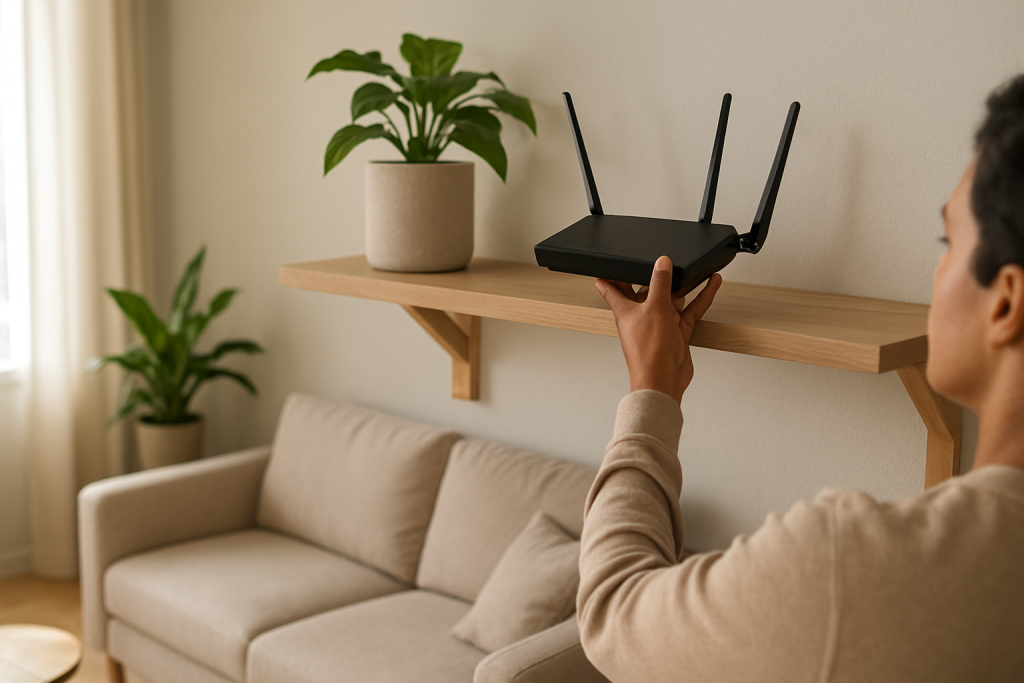
Relocate the router for coverage, not convenience. Aim for a central location relative to where you actually use WiFi. Place it in the open, at about chest height (on a shelf is better than on the floor), and keep it away from dense objects. If you can move it even 6–10 feet and one room closer to the dead zone, that can be the difference between “unusable” and “stable.”
Keep at least a few feet of distance from large metal objects (filing cabinets, refrigerators), aquariums (water absorbs RF), and thick masonry. If the router has external antennas, orient them intentionally: a common starting point is one antenna vertical and one slightly angled to improve coverage across floors and rooms.
-
Fix the “hidden router” mistake. If your router is inside a cabinet or behind a TV, move it out. Wood and drywall are usually manageable; metal-backed cabinets, entertainment centers with wiring, and TV panels are not. Also avoid stacking the router on top of the modem or a set-top box—heat and electrical noise can reduce performance over time.
-
Separate 2.4GHz and 5GHz (temporarily) to stabilize smart devices. Many smart devices prefer 2.4GHz for range, but some routers use a single network name (SSID) for both bands and “steer” devices automatically. Band steering can cause edge-of-coverage devices to bounce between bands, which looks like random disconnects.
In your router settings, temporarily create distinct names (for example, HomeWiFi-2.4 and HomeWiFi-5). Connect smart devices in distant rooms to 2.4GHz, and keep phones/laptops closer to the router on 5GHz for speed. Once stability improves, you can decide whether to keep them separate.
-
Choose cleaner channels to reduce interference. In crowded neighborhoods and apartments, channel overlap can create “dead spots” that shift by time of day. For 2.4GHz, use channels 1, 6, or 11 (pick the least congested). For 5GHz, try a non-DFS channel if your devices struggle to stay connected (some clients behave poorly when the router switches DFS channels).
If your router has an “Auto channel” feature, it may not re-evaluate often. Manually selecting a stable channel can reduce drops for smart plugs and cameras that dislike changing conditions.
-
Reduce local interference sources near the router. Move the router away from microwave ovens, cordless phone bases, baby monitors, and USB 3.0 hard drives. USB 3.0 devices and cables can generate noise that impacts 2.4GHz. Also avoid placing the router directly behind a desktop PC or TV where multiple cables and power supplies create interference.
-
Check one key router configuration issue: transmit power and legacy modes. Some routers allow transmit power adjustments; if it’s set to “Low” or “Eco,” coverage will suffer. Also review WiFi mode settings: forcing “802.11n only” or “ax only” can break older smart devices. A mixed mode (b/g/n on 2.4GHz and a/n/ac/ax on 5GHz, depending on your router) is often more stable for smart home gear.
-
Update firmware and reboot in the right order. Firmware bugs can cause intermittent drops, especially with band steering, WPA3 compatibility, or DHCP behavior. Update the router firmware from the manufacturer’s app or web interface. After updating, reboot the network in sequence: power off modem and router, power on modem first and wait until it’s fully online, then power on the router.
Advanced Troubleshooting
If placement and basic settings improved coverage but smart devices still fall offline, focus on stability factors that masquerade as dead zones. Smart devices often have weaker radios than phones and may fail first when the network is slightly unstable.
Test for “edge coverage” vs “device limitation”
Bring a problematic smart device (or a similar one) temporarily closer to the router. If it becomes stable within 10–15 feet, the issue is likely edge coverage or interference, not the device itself. If it still drops near the router, suspect configuration, firmware, or an IP/DHCP issue.
Look for DHCP or IP conflicts (simple check)
In the router’s client list, see whether the same IP address appears to be used by multiple devices, or whether a device repeatedly disconnects and reconnects with different IPs in a short time. IP conflicts can happen if you manually set a “static IP” on a device that overlaps the router’s DHCP pool, or if an old router is still connected somewhere and handing out addresses.
Fix: ensure only one router is doing DHCP. If you have an ISP modem-router combo plus your own router, put one into bridge/access point mode so you don’t have two DHCP servers. If you need a static IP for a device, use a DHCP reservation in the router instead of setting it manually on the device.
Check security compatibility and roaming behavior
Some older smart devices struggle with WPA3 or mixed WPA2/WPA3 modes. If devices drop during rekeying or after idle periods, try WPA2-Personal (AES) temporarily to test. Also disable “Fast Roaming/802.11r” if enabled; certain IoT devices disconnect when 802.11r is on.
Confirm you’re not creating self-inflicted dead zones
A subtle placement issue is directional blocking: placing the router against a TV wall mount, inside a corner, or behind a metal-framed mirror can create a shadow where signal is dramatically lower. Another overlooked cause is vertical coverage: a router on the first floor at floor level may not reach an upstairs hallway reliably. Elevation and antenna orientation often fix this without any new equipment.
When to Reset or Replace the Device
Reset should be a last resort, but it can clear corrupted settings after firmware updates or repeated configuration changes.
Reset the router if: you can’t maintain stable settings, the admin interface behaves erratically, devices keep getting incorrect IP information, or you’ve inherited unknown settings (common with ISP-provided gateways). After a factory reset, configure only the essentials first: SSID/password, WPA2/WPA3 choice, separate 2.4/5GHz names (for testing), and basic channel selection.
Reset the smart device if: it connects elsewhere but not on your network, it repeatedly prompts for setup, or it shows as connected but never responds. After reset, connect it to the 2.4GHz SSID in the same room as the router, then move it to its final location once it’s updated and stable.
Replace equipment only if you’ve verified placement and settings and still see failures close to the router, or if the router no longer receives firmware updates and has known stability/security issues. Replacement is also justified if the router overheats, reboots randomly, or cannot maintain DHCP leases reliably. If the only issue is a far-room dead zone, placement and configuration usually solve it without new hardware.
How to Prevent This in the Future
Start every home network setup with placement as a design decision, not an afterthought. Put the router where WiFi needs to be, then route the cable to it (a longer coax/ethernet run is often easier than fighting physics). Keep it open, elevated, and away from dense materials and interference sources.
Use the right band for the job. Reserve 5GHz for nearby high-speed devices and 2.4GHz for distance and smart home reliability. If you keep a single SSID for convenience, periodically check whether edge devices are sticking to 5GHz and dropping; if so, split SSIDs again or adjust band steering aggressiveness if your router supports it.
Maintain software stability. Check for router firmware updates a few times per year, especially if you notice new smart devices becoming flaky. Avoid frequent channel hopping and experimental features (fast roaming, “smart connect” tweaks) unless you can verify they help in your specific layout.
Finally, document your network basics: router login, SSIDs, and any DHCP reservations. This prevents accidental IP conflicts later when you add devices, set up a printer, or plug in an old extender/router that silently starts handing out addresses.
FAQ
Should I use 2.4GHz or 5GHz to eliminate dead zones?
For dead zones, 2.4GHz is usually more reliable because it travels farther and penetrates walls better. Use 5GHz for speed in the same room or nearby rooms. A common approach is to keep smart devices on 2.4GHz and phones/laptops on 5GHz.
Does putting the router higher really make a difference?
Yes. Routers on the floor lose signal to furniture, people, and dense materials. Placing the router on a shelf in an open area often improves coverage immediately, especially down hallways and into adjacent rooms.
My router is in a closet because that’s where the ISP installed it. What can I do without buying anything?
Move the router out of the closet if possible, even if it means relocating it a few feet using existing cable slack. If it’s an ISP modem-router combo, ask whether you can relocate it to a more central room using the existing wall jack/cabling, or move it to a shelf outside the closet while keeping the incoming line connected.
Why do my smart devices disconnect even when my phone shows strong WiFi?
Smart devices often have weaker antennas and are more sensitive to interference and band steering. They may also be affected by router settings like WPA3/fast roaming or by DHCP/IP conflicts that cause them to lose their local network address. Splitting SSIDs and ensuring only one DHCP server is active often helps.
Can a router setting create a “dead zone” even if placement is good?
Yes. Overcrowded channels, aggressive band steering, low transmit power, or incompatible security/roaming settings can make certain areas or devices behave like they’re in a dead zone. Firmware bugs can also cause intermittent drops that look like weak coverage, so keeping firmware updated is important.
For a broader overview of common network problems, see our complete smart home WiFi troubleshooting guide.
What’s left is the quiet part: letting the noise fade and watching the day line up again. The change doesn’t announce itself with fireworks, just a little more space where frustration used to live.
There’s a strange relief in that—like setting down a bag you didn’t realize you were carrying. After all the back-and-forth, it’s simple enough to feel, not just understand.