Why WiFi Gets Worse at Night and Smart Devices Drop Offline
Quick Answer
WiFi often gets worse at night because your neighborhood’s wireless airwaves get crowded during peak hours. More people are home streaming video, gaming, and using video calls, which increases channel congestion and interference—especially on 2.4GHz where many routers and smart devices compete for the same limited channels.
When congestion rises, smart devices (cameras, plugs, thermostats, speakers) are usually the first to drop offline because they use low-power radios, sit farther from the router, and rely on stable 2.4GHz connections. The fix is typically to reduce channel overlap, improve signal quality, and adjust a few router settings so devices can stay connected even when the airwaves are busy.
Why This Happens
The main reason WiFi degrades at night is peak-hour channel congestion. WiFi is a shared medium: your router and your neighbors’ routers take turns talking on the same channels. During the day, many nearby networks are quieter. At night, usage spikes—multiple 4K streams, cloud backups, game downloads, and smart TV updates—so the same channel gets saturated and your devices experience delays, retries, and disconnects.
This is most noticeable on 2.4GHz. The 2.4GHz band travels farther and penetrates walls better, so it’s the default for many smart devices and reaches more neighbors. It also has only a few non-overlapping channels (typically 1, 6, and 11 in many regions). If several nearby routers are all set to “Auto” and choose the same channel, performance can collapse during busy hours.
5GHz usually performs better at night because it has more channels and less range, which reduces how many neighbors you “hear.” The tradeoff is that 5GHz weakens faster with distance and thick walls. Many smart devices don’t support 5GHz at all, or they prefer 2.4GHz for range and power savings, so they remain exposed to the most congested band.
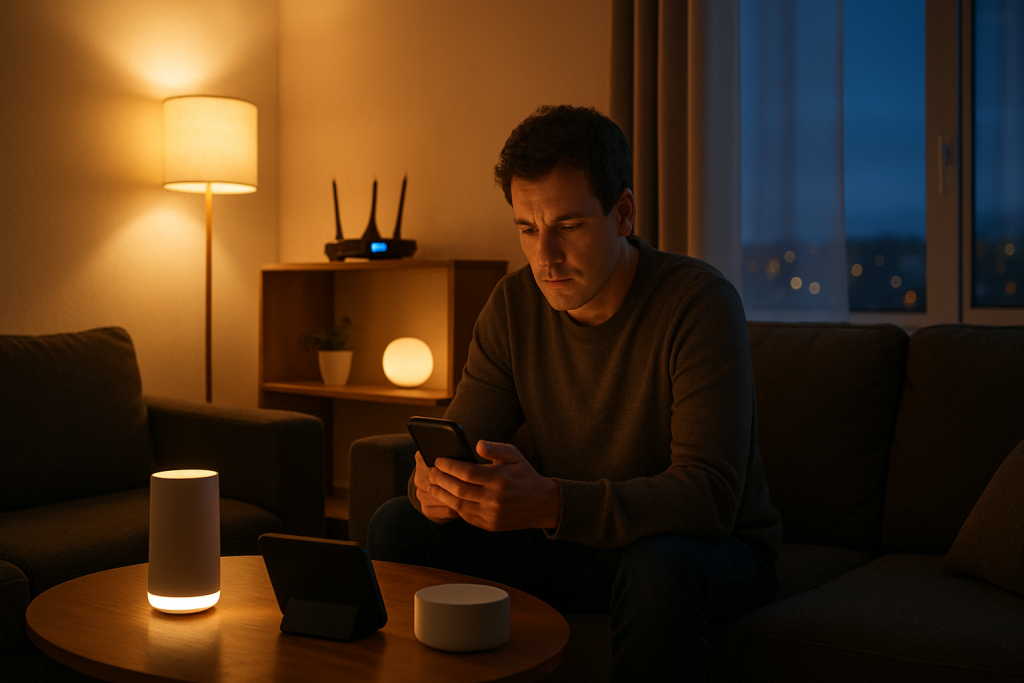
A real-world scenario: in an apartment building, you might see 20–40 nearby WiFi networks. At 8–11 PM, many of them are active. If your router is using 2.4GHz channel 6 with a wide channel width, and your neighbor’s router is also on channel 6 (or overlapping channels), your smart doorbell at the far end of the hallway may start dropping offline even though your phone still “seems fine” near the router.
One common user mistake is leaving the router on automatic channel selection and assuming it will always pick the best option. Many routers only re-evaluate channels at reboot, so they might stick to a poor channel night after night. Another mistake is using 40MHz channel width on 2.4GHz, which increases overlap and makes congestion worse.
An overlooked technical cause that often shows up at night is increased non-WiFi interference on 2.4GHz. Microwave ovens, baby monitors, some cordless phones, and even certain LED light drivers can raise the noise floor. This doesn’t replace channel congestion as the dominant cause, but it can push an already-crowded channel over the edge.
Finally, some disconnects that look like “bad WiFi” are actually network management issues that become visible under load. If your router’s DHCP server is struggling or you have an IP conflict (two devices trying to use the same local address), smart devices may drop and fail to reconnect. This can be more noticeable at night when many devices wake up, renew leases, or reconnect after brief interference.
Step-by-Step Fix
Confirm it’s a peak-hours pattern (and not a single bad device). Note the times devices drop offline for a few days. If issues cluster in the evening, congestion is likely. Also check whether only 2.4GHz-only devices fail (many plugs and bulbs) while 5GHz devices (laptops/phones) remain mostly stable.
Run a quick channel survey to see what you’re competing with. Use a WiFi analyzer app on a phone (or your router’s built-in scan feature) and stand near the router and near the problem device. Look for the busiest 2.4GHz channel and whether your network overlaps heavily. Practical testing method: repeat the scan once in the afternoon and again at night; if the channel list looks much “louder” at night, you’ve confirmed congestion.
Manually set a cleaner 2.4GHz channel and narrow the channel width. In your router settings, set 2.4GHz to channel 1, 6, or 11 (pick the least crowded from your scan). Set channel width to 20MHz (not 40MHz) to reduce overlap. Save settings and reboot the router if needed. This single change often stabilizes smart devices during peak hours.
Separate SSIDs for 2.4GHz and 5GHz (or tune band steering). If your router uses one combined network name, some smart devices get confused during roaming or band steering and may repeatedly attempt to join the wrong band. Create distinct names like “Home-2G” and “Home-5G,” then connect smart devices to 2.4GHz and high-bandwidth devices (TVs, consoles) to 5GHz. If you prefer a single SSID, reduce aggressive band-steering settings if your router allows it.
Improve signal quality where smart devices actually live. Congestion hurts more when the signal is weak. Move the router higher and more central, away from metal objects, aquariums, and thick masonry walls. If your smart camera is outside or at the far edge of the home, consider a mesh node or wired access point closer to it. Avoid placing a mesh node in a dead zone; place it halfway between the router and the device.
Reduce self-inflicted interference and heavy local traffic. At night, your own household may be saturating the network. Move streaming devices to 5GHz or Ethernet. Pause large downloads or cloud backups during the hours your smart devices need stability. If your router has QoS (Quality of Service), enable it and prioritize real-time traffic or “smart home” devices if the option exists.
Update router firmware and smart device software. Firmware bugs can cause nightly instability, especially if the router runs out of memory under load or mishandles WiFi power-save features. Update the router’s firmware and the smart device’s app/firmware. If you use an ISP modem-router combo, check both the ISP gateway firmware (often controlled by the provider) and any separate router you added.
Check DHCP settings to prevent address conflicts. DHCP is the router feature that hands out local IP addresses. If the DHCP pool is too small, or if you have devices using manually assigned IPs that overlap with DHCP, you can get IP conflicts that look like random disconnects. Expand the DHCP address range and avoid manual IPs unless you reserve them properly (DHCP reservations) for devices like hubs, cameras, and bridges.
Advanced Troubleshooting
If the basic steps help but the problem persists, focus on proving whether the disconnect is caused by WiFi airtime congestion, router resource limits, or a device compatibility issue.
Check router logs and uptime behavior
Look for patterns: repeated “deauth” events, WPA rekey messages, or devices reconnecting every few minutes. If the router becomes unstable nightly, it may be running out of CPU/RAM under peak load. This is common with older routers or ISP modem-router combos handling many clients.
Verify 2.4GHz settings that affect reliability
Router configuration issues can quietly destabilize smart devices. Ensure security is WPA2-Personal (or WPA2/WPA3 mixed only if all devices support it). Some older smart devices fail on WPA3. Disable “802.11b” if your environment allows it (to reduce slow legacy airtime), but if a specific device is very old, you may need b/g/n mixed mode. Also consider turning off “Airtime Fairness” if it causes low-power IoT devices to get less access during congestion.
Test with a controlled experiment
Pick one problem device and temporarily move it within 10 feet of the router during the evening. If it stays online near the router but drops in its usual location, the issue is a combination of congestion plus weak signal. If it still drops even close to the router, suspect router settings, firmware, or the device itself.
Look for non-WiFi interference on 2.4GHz
If disconnects happen when specific appliances run (microwave, baby monitor, cordless phone), change the router’s 2.4GHz channel and relocate the router away from that device. Even with congestion as the primary cause, removing a strong local interferer can dramatically improve stability.
Consider adding a dedicated access point for smart devices
If you have many smart devices, a practical approach is to add a wired access point (or a mesh system with wired backhaul) and dedicate a 2.4GHz SSID for IoT. This reduces contention and improves coverage. Place the access point closer to the devices that drop offline at night, such as outdoor cameras or garage sensors.
When to Reset or Replace the Device
Resetting a smart device is reasonable when it repeatedly fails to reconnect after WiFi changes, or when it holds onto old network credentials. Before resetting, try “forget network” in the device app (if available) and power-cycle the device for at least 30 seconds.
Replace the device if it has a known weak radio (common in bargain plugs/bulbs), only supports outdated security, or consistently drops even with strong signal and a clean channel. Also consider replacement if the manufacturer no longer provides firmware updates; nightly congestion can expose bugs in WiFi power-saving behavior that never get fixed.
If multiple unrelated devices drop at the same time, replacement is less likely to help. That points back to channel congestion, router capacity, or a configuration issue rather than a single failing device.
How to Prevent This in the Future
Start by designing for peak hours, not average conditions. Choose a stable 2.4GHz channel (1/6/11) and keep 2.4GHz at 20MHz width. Re-check channel conditions every few months, especially if neighbors change routers.
Use 5GHz (or 6GHz if available) for high-bandwidth devices to keep 2.4GHz freer for smart home gear. If your router supports it, create a separate IoT SSID on 2.4GHz and keep it consistent; frequent SSID or password changes cause devices to fall behind and appear “flaky.”
Place networking gear intentionally: central, elevated, and away from dense obstacles. In homes with thick plaster, brick, radiant floor heating, or metal-backed insulation, plan for additional access points rather than pushing one router to cover everything.
Keep firmware current and avoid unnecessary “tweaks” that reduce compatibility. A common mistake is enabling WPA3-only or advanced roaming features without checking whether smart devices support them. Finally, prevent IP issues by using DHCP reservations for always-on devices (hubs, cameras, bridges) and keeping the DHCP pool large enough for guests and new gadgets.
FAQ
Why do my smart devices drop offline but my phone still works?
Phones have stronger WiFi radios, better antennas, and more aggressive roaming behavior. Many smart devices use low-power 2.4GHz chips and sit at the edge of coverage, so when channel congestion increases at night, they lose packets and fail to maintain a stable connection even though a phone near the router seems fine.
Should I switch everything to 2.4GHz for better range?
Not usually. 2.4GHz has better range, but it’s more congested and has fewer clean channels. A better approach is to keep smart devices on 2.4GHz for compatibility and distance, while moving streaming devices, computers, and game consoles to 5GHz (or Ethernet) to reduce 2.4GHz congestion.
Is “Auto channel” bad?
Auto channel isn’t always bad, but it often fails in crowded areas because many routers choose the same channel and may only re-scan at reboot. In apartments or dense neighborhoods, manually selecting a cleaner 2.4GHz channel (1, 6, or 11) and using 20MHz width is frequently more stable during peak hours.
Can DHCP or IP conflicts really cause nightly disconnects?
Yes. If two devices end up with the same local IP address, one or both may appear offline or fail to reconnect. This can happen if you set a manual IP on a device that overlaps the router’s DHCP range, or if the DHCP pool is too small and devices churn at night. Using DHCP reservations and a larger DHCP range helps prevent it.
Do firmware updates actually help WiFi stability?
They can. Router firmware updates often fix memory leaks, driver issues, and WiFi compatibility bugs that show up under heavy evening load. Smart device firmware updates can also improve reconnection behavior and compatibility with modern router features like band steering and updated security modes.
What sticks isn’t the drama, it’s the way the day keeps moving afterward—quietly, almost boringly. The problem stops taking up space in the background.
There’s a small, steady relief in that. When the noise is gone, you can finally hear yourself think, and that feels like more than it sounds.