How to Fix WiFi Interference From Microwaves, Baby Monitors, and More
Quick Answer
Most “microwave kills my WiFi” problems are really 2.4GHz interference problems. Microwaves, many baby monitors, Bluetooth devices, wireless cameras, and some smart-home hubs all crowd the 2.4GHz band, which can cause smart devices to disconnect, buffer, or fail to respond—especially during peak use.
To fix it quickly: move critical devices to 5GHz (or Ethernet), change your 2.4GHz channel to 1/6/11, increase distance between the router and interference sources, and verify your router isn’t using problematic settings like 40MHz channel width on 2.4GHz. Then update firmware and re-check device placement.
Why This Happens
The 2.4GHz WiFi band is popular because it travels farther and penetrates walls better than 5GHz, but it’s also far more crowded. Many household devices emit radio energy near 2.4GHz, and some do it in bursts that look like “random” WiFi drops. Smart plugs, thermostats, doorbells, and older streaming devices often use 2.4GHz only, so they’re the first to suffer.
Microwave ovens are a classic culprit. They operate around 2.45GHz, which overlaps the 2.4GHz WiFi range. A well-shielded microwave shouldn’t wipe out WiFi everywhere, but in real homes the combination of distance, reflections, and already-busy airwaves can make the interference noticeable—especially if the router is near the kitchen or the client device is on the far side of the house.
Baby monitors can be even more disruptive than microwaves because some models transmit continuously. Many modern monitors use 2.4GHz digital links (often frequency-hopping), and older models may use analog radios that create broad noise. Add Bluetooth speakers, wireless headphones, game controllers, Zigbee hubs, cordless phones, and neighboring apartment routers, and the 2.4GHz band can become unstable.
One overlooked technical cause is router configuration: some routers default to “Auto” channel selection and 40MHz channel width on 2.4GHz. Auto can choose a channel that looks quiet at the moment but becomes noisy later, and 40MHz on 2.4GHz overlaps too much spectrum, increasing collisions with neighbors and non-WiFi devices.
Firmware and software also matter. A router with buggy WiFi drivers may handle interference poorly, causing repeated reconnects, “sticky” clients that cling to weak 2.4GHz, or DHCP issues where devices fail to get a stable IP address after a brief drop. When DHCP renewals fail, devices can appear offline even though WiFi “looks connected.”
Step-by-Step Fix
Confirm it’s a 2.4GHz interference issue (quick test).
Start a simple test: stand near the router with a phone or laptop connected to 2.4GHz and run a continuous ping to your router’s IP (often 192.168.0.1 or 192.168.1.1). Then turn the microwave on for 60–90 seconds or activate the baby monitor. If ping times spike or you see timeouts only during that activity, you’re dealing with local interference. Repeat the test on 5GHz; if 5GHz stays stable, that strongly points to 2.4GHz congestion/interference rather than an ISP outage.
Move as many devices as possible to 5GHz (or Ethernet) and reserve 2.4GHz for smart devices.
5GHz is typically faster and less crowded, and it doesn’t overlap microwave emissions the same way. Put phones, laptops, TVs, and consoles on 5GHz. If you can, connect stationary devices (TVs, PCs, game consoles) via Ethernet to remove them from WiFi entirely. This reduces airtime competition so your 2.4GHz-only smart devices have a better chance of staying connected.
Separate your WiFi names (SSIDs) for 2.4GHz and 5GHz.
A common user mistake is leaving “Smart Connect” or band steering enabled with a single network name and assuming devices will pick the best band. In practice, many clients “stick” to 2.4GHz because it appears stronger, even when 5GHz would be more stable. Create distinct SSIDs like HomeWiFi-5G and HomeWiFi-2G, then manually connect capable devices to 5GHz.
Manually set the 2.4GHz channel to 1, 6, or 11.
On 2.4GHz, only channels 1, 6, and 11 are non-overlapping in most regions. Log into your router and set 2.4GHz channel to one of these (avoid “Auto” for now). If you live in an apartment building where many networks overlap, test each of 1/6/11 for a day and keep the one with the fewest drops.
Set 2.4GHz channel width to 20MHz.
This is one of the highest-impact router settings for stability. 40MHz on 2.4GHz can increase interference and collisions, especially in dense neighborhoods. Change channel width to 20MHz to reduce overlap and improve reliability for smart devices, even if peak speed tests look slightly lower.
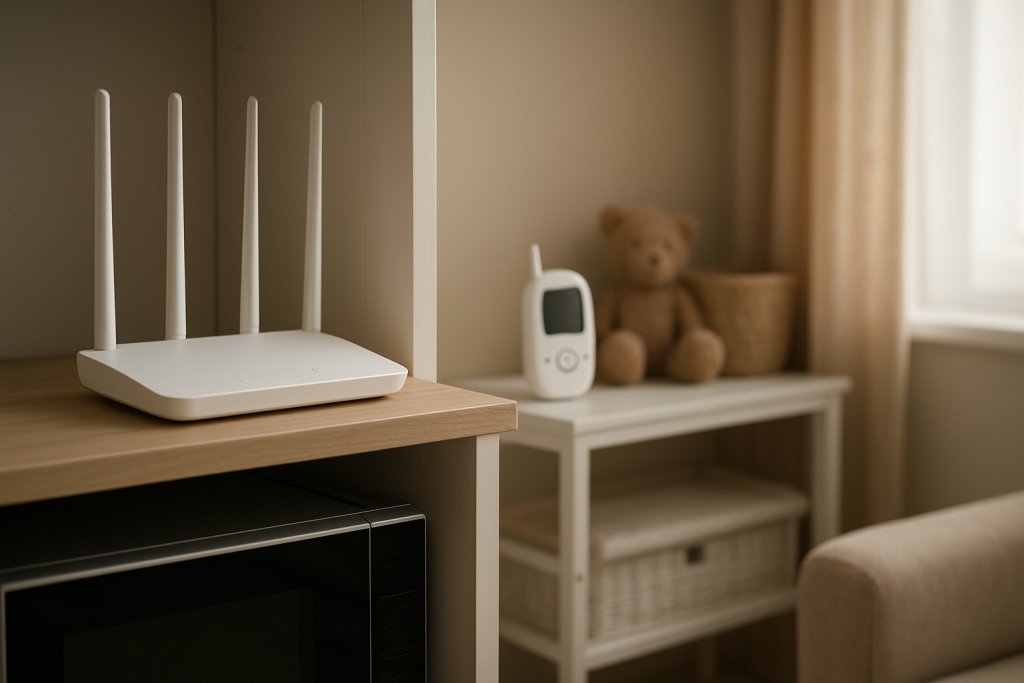
Reposition the router and reduce “kitchen proximity.”
Distance matters. If your router is on the counter near the microwave, move it several feet away and ideally into a more central location. Also avoid placing it behind the TV, inside a cabinet, or next to large metal surfaces (refrigerators, ovens, breaker panels), which can reflect or absorb signals. In a real-world apartment scenario, a router placed on an exterior wall may also be “broadcasting to the street” while struggling to reach the bedroom through thick walls and plumbing; moving it to a central shelf can improve coverage dramatically.
Relocate or reconfigure the interfering device (baby monitor, camera, hub).
If a baby monitor base station is right next to the router, separate them. If the monitor supports a different band (some offer 5GHz or DECT), switch to it. For wireless cameras or older smart hubs that use 2.4GHz heavily, move them away from the router and away from other 2.4GHz transmitters to reduce local noise.
Update router firmware and check for client updates.
Install the latest firmware for your router or ISP modem-router combo. WiFi stability fixes are common in firmware releases, especially around band steering, interference handling, and DHCP reliability. Also update phone OS versions and smart-home apps; some devices improve reconnection logic and reduce “offline” states after brief interference.
Check DHCP settings and rule out IP conflicts.
When interference causes brief disconnects, devices must reconnect and renew their IP address via DHCP. If your DHCP pool is too small (common on older routers) or you have conflicting DHCP servers (for example, an ISP gateway plus a second router both handing out addresses), devices can get duplicate IPs and appear offline. Ensure only one device is doing routing/DHCP, and expand the DHCP range if you have many smart devices. If a specific smart device frequently drops, consider assigning it a DHCP reservation so it always gets the same IP.
Retest with a repeatable method and document what changes helped.
Use the same microwave-on ping test or a continuous video stream on a 2.4GHz device while you apply changes one at a time. This practical testing method prevents guessing and helps you identify the biggest improvement (channel change, 20MHz width, relocation, or moving clients to 5GHz).
Advanced Troubleshooting
Use a WiFi analyzer to find congestion patterns
A WiFi analyzer app (or your router’s built-in scan) can show which 2.4GHz channels are crowded and how strong neighboring networks are. In apartment buildings, you may find channel 6 is saturated while channel 1 is relatively quiet. Remember that “quiet” can vary by time of day, so check at the times you typically see problems (evenings, meal times).
Look for non-WiFi 2.4GHz sources that don’t show up in scans
Microwaves and many baby monitors won’t appear as WiFi networks, but they still raise the noise floor. If your WiFi analyzer shows your network is strong yet performance collapses only when certain devices run, suspect non-WiFi interference. Also consider Bluetooth-heavy areas (soundbars, headphones, controllers) near the router; Bluetooth shares the 2.4GHz spectrum and can contribute to short bursts of interference.
Adjust band steering, roaming, and “smart” features
Some routers aggressively steer clients between 2.4GHz and 5GHz or use features that can confuse older IoT devices. If smart devices drop frequently, try disabling band steering and keeping separate SSIDs. If your router has “Airtime Fairness,” “Smart QoS,” or “Auto Optimization,” test with those features turned off temporarily. These are not always bad, but on certain firmware versions they can worsen instability under interference.
Check for mesh or extender backhaul problems
If you use a mesh system or WiFi extender, interference on 2.4GHz can harm not only the client connection but also the link between nodes if the backhaul uses 2.4GHz. Prefer Ethernet backhaul if possible, or ensure the mesh uses 5GHz (or a dedicated backhaul band). Place nodes away from kitchens and thick, utility-heavy walls where signal reflections and absorption are common.
Validate the ISP modem-router combo configuration
ISP gateways often have limited WiFi controls or buggy auto-channel behavior. If you added your own router behind an ISP gateway, make sure you are not double-NATing unintentionally and that only one device provides WiFi and DHCP. If you must keep the ISP gateway, consider enabling bridge mode (if supported) and letting your router handle WiFi, channels, and DHCP cleanly.
When to Reset or Replace the Device
Reset the router (or the specific smart device) when you’ve made multiple changes and the network behavior has become inconsistent, or when you suspect a corrupted configuration after firmware updates. A factory reset is also reasonable if the router UI shows odd settings you can’t fully verify (unknown DNS settings, duplicated SSIDs, or unstable band steering behavior).
Replace hardware when the router cannot reliably hold a 2.4GHz connection even after setting channel 1/6/11 and 20MHz width, or when it no longer receives firmware updates. Older 2.4GHz radios can perform poorly in modern, crowded environments. Likewise, consider replacing a baby monitor that transmits continuously on 2.4GHz if it consistently disrupts nearby WiFi and offers no alternative band or DECT option.
If a single smart device repeatedly drops while others remain stable, reset that device and re-add it to your smart-home app. If it still fails, it may have a weak 2.4GHz radio or outdated firmware that can’t cope with interference; replacement is often the fastest path to reliability.
How to Prevent This in the Future
Design your home network around the reality that 2.4GHz is a shared, interference-prone band. Use 5GHz (or Ethernet) for high-traffic devices and reserve 2.4GHz for IoT devices that need range but not speed. Keep separate SSIDs so you can control which devices use which band, and avoid “set-and-forget” auto-channel settings if you live in a dense WiFi area.
Place the router centrally and away from known interference sources: microwaves, baby monitor bases, cordless phone bases, Bluetooth hubs, and large metal appliances. Even a few feet of separation can reduce noise enough to stop dropouts. If thick walls or a long hallway force weak coverage, add a mesh node with 5GHz backhaul or run Ethernet to an access point rather than relying on 2.4GHz extenders.
Maintain firmware updates for routers, mesh nodes, and smart-home hubs. Schedule a quick quarterly check to confirm your 2.4GHz channel is still appropriate, your channel width remains at 20MHz, and your DHCP pool is large enough for new smart devices. If you add a second router or extender, ensure you don’t accidentally create a second DHCP server, which can cause confusing “connected but offline” behavior across the home.
FAQ
Will switching to 5GHz completely fix microwave interference?
Often, yes for devices that support 5GHz, because the microwave’s strongest emissions overlap the 2.4GHz band. However, 5GHz has shorter range and can struggle through thick walls, so you may need better placement, a mesh node, or Ethernet for the best results.
My smart devices only support 2.4GHz. What’s the best single change to make?
Set your router’s 2.4GHz channel width to 20MHz and manually choose channel 1, 6, or 11. This reduces overlap and improves stability in crowded environments, which is usually more important than maximum speed for smart devices.
Why does WiFi look connected but my smart plug shows “offline” in the app?
Interference can cause brief disconnects that break the device’s session with the cloud. If the device fails to renew its IP address via DHCP or encounters an IP conflict, it may keep a WiFi link but lose proper network access. Checking that only one DHCP server is active and using DHCP reservations for flaky devices can help.
Is a baby monitor worse than a microwave for WiFi?
It can be. A microwave usually causes interference only while running, but some baby monitors transmit continuously and can keep the 2.4GHz band noisy all day. If possible, move the monitor farther from the router or switch to a model that uses DECT or a different band.
Should I use an extender to fix 2.4GHz interference?
An extender can help coverage but may not help interference, and it can add its own congestion if it repeats traffic on 2.4GHz. If you need more coverage, a mesh system with 5GHz backhaul or a wired access point is typically more reliable than a 2.4GHz-only extender.
There’s a strange satisfaction in watching the problem stop tugging at the edges of everyday life. The air feels a little less crowded, like the room has been rearranged without anyone making a big speech.
Now it’s just about keeping things steady. Not dramatic, not complicated—simply the kind of change that lasts because it finally fits.