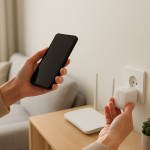
Smart Bulb Not Showing in Google Home: How to Fix Sync
Quick Answer
Most of the time, a smart bulb “not showing” in Google Home is a sync problem between Google Home and the bulb’s own ecosystem (the manufacturer app, a hub like Hue, a Matter controller, or a cloud account). The bulb may be working in its native app, but Google Home is still looking at an outdated device list, the wrong home/room, or a different linked account.
This is especially common after adding bulbs quickly, moving devices between rooms, changing Wi-Fi, replacing a router, switching from a hub to Matter, or when the manufacturer service has a brief cloud outage. Wi-Fi bulbs, Zigbee bulbs behind a hub (like Philips Hue), and Matter bulbs can all be affected because Google Home depends on a clean “device inventory” sync.
Do these three diagnostic actions first: (1) Confirm the bulb appears and is controllable in the manufacturer app or hub app; (2) In Google Home, pull down to refresh and also run “Sync my devices” in Google Assistant; (3) Verify you are signed into the same Google account and the same “Home” in Google Home where the device was added.
Why This Happens
Google Home doesn’t “discover” most smart bulbs directly in a simple, one-time way. It builds a device list based on what your linked services, hubs, and Matter controllers report. If that device list is stale, duplicated, filtered into a different home, or blocked by permissions, the bulb won’t appear where you expect.
Common root causes tied to sync and device inventory include:
(1) The bulb exists in the manufacturer ecosystem but Google Home hasn’t refreshed the device inventory. If the bulb was added recently, renamed, moved to a new room, or recovered after a power outage, Google can lag behind until a manual sync occurs.
(2) The bulb is linked to a different account or a different “Home” container. Many households have multiple Google accounts on phones, multiple homes (for example “Home” and “Vacation Home”), or multiple household members with separate device ownership. If the bulb was added under a different account, it may never appear for the account you’re currently using.
(3) Duplicate integrations or mixed control paths confuse the inventory. A real-world example: a Philips Hue bulb is exposed to Google Home both through the Hue cloud link and through a Matter bridge integration. Google may show duplicates, hide one, or keep the “wrong” one after changes. Similar conflicts happen when a bulb is added via both a hub integration and direct Wi-Fi pairing.
(4) A common user mistake is adding the bulb in the wrong place: pairing it in the manufacturer app but never completing the “Works with Google Home” linking step, or linking the service but not assigning devices to the correct home/room. Another frequent mistake is renaming devices in one app and expecting Google Home to instantly update without a sync.
(5) An overlooked technical cause is that the bulb is online locally but the cloud link is stale or rate-limited. Some ecosystems depend on cloud status for Google Home visibility. If the manufacturer’s cloud is temporarily degraded, devices may still work in the native app on the local network but not appear (or not update) in Google Home until the service recovers or the link is reauthorized.
Most Likely Causes in Real Homes
(1) Google Home is showing the wrong Home/room or you’re on the wrong Google account. Devices are there, just not where you’re looking.
(2) The manufacturer service link needs a manual sync or re-link. The bulb exists in the native app, but Google hasn’t refreshed the inventory.
(3) The bulb is offline in its own ecosystem (even if the light turns on). If the device is disconnected, Google won’t list it reliably.
(4) Duplicate integrations (hub + Matter, or cloud + local) created a conflict. Google may hide, merge, or mislabel devices.
(5) Network changes (new router, changed SSID, band steering, mesh changes) caused the bulb to re-register differently, and Google is still holding the old record.
Step-by-Step Fix
Confirm the bulb is online in its native app (or hub app) and note its exact name. What to do: Open the manufacturer app (TP-Link Kasa/Tapo, Philips Hue, Wiz, Nanoleaf, etc.) or hub app and check the bulb’s status. Try toggling it on/off from that app.
What the result means: If it won’t control from the native app, the problem is not Google Home sync yet; it’s device connectivity or hub status. If it controls fine, the issue is likely Google Home inventory sync, account selection, or a conflicting integration.
If it fails, try next: Power cycle the bulb (turn it off for 15 seconds, then on), confirm the hub (if any) is online, and make sure the bulb is not in “pairing mode” blinking state. Once it works in the native app, return to this list.
Verify you are in the correct Google Home and correct Google account. What to do: In Google Home, tap your profile icon and confirm the signed-in account. Then use the home selector (top of the app) to switch between any homes you have. Check “Devices” and also “Rooms.”
What the result means: If the bulb appears in a different home/room, it was added to the wrong container or moved by another household member. If it appears only for another family member, it may be owned by their linked service.
If it fails, try next: Ask the household member who set it up to open Google Home and check if the bulb is visible to them. If it is, have them share the home properly or re-link the service under the intended primary account.
Force a Google device inventory refresh (“Sync my devices”). What to do: Use Google Assistant (voice or typed) and say “Sync my devices.” Also pull down to refresh the Google Home app device list.
What the result means: If the bulb appears after syncing, the issue was stale inventory. If Google reports it synced but nothing changes, the link may be broken, filtered, or conflicted.
If it fails, try next: Continue to the service link check and reauthorization steps below.
Check the linked service connection in Google Home and reauthorize if needed. What to do: In Google Home, go to settings for “Works with Google” (or “Linked services”), find the manufacturer or hub integration, and check if it shows connected. If there’s a reconnect prompt, complete it.
What the result means: If reauthorization brings devices back, the cloud token or permissions expired. This is common after password changes, enabling two-factor authentication, or account migrations in the manufacturer app.
If it fails, try next: Remove the linked service from Google Home, then link it again. After relinking, run “Sync my devices” once more.
Look for duplicates or “ghost” devices caused by multiple integrations. What to do: In Google Home, search for the bulb name. Also check for a second copy with a slightly different name (for example “Bedroom Lamp” and “Bedroom Lamp 2”). If you recently enabled Matter on a hub/bridge, check whether the same lights are exposed twice.
What the result means: If you find duplicates, Google may be hiding one in a different room, or you may be controlling the wrong endpoint. This often looks like “not showing” when it’s actually misfiled or duplicated.
If it fails, try next: Decide on one control path. For hub-based systems, keep either the cloud link or the Matter link, not both, until everything is stable. Remove the duplicate integration, then sync devices again.
Run a quick room/location check and device type check. What to do: In Google Home, go to “Devices” and filter by “Lights.” Also check “Linked to you” vs household devices if your app version shows those views. Open the bulb’s settings if it appears anywhere and confirm it’s assigned to the right room.
What the result means: If it’s present but not in the room you expect, the issue is organization rather than connectivity. If it’s present but labeled incorrectly (for example as a “switch”), voice commands may fail even though it exists.
If it fails, try next: Rename the bulb in the manufacturer app first, then sync devices. Avoid special characters and very long names during troubleshooting.
Do a clean power cycle sequence (bulb, then hub/router if applicable). What to do: Turn the bulb off for 15 seconds and back on. If you use a hub (Zigbee bridge) or a router/mesh system, reboot the hub next, then the router last. Wait 3–5 minutes after everything is back.
What the result means: If the bulb returns after a clean restart, the issue was likely stale local discovery, a hub device list not fully updated, or a temporary cloud registration glitch.
If it fails, try next: Check the bulb’s status in the manufacturer app again. If it’s now offline there, focus on reconnecting it to the ecosystem before returning to Google Home.
Wi-Fi band and mesh behavior test (only if it’s a Wi-Fi bulb). What to do: Confirm your phone is on the same Wi-Fi network name as the bulb. If your router has separate 2.4 GHz and 5 GHz names, make sure the bulb is on 2.4 GHz (most Wi-Fi bulbs require it). If you use mesh, temporarily stand near the main router and retry discovery/sync.
What the result means: If the bulb appears only when you’re near the main router, the issue is often mesh steering, weak signal at the bulb, or the bulb attaching to a different node with unstable connectivity.
If it fails, try next: Move the bulb (or a lamp with the bulb) closer to the router for a test, or relocate a mesh node for better coverage. Then re-check the manufacturer app and re-run “Sync my devices.”
Hotspot isolation test to separate “device problem” from “home network problem” (Wi-Fi bulbs only). What to do: Create a temporary hotspot on a phone with a simple name and password. Reset network settings in the bulb’s manufacturer app flow only if the app supports moving Wi-Fi without a factory reset. Attempt to connect the bulb to the hotspot and see if it becomes visible in the manufacturer app.
What the result means: If it works on the hotspot but not on home Wi-Fi, your home network settings are the blocker (often client isolation, WPA3-only mode, or band steering). If it fails on both, the bulb may be stuck, misconfigured, or failing.
If it fails, try next: Revert the bulb back to your home Wi-Fi and proceed to Advanced Troubleshooting for network settings and account conflicts.
Group and automation sync test (when the bulb exists but “doesn’t show” in routines/groups). What to do: If the bulb appears as a device but not in a room group, scene, or routine, edit the group/routine and re-add the bulb. Also check schedules in the manufacturer app that might immediately turn it off or change its state.
What the result means: If re-adding fixes it, the device ID changed during a reconnect and your automations still point to the old record.
If it fails, try next: Delete the affected routine/group and recreate it with the current device entry. Then run “Sync my devices” once more.
Advanced Troubleshooting
This section is only needed if basic fixes fail.
Account or cloud issue: If the bulb works locally in the manufacturer app but never appears in Google Home even after relinking, check whether the manufacturer account shows the device as “shared” or “owned.” Some ecosystems restrict what shared users can expose to third-party platforms. Also confirm the manufacturer service isn’t having an outage; when cloud status is degraded, Google may not receive updated device inventory.
Network issue (relevant when devices frequently disappear): Look for router settings that block device-to-cloud or device-to-device communication: client/AP isolation, WPA3-only mode (some bulbs require WPA2), overly strict firewall rules, or frequent IP changes from aggressive DHCP lease settings. If devices vanish after router reboots, reserved IPs for hubs/bridges can reduce churn. For Zigbee hubs, ensure the hub itself has stable connectivity; bulbs behind the hub depend on the hub’s cloud link and local network stability.
Firmware/software cause: Update the Google Home app, Google Play services (on Android), and the manufacturer app. Also check for hub firmware updates (Hue bridge and similar). If the bulb recently updated firmware, it may briefly re-register and change its internal identifier, which can break existing Google Home references until a fresh sync or relink occurs.
Configuration conflict (groups, scenes, automation, permissions): If you migrated to Matter or added a Matter controller, avoid exposing the same lights through both Matter and the legacy cloud integration at the same time. If multiple household members manage devices, ensure everyone is added to the same Google Home with appropriate permissions. Conflicts often show up as devices appearing for one person but not another, or appearing only in certain rooms.
When to Reset or Replace the Device
Soft restart vs. factory reset: A soft restart is simply turning the bulb off and on (or using the app’s reboot option if available). A factory reset wipes the bulb’s pairing and network credentials and returns it to setup mode. Start with soft restarts and relinking services before factory resetting.
What you lose after a factory reset: You will typically lose the bulb’s Wi-Fi or hub pairing, its name, room assignment, scenes, and any device-specific settings stored on the bulb. You may also need to rebuild routines in Google Home if the bulb comes back as a “new” device entry.
When replacement is more likely than troubleshooting: If the bulb repeatedly drops offline in the manufacturer app across different networks, refuses to stay paired after resets, or becomes unresponsive even when powered, it may be failing. Also stop using the bulb if you notice overheating, a burning smell, visible damage, or flickering that started suddenly and persists across fixtures; in those cases, discontinue use and replace the bulb.
How to Prevent This in the Future
Keep the control path simple: Avoid linking the same lights to Google Home through multiple methods (for example, both a hub cloud link and a Matter link) unless you have a specific reason and understand how to manage duplicates.
Stabilize the “source of truth” app: Make changes (names, rooms, device removal) in the manufacturer/hub ecosystem first, then sync Google Home. This reduces mismatches where Google holds old device records.
Plan for power outages: After an outage, give hubs and routers time to fully boot before toggling lights repeatedly. Rapid power cycling can push some bulbs into pairing mode, which looks like “disappeared” devices later.
Manage automations carefully: If a bulb “vanishes” only from routines or groups, it’s often because the device ID changed after a reconnect. Periodically review routines, and if you migrate devices (new router, new hub, Matter migration), expect to rebuild a few automations.
Maintain firmware and app updates: Keep Google Home, the manufacturer app, and hub firmware updated. Many “not showing” issues are fixed by sync and compatibility updates, especially after platform changes.
FAQ
Why does the bulb work in its own app but not show in Google Home?
If the bulb works in the manufacturer app, the bulb is usually fine. That points to a Google Home sync or linking issue: the linked service needs a refresh, you’re in the wrong Google Home, or Google is still holding an old device inventory. Run “Sync my devices,” then check the linked service connection and reauthorize if needed.
Is this always a Wi-Fi problem?
No. This is a common misconception. Many cases are account and inventory sync problems, not signal strength. Zigbee bulbs behind a hub can disappear from Google Home even when the Zigbee network is healthy, and Matter devices can conflict if they’re added through multiple controllers. Always verify the bulb’s status in its native ecosystem first.
Why do I see duplicate bulbs or the bulb shows in the wrong room?
Duplicates usually mean the same light is being exposed to Google Home through more than one integration (for example, hub cloud link plus Matter). A bulb in the wrong room usually means it was assigned in a different home/room container or the device record changed after a reconnect. Remove duplicates by keeping one integration path, then sync devices and reassign rooms.
After changing my router, my bulbs disappeared from Google Home. What’s the fastest fix?
First confirm whether the bulbs are online in the manufacturer app. If they’re offline there, reconnect them to the new Wi-Fi (same SSID/password as before can help). If they are online in the manufacturer app but missing in Google Home, reauthorize the linked service and run “Sync my devices.” Router changes often leave Google holding old device records until the service refreshes.
Do I need to factory reset the bulb to make it appear again?
Not usually. Factory reset is best saved for cases where the bulb is offline in its native app and won’t reconnect, or when it’s stuck in a broken pairing state. If the bulb works in the native app, focus on Google Home: correct account/home selection, linked service reauthorization, duplicate integration cleanup, and a manual sync.
What’s left now is the quieter part: letting the dust settle without pretending the problem was ever mysterious. The noise fades, and the choices you already have start to feel plainly yours again.
There’s a kind of relief in that, even if it arrives in small, ordinary moments. You don’t have to be convinced—just present for what’s already clear.