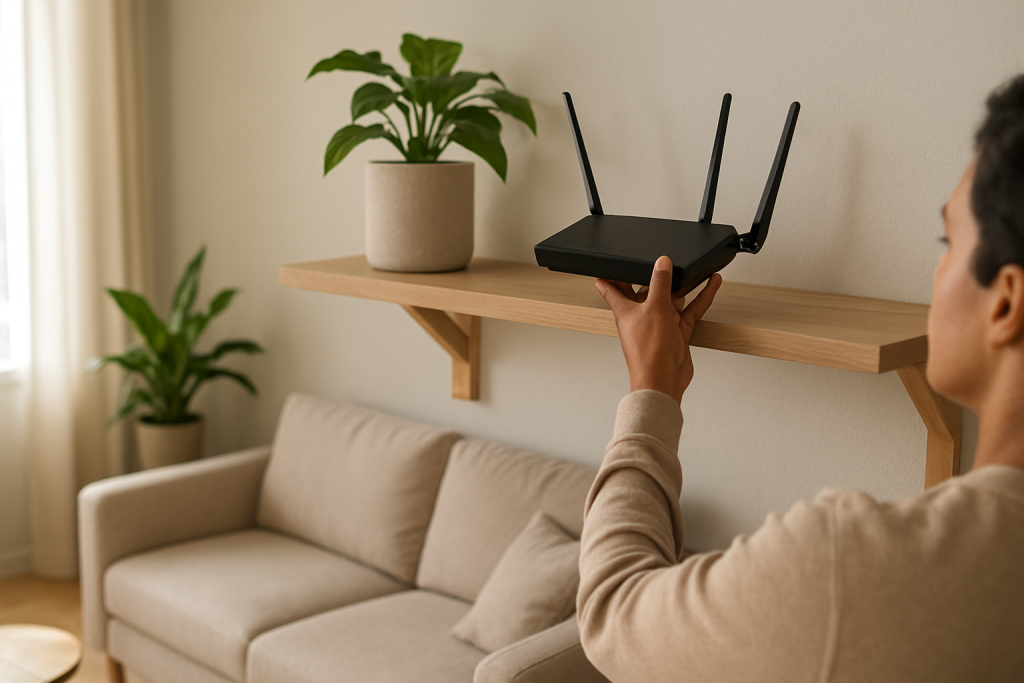
Learn practical steps to reduce WiFi dead zones by repositioning your router, adjusting antennas, and checking interference. Simple fixes to try before upgrading hardware.
Learn practical steps to reduce WiFi dead zones by repositioning your router, adjusting antennas, and checking interference. Simple fixes to try before upgrading hardware.
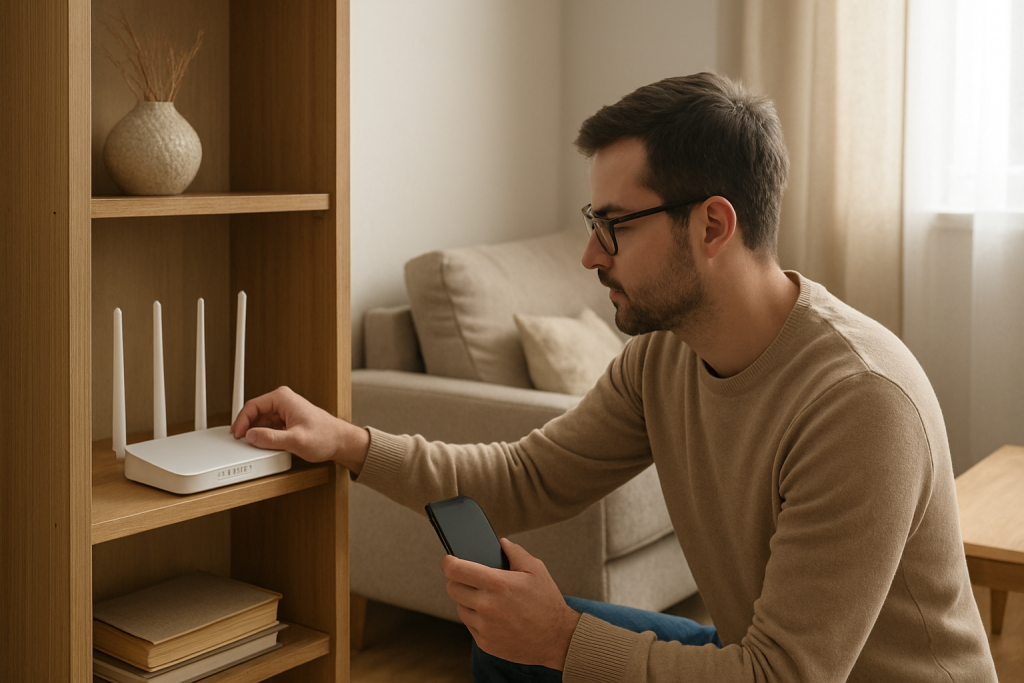
Learn common causes and practical fixes when one room has weak WiFi and smart devices fail due to signal attenuation. Simple checks and adjustments to improve coverage.
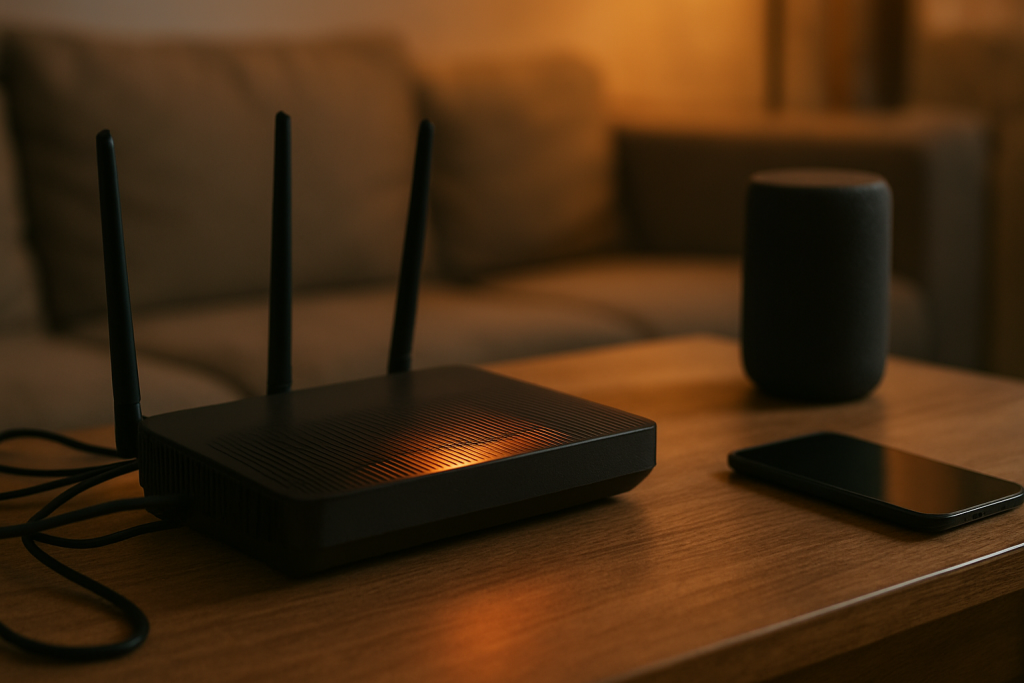
Learn common causes and practical fixes for a router that restarts because of overheating, and steps to prevent smart devices from losing connection.
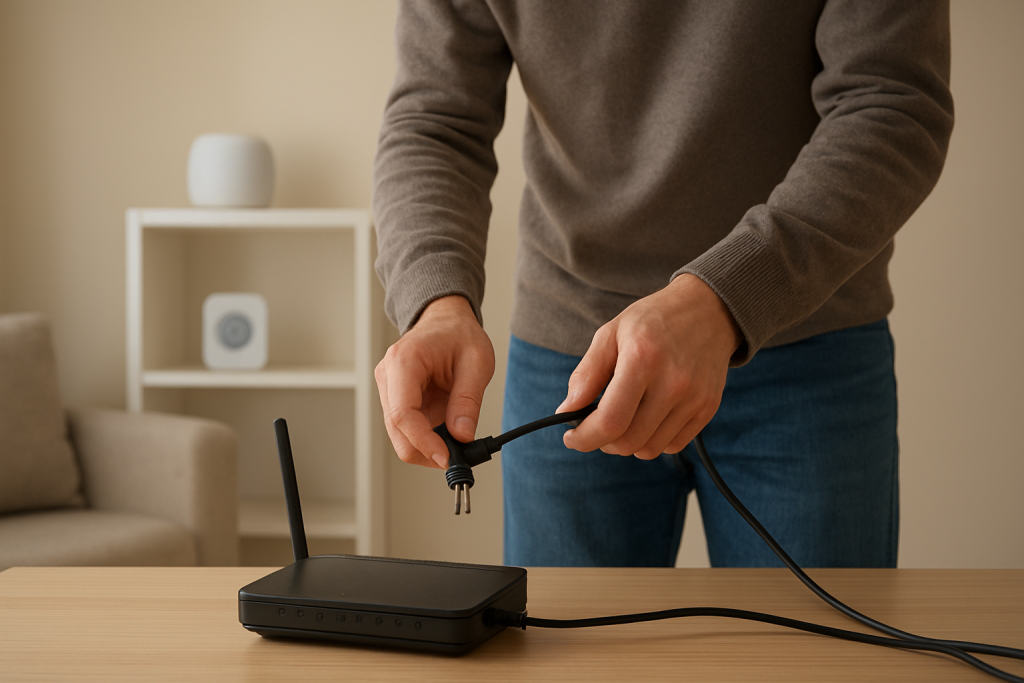
If your smart devices remain offline after power returns, check the router boot order, restart equipment in the right sequence, and verify device reconnection settings.
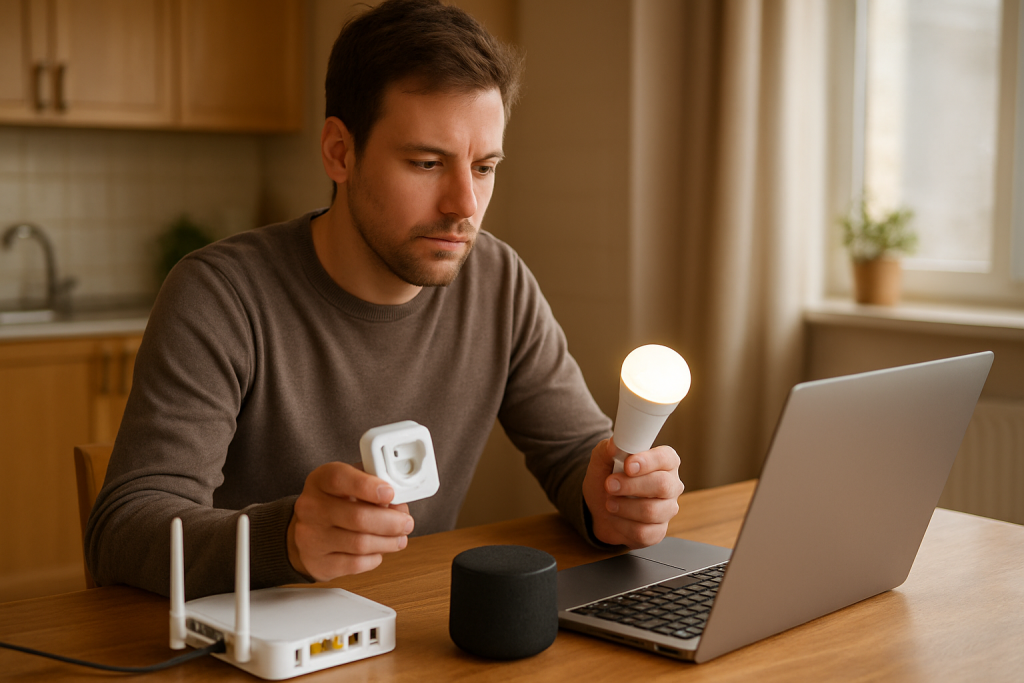
Learn common causes for smart devices disconnecting after a router firmware update and practical checks and fixes to get them back online in minutes.
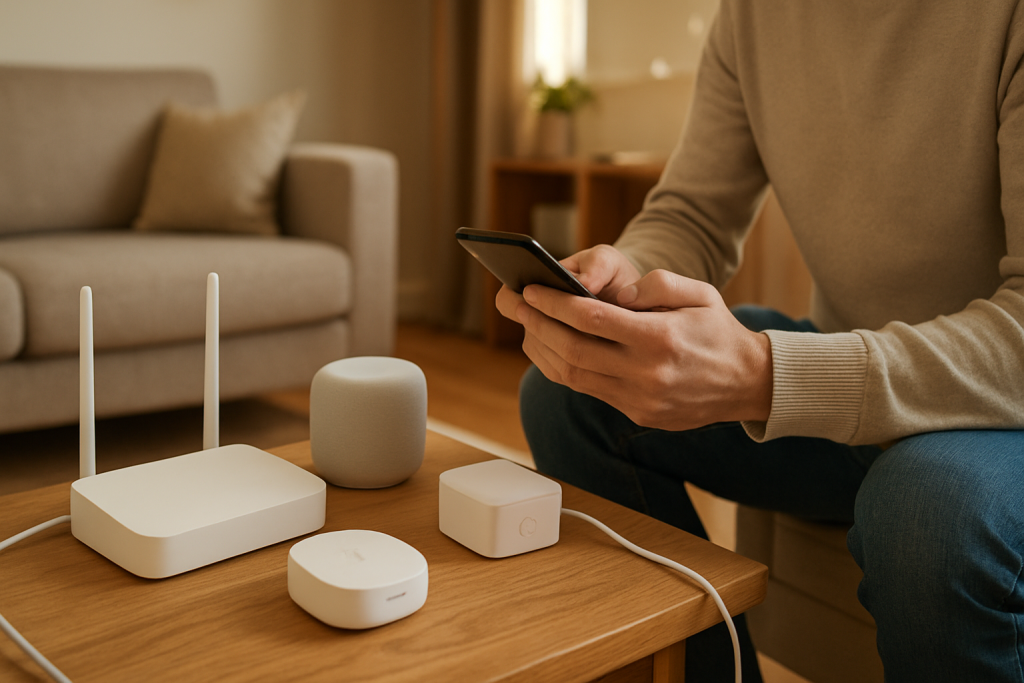
Learn practical steps to reconnect smart devices after you change your WiFi name or password. Covers credential mismatch cache, device resets, and router checks to restore connectivity.
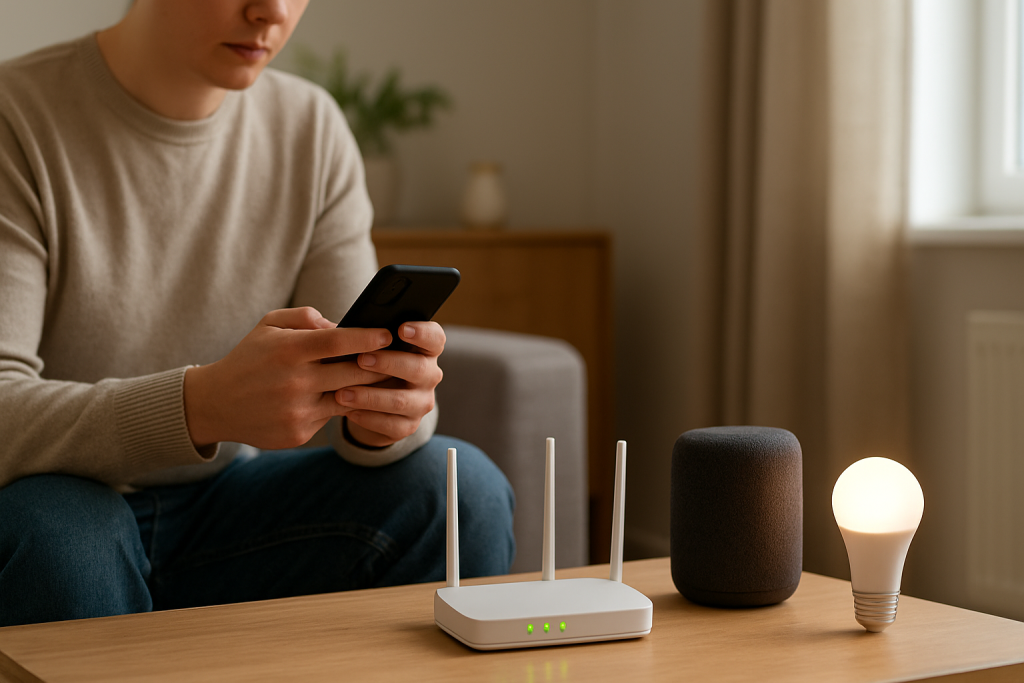
If your smart device can’t find your WiFi, check that your router’s SSID broadcast is enabled—hidden networks won’t show up during setup, so unhide it and try again.
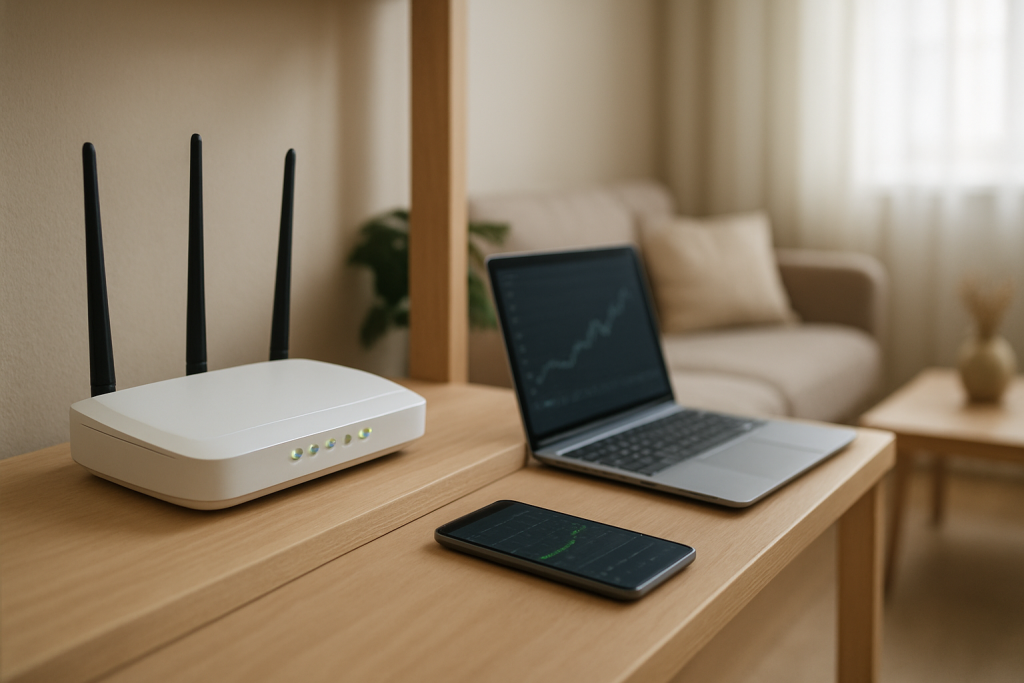
DFS channels let routers avoid radar signals but can trigger automatic channel switches, making your 5GHz network vanish. Learn how to disable DFS auto-switch or set fixed channels to keep WiFi stable.

After rebooting your router, your device may show “Connected without Internet” due to a DHCP lease failure; renewing the lease on your device or restarting the DHCP service in your router’s settings typically restores your connection.

Phones connect fine but smart devices stay offline; check if your router’s band steering is pushing everything onto 5 GHz, since many IoT gadgets only support 2.4 GHz.